
TL;DR:
- On-premise document management ensures that sensitive files stay within an organization's network, providing full control over data and access.
- It offers advantages like stronger security, offline availability, and tight integration with existing Windows infrastructure but requires careful management of hardware, updates, and disaster recovery.
On-premise document management is the right choice when your organization requires full control over where data lives, who can access it, and how it is processed. If your team handles sensitive PDFs, regulated records, or confidential contracts on Windows machines, keeping that processing local is not a preference — it is a requirement.
The short version:
- Control and data sovereignty. Your files never leave your network. No third-party server touches your documents.
- Trade-off: upfront cost and IT responsibility. You own the hardware, the patch schedule, and the disaster recovery plan.
- Immediate next step. Run the decision checklist in this guide before committing to any deployment.
Lawtonpdf is built for exactly this scenario: local-first PDF and document comparison on Windows, with no cloud processing involved.
Table of Contents
- What does "on-premise document management" mean for Windows teams?
- Why teams choose on-premise: security, control, and reliability
- Costs and trade-offs organizations often underestimate
- What technical infrastructure does a Windows deployment actually need?
- What compliance and security controls do you need to implement?
- Is on-premise right for you? A quick decision checklist
- What features should you require from on-premise document-management software?
- Lawtonpdf: a local-first PDF and document comparison tool for Windows
- How to roll out on-premise document management: a practical step-by-step plan
- Key Takeaways
- The case for local-first tools is stronger than most guides admit
- Lawtonpdf handles local document management without the cloud dependency
- FAQ
- Useful sources and further reading
What does "on-premise document management" mean for Windows teams?
On-premise document management means the software and all document data reside on servers inside your organization's network, managed entirely by your internal IT team. Nothing routes through a vendor's cloud. Your IT department handles installation, updates, backups, and security.
For Windows-based teams specifically, this usually means running software on Windows Server with SQL Server as the database backend, accessing files over SMB file shares on your LAN, and authenticating users through Active Directory or Azure AD. Performance on a local network is fast and predictable. Remote workers, however, need a VPN or a secure remote desktop gateway to reach the system from outside the office.
The key distinction from cloud solutions: you own the operational responsibility. A cloud vendor patches their servers. You patch yours.
Why teams choose on-premise: security, control, and reliability
The core benefits are concrete and decision-relevant:
- Data sovereignty. Documents never leave your infrastructure. This matters for HIPAA-covered health records, legal files, and financial contracts.
- Granular access controls. You define permissions at the folder, file, and user level, tied directly to your Active Directory groups.
- Deterministic LAN performance. No bandwidth throttling, no latency spikes from a shared cloud environment.
- Offline availability. The system keeps working during internet outages.
- Legacy app integration. On-premise DMS solutions integrate tightly with existing Windows infrastructure, SQL Server databases, and on-prem ERP or CRM systems.
Local processing is especially valuable for sensitive document comparison workflows. When you compare two versions of a legal contract or a patient record, that content should never pass through an external server. Audit trails generated locally are also easier to control for immutability and retention.
Pro Tip: Before committing to on-premise, audit three things: your current backup automation status, your patch schedule cadence, and whether your IT team has documented DR procedures. If any of these are informal or ad hoc, address them before deployment.
Costs and trade-offs organizations often underestimate
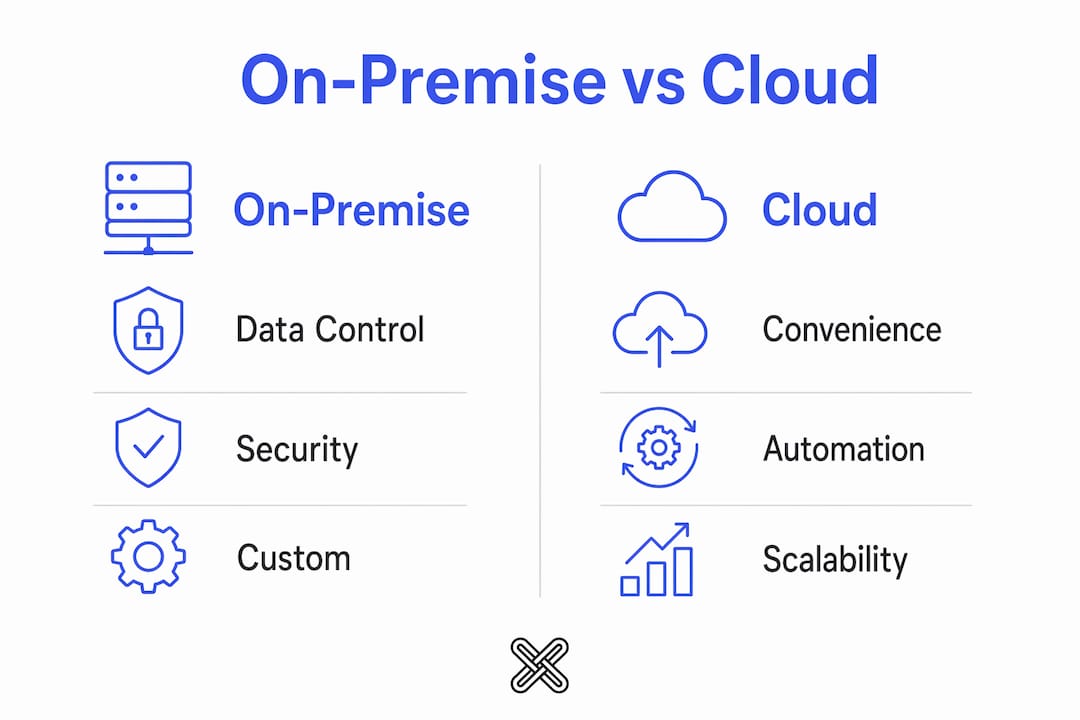
On-premise is not simply "cheaper than cloud." The CapEx vs. OpEx comparison is more nuanced than it first appears.
| Attribute | On-Premise | Cloud |
|---|---|---|
| Cost model | Upfront CapEx (hardware, licenses) + ongoing IT labor | Predictable monthly OpEx subscription |
| Maintenance | Internal IT owns patching, updates, hardware refresh | Vendor managed |
| Scalability | Requires hardware procurement lead time | Elastic, near-instant |
| Security ownership | Your team's responsibility | Shared model with vendor |
| Remote access | Requires VPN or remote desktop gateway | Native browser/app access |
Beyond the table, several costs catch organizations off guard:
- Hardware refresh cycles every 3–5 years
- Power, cooling, and physical rack space
- Staff time for monthly patching, annual DR testing, and backup verification
- Offsite backup replication (tape or cloud-based cold storage)
- Licensing for the OS, database engine, and antivirus on the server
Records management consultants consistently flag that organizations underestimate the ongoing commitment to software updates, hardware lifecycle management, and DR testing. Some teams adopt a hybrid model later precisely because they did not budget for these tasks upfront.
What technical infrastructure does a Windows deployment actually need?
| Component | Recommendation |
|---|---|
| Server OS | Windows Server (supported, current security patches) |
| Database | SQL Server or PostgreSQL for compatible DMS platforms |
| Storage | RAID-configured local storage with a minimum of one offsite backup target |
| Virtualization | Hyper-V or VMware vSphere for snapshot-based recovery |
| Authentication | Active Directory with group policy; Azure AD for hybrid identity |
| Remote access | Site-to-site VPN or RD Gateway for remote users |
| Backup | Automated daily backups; tested RTO under 4 hours, RPO under 24 hours |

Integration priorities for Windows teams include Active Directory for single sign-on, SMB file shares for legacy document access, Exchange/Outlook for email-based document capture, and connector-based links to ERPs such as SAP or Microsoft Dynamics. Planning VPNs and remote desktop gateways early prevents productivity bottlenecks once remote staff need access.
What compliance and security controls do you need to implement?
A LogicMonitor survey found that 66% of IT professionals cited security as their top concern when migrating to the cloud. On-premise addresses that concern, but only when you enforce the right controls manually.
Required controls for U.S. regulated environments:
- Encryption at rest. Use BitLocker for full-disk encryption on Windows Server or file-level encryption for the document repository.
- Encryption in transit. TLS 1.2 or higher for all client-server communication.
- Role-based access control (RBAC). Least-privilege permissions tied to AD groups.
- Audit logging. Timestamped, immutable logs of every document access, edit, and deletion. Retain these logs per your compliance framework (HIPAA requires a minimum of six years for certain records).
- Secure, tested backups. Backups that have never been tested are not backups.
- Patch management. Industry data suggests roughly 60% of cyberattacks exploit systems where current security patches have not been applied.
For HIPAA-covered entities, on-premise alone does not guarantee compliance. You still need a Business Associate Agreement process, documented access controls, and a breach notification procedure. See the HIPAA-compliant document management guide for a full control checklist.
Is on-premise right for you? A quick decision checklist
Answer these questions before committing:
- Does your industry require data to stay within your physical infrastructure (healthcare, defense, finance)?
- Do you have existing server hardware with capacity to spare?
- Does your IT team have documented patch and backup procedures?
- Can your staff handle DR testing at least annually?
- Do you have budget for a hardware refresh within 5 years?
- Are most of your users on-site, or do many work remotely full-time?
If you answered "no" to two or more of the IT-capacity questions, a hybrid model, where active documents stay on-premise and archival records move to a managed offsite or cloud tier, may be a better starting point. Legacy platforms with constraints that make cloud migration impractical are a clear case for staying on-premise.
What features should you require from on-premise document-management software?
For Windows teams focused on PDF and document comparison, the feature checklist should include:
- Local PDF comparison with side-by-side redline output
- Text, code, image, and folder comparison for multi-format workflows
- Version control with named versions and rollback
- Detailed audit logs with user, timestamp, and action recorded
- Active Directory / SSO integration for centralized user management
- Local license management with no phone-home requirement
- Password protection and encryption for individual files
- Merge, split, rotate, and extract for PDF organization
When evaluating vendors, ask: Where does document processing happen? Can the software run unattended on a Windows Server? What is the patch release cadence? Does it support local backup without a cloud dependency? Teams comparing local tools should also review WinMerge alternatives to understand what the Windows comparison tool category offers beyond basic text diffing.
Lawtonpdf: a local-first PDF and document comparison tool for Windows
Lawtonpdf checks every item on the feature list above. All processing runs locally on your Windows machine — no document content is sent to any external server.
Core capabilities:
- PDF comparison with detailed change highlighting
- Side-by-side comparison for Word documents, text files, spreadsheets, images, and entire folders
- PDF tools: merge, split, organize, extract pages, rotate, flatten, watermark, password protect, and unlock
- Team administration with centralized license management for multi-user deployments
Lawtonpdf fits naturally into legal review workflows, healthcare records audits, and secure finance document processes where sending files to a cloud service is not an option. The free PDF tools let your team evaluate local processing before purchasing. Licensing tiers cover individuals, small teams, and larger business deployments.
How to roll out on-premise document management: a practical step-by-step plan
Phase 1: Assessment (Weeks 1–2) IT audits current infrastructure, storage capacity, and AD configuration. Compliance reviews regulatory requirements. Business units document their document workflows and volume.
Phase 2: Pilot (Weeks 3–6) Deploy to a single team or department. Scope the pilot to one document type (e.g., contracts or invoices). Validate AD integration, backup automation, and audit log capture.
Phase 3: Security hardening (Week 7) Apply RBAC policies, confirm encryption at rest and in transit, run a simulated DR test, and verify backup restoration works end-to-end.
Phase 4: Staged rollout (Weeks 8–12) Expand department by department. IT monitors performance and patch status. Compliance spot-checks audit logs.
Phase 5: Training and change management (Weeks 10–13) Run role-specific training sessions. Provide quick-reference guides for common tasks. Assign a go-to contact per department for first-line support questions. Document data leakage prevention procedures as part of onboarding.
Ongoing operations: Schedule quarterly patch windows, annual DR tests, and semi-annual user access reviews. Track hardware age against your refresh budget.
Key Takeaways
On-premise document management delivers real security and control, but only when your IT team has the capacity and discipline to maintain it properly.
| Point | Details |
|---|---|
| Data sovereignty is the primary driver | On-premise keeps all documents inside your network, with no third-party server processing. |
| TCO includes more than licensing | Budget for hardware refresh, IT labor, power, backup storage, and annual DR testing. |
| Patching is non-negotiable | Roughly 60% of cyberattacks exploit unpatched systems — a documented patch schedule is required. |
| Run the checklist before committing | If your IT team lacks documented backup and DR procedures, address those gaps first. |
| Lawtonpdf for local PDF workflows | Lawtonpdf processes all PDF comparison and management tasks locally on Windows, with no cloud dependency. |
The case for local-first tools is stronger than most guides admit
Most comparisons of on-premise versus cloud document management treat the decision as purely financial. That framing misses the point for regulated industries. When you work with healthcare records, legal contracts, or financial documents, the question is not "which model costs less per month?" It is "who has physical and logical control over this data?"
Cloud vendors offer convenience and automated patching, and those are real advantages. But convenience is not the priority for a compliance officer reviewing HIPAA audit logs or a legal team comparing two versions of a settlement agreement. For those teams, the value of local processing is not theoretical. It is the difference between a document that stayed inside your network and one that passed through infrastructure you do not control.
The honest caveat: on-premise only delivers on that promise when your IT team treats it as an active responsibility, not a one-time installation. Pilot before you commit. Test your DR procedures before you need them. And choose tools, like Lawtonpdf, that process locally by design rather than as an afterthought.
Lawtonpdf handles local document management without the cloud dependency
If your team needs secure, local-first PDF tools on Windows without routing files through a third-party server, Lawtonpdf is built for that exact workflow. Every comparison, merge, split, and protection task runs on your machine.

The free Windows PDF tools give you a no-commitment way to test local processing before rolling out to your team. For larger deployments, Lawtonpdf offers business licensing tiers with centralized administration. Visit lawtonpdf.com to review licensing options or contact the team directly about enterprise rollouts.
FAQ
What is on-premise document management?
On-premise document management means your document software and all stored files reside on servers inside your own network, managed by your internal IT team, with no cloud processing involved.
Is on-premise document management HIPAA compliant?
On-premise can meet HIPAA requirements, but the system itself does not guarantee compliance. You must implement encryption, role-based access, immutable audit logs, and documented breach procedures to satisfy HIPAA controls.
How does Lawtonpdf support on-premise workflows?
Lawtonpdf processes all PDF comparison, merging, splitting, and protection tasks locally on your Windows machine. No document content is sent to an external server, making it suitable for regulated and privacy-sensitive workflows.
What is the biggest hidden cost of on-premise document management?
IT labor is typically the most underestimated cost: patching, backup verification, DR testing, and hardware lifecycle management add up to significant staff hours annually beyond the initial licensing and hardware investment.
When should a team choose cloud over on-premise?
Choose cloud when your IT team lacks the capacity for proactive patch management and DR testing, when most users work remotely full-time, or when your compliance framework does not require data to remain on your own infrastructure.
Useful sources and further reading
Internal resources (start here):
- HIPAA-compliant document management solutions — compliance controls and hybrid adoption patterns
- Prevent data leakage in regulated industries — operational controls and user training
- WinMerge alternatives for document comparison — local comparison tool evaluation for Windows teams
- Adobe Acrobat alternatives — migration guidance for teams switching to local-first PDF tools
- How to password protect a PDF — local PDF security workflow guide
External references:
- Gartner Peer Insights: Document Management — vendor-neutral reviews across on-premise and cloud DMS platforms
- Docuvault: Onsite vs. Offsite Document Storage — practical storage decision framework for compliance-driven teams
- OfficeZentral: Organizing electronic files — process guidance for regulated back-office document workflows (partner resource)