
Password protecting a PDF means encrypting the document so only authorized users with the correct password can open it or perform specific actions. The PDF specification defines two distinct password types: a user (open) password that controls access to the file, and a permissions (owner) password that governs what readers can do once inside. Strong protection requires AES-256 encryption, the current gold standard recognized under ISO 32000-2. Whether you’re securing a contract, a financial report, or a client proposal, understanding how to lock a PDF correctly keeps your sensitive documents out of the wrong hands.
What types of passwords and permissions can you set on a PDF?
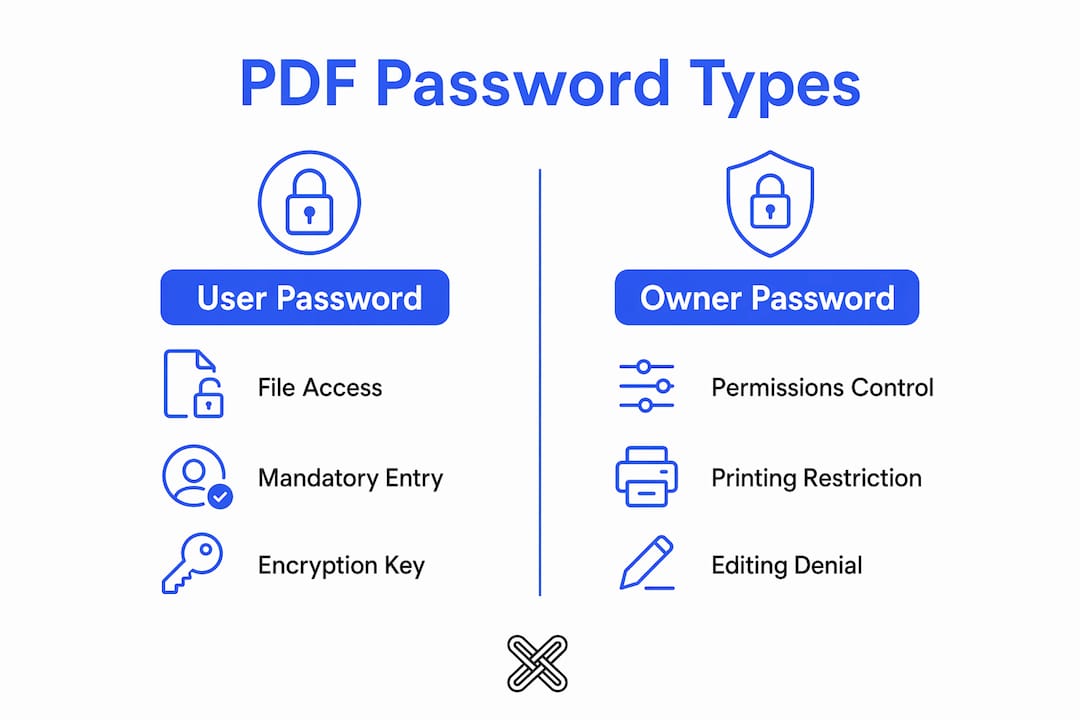
Two password types govern PDF security, and they serve different purposes. Knowing which one you need prevents under-protecting or over-complicating your files.
The user (open) password controls who can open the file at all. Anyone without this password sees only an entry prompt. This is the right choice when you need to restrict access entirely, such as sharing a confidential report with a specific colleague.
The permissions (owner) password controls what a reader can do after opening the file. You can apply it alone or combine it with a user password for layered security. The seven main permissions categories you can restrict or allow are:
-
Printing: Allow full-quality printing, low-resolution printing, or none at all.
-
Copying: Prevent readers from copying text or images to the clipboard.
-
Modifying: Block edits to the document’s content.
-
Annotating: Restrict the ability to add comments or markup.
-
Filling forms: Control whether readers can complete form fields.
-
Accessibility extraction: Manage text extraction for screen readers.
-
Assembling pages: Prevent inserting, rotating, or deleting pages.
One critical point: permissions enforcement depends entirely on the PDF viewer. A compliant viewer like Adobe Acrobat Reader respects these flags. A non-compliant viewer may ignore them. Permissions are a strong deterrent, not an absolute lock. For content you need to truly protect from copying, combine permissions with a user password and consider adding a watermark as a secondary layer.
Which encryption standards ensure strong PDF password security?
AES-256 encryption, defined in ISO 32000-2, is the most secure standard available for PDF files today. It uses a 256-bit key derived through a salted, iterative hash chain, which makes brute-force attacks computationally expensive. RC4, an older algorithm used in earlier PDF versions, is cryptographically broken and should never be used for any new document.
The strength of your encryption also depends on the password itself. Password cracking tools can test millions of combinations per second against PDFs protected with weak passwords. A short, common word offers almost no real protection even with AES-256 in place.
Use a password of at least 12 characters that combines uppercase letters, lowercase letters, numbers, and symbols. A password like “Tr0ub4dor&3!” is exponentially harder to crack than “password123” — even when the underlying encryption is identical.
Pro Tip: Store your PDF passwords in a dedicated password manager like Bitwarden or 1Password. Never save them in a plain text file or email thread.
AES-256 also uses CBC (Cipher Block Chaining) mode to encrypt PDF content streams. This means each block of encrypted data depends on the previous one, so attackers cannot simply target isolated sections of the file. The combination of a strong algorithm and a strong password is what makes encrypted PDF documents genuinely secure.
How to password protect a PDF on different platforms
The method you use depends on your operating system and your comfort level with tools. Each approach below applies AES-256 encryption when configured correctly.

On a Mac using Preview
Mac users have a built-in option that requires no third-party software. Mac Preview applies AES encryption directly through the export dialog.
-
Open your PDF in Preview.
-
Go to File > Export as PDF.
-
Click Show Details in the save dialog.
-
Check the Encrypt box.
-
Enter and confirm your password.
-
Click Save.
The resulting file is AES-encrypted and requires the password to open. Preview does not offer a separate permissions password, so use this method when access control is your primary goal.
On Windows using a browser-based local tool
Windows does not include a built-in PDF password tool, but browser-based options that process files locally are a strong alternative. Client-side browser tools run entirely on your device. Your file and password never leave your computer, unlike cloud-based services that upload documents to remote servers.
-
Open the tool in your browser (confirm it states “no upload” or “local processing”).
-
Select your PDF file.
-
Enter a user password, a permissions password, or both.
-
Choose which permissions to restrict.
-
Click Protect or Encrypt.
-
Download the secured file.
Pro Tip: Open your browser’s Developer Tools (F12), go to the Network tab, and watch for outgoing requests while encrypting. Zero upload requests confirm your file stayed local.
You can verify local processing this way for any browser-based tool before trusting it with sensitive documents.
| Method | Platform | Encryption | Permissions control | File upload required |
|---|---|---|---|---|
| Mac Preview | macOS | AES | No | No |
| Browser-based local tool | Any | AES-256 | Yes | No |
| Cloud-based Services | Any | Varies | Varies | Yes |
Cloud-based services are the least recommended option for sensitive documents. Many upload your file to a remote server, and their encryption standards vary widely.
Common mistakes when password protecting PDFs
Most security failures come from predictable errors, not from flaws in the encryption itself. Knowing what to avoid saves you from a false sense of security.
-
Using a weak password. AES-256 is only as strong as the password protecting it. A six-character password is crackable in minutes with modern tools.
-
Printing to PDF instead of encrypting. Printing a document to PDF creates a new, unprotected file. This does not set a password or apply any encryption.
-
Assuming permissions prevent screenshots. Password protection does not stop screenshots, photos, or screen capture software. Once a file is open, its visible content can be captured. Watermarking is a more reliable deterrent for copy prevention.
-
Forgetting the password. Encrypted PDFs cannot be altered or re-encrypted without the existing password. If you lose it, the file is effectively locked permanently. Use a password manager from the start.
-
Using non-ASCII characters in passwords. Some PDF viewers handle special characters inconsistently. Stick to standard alphanumeric characters and common symbols to avoid cross-platform password errors.
-
Not testing the protected file. Always open the encrypted file in a fresh session to confirm the password prompt appears and restrictions are active.
Pro Tip: After encrypting, try to copy text or print from the file using a standard PDF viewer. If the action is blocked, your permissions are working correctly.
Modifying or removing a password on an already protected PDF always requires supplying the current password first. This prevents unauthorized changes to access controls, but it also means there is no recovery path if the password is lost.
How to verify and maintain the security of your protected PDFs
Applying a password is step one. Confirming it works correctly is step two. Many professionals skip verification entirely and later discover their protection was misconfigured.
-
Check encryption details in your PDF reader. In Adobe Acrobat Reader, go to File > Properties > Security to see the encryption algorithm in use and which permissions are active. Confirm it shows AES-256, not RC4.
-
Test restricted actions. Try printing, copying text, and editing the file. A correctly configured permissions password blocks these actions in compliant viewers.
-
Monitor network activity for browser tools. Use the browser’s Developer Tools Network tab to confirm zero file uploads occurred during encryption.
-
Rotate passwords regularly. For long-lived documents shared with multiple parties, update the password periodically and redistribute the file.
-
Use a password manager for storage. Storing passwords in a dedicated manager prevents the most common failure mode: forgetting the password to your own file.
-
Share passwords through a separate channel. Never send the password in the same email as the protected file. Use a phone call, a separate messaging app, or a secure link.
Understanding the limits of permissions enforcement across different viewer applications is also worth your time. A permissions password respected by Adobe Acrobat Reader may be ignored by a non-compliant viewer. AES-256 encryption on the user password is the only control you can fully rely on across all platforms.
Key takeaways
Securing a PDF requires AES-256 encryption, a strong 12-plus-character password, and a tool that processes files locally without uploading them to a remote server.
| Point | Details |
|---|---|
| Two password types | User passwords control file access; permissions passwords control what readers can do inside. |
| AES-256 is the standard | ISO 32000-2 defines AES-256 as the required encryption level; avoid any tool using RC4. |
| Strong passwords matter | A 12-plus-character password with mixed cases, numbers, and symbols resists brute-force attacks. |
| Local processing protects privacy | Browser-based and offline tools that never upload files are the safest choice for sensitive documents. |
| Always verify protection | Test the encrypted file by attempting restricted actions before sharing it with anyone. |
Why I think most people are protecting their PDFs wrong
Most guides tell you to grab the first online tool you find, drag your file in, and call it done. That advice is fine for a grocery list. It is not fine for a contract, a tax document, or a client report.
The part that gets skipped almost every time is the upload question. A large portion of free online PDF tools send your file to a remote server to process it. You get back an encrypted PDF, but your original content already traveled somewhere you did not control. The encryption you applied protects the file going forward. It does not undo what happened during processing.
Client-side encryption solves this. When the tool runs in your browser using a library like pdf-lib, or runs locally on your machine like qpdf, your file never leaves your device. That distinction matters far more than which tool has the nicest interface.
The second thing I see professionals get wrong is treating permissions as a security guarantee. Permissions flags are a courtesy signal to compliant viewers. They are not a technical barrier. If your goal is truly preventing someone from copying your content, a permissions password alone will not get you there. Combine it with a user password and add a visible watermark. That combination raises the practical barrier significantly.
Finally, the password itself is where most protection actually fails. AES-256 with a weak password is not meaningfully more secure than a locked door with a key under the mat. Treat your PDF passwords the same way you treat your banking credentials. Use a password manager, make the password long and complex, and never reuse it across files.
Lawtonpdf keeps your PDF encryption fully offline
Lawtonpdf is a Windows application built for professionals who need to protect documents without sending them anywhere. Every operation, including password protection, runs locally on your machine. Your files stay on your device from start to finish.
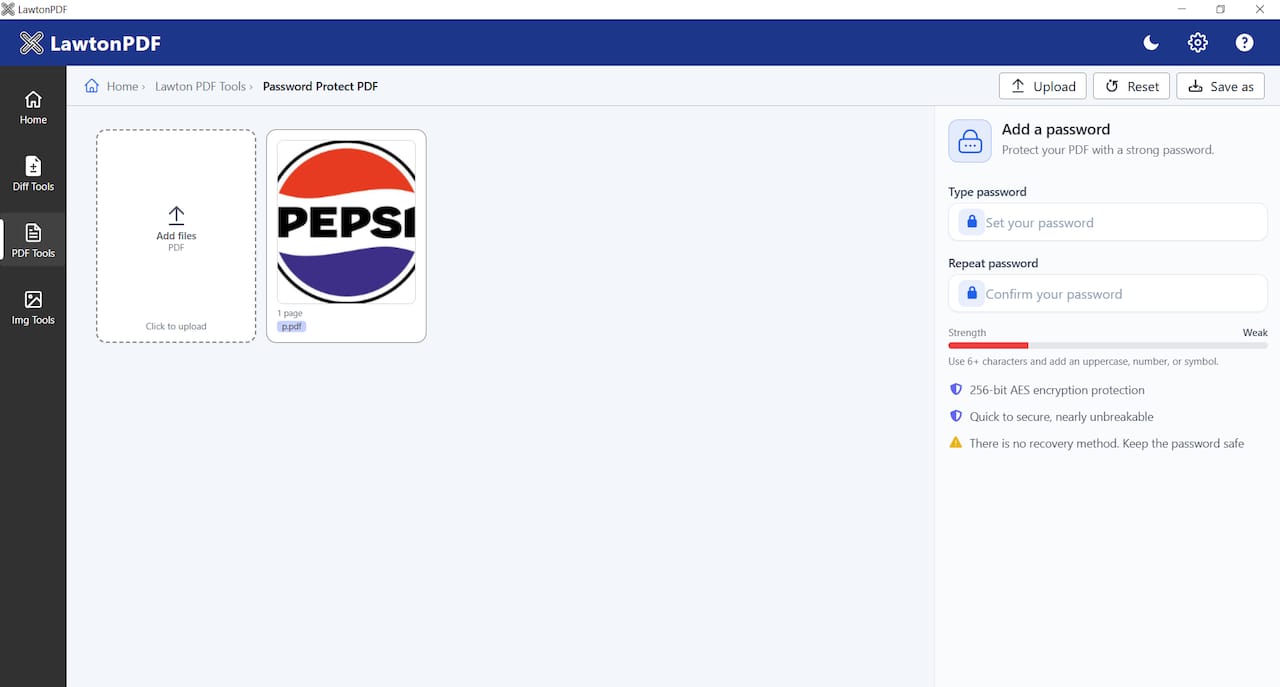
With Lawtonpdf, you can apply strong encryption, set permissions, watermark documents, and manage your PDF library without a subscription to a cloud service or a file size limit imposed by a remote server. The free PDF tools cover the full range of document security tasks, from protecting new files to unlocking ones you already own. If you work with sensitive documents regularly, offline processing is not a preference. It is the right standard.
FAQ
What is the difference between a user password and an owner password?
A user (open) password prevents anyone from opening the PDF without entering it. An owner (permissions) password restricts actions like printing, copying, and editing without blocking file access entirely.
Does password protecting a PDF prevent screenshots?
No. Password protection does not stop screenshots or screen capture once the file is open. Watermarking is a more reliable method for discouraging unauthorized copying of visible content.
What encryption standard should I use for a PDF password?
Use AES-256, defined in ISO 32000-2 as the current security standard. Avoid any tool that uses RC4, which is cryptographically broken and no longer considered secure.
Can I change the password on a protected PDF?
Yes, but you must supply the current password first. Encrypted PDFs require the existing password before any modification or re-encryption is possible, which prevents unauthorized access control changes.
How do I know if an online PDF tool is safe to use?
Open your browser’s Developer Tools, go to the Network tab, and watch for outgoing requests while the tool processes your file. Zero upload requests confirm the tool is running locally and your file has not been sent to a remote server.