
What are the best Adobe Acrobat alternatives in 2026?
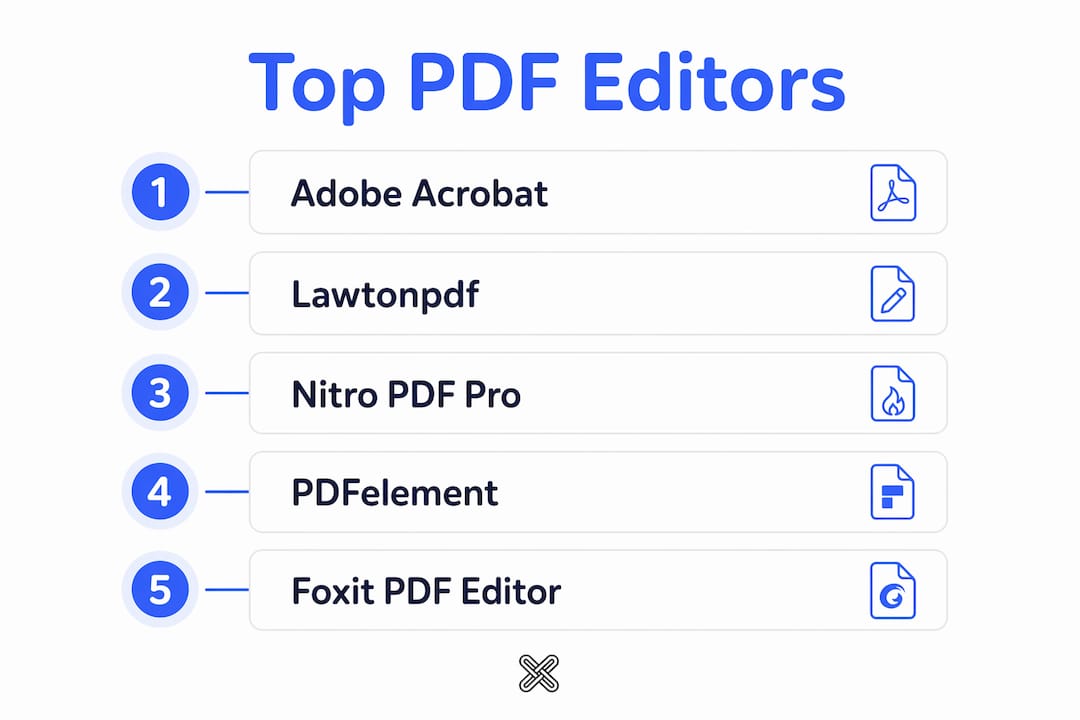
The top Adobe Acrobat alternatives in 2026 are Lawtonpdf, Nitro PDF Pro, PDFelement, Foxit PDF Editor, SmallPDF, DocHub, PDF24, and Open PDF Studio. Each one covers the core PDF editing needs most users have, from annotation and form handling to OCR and secure document management, without requiring a Creative Cloud subscription.
Here is a quick overview of where each tool stands:
- Lawtonpdf — Windows-based, local-first PDF management and advanced document comparison. No cloud processing. Best for privacy-conscious professionals and regulated industries.
- Nitro PDF Pro — Full-featured desktop PDF editor for Windows and macOS with strong editing, OCR, and e-signature tools. A well-regarded acrobat pro alternative for business users.
- PDFelement — Cross-platform editor with AI-assisted tools, form creation, and batch processing. Available on Windows, macOS, iOS, and Android.
- Foxit PDF Editor — Feature-rich editor with a familiar ribbon interface, strong annotation tools, and solid security controls. Windows and macOS.
- SmallPDF — Browser-based tool focused on simplicity. Good for occasional users who need quick conversions, merges, or compressions without installing software.
- DocHub — Cloud-based PDF editor built around signing, form filling, and Google Drive integration. Suited for teams that live in Google Workspace.
- PDF24 — Free desktop and web tool for Windows with a broad set of PDF utilities. Practical for casual users who want no-cost options.
- Open PDF Studio — Free, open-source desktop editor with professional annotation, redaction, and measurement tools. Runs on Windows, macOS, Linux, and Android with no telemetry.
The right choice depends on your workflow. If you handle sensitive documents and need everything processed locally, Lawtonpdf and Open PDF Studio stand apart from cloud-dependent tools. If you need broad platform coverage and AI features, PDFelement and Foxit are strong contenders. For lightweight, occasional use, SmallPDF, DocHub, and PDF24 cover the basics without a steep learning curve.
Table of Contents
- How do these PDF editor options compare on features, pricing, and platforms?
- In-depth reviews of each Adobe Acrobat alternative
- How do you choose the best PDF editor for your needs?
- Why Lawtonpdf is a strong choice for secure, offline PDF management
- Lawtonpdf gives you secure PDF tools without the cloud dependency
- Key Takeaways
How do these PDF editor options compare on features, pricing, and platforms?
Choosing among these tools comes down to three practical factors: what features you actually need, which platforms you work on, and what you are willing to pay. The table below lays out the key differences across all eight alternatives.
| Tool | Key Features | Platform | Pricing Model | Pros | Cons | Best Use Case |
|---|---|---|---|---|---|---|
| Lawtonpdf | PDF merge, split, organize, extract, rotate, flatten, watermark, protect, unlock; advanced multi-format comparison (PDF, Word, text, images, spreadsheets, folders); local processing only | Windows | Subscription (per-user tiers); free limited version | Full local processing, no cloud upload, strong privacy, advanced comparison | Windows only | Privacy-sensitive professionals, regulated industries, document comparison workflows |
| Nitro PDF Pro | Full editing, OCR, e-signatures, form creation, batch processing, cloud collaboration | Windows, macOS | Subscription or perpetual license | Polished interface, strong OCR, good business integrations | Higher price point | Business users needing full-featured desktop editing |
| PDFelement | AI-assisted editing, OCR, form creation, batch processing, annotation, redaction | Windows, macOS, iOS, Android | Subscription or one-time purchase | Cross-platform, AI tools, competitive pricing | AI features require cloud connection | Teams needing cross-platform access with AI tools |
| Foxit PDF Editor | Content editing, annotation, redaction, form handling, e-signatures, permissions | Windows, macOS | Subscription or perpetual license | Feature-rich, familiar interface, solid security controls | Can feel heavy for casual users | Power users replacing Acrobat DC |
| SmallPDF | Convert, compress, merge, split, e-sign, annotate | Web (browser-based), iOS, Android | Freemium; paid subscription | No installation needed, very easy to use | Files processed on cloud servers, limited offline use | Occasional users, quick one-off tasks |
| DocHub | Form filling, e-signatures, annotation, Google Drive integration | Web, iOS, Android | Freemium; paid subscription | Excellent Google Workspace integration, simple UI | Limited advanced editing, cloud-dependent | Teams using Google Workspace for document signing |
| PDF24 | Merge, split, compress, convert, OCR, protect, watermark | Windows (desktop), Web | Free (desktop and web); paid web plan | Broad feature set at no cost, desktop app available | Interface feels dated, some features web-only | Budget-conscious users needing basic PDF utilities |
| Open PDF Studio | Annotation, markup, redaction, measurement, form tools | Windows, macOS, Linux, Android | Free, open-source | No telemetry, no subscription, multi-platform | Smaller support community, less frequent updates | Privacy-focused users on multiple operating systems |
A few patterns stand out. Cloud-based tools like SmallPDF and DocHub are the easiest to start with, but every file you process passes through their servers. That is a real concern if you work with contracts, medical records, financial statements, or any document subject to confidentiality requirements. Local-first tools, including Lawtonpdf and Open PDF Studio, keep your files on your device at every step.
On pricing, the gap between Adobe Acrobat Pro and most of these alternatives is significant. Adobe Acrobat Pro costs $239.88 per year according to PCWorld's 2026 pricing data. Most alternatives come in well below that, and several offer perpetual license options that eliminate recurring costs entirely.
Platform coverage is another dividing line. If you work across Windows, macOS, and mobile, PDFelement and Foxit give you the most flexibility. If you are Windows-only and prioritize security, Lawtonpdf is purpose-built for that environment.
In-depth reviews of each Adobe Acrobat alternative
Lawtonpdf
Lawtonpdf takes a different approach from most PDF editors on this list. Rather than building toward cloud collaboration, it focuses entirely on local processing. Every task, whether you are merging files, adding watermarks, protecting documents with passwords, or comparing two versions of a contract, happens on your own machine. Nothing is uploaded to a third-party server.

The document comparison feature is where Lawtonpdf genuinely stands apart. You can compare PDFs against PDFs, but also PDFs against Word documents, text files, images, spreadsheets, and even entire folders. That level of comparison depth is rare in any PDF tool, let alone one that keeps everything offline. For legal teams, compliance officers, or anyone managing document revisions, this is a practical advantage.
The PDF tools available cover the full range of day-to-day document management: merge, split, organize, extract pages, rotate, flatten, watermark, password protect, and unlock. The interface is clean and straightforward, designed for professionals who want to get work done without navigating a cluttered toolbar.
Pros:
- All processing is local; no files ever leave your device
- Advanced multi-format document comparison
- Full suite of PDF manipulation tools
- Transparent privacy terms and clear data policies
- Per-user subscription tiers with a free limited version
Cons:
- Windows only; no macOS or mobile support
- No built-in cloud collaboration features
Best for: Privacy-conscious professionals, legal and compliance teams, regulated industries, and anyone who needs advanced document comparison alongside standard PDF management.
Nitro PDF Pro
Nitro PDF Pro (formerly PDFpenPro from Smile Software) is a polished, full-featured desktop editor that competes directly with Acrobat Pro on features. You get comprehensive text and image editing, OCR for scanned documents, e-signature workflows, form creation, and batch processing. The interface is clean and well-organized, which reduces the learning curve compared to Acrobat's more layered menus.
It is available on both Windows and macOS, and it supports both subscription and perpetual license models. The perpetual option is worth noting for users who want to avoid ongoing costs. On the downside, Nitro PDF Pro sits at the higher end of the pricing range for alternatives, though it justifies that with a genuinely complete feature set.
Pros:
- Strong OCR and text editing
- Available as a perpetual license
- Good business integrations and cloud sync options
- Polished, professional interface
Cons:
- Higher price point than many alternatives
- Some advanced features require the premium tier
Best for: Business users who need a direct Acrobat replacement with full editing capabilities on Windows or macOS.
PDFelement
PDFelement is one of the more versatile options in this category. It runs on Windows, macOS, iOS, and Android, which makes it practical for teams that work across devices. The AI-assisted editing tools handle tasks like summarizing documents, rewriting text, and extracting data from forms, though those features do require a cloud connection to function.
The core editing experience is strong without the AI layer. OCR, redaction, form creation, batch processing, and annotation are all well-implemented. Pricing is competitive, typically coming in at roughly half the cost of Adobe Acrobat Pro for comparable functionality, according to TheSweetBits' evaluation. Both subscription and one-time purchase options are available.
Pros:
- Cross-platform support including mobile
- AI-assisted tools for document processing
- Competitive pricing with one-time purchase option
- Clean, intuitive interface
Cons:
- AI features depend on cloud connectivity
- Some advanced features locked to higher tiers
Best for: Teams and individuals who need cross-platform access and want AI-assisted document tools at a lower price than Acrobat.
Foxit PDF Editor
Foxit PDF Editor is the closest thing to a direct Acrobat DC replacement in terms of feature depth and interface familiarity. The ribbon-style toolbar will feel immediately recognizable to anyone coming from Microsoft Office or Acrobat. It covers all the expected ground: content editing, annotation, redaction, form handling, e-signatures, and permissions management.
PCWorld rates Foxit PDF Editor as the best runner-up to Acrobat Pro overall, noting its strong feature set for power users. A seven-day free trial is available before committing. Both subscription and perpetual license options exist, and it runs on Windows and macOS.
Pros:
- Comprehensive feature set matching Acrobat DC
- Familiar ribbon interface
- Strong security and permissions controls
- Free trial available
Cons:
- Can feel heavy for users who only need basic editing
- Subscription pricing adds up over time
Best for: Power users who want a feature-for-feature Acrobat DC replacement with a familiar interface.
SmallPDF
SmallPDF is the easiest entry point on this list. There is nothing to install; you open a browser, upload your file, and use the tool. It handles the most common PDF tasks well: compress, convert, merge, split, annotate, and e-sign. The interface is clean and requires almost no learning time.

The trade-off is privacy. Every file you work with is processed on SmallPDF's servers. For personal documents or non-sensitive files, that is usually acceptable. For anything confidential, it is a meaningful risk. The free tier is limited in how many tasks you can complete per day, and the paid subscription unlocks unlimited use.
Pros:
- No installation required
- Very easy to use for quick tasks
- Available on any device with a browser
Cons:
- Files are uploaded to cloud servers
- Free tier has daily usage limits
- Not suitable for sensitive or confidential documents
Best for: Occasional users who need quick PDF tasks on non-sensitive files without installing software.
DocHub
DocHub is built primarily around document signing and form workflows, with tight Google Drive and Google Workspace integration. If your team already lives in Google's ecosystem, DocHub slots in naturally. You can open a PDF directly from Drive, fill it out, sign it, and send it back without leaving the browser.
The editing capabilities are more limited than dedicated desktop editors. DocHub handles annotation, form filling, and signatures well, but it is not the right tool for heavy text editing or redaction. The free tier covers basic use, and paid plans unlock higher document volumes and additional features.
Pros:
- Excellent Google Workspace integration
- Simple, clean interface for signing and form filling
- No installation needed
Cons:
- Limited advanced editing features
- Cloud-dependent; files processed on external servers
- Not suited for complex document editing
Best for: Teams using Google Workspace who need a straightforward tool for signing and form workflows.
PDF24
PDF24 offers one of the broadest free feature sets of any tool in this category. The Windows desktop application handles merge, split, compress, convert, OCR, protect, and watermark tasks at no cost. A web version is also available, though some features are web-only. For users who need a capable free tool and are not dealing with sensitive documents, PDF24 covers a lot of ground.
The interface is functional rather than polished. It gets the job done, but it does not feel as refined as Foxit or PDFelement. PCWorld notes that PDF24 Creator works well for casual use but has some annoyances that can hinder regular editing workflows.
Pros:
- Broad feature set at no cost
- Desktop app available for Windows
- Web version accessible from any browser
Cons:
- Interface feels dated compared to premium options
- Some features are web-only
- Less suitable for frequent professional use
Best for: Budget-conscious users who need a wide range of basic PDF utilities without paying anything.
Open PDF Studio
Open PDF Studio is a free, open-source desktop PDF editor that punches well above its price point. It includes professional annotation, markup, redaction, and measurement tools, and it runs on Windows, macOS, Linux, and Android. Critically, it collects no telemetry and requires no subscription or account creation.
For users in regulated industries or privacy-sensitive environments who also need Linux support, Open PDF Studio is one of the few genuinely viable free options. The trade-off is a smaller support community and less frequent updates compared to commercial tools.
Pros:
- Free and open-source
- No telemetry, no account required
- Runs on Windows, macOS, Linux, and Android
- Professional-grade annotation and redaction tools
Cons:
- Smaller support community
- Less frequent feature updates
- Interface is less polished than commercial alternatives
Best for: Privacy-focused users, Linux users, and developers who want a capable free editor with no data collection.
Pro Tip: When evaluating any PDF editor, run a test with a document that contains custom or embedded fonts. Font substitution is one of the most common failure points when switching tools. If the editor lacks the fonts used in the original file, text reflow and layout changes can corrupt the document's appearance. A native rendering engine minimizes this risk, as noted in technical PDF rendering research.
How do you choose the best PDF editor for your needs?
Picking the right tool from this list is straightforward once you are clear on a few key factors. Work through these questions before you commit to any option.
What tasks do you actually need to perform?
Most users overestimate how many features they need. If your work involves viewing, annotating, signing, and occasionally merging files, a free tool like PDF24 or a lightweight option like SmallPDF will cover you. If you need OCR on scanned documents, redaction, form creation, or advanced document comparison, you need a more capable tool like Lawtonpdf, Foxit, or Nitro PDF Pro.
Does your work involve sensitive or confidential documents?
This is the question that narrows the field most quickly. Cloud-based tools process your files on external servers. For contracts, medical records, financial statements, legal filings, or any document subject to confidentiality requirements, that is a real exposure. Local-first tools like Lawtonpdf keep every file on your device. In regulated industries, software that avoids personal account requirements and telemetry is often a compliance requirement, not just a preference.
Which operating systems do you use?
- Windows only: Lawtonpdf, Foxit, Nitro PDF Pro, PDF24, and most others cover you well.
- Windows and macOS: Foxit, Nitro PDF Pro, and PDFelement are the strongest cross-platform desktop options.
- macOS only: Nitro PDF Pro and PDFelement are the most capable dedicated options.
- Linux: Open PDF Studio is one of the few solid choices.
- Mobile (iOS/Android): PDFelement, SmallPDF, and DocHub all have mobile apps.
What is your budget and payment preference?
Adobe Acrobat Pro costs $239.88 per year; most alternatives come in well below that figure. If you want to avoid subscriptions entirely, Nitro PDF Pro and Foxit both offer perpetual licenses. PDF24 and Open PDF Studio are free. Lawtonpdf offers per-user subscription tiers with a free limited version, which lets you test the core tools before committing. Adobe Acrobat Pro costs $239.88 per year, and most alternatives come in significantly below that.
How important is long-term cost predictability?
Subscription pricing can add up. A perpetual license costs more upfront but eliminates ongoing fees. If you are evaluating tools for a team, per-user subscription pricing scales predictably, but it is worth calculating the three-year total cost of ownership before choosing between subscription and perpetual options.
Pro Tip: Before purchasing any PDF editor, check whether the vendor offers a free trial and test it specifically on the document types you work with most. Pay attention to how the tool handles scanned PDFs, multi-page documents, and files with complex layouts. A tool that performs well on simple test files may struggle with the documents you actually use every day.
For teams in legal, finance, healthcare, or any field where document integrity and data privacy matter, the local-first approach to PDF management is worth prioritizing over convenience features. The ability to process files entirely offline is not a niche requirement; it is a practical safeguard that cloud tools cannot replicate.
If you work with documents that need to be compared across versions, formats, or file types, that capability should be on your evaluation checklist. Most PDF editors handle basic comparison poorly or not at all. Lawtonpdf's multi-format comparison across PDFs, Word documents, text files, spreadsheets, images, and folders addresses a gap that most tools in this category leave open.
For professionals who need to verify document authenticity or track changes across revisions, document translation workflows, or legal review processes, pairing a strong PDF editor with reliable document comparison services can cover the full range of document management needs.
Why Lawtonpdf is a strong choice for secure, offline PDF management
Lawtonpdf is built around a single principle: your documents stay on your device. Every operation, whether you are merging files, watermarking a contract, comparing two versions of a report, or password-protecting a sensitive PDF, runs entirely on your local hardware. No files are uploaded to any server. No cloud processing occurs in the background.
That matters more than it might seem. Many PDF editors that appear to be desktop applications still send files to cloud servers for tasks like OCR or format conversion. With Lawtonpdf, the processing chain is entirely local from start to finish.
The feature set covers the full range of professional PDF management:
- PDF manipulation: Merge, split, organize, extract pages, rotate, flatten, watermark, password protect, and unlock files
- Advanced document comparison: Compare PDFs against PDFs, Word documents, text files, images, spreadsheets, and entire folders
- Document capture and scanning utilities: Capture and process documents directly within the application
- Team administration: Centralized license management and per-user controls for business deployments
- Privacy by design: No telemetry, no account-linked file processing, no third-party server involvement
For teams in regulated industries, including finance, healthcare, legal, and government, the absence of cloud processing is not a convenience feature. It is a compliance requirement. Software that avoids personal account requirements and telemetry gives these teams direct control over their data.
Lawtonpdf publishes its terms and policies openly. You can review the privacy and data terms directly on the site, which reflects the transparency that regulated-industry users need when evaluating software for sensitive workflows.
The platform focus is Windows, which aligns with the majority of enterprise and professional desktop environments in the United States. A free limited version is available, so you can test the core tools before choosing a paid tier.
Security note: Local-first PDF software ensures sensitive files never leave your device. This is a meaningful distinction from cloud-dependent editors that may upload documents for processing tasks like OCR or conversion, even when the interface looks like a desktop application.
Lawtonpdf gives you secure PDF tools without the cloud dependency
If you have been looking at Adobe Acrobat alternatives and the recurring theme is "great features, but my files go to their servers," Lawtonpdf is the direct answer to that concern.
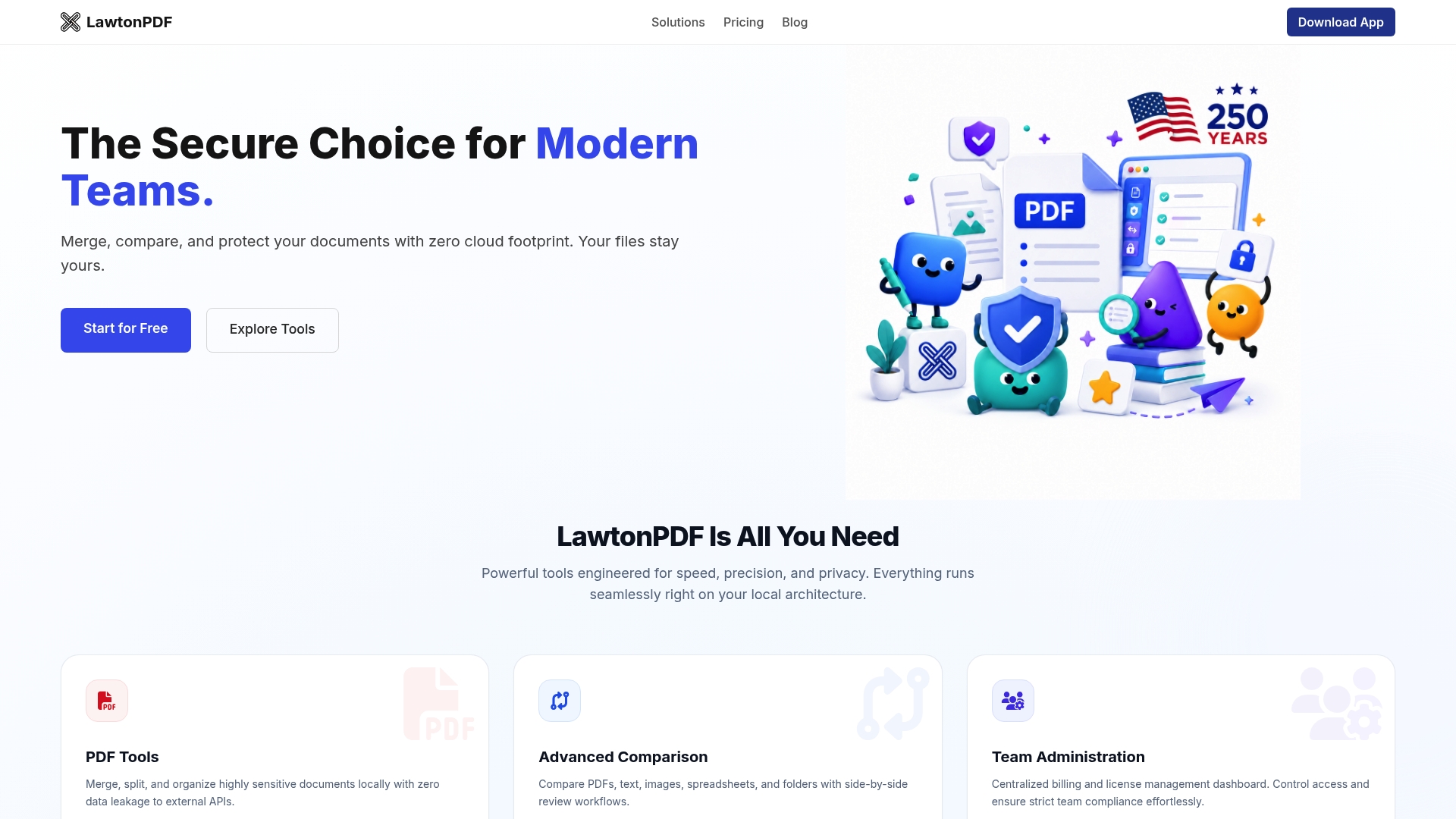
Lawtonpdf gives you a complete set of professional PDF tools that run entirely on your Windows machine. Merge, split, watermark, protect, compare, and organize your documents without uploading a single file. For professionals handling contracts, financial records, legal documents, or any sensitive material, that is not a small distinction.
The advanced document comparison feature goes further than any standard PDF editor. You can compare PDFs against Word files, text documents, spreadsheets, images, and folders, all locally, all without a subscription to a cloud platform. Subscription tiers are available for individuals, small teams, and larger business deployments, with a free version to get started.
Check out Lawtonpdf's pricing and plans to find the right tier for your workflow, or download the free version and start working with your documents securely today.
Key Takeaways
The best Adobe Acrobat alternative in 2026 depends on your privacy requirements, platform, and workflow, with local-first tools like Lawtonpdf offering the strongest protection for sensitive documents.
| Point | Details |
|---|---|
| Local processing matters | Tools that process files on your device protect sensitive documents that cloud editors cannot. |
| Pricing varies widely | Adobe Acrobat Pro costs $239.88 per year; most alternatives come in well below that figure. |
| Platform coverage differs | Foxit and PDFelement cover Windows, macOS, and mobile; Lawtonpdf is purpose-built for Windows. |
| Font rendering is a real risk | Switching editors can alter document layouts if the new tool lacks the original fonts. |
| Lawtonpdf for secure workflows | Lawtonpdf offers local-first PDF management and multi-format document comparison for privacy-sensitive professionals. |