
For most Windows users, Lawtonpdf is the best PDF organizer available today. It processes everything locally on your device, so your documents never leave your machine. You get OCR, full-text search, page-level reordering, merge and split tools, and a free tier to start with, all without a single cloud upload.
Quick reasons to choose a local-first approach:
- Local processing and privacy: Your files stay on your computer. No third-party server ever touches them.
- OCR and full-text search: Find any document by its content, not just its filename, even years after you saved it.
- Page-level control: Reorder, merge, split, extract, rotate, and flatten pages without leaving your desktop.
- Free tools for Windows: Lawtonpdf offers free organizing tools so you can test the workflow before committing.
If you work primarily on iOS or Android and need cross-device sync above all else, a mobile-first or cloud-based PDF file organizer software may suit you better. For Windows users who handle sensitive documents, the local-first approach covered here is the right call.
Table of Contents
- What should you look for in the best PDF organizer?
- Which organizing approach fits your situation?
- Free tools versus paid organizers: when should you upgrade?
- How to organize your PDF library step by step
- What platform support should you expect?
- Why local-first PDF organizing is the right call for most US professionals
- Key Takeaways
- The case for keeping your documents off the cloud
- Lawtonpdf keeps your documents where they belong
- Useful sources
- FAQ
What should you look for in the best PDF organizer?
The features that matter most depend on how large your library is and how you retrieve documents. Here is a practical checklist.
Core features to evaluate:
- OCR accuracy: Scanned PDFs are useless without it. OCR is a practical necessity for true organization because it lets you find documents by content years later, even when the original filename is unhelpful.
- Full-text and semantic search: Filename search breaks down once your library grows past a few hundred files. Content-aware retrieval is what keeps a large library usable.
- Tagging and metadata: Project, document type, date, and source fields let you filter without relying on folder structure alone.
- Page-level editing: Reorder, merge, split, and extract pages. These are the core operations of any serious PDF document management tool.
- Batch processing: Combining dozens of receipts or reports in one pass saves significant time.
- Annotations and bookmarks: Inline notes and a table of contents make long documents navigable.
- Automation or command-line support: Useful for recurring workflows like monthly report compilation.
Platform and sync considerations:
Local-first tools keep data on your device. Cloud-sync tools offer cross-device access but require uploading files to a third-party server. For most professional and privacy-conscious users in the US, local-first wins on security. If you need mobile access, look for tools that use OS-level sync (iCloud, OneDrive) rather than proprietary cloud processing.
Red flags to watch for:
- Mandatory cloud upload with no local-only option
- Vague or absent privacy policies about how uploaded documents are stored or processed
- No version history or audit trail for professional or regulated use
- Free tiers that cap file size so low they are impractical for real work
Pro Tip: When evaluating any PDF organizer, run a search on a 500-file library and time it. If the tool searches only filenames, you will feel the limitation immediately. Content-based indexing is the feature that separates a real organizer from a basic file manager.

Which organizing approach fits your situation?
Different users need different things. The table below maps common profiles to the features and tool style that fit each one.
| User profile | What matters most | Best tool style |
|---|---|---|
| Home user | Low cost, simple merge/split, easy page reorder | Free local desktop app or lightweight web tool |
| Student / researcher | Fast capture, OCR, semantic search, annotations | Local-first desktop app with OCR and full-text indexing |
| Legal / finance professional | Audit trails, version control, local processing, metadata | Local-first paid app with admin controls |
| Privacy-conscious individual | Zero cloud uploads, on-device processing | Local-first desktop app (e.g., Lawtonpdf for Windows) |
| Small team / admin-managed | Centralized license management, audit logs, batch ops | Local-first team license with admin dashboard |
A few practical trade-offs worth knowing:
- A student scanning lecture notes wants fast OCR and the ability to search across dozens of PDFs by content. A cloud tool works fine here as long as the documents are not sensitive.
- A legal team handling client contracts needs version history, local audit trails, and the certainty that files never leave the firm's network. That requirement rules out most cloud-first tools immediately.
- Open-source document managers like PDFKeeper store PDFs in a searchable local database with full-text indexing and notes, which suits small offices that need on-premises search without a paid license.
For regulated industries such as healthcare or finance, HIPAA-compliant document management is a baseline requirement, not an optional upgrade.
Free tools versus paid organizers: when should you upgrade?
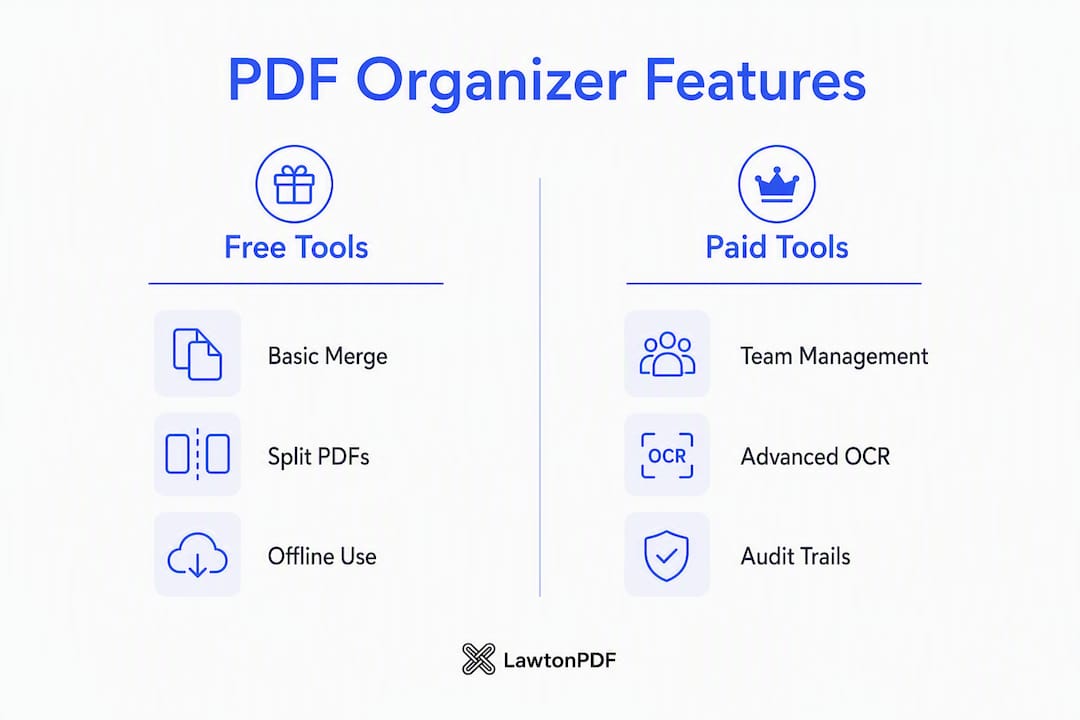
Free PDF organizer software covers the basics well. Most free tools handle simple merge and split operations, basic page reordering, and limited OCR. Browser-based tools add convenience for quick edits without installing anything.
What free tools typically cover:
- Merge two or three PDFs into one file
- Reorder or delete pages in a small document
- Basic rotation and cropping
- Limited OCR (often capped by page count or file size)
What paid tools add:
- High-accuracy OCR across large libraries with background indexing
- Unlimited library indexing and fast content search
- Advanced metadata fields and automated tagging
- Admin controls, audit logs, and centralized license management
- Integrations with enterprise systems and command-line batch operations
Offline PDF mergers like PDF Combine handle batch merging, automatic bookmarks, and TOC creation for large file sets without any uploads, which is a meaningful step up from browser-based tools. Open-source options such as pdforge support merge, split, and preview workflows locally on Windows and Linux, including a LAN mode for same-network sharing.
When upgrading is worth it:
You hit free-tier item limits regularly. You need team admin controls and audit trails. You require faster on-device OCR and AI tagging. You need integrations with enterprise systems like SharePoint or document lifecycle tools.
Pricing for paid PDF tools generally falls into three shapes: a one-time desktop license, a per-user subscription, or a tiered team plan. For teams, the total cost of ownership includes not just the license fee but the time saved on manual triage and the risk reduction from keeping sensitive files off cloud servers.
How to organize your PDF library step by step
A consistent workflow prevents the folder sprawl that makes libraries unsearchable within a year.
- Set up a single intake folder. Route every incoming PDF, whether scanned, downloaded, or emailed, into one location before sorting. This prevents duplicates and missed files.
- Run OCR on every new document. Even if the filename is clear, OCR makes the content searchable. Do this at intake, not later.
- Apply a consistent metadata schema. Use four fields at minimum: project or client, document type, date (YYYY-MM-DD format), and source. Consistent metadata is what makes filtering reliable.
- Choose folders for broad categories, tags for cross-cutting attributes. Folders work well for top-level organization (by year or client). Tags handle attributes that span categories, like "needs review" or "signed."
- Reorder pages before archiving. Reordering PDF pages removes blanks, fixes scan order, and creates clean deliverables. Do this before a document enters your archive, not after.
- Batch combine related files with bookmarks. Monthly receipts, for example, merge cleanly into a single file with a TOC. This reduces clutter and makes retrieval faster.
- Schedule a weekly cleanup pass. Review the intake folder, apply tags to anything untagged, and re-index if your tool requires it.
Pro Tip: Use your organizer's summary or semantic tag feature to surface documents you filed and forgot. A tag like "follow-up needed" or an auto-generated summary can resurface a contract or report that would otherwise stay buried.
What platform support should you expect?
Platform choice shapes what kind of PDF file organizer software is practical for you.
Windows has the deepest local-first toolset. Lawtonpdf runs entirely on Windows, with no cloud dependency, and handles the full range of PDF operations: organize, merge, split, compare, watermark, protect, and unlock. For users who need offline PDF editing without sending files to a server, Windows local-first apps are the strongest category.
macOS and iOS offer device-level AI options. Apps like Elephant Folio use Apple Intelligence to auto-file PDFs from Mail, Safari, or the camera without uploading to third-party servers, which is a genuine privacy advantage on Apple hardware.
Web tools work on any device but almost always require uploading your file to a remote server. That trade-off is acceptable for non-sensitive documents; it is not acceptable for legal, financial, or healthcare records.
| Best for | Platform / OS | Local-first vs cloud | Key organizing features | Price / free tier |
|---|---|---|---|---|
| Windows professionals | Windows | Local-first | Merge, split, reorder, OCR, compare, protect | Free tier available |
| Apple device users | macOS / iOS | Device-local (Apple Intelligence) | Auto-file, tags, capture from camera | Free / paid tiers |
| Open-source / Linux users | Windows, Linux, Web | Local / LAN | Merge, split, preview, LAN share | Free (open-source) |
| Small offices (on-prem) | Windows / cross-platform | Local database | Full-text search, notes, tagging | Free (open-source) |
| Quick web edits | Any (browser) | Cloud | Basic merge, split, reorder | Free with limits |
On mobile, the practical workflow is capture-first: scan a document, apply a quick tag, and sync to your desktop for heavy indexing and batch work. Trying to manage a large library entirely on a phone is slow and error-prone.
Why local-first PDF organizing is the right call for most US professionals
Local-first tools perform AI tagging, OCR, and indexing without cloud uploads, which preserves privacy while enabling advanced retrieval. Background indexing means performance stays fast regardless of library size, because the tool is not waiting on a network round-trip for every search.
For large libraries, on-device indexing scales better than cloud-dependent search. You are not subject to API rate limits, server downtime, or policy changes from a third-party provider. Your search latency is determined by your local hardware, not by network conditions.
For legal and finance teams specifically, local processing supports document integrity in a way cloud tools cannot easily match. Version control, audit trails, and secure metadata management are features typically found in local or paid enterprise tools. A firm that uploads client contracts to a cloud organizer introduces a data-handling risk that most compliance frameworks require them to avoid.
Lawtonpdf's local processing design means every operation, whether OCR, comparison, merge, or metadata update, runs on your machine. No file ever leaves your network unless you choose to share it.
Lawtonpdf's key organizing capabilities:
- Reorder, merge, split, and extract pages locally
- Flatten, watermark, password-protect, and unlock PDFs
- Advanced document comparison (PDF, Word, text, spreadsheet, image, folder)
- Free organizing tools available for Windows users
- Centralized admin and license management for teams
For workflows that extend into certificate management or offline verification, pairing a local PDF archive with a tool like CertiCerts covers the full document lifecycle from creation to compliance verification.
Key Takeaways
Local-first PDF organizing is the most secure and scalable approach for Windows users handling sensitive documents, and Lawtonpdf is the recommended tool for that workflow.
| Point | Details |
|---|---|
| Local processing wins on privacy | Tools that never upload files protect sensitive documents from third-party data handling. |
| OCR is non-negotiable | Without OCR, scanned PDFs are unsearchable; run it at intake for every document. |
| Upgrade when free limits bite | Move to a paid tool when you hit item caps, need audit trails, or require team admin controls. |
| Platform shapes your options | Windows offers the deepest local-first toolset; mobile is best for capture, not heavy indexing. |
| Lawtonpdf for Windows users | Organize PDFs for free with local processing, OCR, merge, split, and compare tools. |
The case for keeping your documents off the cloud
Most articles about PDF document management tools treat cloud sync as a default feature, something you opt out of rather than opt into. That framing gets it backwards for anyone handling professional or sensitive documents.
When you upload a PDF to a cloud organizer, you are trusting that provider's security practices, their data retention policies, and their response to legal requests. Most users never read those policies. For a home user organizing vacation photos, that is a reasonable trade for convenience. For a paralegal organizing client discovery files, or a finance analyst managing quarterly reports, it is a genuine risk.
The shift toward semantic, content-aware retrieval is real and worth embracing. As libraries grow, filenames become secondary and content indexing becomes the thing that makes a library actually useful. But that capability does not require cloud processing. On-device OCR and indexing deliver the same result with none of the exposure.
The tools that get this right, including Lawtonpdf, build the intelligence into the local application rather than routing your files through a server to get it. That is the architecture worth choosing.
Lawtonpdf keeps your documents where they belong
Your documents contain information that belongs to you and your clients, not to a cloud provider's infrastructure. Lawtonpdf is built on that premise. Every PDF operation, whether you are merging files, reordering pages, running OCR, or comparing two versions of a contract, runs entirely on your Windows machine.

You get free organizing tools to start, with paid tiers that add team administration, centralized license management, and enterprise-grade document comparison across PDFs, Word files, spreadsheets, images, and folders. There is no mandatory upload, no account required to use the free tools, and no ambiguity about where your files go.
If you handle documents that matter, whether for legal, finance, healthcare, or just personal privacy, try Lawtonpdf's free PDF tools and see what local-first organizing actually feels like.
Useful sources
- Lawtonpdf: Organize PDFs for Free (Windows)
- How to Reorder PDF Pages for Better Organization
- pdforge: Open-Source Offline PDF Toolkit
- CertiCerts: Offline Certificate and Document Verification
- Lawtonpdf: Private PDF Editor for Business Teams
- On-Premise vs Cloud Security for Local-First Workflows
FAQ
What's the best PDF organizer for home use?
For Windows home users, Lawtonpdf's free tools cover merge, split, reorder, and basic organization with no cloud upload required. For iOS users, device-native apps that use Apple Intelligence keep files on-device while adding auto-filing features.
What's the best way to organize PDF files?
Set up a single intake folder, run OCR on every document at intake, apply a consistent metadata schema (project, type, date, source), and use tags for cross-cutting attributes. Content-based search makes the system usable as your library grows.
Is there a 100% free PDF editor for organizing files?
Yes. Lawtonpdf offers free PDF organizing tools for Windows, and open-source options like PDFKeeper and pdforge are fully free with no file caps, though they require more setup than a commercial app.
What free software lets you organize PDF pages?
PDF Arranger is a free, open-source desktop application for merging, splitting, rotating, and rearranging PDF pages with a visual interface. Lawtonpdf also provides free page-reorder and organizing tools for Windows users who prefer a commercial-grade experience without the cloud dependency.