
Merging PDFs is the process of combining multiple PDF files into a single, unified document while preserving formatting, metadata, and searchability. Whether you’re consolidating a legal contract, assembling a research report, or packaging invoices for a client, the method you choose directly affects both document quality and data security. This guide walks you through the tools you need, step-by-step workflows for online and offline merging, and the mistakes that silently corrupt your output. Lawtonpdf’s local processing approach is referenced throughout as the privacy benchmark for professional users.
What tools do you need to merge PDFs effectively?
The right tool depends on three factors: file sensitivity, file size, and how often you merge. Getting this wrong means either uploading confidential documents to a server you don’t control or hitting a file size wall mid-task.

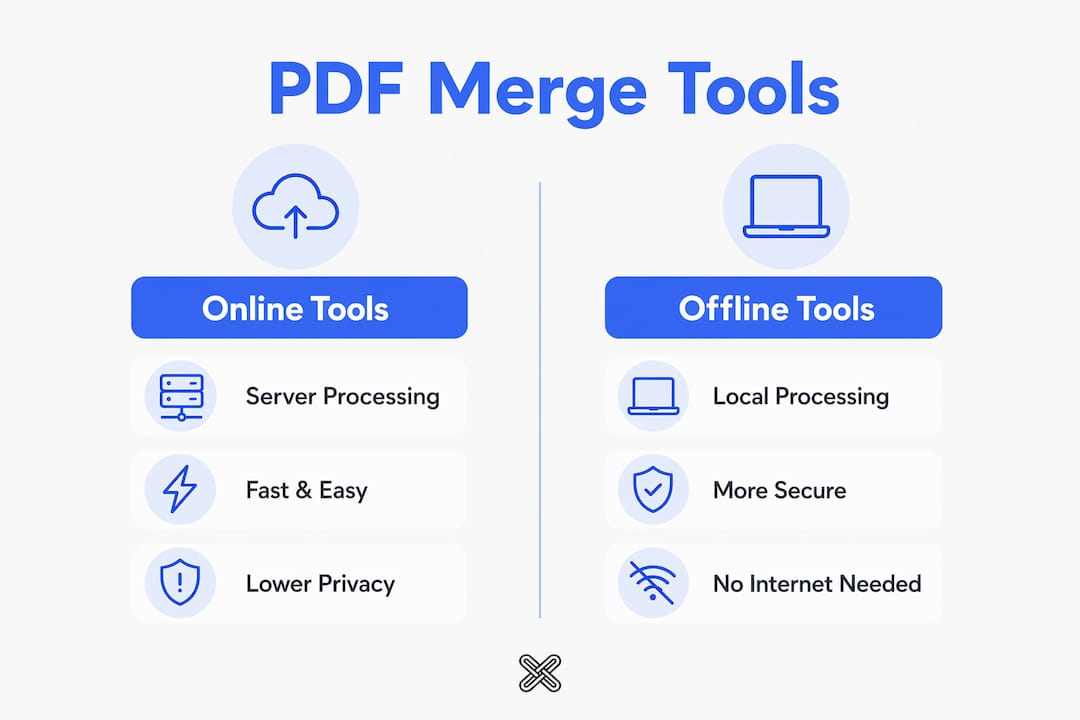
Online vs. offline tools
Online PDF mergers run in your browser and send your files to a remote server for processing. They are fast and require no installation. Some web-based tools support batch processing but cap individual files at 100 MB and cumulative uploads at around 150 MB. That limit matters when you’re combining large scanned PDFs or high-resolution design files.
Offline tools process everything on your local hardware. No file leaves your machine. This is the correct choice for contracts, medical records, financial statements, or any document your organization classifies as confidential.
Prerequisites checklist
Before you start combining PDFs, confirm the following:
-
File format: All source files must be valid PDF documents, not images saved with a .pdf extension.
-
Password protection: Encrypted PDFs require password removal or input during the merge process. Skipping this step produces broken or incomplete output.
-
File size: Know your tool’s per-file and total size limits before uploading.
-
Page order: Decide the final sequence before you start. Reordering after the fact costs time.
-
Hardware: Local merging tools run on your CPU. Large files with many pages may require a modern processor and at least 4 GB of available RAM.
Feature comparison by tool category
| Feature | Online tools | Local/offline tools |
|---|---|---|
| Privacy | Files sent to remote server | Files stay on your device |
| File size limits | Typically 100–150 MB total | Limited only by your hardware |
| Password-protected PDFs | Varies by platform | Full control with local decryption |
| Metadata preservation | Inconsistent | Consistent with professional tools |
| Setup required | None | Software installation needed |
How do you merge PDFs step-by-step using online tools?
Online merging is the fastest path for non-sensitive documents. The process is nearly identical across platforms, with small differences in file limits and privacy policies.
Standard online merge workflow
-
Open the tool in your browser and locate the file upload area.
-
Upload your files using drag and drop or the file browser. Most platforms accept multiple files in one batch.
-
Reorder your files using thumbnail previews. Viewing thumbnails helps catch orientation and page sequence issues before you finalize the merge.
-
Check page orientation. Rotate any pages that appear sideways in the preview.
-
Click Merge or the equivalent button. Processing typically takes seconds.
-
Download your merged file immediately. Save it to a local folder, not a browser default download location you might forget.
-
Confirm deletion. Most online PDF mergers delete uploaded files within 24 hours. Check the platform’s privacy policy to confirm this before uploading anything sensitive.
Two merging methods you should know
There are two primary approaches to combining PDFs online. The “Merge Tool” method works best for 2–3 files in a fixed order. The “Load All Files” method lets you rearrange pages across many documents before committing to a final output. For complex reports or multi-section contracts, the second method saves significant time.
Pro Tip: Before uploading to any online tool, check whether the platform uses HTTPS and states an explicit file deletion policy. If neither is visible on the homepage, treat the tool as unverified and use a local alternative instead.
How can you merge PDFs offline or locally for maximum privacy?
Local merging is the standard for any document that carries legal, financial, or personal data. The core principle is simple: your files never leave your device.
Local merge workflow
-
Install a local PDF tool that supports merging without a cloud connection. Lawtonpdf’s offline PDF tools process files entirely on your Windows hardware.
-
Open the merge function within the application.
-
Add your source files using the file browser or drag and drop into the application window.
-
Reorder files and pages using the thumbnail panel. Drag individual pages between documents if you need to mix content from different files.
-
Check for password-protected files. Enter passwords or decrypt files before merging. Skipping this step causes the merge to fail or produce corrupted output.
-
Run the merge. The application processes everything locally using your CPU and RAM.
-
Save the output to your chosen folder. Rename the file immediately so it doesn’t get confused with source documents.
Why local processing matters
Local-only browser-based PDF merging processes run entirely on your hardware, ensuring zero server-side exposure of your files. For legal teams, healthcare providers, and finance professionals, this is not optional. It is the baseline standard for document handling compliance.
Verifying that no data leaves your device is straightforward. Open your browser’s developer tools, click the Network tab, and watch for upload requests while the merge runs. A genuine local merge shows zero network requests during processing. If you see outbound traffic, the tool is not truly local.
Pro Tip: Run this network check the first time you use any tool that claims to be local. It takes 30 seconds and gives you definitive confirmation, not just a marketing promise.
What common mistakes occur when merging PDFs and how to avoid them?
Most merge errors fall into a small set of repeatable patterns. Knowing them in advance prevents the frustration of re-doing a 40-page document from scratch.
The most frequent merge errors
-
Wrong page order. Uploading files without confirming sequence is the most common mistake. Always use thumbnail previews to verify order before clicking Merge. Thumbnail previews and drag-and-drop reordering reduce trial-and-error significantly.
-
Merging locked files. Merging password-protected PDFs without first unlocking them produces broken or incomplete output. Decrypt each file before adding it to the merge queue.
-
Uploading sensitive documents to unverified servers. Online tools without clear encryption or deletion policies expose your data. Use a local tool for anything confidential.
-
Confusing image-based PDFs with vector PDFs. Scanned documents are image-based. Merging them without OCR processing means the output has no searchable text layer. If searchability matters, run OCR on scanned files before merging.
-
Ignoring metadata. Professional-grade PDF mergers preserve page-level metadata, bookmarks, form fields, and annotations. Entry-level tools often strip these, which breaks form functionality in legal and business documents.
-
Mislabeled output files. Saving merged files with generic names like “merged.pdf” creates confusion when you have multiple versions. Use descriptive names with dates.
Pro Tip: After every merge, open the output file and scroll through it page by page. This takes two minutes and catches orientation errors, missing pages, and broken bookmarks before you send the document to anyone.
What advanced tips enhance your PDF merging workflow?
Once you have the basics down, a few habits separate fast, reliable merging from slow, error-prone work.
Workflow upgrades worth adopting
-
Batch processing saves time on recurring tasks. If you regularly combine the same types of documents, such as monthly reports or client intake packets, organize your source files into labeled folders before you start. This removes the search-and-select step entirely.
-
Preserve bookmarks and annotations. Maintaining metadata and form features in merged PDFs is critical for professional business and legal documents. Choose a tool that explicitly lists bookmark and annotation preservation in its feature set.
-
Mix pages from different files using thumbnails. The thumbnail panel in most professional tools lets you pull individual pages from multiple source documents and arrange them in any order. This is faster than merging full documents and then deleting unwanted pages.
-
Manage large files carefully. Files above 50 MB slow down both online and local tools. Split oversized source files into logical sections, merge each section separately, then combine the sections in a final pass.
-
Apply security settings after merging. Set permissions, passwords, or watermarks on the final merged document, not on individual source files. This keeps your workflow clean and your output consistent.
-
Use Lawtonpdf’s page organization tools for complex documents. The intuitive page panel lets you reorder, rotate, and remove pages from multiple files before committing to a final merge, which eliminates most post-merge corrections.
Key Takeaways
The most reliable way to merge PDF files is to match your method to your document’s sensitivity level, verify page order with thumbnails before merging, and use local processing for any file that contains confidential data.
| Point | Details |
|---|---|
| Match tool to sensitivity | Use local tools for confidential files; online tools suit non-sensitive documents only. |
| Unlock before merging | Decrypt password-protected PDFs before adding them to any merge queue. |
| Verify with thumbnails | Always preview page order and orientation before finalizing the merged output. |
| Preserve metadata | Choose a tool that retains bookmarks, form fields, and annotations in the merged file. |
| Confirm local processing | Use browser developer tools to verify zero network requests during a local merge. |
Why I stopped trusting “local” tools that I hadn’t verified
I’ve merged thousands of PDFs across legal, finance, and research contexts. The single biggest lesson I’ve learned is that the word “local” in a tool’s marketing copy means nothing until you verify it yourself. I’ve seen browser-based tools claim zero uploads while quietly sending file metadata to analytics servers. The network tab check described in this guide is not paranoia. It is the only reliable way to know what your tool is actually doing.
The second thing I’ve learned is that metadata loss is invisible until it matters. A merged contract that looks perfect on screen can have stripped form fields and broken bookmarks. The recipient opens it, tries to fill in a field, and nothing works. That error traces back to a tool that rasterized the pages during merge. Choosing a tool that explicitly preserves vector formatting and form functionality is not a premium feature. It is the minimum standard for professional document work.
For casual users combining non-sensitive files, a reputable online tool with a clear deletion policy is perfectly adequate. For anyone handling documents that carry legal weight, personal data, or financial information, local processing is the only defensible choice. The extra setup time is trivial compared to the risk of a data exposure incident.
Lawtonpdf: secure, local PDF merging for Windows teams
Lawtonpdf is built for teams that cannot afford to send documents to a remote server. Its Local Engine processes every file on your own Windows hardware, so your data never touches an external server. You get full PDF management tools including page organization, document comparison, and annotation preservation, all without a cloud dependency. Teams in legal, finance, healthcare, and research use Lawtonpdf because it combines the control of local processing with the speed of a purpose-built application. If you handle sensitive documents regularly, Lawtonpdf’s offline tools give you the privacy guarantee that online tools simply cannot provide.
FAQ
What does it mean to merge PDF files?
Merging PDF files means combining two or more separate PDF documents into a single file while preserving the formatting, text layer, and metadata of each source document.
Can I merge PDFs without uploading them to a server?
Yes. Local tools and browser-based JavaScript libraries like pdf-lib process files entirely on your device. Zero server-side exposure is confirmed when the browser’s Network tab shows no upload requests during the merge.
Why does my merged PDF lose form fields or bookmarks?
Entry-level tools often rasterize pages during merging, which converts vector content to images and strips interactive elements. Professional PDF mergers preserve fonts, form fields, bookmarks, and annotations without rasterizing.
How do I merge a password-protected PDF?
You must decrypt or unlock the file before merging. Attempting to merge a locked PDF without entering the password typically produces broken or incomplete output.
How do I know my merged PDF has the correct page order?
Use the thumbnail preview panel before finalizing the merge. Thumbnail previews let you catch orientation errors and sequence mistakes before the file is exported.