
Reordering PDF pages is the process of rearranging the sequence of pages within a PDF document to improve its flow, structure, or presentation. Students, legal professionals, and finance teams all face the same problem: a PDF that needs its pages in a different order before it can be shared or filed. The good news is that non-destructive reordering preserves text, images, and formatting while advanced tools remap bookmarks and page labels to the new layout. This means you can change page order without breaking your document. Lawtonpdf handles this process entirely on local hardware, which matters most when your files contain sensitive information.
What tools are commonly used to reorder PDF pages?
The right tool depends on two factors: how sensitive your document is and what device you are using. Browser-based tools, offline desktop software, and enterprise platforms each serve different needs.
Browser-based tools run directly in your browser without installing anything. The most privacy-focused versions use client-side processing, which keeps your file local without transmitting it to any external server. Tools built on JavaScript libraries like pdf-lib and pdfjs-dist run fully in-browser using WebAssembly, so your file never leaves your machine. This approach works well for students and individuals handling non-sensitive documents.
Offline desktop software like Lawtonpdf goes further. All file processing happens on your local hardware through its Local Engine solution. No cloud service touches your document at any point. This is the standard for legal, healthcare, and finance teams where data leakage is not an option.
Here is how the main tool categories compare:
| Feature category | Browser-based (basic) | Browser-based (client-side) | Offline software |
|---|---|---|---|
| File stays local | No | Yes | Yes |
| Bookmark preservation | Limited | Varies | Yes |
| Page label remapping | Rarely | Varies | Yes |
| Works without internet | No | No | Yes |
| Best for | Casual users | Privacy-conscious users | Professionals and teams |
Key features to look for in any tool:
-
Drag-and-drop thumbnail interface for visual page management
-
Undo and reset functions to correct mistakes without starting over
-
Bookmark and page label preservation to keep navigation intact
-
Export as new file to protect your original document
Pro Tip: Many free online tools upload up to 10 files per session and delete them from servers within 24 hours. If your document contains confidential data, use a client-side or offline tool instead.
How do you reorder PDF pages step by step?
The standard workflow for organizing PDFs involves three core stages: open the file in a thumbnail grid, rearrange or delete pages, and save the result as a new file. The steps below apply to most tools, including Lawtonpdf.
-
Back up your original PDF. Save a copy before making any changes. Page deletions may be irreversible after saving, so keeping the original protects you from accidental data loss.
-
Open or upload your PDF. In an offline tool like Lawtonpdf, open the file directly from your local drive. In a browser-based tool, click the upload button and select your file. The tool will display each page as a thumbnail.
-
Review the current page order. Scroll through the thumbnail grid and identify which pages need to move. Note the target position for each page before you start dragging.
-
Drag and drop pages into the correct order. Click a thumbnail and drag it to its new position. Drag-and-drop interfaces with undo functions reduce errors significantly. Use the undo button if you place a page in the wrong spot.
-
Use arrow controls for precise moves. Some tools offer up and down arrow buttons next to each thumbnail. These are useful when you need to shift a page by just one or two positions.
-
Delete or rotate pages if needed. Select any unwanted pages and delete them. Rotate pages that scanned upside down or sideways. Many tools allow reversing the entire page order with one click, which is a fast fix for documents scanned in reverse.
-
Check bookmark preservation settings. If your PDF has a table of contents or internal navigation links, look for a bookmark preservation toggle. Advanced tools re-anchor page labels and rebuild the bookmark structure automatically.
-
Save the reorganized PDF as a new file. Use “Save As” rather than overwriting the original. Name the new file clearly, for example “Report_v2_reordered.pdf,” so you can track versions.
Pro Tip: Experts recommend planning all page changes in one session rather than making edits across multiple sessions. This reduces the chance of version confusion and saves time.
How do you troubleshoot common issues when rearranging pages?
Most problems with PDF page rearrangement fall into a few predictable categories. Knowing what to watch for prevents data loss and wasted time.
-
Bookmarks point to the wrong pages after reordering. This happens when a tool moves pages without updating the document’s internal navigation structure. Use a tool that re-anchors page labels and rebuilds bookmark structures automatically. Basic editors often skip this step.
-
The new page order does not save correctly. This usually means the file was saved over the original rather than exported as a new file. Always use “Save As” or “Export” to create a separate output file.
-
Large PDFs slow down or crash the tool. Browser-based tools struggle with files above 50MB. For large or scanned PDFs, use offline software that processes files directly on your hardware without browser memory limits.
-
Scanned PDFs look rotated or out of order. Scanned documents often come in reversed or mixed order. Look for a one-click reverse function to fix the entire sequence at once, then handle individual rotations page by page.
-
Privacy concern: file uploaded to an unknown server. If you are not sure where your file goes, check whether the tool uses client-side processing. Tools that run on WebAssembly in the browser never send your file to a server.
Saving your reordered PDF as a new file version is critical. It lets you recover the original document state if anything goes wrong, and it keeps a clean audit trail for professional or legal use.
What are best practices for organizing PDFs beyond just reordering?
Reordering pages is one part of a larger document management workflow. Combining reordering with splitting and rotating produces the best overall document structure. Here are the practices that make the biggest difference:
-
Split before you reorder. If you are working with a large merged document, split it into logical sections first. Reordering smaller chunks is faster and less error-prone than managing a 100-page file all at once.
-
Use consistent page labels. Number your pages in a way that matches the document’s logical structure. A report with a cover page, table of contents, and appendices should use Roman numerals for front matter and Arabic numerals for the body.
-
Apply a clear file naming convention. Include the document type, version, and date in the file name. “Contract_v3_2026-03-15.pdf” is far easier to locate than “final_FINAL_revised.pdf.”
-
Preserve bookmarks for long documents. Any PDF over 10 pages benefits from a working bookmark structure. Readers can jump directly to sections instead of scrolling, which matters most for reports, contracts, and academic papers.
-
Use version control for shared files. When multiple people work on the same document, keep numbered versions and note what changed in each. This prevents teammates from working on outdated copies.
-
Handle all edits in one session. Opening and saving a PDF multiple times across different tools increases the risk of format degradation and bookmark corruption. Plan your full set of changes, then execute them in a single pass.
Lawtonpdf fits naturally into this workflow because it handles page organization, document comparison, and team access control in one place, all without sending files to the cloud.
Key Takeaways
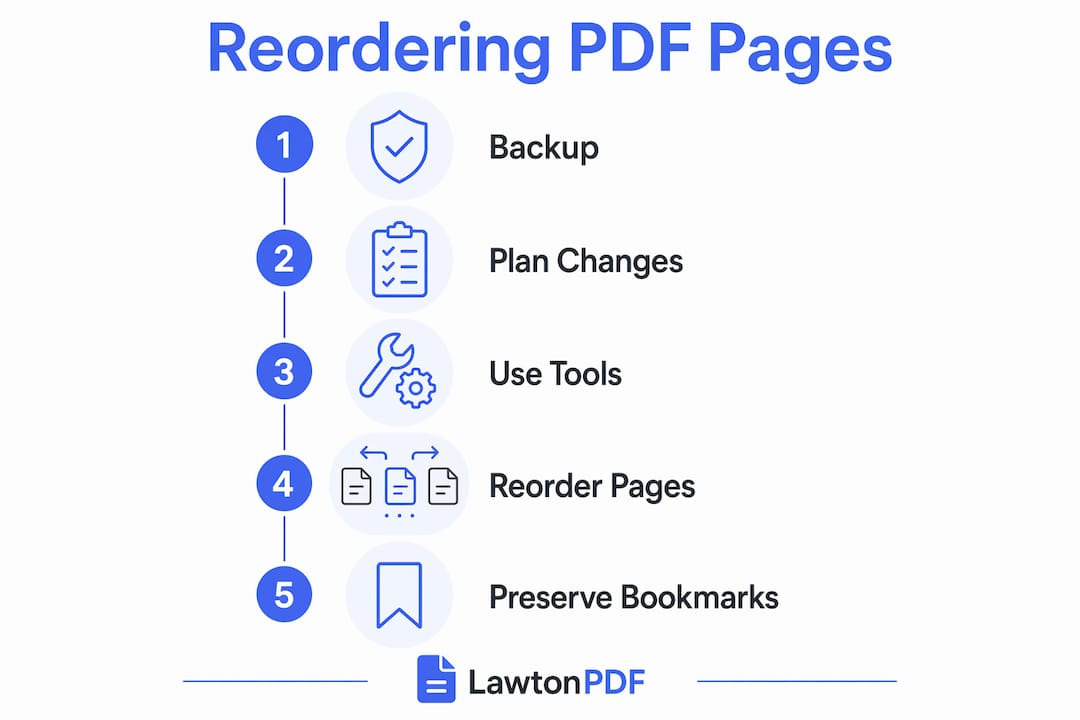
Reordering PDF pages correctly requires the right tool, a backup of the original, and a single organized editing session to preserve bookmarks and document structure.
| Point | Details |
|---|---|
| Back up before editing | Always save a copy of the original PDF before reordering or deleting any pages. |
| Choose the right tool | Use client-side or offline tools for sensitive documents; browser uploads suit casual use only. |
| Preserve bookmarks | Select tools that re-anchor page labels and rebuild bookmark structures after reordering. |
| Save as a new file | Export the reordered PDF under a new name to protect the original and maintain version history. |
| Combine editing tasks | Handle reordering, rotating, and splitting in one session to reduce errors and format degradation. |
Why bookmark preservation is the detail most people miss
Most guides on PDF page rearrangement focus entirely on the drag-and-drop part. That is the easy part. The detail that actually determines whether a reorganized document is usable is bookmark preservation, and most people only notice it is broken after they have already shared the file.
I have seen legal teams send out contracts where the table of contents links pointed to completely wrong sections after a paralegal reordered pages in a basic free tool. The document looked fine on the surface. The navigation was broken underneath. That kind of error erodes trust fast.
The fix is straightforward: use a tool that dynamically re-anchors page labels and rebuilds the document outline after every move. Basic editors skip this step entirely. Professional tools, including Lawtonpdf, treat bookmark integrity as a non-negotiable part of the reordering process.
The other thing I would push back on is the assumption that browser-based tools are always “good enough.” For a student reorganizing class notes, they are fine. For anyone handling contracts, patient records, or financial statements, uploading a file to a third-party server is a real risk, even if the service claims to delete files within 24 hours. Offline processing is not a premium feature. It is the baseline standard for professional document work.
My practical advice: plan your full set of page changes before you open the tool, execute everything in one session, and always export to a new file. That single habit eliminates most of the problems people run into.
Lawtonpdf: secure offline PDF management for professionals
LawtonPDF is built for organizations and professionals who cannot risk uploading confidential documents to cloud services. Every file is processed by the Local Engine, keeping your PDFs on your own computer from start to finish. No internet connection is required, giving you complete control over sensitive legal, financial, healthcare, government, and business documents.
The Organize PDFs tool makes managing large documents simple with an intuitive drag-and-drop interface. Rearrange pages, move pages between documents, rotate pages, insert new pages, remove unwanted pages, and preview every change before saving. LawtonPDF preserves document quality while maintaining page order, bookmarks, and page labels whenever possible. Whether you're assembling court filings, reorganizing contracts, preparing reports, or combining research documents, you can quickly organize your PDFs without compromising privacy or performance.
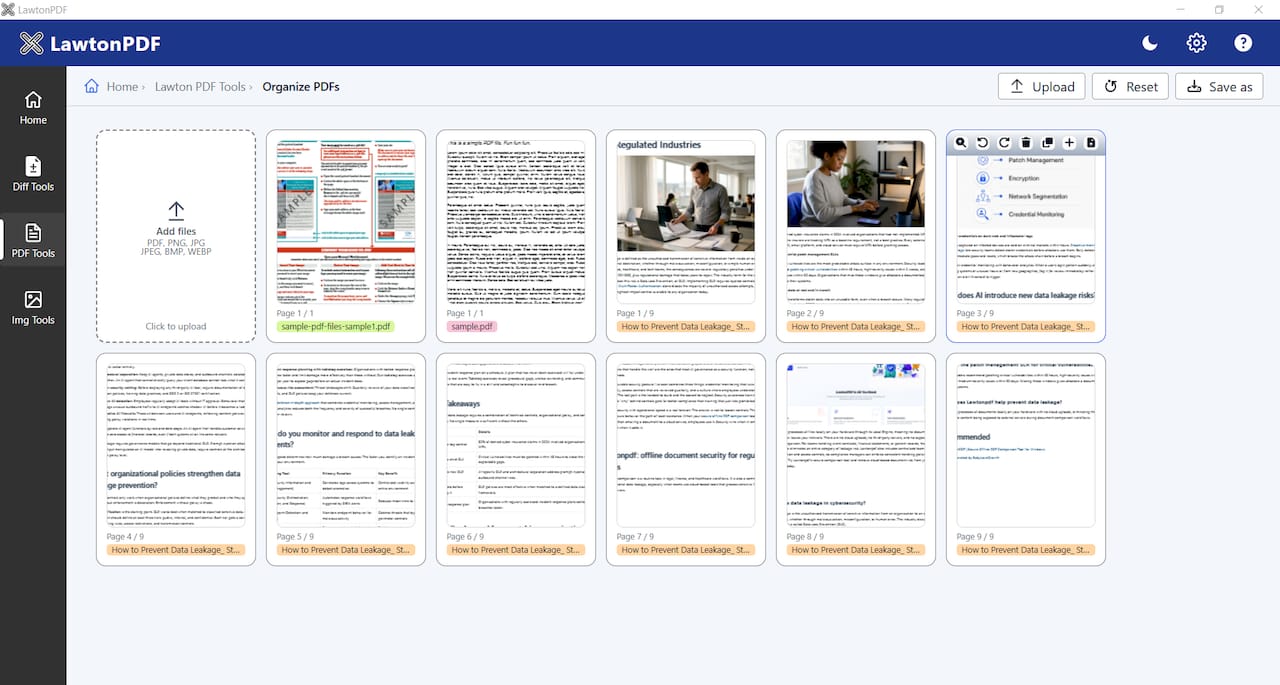
LawtonPDF gives you complete control over your PDF documents while keeping your information private. If your workflow demands security, speed, and offline reliability, LawtonPDF provides professional-grade page organization without relying on cloud services.
FAQ
What does it mean to reorder PDF pages?
Reordering PDF pages means changing the sequence of pages within a PDF document to improve its structure or flow. Advanced tools preserve text, images, bookmarks, and page labels during this process.
Does reordering PDF pages damage the document?
No. Non-destructive reordering keeps all content intact. Tools that re-anchor bookmarks and rebuild the document outline maintain full navigation after pages are moved.
Is it safe to use online tools to rearrange PDF pages?
It depends on the tool. Client-side browser tools that use WebAssembly never upload your file to a server, making them safe for most users. For confidential documents, offline tools like Lawtonpdf are the more secure option.
How do I keep bookmarks intact when I move pages in a PDF?
Use a tool that explicitly supports bookmark remapping. Basic editors often break internal navigation links when pages move. Professional tools re-anchor page labels and rebuild the bookmark structure automatically.
Can I reverse the entire page order at once?
Yes. Many tools include a one-click reverse function that flips the entire page sequence. This is especially useful for scanned documents that were fed into a scanner in the wrong direction.