
You can rotate PDF pages right now, no software purchase required. The fastest path: upload your file to a browser-based rotator, select the pages you want to fix, choose your angle (90°, 180°, or 270°), and download the corrected file. For sensitive documents, skip the upload entirely and use a local Windows app like Lawtonpdf instead.
Quick decision:
- Non-sensitive files: Use a free online rotator for speed.
- Sensitive or batch files: Use Lawtonpdf for local, private processing.
Basic workflow (any method):
- Open or upload your PDF.
- Select the page(s) to rotate.
- Choose your rotation angle.
- Save or export the file to lock the change permanently.
Pro Tip: Before you upload anything, ask yourself: would you email this file to a stranger? If not, use a local app.
Table of Contents
- How do you rotate PDF pages in a browser?
- How to rotate a PDF offline on macOS, Windows, or with a local app
- Should you rotate a single page or the whole document?
- Why won't your PDF rotation save? Common fixes
- Cloud rotators vs. local apps: which is safer for your files?
- Lawtonpdf keeps your PDF rotation private and local
- Key Takeaways
- Useful sources and tools
- FAQ
How do you rotate PDF pages in a browser?
Browser-based rotation is the fastest option when you need a quick fix on a public or low-sensitivity document. Adobe Acrobat's free online rotate tool supports single-page selection and common angles: 90°, 180°, and 270°. Most online rotators follow the same basic flow.
Step-by-step online workflow:
- Open the tool in your browser.
- Upload your PDF (check the file size limit first — most free tools cap at 100 MB).
- Select individual pages using the thumbnail view, or choose "all pages" for a full-document rotation.
- Click Rotate Left or Rotate Right to apply your chosen angle.
- Download the output file.
- Reopen the downloaded file in a fresh viewer to confirm the rotation saved correctly.
Before you upload, check these four things:
| Check | Why it matters |
|---|---|
| File size limit | Most free tools cap uploads; large files may fail or get compressed |
| Retention policy | Some services store files temporarily on their servers |
| HTTPS encryption | Confirms the transfer is encrypted in transit |
| Deletion policy | Look for "files deleted after X hours" in the tool's privacy statement |

Pro Tip: Use a private or incognito browser window for one-off uploads. It prevents autofill and browser history from logging the file name or tool URL.
One important warning: some browser PDF viewers let you rotate the on-screen view without saving that change to the actual file. Always download the exported file and reopen it to verify the rotation is permanent.
How to rotate a PDF offline on macOS, Windows, or with a local app
When a file is confidential, keeping it off the internet is the right call. Each major platform has a local option.
macOS — Preview:
- Open the PDF in Preview.
- Go to View → Rotate Left or Rotate Right (or use the toolbar button).
- Press ⌘ + S to save. The rotation is now permanent in the file.
Preview handles single pages and small batches well. Select a page thumbnail in the sidebar before rotating to target just that page.
Windows — local PDF editor:
Windows does not include a built-in PDF editor that saves rotation permanently. Your options are a local desktop app or a browser-based tool. For privacy-sensitive work, a local app is the only real choice.
Lawtonpdf on Windows:
- Open your PDF in Lawtonpdf.
- Select the page thumbnail(s) you want to rotate.
- Apply the rotation (90°, 180°, or 270°).
- Use Save or Export to write the change permanently to the file.
Lawtonpdf processes every file locally on your Windows machine. Nothing leaves your device. After rotating, you can password-protect, merge, or flatten the file without touching a cloud service, all within the same app.
| Scenario | Best local method |
|---|---|
| One or two pages on a Mac | macOS Preview |
| Batch rotation on Windows | Lawtonpdf |
| Sensitive contracts or health records | Lawtonpdf (local-only processing) |
| Quick personal document on any OS | Browser tool (non-sensitive only) |

Pro Tip: After rotating a batch of files in Lawtonpdf, use the built-in merge tool to combine them into a single organized PDF without a separate upload step.
Should you rotate a single page or the whole document?
The answer depends on what went wrong in the original file.
Rotate a single page when:
- One scanned page landed sideways in an otherwise correctly oriented document.
- A contract has a single landscape exhibit mixed into portrait pages.
- You need to fix one image-based page without touching the rest.
Rotate the entire document when:
- The whole file was scanned upside down or in the wrong orientation.
- Every page needs the same correction (a common scanner setting error).
| Situation | Action |
|---|---|
| One rotated page in a multi-page contract | Select that page's thumbnail → rotate → save |
| Entire scanned batch is sideways | Select all pages → rotate → save |
| Mixed orientations throughout | Rotate pages individually by thumbnail selection |
How to do each:
- Single page: Click the thumbnail of the target page in your editor's sidebar. Apply rotation. Export.
- All pages: Choose "Select All" or enter the full page range. Apply rotation once. Export.
Pro Tip: After saving, reopen the file in a different PDF viewer to confirm each page held its new orientation. Some editors apply the rotation visually but only write it to the file on an explicit export step.
Why won't your PDF rotation save? Common fixes
Rotation that disappears after closing the file is one of the most common PDF frustrations. Here is what causes it and how to fix it.
- You rotated the view, not the file. Many PDF viewers (including some browser plugins) rotate the display only. Fix: open the file in a dedicated PDF editor and use its Export or Save As function.
- The PDF is password-protected or locked. A permissions password can block editing. Fix: if you have the password, unlock the file first. If you own the document, use a local tool to remove the restriction before rotating.
- The page is a scanned image. Some editors rotate the page container but not the embedded image, so the content still looks sideways. Fix: use an editor that rotates the image layer directly, or run OCR to convert the scan to editable content before rotating.
- File corruption or an unsupported PDF version. Fix: re-export the original from its source application, or use a local tool to extract the pages and rebuild a clean PDF.
Quick checklist if rotation won't stick:
- Did you use Export or Save As (not just close the window)?
- Is the file locked? Check File → Properties → Security in most editors.
- Is the page a scanned image? Look for text selectability — if you can't highlight text, it's likely image-based.
- Did you reopen the saved file in a fresh viewer to verify?
Cloud rotators vs. local apps: which is safer for your files?
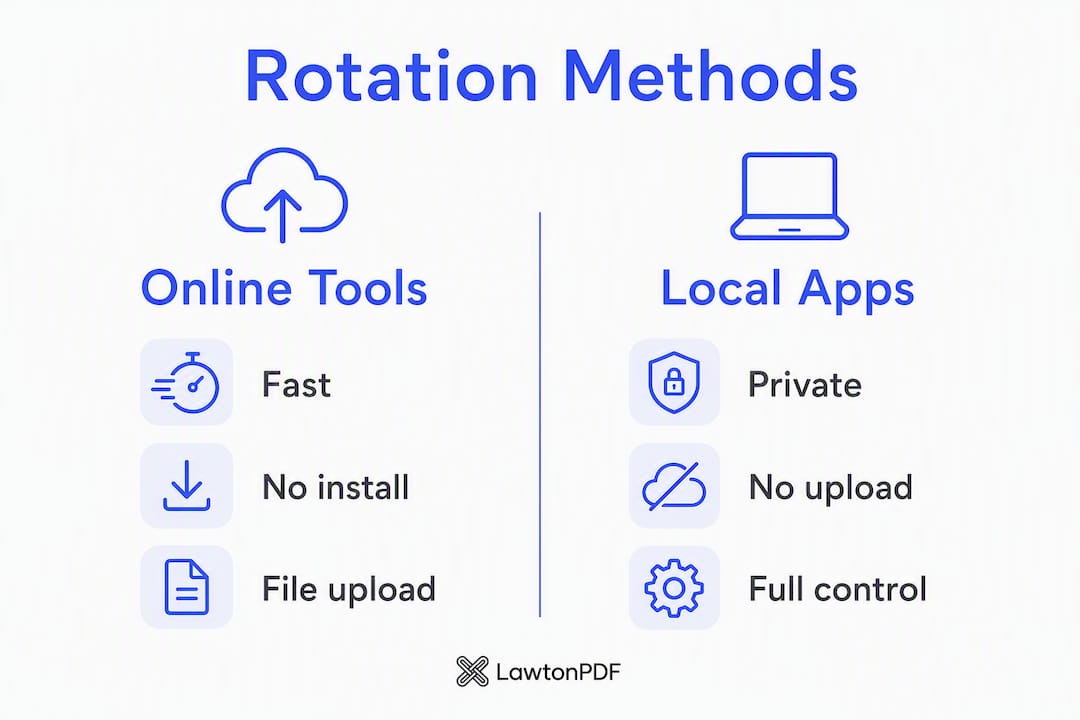
Speed and privacy pull in opposite directions here. Online tools are fast and require no installation, but they transfer your file to a remote server, even briefly.
Most reputable online rotators delete uploaded files within a few hours. Still, "deleted" on a third-party server is a policy claim, not a guarantee you can audit. For a public brochure or a non-sensitive form, that trade-off is fine. For a signed contract, a medical record, or a financial statement, it is not.
| File type | Recommended method | Reason |
|---|---|---|
| Public marketing PDF | Online rotator | Fast, no install needed |
| Internal business document | Local app | File never leaves your device |
| Medical or legal record | Local app (Lawtonpdf) | Local-only processing, no cloud transfer |
| Batch processing | Local app | Faster than repeated uploads |
Lawtonpdf's local-only processing means your file stays on your Windows machine from start to finish. There is no server retention policy to read because there is no server involved. That matters for legal teams, healthcare organizations, and finance professionals who handle regulated documents.
Pro Tip: If you must use an online tool for a sensitive file, strip the document's metadata and redact any personally identifiable fields before uploading. Save the output to an encrypted folder immediately after download.
Lawtonpdf keeps your PDF rotation private and local

Most online rotators are convenient, but they ask you to hand your file to a third-party server. Lawtonpdf takes a different approach: every rotation, merge, extraction, and protection step runs entirely on your Windows machine. Your files never leave your device.
For teams handling contracts, health records, or financial documents, that distinction matters. Lawtonpdf's free PDF tools cover rotation, batch processing, page extraction, merging, watermarking, and password protection, all in one local workflow. You rotate a file, then immediately protect it with a password, without a single cloud upload in between.
Getting started is straightforward. Download Lawtonpdf, open your PDF, select the pages you want to fix, rotate, and save. A free limited version is available so you can test the workflow before committing to a subscription.
Key Takeaways
The fastest and most private way to rotate PDF pages is to match your method to the file's sensitivity: online tools for quick public edits, a local app for anything confidential.
| Point | Details |
|---|---|
| Online tools are fast but not private | Use browser-based rotators only for non-sensitive, public documents. |
| Always export to save permanently | Rotation is temporary until you use Save As or Export in a dedicated editor. |
| Scanned pages need special handling | Image-based pages may require image-layer rotation or OCR before changes stick. |
| Local apps eliminate cloud risk | A local tool like Lawtonpdf keeps files on your device with no server transfer. |
| Lawtonpdf covers the full workflow | Rotate, merge, protect, and extract pages locally on Windows in one app. |
The case for a simple file-sensitivity rule
The debate between online and local PDF tools often gets framed as a technical question. It is really a judgment call about risk. Most people upload files to online tools out of habit, not because they have weighed the trade-offs. A signed lease, a medical referral, a tax form — these are documents where a brief server-side copy is a real exposure, not a theoretical one.
The practical fix is a rule you can apply in two seconds: if the file contains information you would not post publicly, use a local tool. Lawtonpdf exists precisely for that category of document. It handles rotation, batch processing, and follow-up tasks like password protection without ever asking you to trust a third-party server. Online tools are not wrong — they are just the right answer for a narrower set of files than most people assume.
Useful sources and tools
These resources cover the tools and guides referenced in this article.
Official tools and product pages:
- Lawtonpdf free PDF tools (Windows) — rotate, merge, protect, and more, all locally
- Lawtonpdf main product page — overview of local processing and the full feature set
- Adobe Acrobat free online rotate tool — browser-based rotation with single-page selection
Internal guides for follow-up tasks:
- How to reorder PDF pages — useful after rotating and reorganizing a multi-page document
- How to merge PDFs privately — combine rotated pages into one file without cloud uploads
- Private PDF editor guide for business teams — explains why local editors are the right choice for regulated documents
Pro Tip: Bookmark the Lawtonpdf tools page for quick access. Having a local rotator ready means you never need to reach for an online tool when a sensitive file needs a quick fix.
FAQ
How do I rotate PDF pages without Adobe Acrobat?
Use any free online rotator or a local app like Lawtonpdf. Upload your PDF, select the pages, choose your angle, and download the result — no Acrobat license needed.
Why won't my PDF rotation save?
Your viewer may be rotating the display only, not the file. Open the PDF in a dedicated editor, apply the rotation, and use Export or Save As to write the change permanently to the file.
Can I rotate just one page in a PDF?
Yes. In most PDF editors and online tools, click the thumbnail of the specific page you want to fix, apply the rotation, and save. The other pages stay untouched.
How do I change the page orientation permanently in a PDF?
Apply the rotation in a PDF editor (not just a viewer), then export or save the file. Reopen it in a separate viewer to confirm the orientation change persisted in the saved file.