
The fastest way to produce a reliable redline PDF is to run an automated file comparison, verify the results, then export the redline as a new PDF. That three-step sequence handles 90% of contract review scenarios. Here is what to do right now:
- Run a local comparison first. Never upload sensitive contracts to a server-side tool unless you have confirmed encryption and a data-processing agreement.
- Verify manually after the automated diff. Moved text, merged table cells, and scanned-page artifacts all require a human check.
- Sanitize metadata before sharing. Strip internal comments, hidden layers, and document properties to avoid leaking strategy or waiving privilege.
Both automated diffing and step-by-step manual redlining are covered below.
Table of Contents
- How do you compare two PDFs and produce a redline?
- What settings and view modes should you check before comparing?
- How do you read and interpret compare results?
- Desktop apps vs. cloud services: which works for sensitive contracts?
- How to redline a PDF manually when automation is not enough
- PDF redlines vs. Word Track Changes: when does format matter?
- Quick fixes for common PDF comparison problems
- Key Takeaways
- Why local-first is the right default for legal teams
- Lawtonpdf: secure, offline PDF comparison for professionals
- Useful sources and further reading
How do you compare two PDFs and produce a redline?
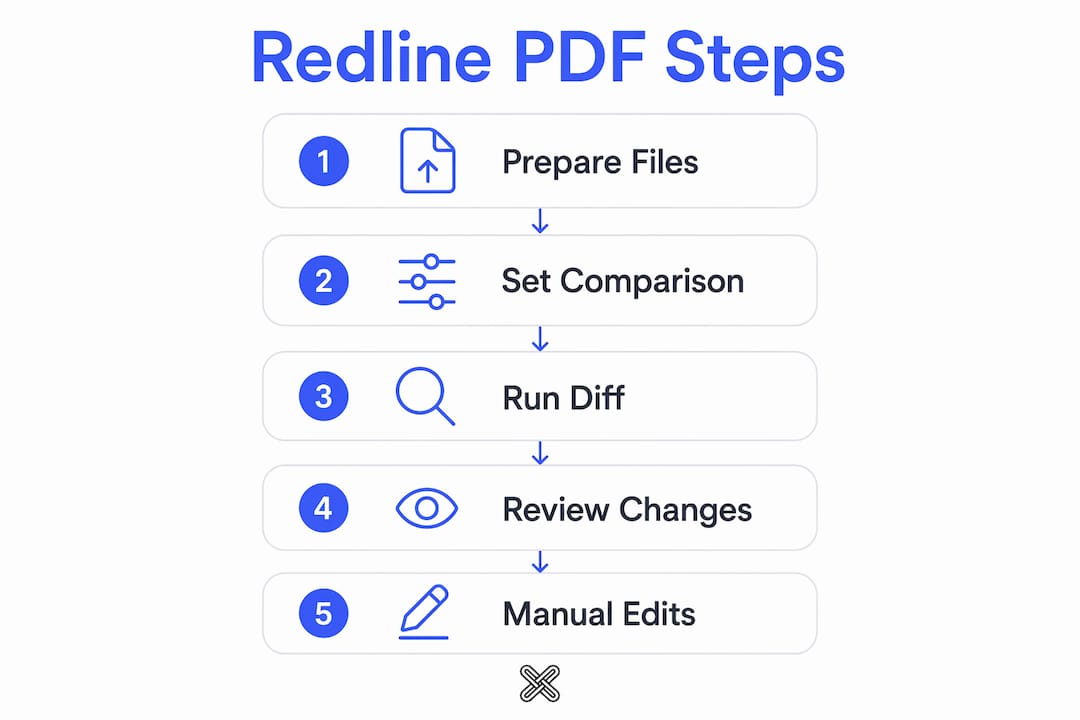
Follow these steps in order. Skipping file prep is the most common reason a comparison produces false positives.
- Prepare both files. Use consistent filenames (e.g.,
Agreement_v1.pdfandAgreement_v2.pdf). If either file is a scanned PDF, run OCR before comparing. Remove non-public metadata using your PDF tool's sanitize or document-properties function. - Run an automated comparison. Open your comparison tool and load the original as the "base" and the revised version as the "changed" file. Choose text-level diffing when available; it is more precise than image-based comparison.
- Select your output style. Automated comparison can produce a classic inline redline (strikethrough deletions, underlined insertions) or a per-page side-by-side diff. Pick the format your counterparty expects.
- Inspect the changes list. Navigate each flagged change, jump to the relevant page, and confirm whether flagged items are genuine edits or OCR artifacts.
- Add targeted manual redlines where needed. If the automated diff missed a nuance or you need to annotate rationale, add comments or markup directly on the relevant clause.
- Export the redline. Save as a single redlined PDF, a side-by-side PDF, or an HTML report. If sharing externally, flatten annotations or sanitize the file first.
Pro Tip: Keep the original, unmodified PDFs archived separately. You will need them if a dispute arises about what changed between rounds.
What settings and view modes should you check before comparing?
Getting the settings right before you run a comparison saves significant cleanup time afterward.

| Setting | Options | Recommended for contracts |
|---|---|---|
| Text sensitivity | Exact match / fuzzy | Exact match |
| Whitespace handling | Ignore / include | Ignore |
| Case sensitivity | On / off | Off |
| Punctuation | Ignore / include | Include |
| Move detection | On / off | On |
| OCR pre-processing | Required for scanned PDFs | Always run first |
View modes: Side-by-side view preserves layout context, which is useful for spotting table and formatting changes. Inline redline view mirrors the track-changes style most attorneys recognize from Word, making it easier to read in a single-document flow.
OCR quality directly affects accuracy. OCR errors are a regular source of false positives; if a scanned PDF produces dozens of unexpected changes, re-run OCR at a higher quality setting before comparing again.
Pro Tip: For image-heavy pages or exhibits, run a separate image-comparison pass rather than relying on text diffing. Text extraction from image-only pages will always be incomplete.
How do you read and interpret compare results?
Each visual convention in a redline output carries a specific meaning. Misreading them leads to missed edits or incorrect negotiation positions.
- Strikethrough text = deleted content from the original.
- Underlined text (often in a contrasting color) = inserted content in the revised version.
- Highlighted text with an arrow or bracket = moved text; the original location and destination are both flagged.
- Formatting-only change = typically shown as a highlight without text modification; check whether it affects meaning (e.g., a bold clause heading vs. a font-size shift).
Use the changes list or comments pane to audit every modification in sequence. Do not rely on visual scanning alone; it is easy to miss a single-word deletion in a dense paragraph.
Common false positives to watch for: OCR artifacts that render a character differently across versions, page reflows caused by margin or font changes, and non-semantic formatting shifts like line-spacing adjustments. Confirm table cells and numbered list items individually, since automated tools sometimes split a single table edit into multiple flagged changes.
Pro Tip: Sample-check at least three random clauses against the original to calibrate your confidence in the tool's accuracy before relying on the full changes list.
Desktop apps vs. cloud services: which works for sensitive contracts?
The right tool category depends on how sensitive your documents are and how your team works.
| Tool category | Processing location | Privacy level | Best for |
|---|---|---|---|
| Desktop / local app | On-device only | High | Regulated contracts, M&A, litigation |
| Browser / client-side | In-browser (no upload) | Medium-high | Cross-platform teams; verify the processing model |
| Cloud / server-side | Remote server | Lower | High-volume, lower-sensitivity workflows |
Desktop and local applications process everything on your machine. There is no server upload, no third-party data exposure, and no dependency on an internet connection. That predictability matters for commercial contracts where confidentiality obligations are explicit.
In-browser tools can run entirely client-side using pdf.js and client-side diffing, which preserves privacy when the tool explicitly states local processing. The key word is "explicitly." If a tool's privacy page is vague about where processing occurs, treat it as server-side.
Cloud services are convenient for team workflows and batch processing, but they expose confidential content unless you have a signed data-processing agreement and confirmed encryption in transit and at rest.
Practical selection criteria: file sensitivity, move-detection fidelity, OCR quality for scanned documents, and whether you need batch processing across a folder of contracts.
How to redline a PDF manually when automation is not enough
Professional practice recommends running an automated diff first, then using manual redlines to clarify intent. Here is the manual workflow:
- Use Strikethrough for deletions. Adobe recommends the Strikethrough tool for deleted text and Insert Text at Cursor (the caret tool) for additions. Avoid freehand lines or generic shapes; they are ambiguous and hard to audit.
- Add a comment to every markup. Explain why you proposed the deletion or insertion. Keep internal strategy notes out of the external file.
- Review the Comments list before sending. Remove any internal-only annotations. Check for comments added by other reviewers that were not intended for the counterparty.
- Sanitize the file. Strip metadata, hidden layers, and embedded drafts before sharing externally to avoid privilege or confidentiality leakage.
- Apply a consistent filename pattern. Use something like
ContractName_Redlines_v2.pdfand archive the original separately. - Flatten annotations for the final share copy. Flattening produces a single visual output with no editable annotation layer. Keep a separate, editable internal archive for your records.
Pro Tip: Never flatten your only copy. Always save a flattened version for sharing and retain the annotated version internally.

PDF redlines vs. Word Track Changes: when does format matter?
PDF annotations are visual overlays, not structured edits. That distinction has real consequences for multi-round negotiations.
PDF redlining lacks the structured accept/reject functionality that Word's Track Changes provides. In Word, accepting a change rewrites the document. In a PDF, it removes a sticky note or clears a strikethrough overlay, but the base text stays unchanged until someone edits it manually.
The practical guidance is straightforward: use Word for active negotiation rounds where multiple parties are accepting, rejecting, and proposing changes in sequence. Reserve PDFs for near-final or execution-ready drafts where the format needs to be locked and the visual presentation matters.
A hybrid workflow covers both needs. Run an automated comparison to establish the baseline diff, then use manual PDF redlines for pinpoint discussion on specific clauses or when a counterparty requires a locked-format exchange.
Pro Tip: If you receive a redlined PDF from a counterparty, convert it to Word before accepting changes so you can use Track Changes for your response. This keeps the negotiation history clean and auditable.
Quick fixes for common PDF comparison problems
- Scanned PDF shows dozens of false changes: The file has not been OCR-processed, or the OCR quality is low. Re-run OCR at a higher setting, then compare again.
- Moved text appears as many small deletions and insertions: Move detection is off. Enable it in your comparison settings, or switch to side-by-side view to see layout context.
- Annotations are missing after export: Check your export settings. Confirm that "include comments" or "export annotations" is selected. If annotations still disappear, flatten them before exporting.
- DOCX-to-PDF round trip produces unexpected differences: The conversion process can shift line breaks, reflow text, and alter spacing. Keep the original DOCX and compare DOCX-to-DOCX for active negotiation rounds whenever possible.
Key Takeaways
Local-first automated comparison, followed by manual verification and metadata sanitization, is the most reliable and secure workflow for redlining PDFs in legal and contract settings.
| Point | Details |
|---|---|
| Run automated comparison first | Use a local or client-side tool; verify edge cases manually before relying on the full changes list. |
| Sanitize before sharing | Strip metadata, hidden layers, and internal comments; flatten only after terms are agreed. |
| Use Word for active negotiations | Reserve PDF redlines for near-final or locked-format documents where visual presentation matters. |
| Choose local processing for sensitive files | Server-side tools expose confidential content; local processing keeps your data under your control. |
| Lawtonpdf for secure offline comparison | Lawtonpdf processes all comparisons on-device, supports PDF and DOCX comparison, OCR, and batch workflows. |
Why local-first is the right default for legal teams
The argument for local processing is not just about privacy preferences. It is about chain of custody. When a file never leaves your machine, you can state with certainty where it has been and who has seen it. That certainty matters in litigation, in M&A due diligence, and in any negotiation where confidentiality obligations are explicit in the contract itself.
Cloud tools introduce a third party into that chain, even when encryption is strong. You are trusting the vendor's infrastructure, their staff access controls, and their incident-response procedures. For most commercial contracts, that is an unnecessary risk when local alternatives exist.
Disciplined workflows reinforce that security. Consistent filenames, archived originals, sanitized share copies, and a clear version history are not bureaucratic overhead. They are the audit trail that protects you if a dispute arises about what was agreed and when.
For legal professionals who want to learn more about presenting and communicating contract work securely, the guidance on legal content for websites covers how to publish redline summaries without exposing confidential data.
Lawtonpdf: secure, offline PDF comparison for professionals
Sensitive contracts should not leave your machine. Lawtonpdf is a Windows application that runs every comparison locally, with no server uploads and no third-party data exposure.
The comparison engine handles PDF vs. PDF, PDF vs. DOCX, and DOCX vs. DOCX, so you can compare across formats without a round-trip conversion. OCR support means scanned contracts are not a blocker. Batch comparison lets you process a folder of documents in one pass, which is practical for due diligence reviews with dozens of exhibits.
Beyond comparison, Lawtonpdf includes PDF management tools for merging, splitting, flattening, watermarking, and password-protecting files. Metadata sanitization is built in, so you can clean a file before sharing without switching applications. Team license options are available for firms that need centralized administration.
A free limited version is available to try. Visit lawtonpdf.com to download and see the full feature set.
Useful sources and further reading
- How to redline documents (Adobe Help) — Adobe's official guidance on using Strikethrough, Insert Text at Cursor, and sticky notes for professional PDF markup. The authoritative reference for manual redlining conventions.
- How to track changes, redline and add comments to PDFs (Juro) — Explains the functional difference between PDF annotations and Word's Track Changes, with practical guidance on when to use each format.
- How To Redline A PDF: A Professional Guide for Legal Teams (Spellbook) — Practitioner-focused checklist covering sanitization, version control, and metadata hygiene before sharing redlined PDFs externally.
- Free Contract Redline Tool (Ultimate Design Tools) — Documents the client-side processing model using pdf.js and covers OCR caveats for scanned PDFs; useful for understanding browser-based tool privacy claims.
- Why corporate lawyers need portfolio pages — Covers how law firms can present contract work publicly without exposing confidential redline data; relevant for firms building a public-facing practice profile.