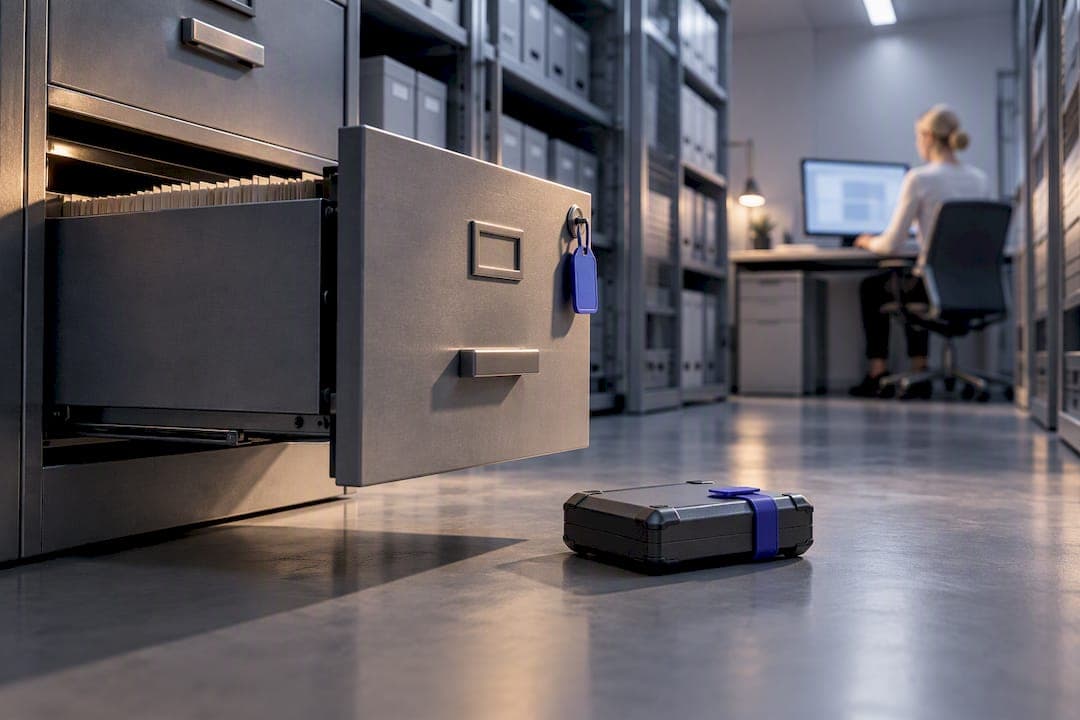
Information governance for local files works best as three layers stacked together: a hardened operating system baseline, disciplined folder hygiene and classification, and selective encrypted containers backed by tested recovery. Skip any layer and the other two compensate poorly. A local-first document tool that processes everything on your own machine exemplifies software built around this exact model.
TL;DR:
- Protect only sensitive files in small, well-classified vaults to prevent malware from accessing high-value data unnoticed.
- Prioritize securing the operating system first with full-disk encryption and strong login requirements before enhancing folder discipline.
- Use native encryption tools like Windows Personal Data Encryption paired with backups stored on separate media and off-site locations.
- Maintain audit trails with file hashes, timestamps, and cryptographic logs, and implement documented workflows for classification and approval.
- Limit the protected file set and avoid relying on temporary or default folders to reduce exposure to infostealer malware, which targets common file types like documents and spreadsheets.
Table of Contents
- Why Local Files Need Their Own Threat Model
- What Should You Fix First for Local File Security?
- Containers, Windows Personal Data Encryption, and Integrity Logs
- How Do Teams Keep Local Files Auditable Without the Cloud?
- Backup Strategy for Encrypted Local Files
- What I've Learned Watching Local File Systems Fail
- Where LawtonPDF Fits in a Local-First Workflow
- Sources
- FAQ
Why Local Files Need Their Own Threat Model
Local files face a different set of risks than files sitting in a cloud tenant, and treating them the same way is the first mistake most teams make. Infostealer malware doesn't guess where your sensitive documents live. It scans the paths every user defaults to, and it targets the file types that carry the most value.
Kaspersky research found that 35% of infostealer infections begin when someone runs a file directly from a temporary folder, and campaigns of this kind routinely comb through Desktop, Documents, and Downloads for .docx, .xlsx, .pdf, and .txt files. That pattern is the entire justification for folder hygiene. If sensitive files sit where malware expects them, you've already lost the first move.
Four principles follow from that threat model:
- Minimize the exposed surface. Fewer sensitive files sitting in casual paths means less for malware to find.
- Require deliberate access. Sensitive files should need a conscious unlock step, not a double-click from Explorer.
- Keep files recoverable. Every protective measure needs a matching recovery path, or you've traded one risk for another.
- Maintain verifiable integrity records. You need to prove a file hasn't changed, not just that it's protected.
Whole-disk encryption like BitLocker or FileVault protects data at rest when a device is off or locked. It does nothing once you've logged in and a malicious process is running as you. That's a session-time gap, and it's exactly what containers and folder discipline are built to close, as OpsecGuides lays out in its container strategy guidance.
What Should You Fix First for Local File Security?
Start with the operating system, then hygiene, then classification. Trying to skip ahead to fancy container setups before the basics are solid is how most local-file security programs stall out.
- Lock down the OS baseline. Enable full-disk encryption (BitLocker on Windows, FileVault on Mac), require a strong login, and keep the system patched. This is the floor, not the ceiling.
- Fix your inbox-to-vault habit. Downloads and Desktop are landing zones, not storage. Set a rule: nothing sensitive stays there past the day it arrived. Move it into a designated vault folder immediately.
- Classify with a light touch. You don't need an enterprise taxonomy. Two tiers work for most teams: "Restricted" for anything with client data, financials, or legal exposure, and "Internal" for everything else. A simple file-naming prefix or folder tag is enough to make this stick.
- Build a weekly sweep. Once a week, check Downloads and Desktop for anything that should have moved to a vault. Once a month, spot-check that your Restricted vault only contains what actually belongs there.
The Security Editor's infostealer analysis makes a point worth repeating: an unlocked container while malware is running is just a folder. The protection only exists while the container is locked, which is why the habit of locking it back up matters more than the technology itself.
Pro Tip: Set a calendar reminder for your weekly Downloads sweep instead of relying on memory. The habit that isn't scheduled is the habit that quietly stops happening after week three.
Containers, Windows Personal Data Encryption, and Integrity Logs
Once hygiene is solid, you need to decide how the small set of genuinely sensitive files gets locked down. Two approaches dominate: container-style encrypted volumes and native OS features like Windows Personal Data Encryption (PDE).
Container tools mount a virtual encrypted volume that behaves like a drive. The rules that keep them safe are simple to state and easy to skip in practice:
- Mount the container only while you're actively working in it, then unmount.
- Avoid opening files with editors that leave plaintext temp files outside the container.
- Keep the container small and document exactly what's in it and why.
Containers don't hide everything, though. According to VeraCrypt's practical guide, a mounted container still leaves filename, timestamp, and access-pattern metadata visible, and applications routinely scatter plaintext artifacts through temp folders and swap files while you work. Encryption protects contents. It doesn't erase your digital footprint.
Windows PDE, available on Windows 11 24H2 and later, takes a different approach. It applies AES-256 encryption at the file and folder level and ties key release to Windows Hello, protecting known folders like Desktop and Documents automatically. Unlike BitLocker, PDE keys are discarded at sign-out, which narrows the exposure window even while the device stays logged in for other users. Microsoft recommends pairing PDE with BitLocker rather than choosing one over the other, since PDE keys can be lost after a destructive PIN or TPM reset. Plan your backup strategy with that failure mode in mind before you rely on PDE for anything irreplaceable.
For integrity, don't rely on trust alone. Local append-only logs, per-file hashes, and cryptographic seals give you a chain-of-custody record even with no cloud authority involved, an approach that mirrors how inbox-to-vault pipelines tag and log files the moment they're classified.
How Do Teams Keep Local Files Auditable Without the Cloud?
Legal and compliance teams need proof, not just protection. That means building auditability into the workflow itself rather than bolting it on after the fact.
A workable pattern looks like this:
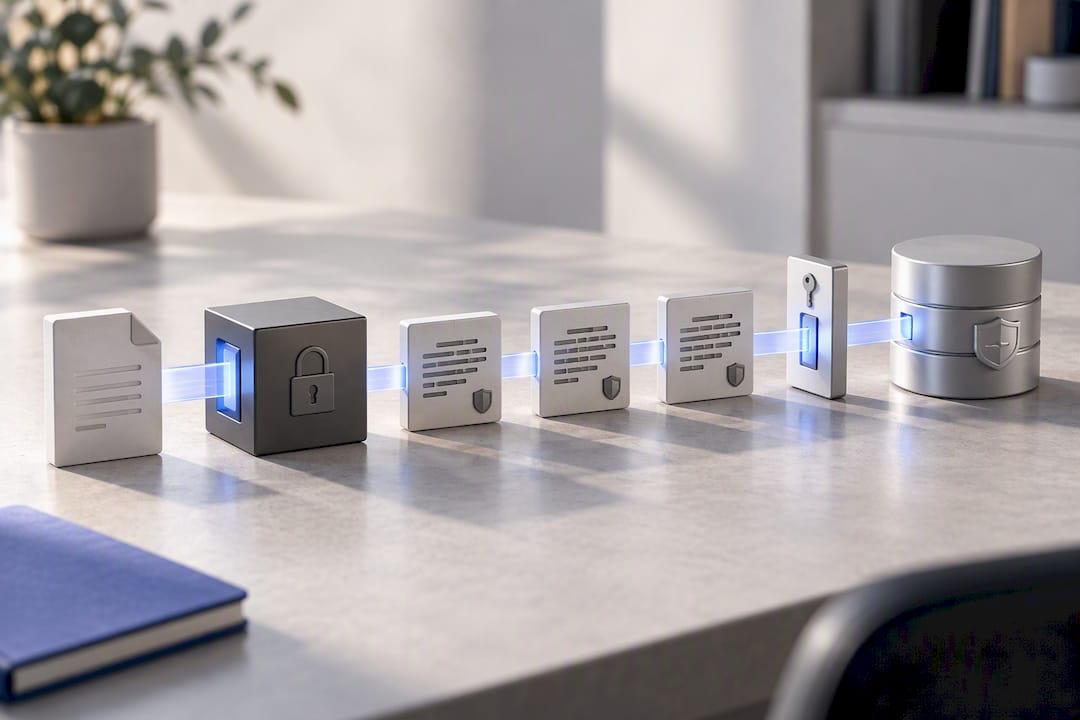
- Ingest. Files land in a watched folder and get a stable identifier or hash the moment they arrive.
- Classify. A person or a simple automated rule tags each file's sensitivity tier before it moves further.
- Secure vault. Classified files move into the appropriate vault, encrypted and access-controlled.
- Approve/export. Any file leaving the vault goes through a documented approval step, logged with a timestamp.
Retention should split into two tracks. Keep short operational logs, something like a rolling 90-day window, for day-to-day audit needs, and maintain separate long-term archival backups for anything with regulatory retention requirements. Auditors generally want three things: timestamps, hashes, and the local audit trail itself. If your version control approach can produce all three on request, you've covered most of what a compliance review will ask for. Structured centralized document administration makes this far easier to maintain across a team than ad hoc folder conventions.
Backup Strategy for Encrypted Local Files
Encryption without a recovery plan just creates a new way to lose your own data. A solid multi-copy strategy has three parts: the active copy on your working device, a second copy on different media, and a third copy stored off-site.
- Keep the working copy on your primary device, encrypted through PDE, BitLocker, or a container.
- Maintain a backup on separate physical media, an external SSD works well, updated on a regular schedule.
- Store a third copy off-site or in a different location entirely, so a single fire, theft, or ransomware event can't wipe out every copy at once.
Never let a single key or header control every copy of your data. Back up container headers separately from the container itself, document your recovery process in writing, and test a full restore at least twice a year rather than assuming backups work. A syncable vault tool like Cryptomator can extend this pattern across multiple devices without adding cloud exposure to the plaintext itself. As practitioner guidance on sovereign data vaults puts it, encryption only holds up when the backup plan is tested, not theoretical.
What I've Learned Watching Local File Systems Fail
The systems that fail aren't the ones with weak encryption. They're the ones where too many files got the "high protection" label, so people started working around the vault just to get their jobs done. Keep the protected set small enough that using it correctly is still faster than cutting corners.
Standardize on one container tool or one native option, document the recovery process once, and stop evaluating new tools every quarter. The leaks that actually happen come from editor temp files, pagefiles, and sync clients quietly copying plaintext outside the vault, not from someone cracking AES-256.
— Lawton
Where LawtonPDF Fits in a Local-First Workflow
Everything described above depends on tools that never send your files anywhere you don't control, and that's the entire design premise behind LawtonPDF. It runs document processing tools locally on your machine, with no cloud upload step to audit or worry about.

That matters most at two points in the workflow above: secure comparison and scan-to-PDF ingestion. When you need to verify a document hasn't been altered before it moves into an evidentiary log, LawtonPDF's PDF comparison tool checks two versions locally and shows exactly what changed, which is faster and more private than routing files through a browser-based comparison service. Its organizing tools also help with the classify step, letting you merge, split, and restructure files before they land in a vault. Some tools provide centralized administration to keep governance consistent instead of relying on individual habits.
LawtonPDF offers Free, Plus, and Business plans, with full details on the pricing page. Start with the free tier to see how the local-first workflow fits your current setup, then move up a plan once your team needs shared license management.
Sources
For deeper implementation detail, three sources back most of the technical guidance above: Microsoft's Personal Data Encryption documentation for configuration and recovery specifics, Kaspersky's infostealer research for threat context, and OpsecGuides' container strategy writeup for day-to-day operational rules. Compliance teams building out formal recordkeeping practices may also find Tickerly's trade monitoring overview useful for adjacent regulatory context.
- Kaspersky press release: 35% of infostealer infections begin with users running files directly from temporary folders
- OpsecGuides: Local file encryption and container strategy
- VeraCrypt done right: Practical guide
FAQ
What Is Local-First Information Governance for Files?
It's a governance approach where sensitive documents stay on your own device or network, protected through OS-level encryption, folder discipline, and selective encrypted containers, rather than relying on cloud storage for security. Tools like LawtonPDF apply this model by keeping all document processing local.
Is BitLocker Enough to Protect Local Files?
BitLocker protects data at rest when a device is powered off or locked, but it doesn't protect files during an active session if malware is running under your account. That's why Windows Personal Data Encryption and folder hygiene fill the gap BitLocker leaves open.
How Often Should I Back Up an Encrypted Container?
Back up on the same schedule as your regular files, at minimum weekly for active work, and always back up the container header separately from the container itself. Test a full restore at least twice a year to confirm the backup actually works.
Does LawtonPDF Upload My Files to the Cloud?
No. LawtonPDF processes every file, comparison, and edit locally on your own computer, with no upload step involved. Pricing details for the Free, Plus, and Business plans are available on the LawtonPDF pricing page.
What File Types Are Most at Risk on Local Devices?
Infostealer campaigns most commonly target .docx, .xlsx, .pdf, and .txt files stored in default paths like Desktop, Documents, and Downloads, according to Kaspersky's infostealer research. Moving these files into a locked, classified vault removes them from the paths malware scans by default.