
Secure document version control means one thing for compliance-sensitive teams: a local-first system that enforces single-writer locks, maintains tamper-evident audit logs, stores signed PDFs as immutable records, and runs every comparison on your own hardware. No cloud processing. No third-party access to your files.
Your minimum viable setup requires these five elements:
- Check-in/check-out locking to prevent simultaneous edits and eliminate merge conflicts
- Immutable signed PDFs stored separately from editable source files (Word, LaTeX, or similar)
- Audit logs that capture who accessed, reviewed, or approved each version, with exportable records
- Local-only processing so sensitive documents never leave your network
- Reliable PDF and file comparison to produce a defensible diff between any two versions
These are not optional for teams operating under HIPAA, FINRA, or ISO-style traceability requirements. They are the baseline.
Table of Contents
- Why does local document version control matter for security?
- Which versioning model fits your document workflow?
- What features does a secure local version control tool need?
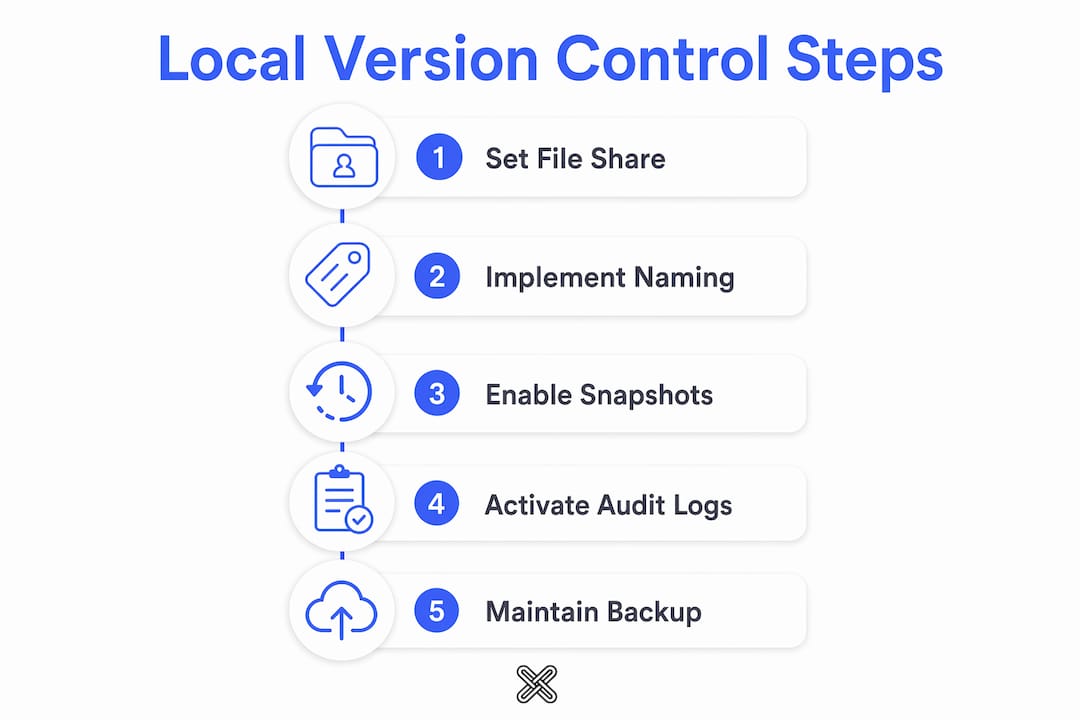
- How do you implement secure local version control step by step?
- Lawtonpdf handles local version control and PDF comparison on Windows
- Quick decision checklist before you commit to a local solution
- Key Takeaways
- Why the "just use cloud" default is the wrong call for regulated teams
- Lawtonpdf gives your team secure local document control
- Useful sources
- FAQ
Why does local document version control matter for security?
The most important reason to keep versioning local is control. When your documents stay on your hardware, you define who can access them, when, and under what conditions. Cloud platforms introduce multi-tenant environments where vendor access, misconfigured permissions, or a breach at the provider level can expose your files without any action on your part.
For regulated industries, that risk is not theoretical. HIPAA requires covered entities to control access to protected health information at a granular level. FINRA expects broker-dealers to retain records in a way that prevents alteration. Both frameworks are easier to satisfy when your audit trail lives on infrastructure you own and control.
The threat model for local setups is different, not absent. Physical loss, insider access, and unencrypted drives are real risks. Mitigations include encrypted storage, role-based access controls, and versioned filesystem snapshots (Windows Volume Shadow Copy or NAS snapshots work well here).
Pro Tip: Combine filesystem-level snapshots with application-level audit logs. Snapshots let you reconstruct file state; audit logs let you reconstruct user actions. Legal discovery often requires both, and having them separately maintained is what turns a good system into a defensible one.
For teams in HIPAA-regulated environments, audit log granularity is a compliance feature, not a convenience. Logs should capture edits, views, approvals, and permission changes, and they should be exportable on demand.
Which versioning model fits your document workflow?
Use linear chronological versioning for single-track documents. Use branching when parallel review streams or audience-specific variants exist. That distinction covers the vast majority of business document workflows.

| Dimension | Linear Chronological | Branched |
|---|---|---|
| Best use case | Contracts, policies, SOPs | Marketing variants, technical specs with audience forks |
| Complexity | Low | Moderate to high |
| Conflict risk | Low (one active editor at a time) | Higher without disciplined merge rules |
| Audit friendliness | High — clear sequential record | Requires branch naming and merge documentation |
| Tooling fit | File-locking DMS, local folders | Git-based tools, branching-aware DMS |
Most business documents work well with linear chronological versioning. A contract negotiation, for example, moves through Draft → Review → Approved → Signed in a single track. Check-in/check-out locks prevent two reviewers from editing simultaneously, and each saved version carries a timestamp and owner.
Branched versioning makes sense when a marketing team produces region-specific or audience-specific collateral from a shared master. Each variant lives on its own branch, edits are merged back with an approval step, and the auditable diff is saved as a PDF record.
Pro Tip: For most teams, a hybrid pattern works best: maintain a linear master branch and open short-lived branches only for parallel edits. Merge with a documented diff, then archive the branch. This keeps the audit trail clean without the overhead of full branch management.
Git-based document control takes this further by making every change cryptographically provable and modeling approvals as merges. It is worth evaluating for technical teams where immutability and provenance are the primary requirements.
What features does a secure local version control tool need?
A tool that cannot satisfy this checklist is not ready for compliance-sensitive use:
- Check-in/check-out locking: Prevents simultaneous edits and eliminates merge conflicts in non-cloud environments
- Tamper-evident audit logs: Captures access, review, and approval events with timestamps and user identity; must be exportable
- Local-only processing: No file data transmitted to external servers under any condition
- File comparison across types: PDF, Word, text, spreadsheets, images, and folders — side-by-side diff with clear change marking
- Role-based access controls: Least-privilege permissions so editors, reviewers, and approvers each see only what they need
- Encryption at rest: Documents stored on local drives or NAS must be encrypted; secure key storage is separate from the files
- Backup and retention policies: Active projects retain all versions; regulated documents often require retaining every version indefinitely
- Admin and license management: Centralized control over user accounts, permissions, and software deployment across a team
Audit logs are what transform a "last modified" timestamp into a defensible compliance record. Without event-level granularity and export capability, your log is not useful in a regulatory review.
Naming conventions matter too. Filename suffixes like "FINAL-v2" are fragile. A structured pattern combining date, version number, and status label (for example, PolicyName_2026-03_v2.1_Review.docx) is far more reliable, especially when paired with in-document revision history tables.
How do you implement secure local version control step by step?
Start with one rule: implement a single-writer lock model, mandatory audit logging, and a local archive of source files with signed PDFs as the immutable execution records.
- Define document categories and owners. Assign a named owner to each document class (contracts, policies, clinical records). Owners control check-in/check-out and approve final versions.
- Set naming conventions and status labels. Adopt a consistent format:
DocumentName_YYYY-MM_vX.Y_Status.ext. Status labels should be limited to Draft, Review, Approved, and Signed. - Configure local storage. Use a NAS with versioned shares or Windows Volume Shadow Copy on a local server. Snapshots should run at least daily; off-site encrypted backups weekly.
- Enforce check-in/check-out locks. Assign a document owner, lock the file on check-out, and set a short automatic lock expiry with an admin override policy to prevent work stoppages.
- Enable detailed audit logging. Log every access, edit, approval, and permission change. Export logs monthly and store them in a separate, write-protected location.
- Set retention and archival rules. Active projects keep all versions. Closed, unregulated projects may keep the latest plus the immediately prior version. Regulated documents retain everything.
- Test restore and legal discovery scenarios. Run a quarterly drill: restore a specific version from a snapshot and produce the corresponding audit log. If you cannot do both in under an hour, your setup needs work.
For collaborative workflows without cloud access, route files through a controlled file share on your local network. One person checks out, edits, and checks back in. Approved PDFs are distributed as read-only copies. Merging PDFs into a consolidated record is a routine step before archiving a signed package.
A small team can typically complete a pilot in 30–60 days. Mid-size organizations should plan for a phased rollout by document class. Per-user licensing costs vary by tool; budget for admin overhead during the first 90 days.
Keep signed PDFs immutable and always retain the separate editable source. Never overwrite a signed PDF with a new draft.
Lawtonpdf handles local version control and PDF comparison on Windows
Lawtonpdf is built for exactly this workflow: all processing runs locally on Windows, your files never leave your machine, and the comparison engine handles PDFs, Word documents, text files, spreadsheets, images, and entire folders side by side.
Here is how Lawtonpdf maps to the essential checklist:
- Local/offline processing: Every operation runs on your hardware. No cloud upload, no external server contact.
- File types supported: PDF, Word, text, code, spreadsheets, images, and folders — the full range compliance teams work with daily.
- PDF management tools: Merge, split, organize, extract pages, rotate, flatten, watermark, password-protect, and unlock files, all locally.
- Audit and comparison output: Side-by-side diffs produce a clear, exportable record of what changed between any two versions.
- Admin and license management: Centralized team administration and per-user license controls for IT and compliance officers.
- Security: Local processing eliminates the cloud attack surface; password protection and encryption controls are built in.
- Platform: Windows, which fits the majority of enterprise desktop environments in the U.S.
- Licensing model: Subscription SaaS with per-user tiers for individuals, small teams, and businesses; a free limited version is available for initial evaluation.
You can explore free tools to run a low-friction pilot before committing to a paid tier. Start with one document class, compare two signed PDFs, and verify that the diff output meets your audit documentation standard.
For teams evaluating local document comparison options, Lawtonpdf's combination of PDF tooling and multi-format comparison in a single Windows application reduces the number of tools you need to manage and audit.
Quick decision checklist before you commit to a local solution
Is your primary need auditability and local processing? If yes, proceed. If no, re-evaluate whether a local-first tool is the right fit for your workflow.
Before committing, confirm each of the following:
- Windows environment available for all users who need access
- NAS or local server with snapshot capability configured and tested
- Legal retention rules documented for each document class you plan to manage
- Admin capacity to manage user accounts, lock overrides, and log exports
- User training plan covering check-in/check-out procedures and naming conventions
- Per-user licensing costs budgeted and approved
Red flags that should pause your evaluation:
- Tool requires cloud processing for any core function
- No check-in/check-out or locking mechanism
- Audit logs are incomplete, non-exportable, or missing entirely
- PDF diff output is low-fidelity or character-level only
- No team or admin management features
- Licensing terms are unclear about data handling or storage location
Review licensing terms carefully before procurement sign-off, particularly clauses about data processing and storage.
Key Takeaways
Secure local document version control requires single-writer locks, tamper-evident audit logs, local-only processing, and signed PDFs stored separately from editable sources.
| Point | Details |
|---|---|
| Local-first is the compliance baseline | Keeping processing on your own hardware gives you auditable control that cloud platforms cannot guarantee. |
| Audit logs need event-level detail | Logs must capture access, review, and approval events and be exportable to satisfy HIPAA and FINRA requirements. |
| Match the model to the workflow | Use linear chronological versioning for contracts and policies; use branching only when parallel variants exist. |
| Signed PDFs are immutable records | Always store signed PDFs separately from editable sources and never overwrite them with a new draft. |
| Lawtonpdf for Windows pilots | Lawtonpdf runs all comparison and PDF management locally on Windows, with per-user licensing and a free tier for evaluation. |
Why the "just use cloud" default is the wrong call for regulated teams
The conventional advice is to pick a cloud document platform and let it handle versioning automatically. For many teams, that is fine. For legal, healthcare, and finance teams operating under U.S. regulatory frameworks, it is often the wrong trade-off.
Cloud versioning is convenient, but it moves your audit trail to infrastructure you do not control. When a regulator asks for a complete access log, you are dependent on your vendor's export tools, their data retention policies, and their interpretation of what "complete" means. That dependency is a real compliance risk, not a theoretical one.
Local-first versioning puts the audit trail on your terms. You define the log format, the retention period, and the export process. You can produce a complete version history and access record without filing a support ticket or waiting on a vendor's data export queue.
The practical cost is real: local setups require more admin effort, disciplined naming conventions, and a tested backup strategy. But for teams where a defensible audit trail is a legal requirement, that overhead is the cost of doing it right.
Lawtonpdf gives your team secure local document control
If your team needs local processing, PDF comparison, and a clear audit trail without sending files to a cloud server, Lawtonpdf is built for that workflow. Every comparison, merge, and PDF operation runs on your Windows machine. Your documents stay yours.

To run a pilot, download Lawtonpdf and start with one document class. Compare two versions of a signed PDF, review the diff output, and confirm it meets your documentation standard. The free limited version gives you enough to validate the workflow before purchasing a team license. When you are ready to scale, per-user tiers cover individual users through full business deployments, with centralized admin controls included.
Useful sources
- Document Version Control Best Practices (edmsnext.com) — Practical overview of naming conventions, audit trails, RBAC, and rollout steps for compliance-focused teams.
- Document Versioning Best Practices (Docento.app) — Covers linear vs. branched models, naming patterns, retention rules, and the signed-PDF separation principle.
- Version Control for Documents (Plane Blog) — Explains check-in/check-out locking, automated versioning, and filesystem-level snapshot strategies.
- Document Version Control Best Practices (DocSigned) — Contract-focused checklist: document owners, status labels, lock-on-signature, and lock expiry with admin override.
- The Ultimate Guide to Document Version Control (Docuware Blog) — Explains how audit logs convert timestamps into defensible compliance records for regulated industries.
- git4docs: Git-Based Document Control — Reference for cryptographically provable change history and merge-based approval workflows in technical environments.
- Track Changes in Word (Microsoft Support) — Official Microsoft documentation on built-in revision tracking, markup display, and lock-tracking features in Word.
FAQ
What is document version control?
Document version control is the systematic process of tracking, storing, and managing every draft of a file so teams always know which version is current and can reconstruct the full history of changes.
Why do compliance teams need local version control instead of cloud?
Local processing keeps your audit trail on infrastructure you control, which is critical for HIPAA, FINRA, and similar frameworks that require demonstrable access controls and complete, exportable records.
What is the difference between linear and branched versioning?
Linear versioning tracks one sequential history, which suits contracts and policies. Branched versioning supports parallel variants or review streams and requires disciplined merge and documentation practices.
How does Lawtonpdf support secure local document workflows?
Lawtonpdf runs all PDF comparison, merging, and file management locally on Windows with no cloud processing, and supports multi-format comparison across PDFs, Word files, spreadsheets, images, and folders.
How should you handle signed PDFs in a version control system?
Treat signed PDFs as immutable records and always store them separately from editable source files. Never overwrite a signed PDF with a revised draft.