
Use a local-only folder comparison to review sensitive audit documents. Skip cloud tools entirely for anything privileged. The right approach compares full folders of PDFs, Word files, spreadsheets, and images on your own hardware, then produces the specific outputs an audit file actually needs.
You should expect three things out of a defensible run:
- Redlines that mark exact content changes between document versions.
- A file-level change log showing what was added, removed, or modified across the folder.
- An exportable processing audit log with timestamps, user IDs, and operation parameters attached to every action.
Nothing in that list requires a server outside your firewall. Processing has to stay on hardware your organization controls, because that's what protects attorney-client privilege and keeps chain of custody intact when the file set is later challenged.
Key Takeaways
Defensible folder comparison for audits requires local-only processing, documented human review of every flagged change, and an exportable log tying each action to a timestamp and user.
| Point | Details |
|---|---|
| Keep processing local | Never route privileged or regulated files through cloud or consumer AI tools. |
| Log every action | Capture file hashes, user IDs, timestamps, and parameters for each compare run. |
| Require human disposition | Document why each flagged change was accepted or rejected before it enters the file. |
| Test on real messy files | Verify OCR and extraction accuracy on scans and mixed formats before a live audit run. |
| Use LawtonPDF for the workflow | Its folder, file, and spreadsheet compare tools run locally and export redlines and change logs suited to working papers. |
Table of Contents
- When Does an Audit Require Local Folder Comparison?
- What Is the Step-by-Step Workflow for a Defensible Compare?
- Technical Controls That Keep a Compare Auditable
- Common Pitfalls That Undermine Audit Defensibility
- How LawtonPDF Fits a Privacy-First Audit Workflow
- Get Your Audit File Compare-Ready With LawtonPDF
- Sources
When Does an Audit Require Local Folder Comparison?
Not every document review needs this level of rigor. But several recurring audit situations make local-only processing mandatory rather than optional.
- Privileged reviews. Internal investigations, legal holds, and any file set touched by counsel require processing confined to approved, controlled environments with limited distribution, per Spencer Fane's privilege guidance.
- Regulatory-sensitive data. Healthcare records, financial statements under SOX scope, or personal data covered by privacy law all carry exposure risk the moment a file leaves your network.
- Contracts with confidentiality clauses. Vendor and provider agreements often bar third-party processing outright. Running them through a cloud AI tool can itself become a breach.
Certain document sets benefit most from a structured compare: mixed-format evidence folders, scanned contracts sitting alongside born-digital PDFs, large batches of contract redlines spanning multiple negotiation rounds, and spreadsheets with embedded calculations that a naive diff tool will misread.
Folder comparison for audits isn't always necessary. Public records, marketing materials, or any file set with zero confidentiality exposure rarely justify the overhead. Save the rigorous workflow for material where a mistake actually carries consequences.
What Is the Step-by-Step Workflow for a Defensible Compare?
A folder comparison only holds up in an audit file if you can reconstruct exactly what happened, when, and who signed off. Here's the sequence that produces that record.
- Scope and isolate. Identify the folders in scope, tag anything privileged, and snapshot the originals. Compute file hashes before you touch anything, so you have an immutable reference point.
- Canonicalize inputs. Normalize file naming conventions and export formats. Run OCR on scanned or handwritten pages so the comparison engine has actual text to work with, not just image data.
- Configure the compare run. Confirm the tool is set to local-only mode with no telemetry or auto-upload. Enable full logging. Set comparison sensitivity depending on whether you care about substantive content changes, formatting shifts, or both.
- Execute the compare. Record the start and stop time, note the operator's identity, and capture the generated redlines and change log as they're produced, not after the fact.
- Human review and disposition. A reviewer confirms or rejects every flagged change. Each disposition gets a time-stamped note explaining the call, especially where the tool's flag looks like a false positive.
- Archive the artifacts. Store originals, comparison outputs, the processing log, and reviewer dispositions together in the working papers repository. This becomes your reproducibility record if the audit is ever revisited.
Automated outputs from any comparison tool should be treated as supportive analysis rather than standalone proof. Audit evidence standards expect traceability and reproducibility, and a flagged change with no documented human review doesn't meet that bar no matter how accurate the underlying software is.
Pro Tip: Run a dry pass on a small batch of your messiest files, the double-scanned PDFs and the spreadsheets with merged cells, before you commit to a live audit compare. You'll find your tool's blind spots on low-stakes material instead of during the real review.
For the actual mechanics of running the compare and exporting redlines, LawtonPDF's folder compare tool walks through the same sequence end to end.
Technical Controls That Keep a Compare Auditable
Governance around the compare matters as much as the compare itself. A few technical settings separate a defensible process from one that collapses under scrutiny.
- Enforce local-only processing. Disable telemetry and any automatic upload feature before the first file goes in.
- Log everything. File hashes, user IDs, timestamps, and the exact operation parameters used for each run all belong in an exportable audit log.
- Preserve originals untouched. Record checksums before and after each compare so you can demonstrate file integrity if anyone questions whether inputs were altered during processing.
- Lock down access. Encrypt both the input folder and the comparison outputs, and restrict who can open either.
- Test on messy files first. Compliance tools often perform well on clean demo files and poorly on scanned or handwritten originals. Vendor accuracy claims rarely hold up on real audit inputs, so test against your actual document set and record the OCR settings and known error rate before relying on results.
Localized processing gives you something cloud tools structurally can't: full visibility into where the data sat at every step. EY's research on local data found that keeping processing close to where data originates improves compliance visibility and supports residency requirements, which matters directly for audit defensibility.
Common Pitfalls That Undermine Audit Defensibility
Most folder comparison failures in audits trace back to a handful of repeatable mistakes.
- Treating flags as findings. Every automated change flag needs a documented human disposition. An unreviewed flag isn't evidence, it's a lead.
- Uploading working papers to consumer AI tools. This is the single fastest way to breach a confidentiality obligation. Client files sent to public AI services get processed on external servers under terms your engagement letter never anticipated.
- Trusting OCR and spreadsheet extraction blindly. Verify a sample of extracted text and formula results by hand. Neither process is error-free on real-world files.
- Losing reviewer traceability. Document who reviewed each flagged item and why they accepted or rejected it, not just the final disposition.
- Missing metadata-only changes. A file can look identical in content while its metadata shifts. Normalize timestamps and metadata fields where the comparison doesn't need to flag them as substantive.
Pro Tip: When a comparison flags dozens of near-identical changes across a contract batch, check whether a template update caused a formatting cascade rather than dozens of real edits. One root cause often masquerades as many findings.
How LawtonPDF Fits a Privacy-First Audit Workflow
LawtonPDF runs every comparison locally on your own machine. Nothing gets uploaded, and there's no cloud step where a privileged file could leak. The tool supports PDFs, Word documents, plain text, images, and spreadsheets, which covers the mixed-format folders that show up in most real audits.
- Folder compare, files compare, and spreadsheet compare each produce redlines and change logs designed to sit directly in your working papers.
- Export what you need for the file: the redline output, the change log, and the processing record showing what ran and when.
- For spreadsheet-heavy audit sets, the spreadsheet comparison guide covers verification steps worth running before you trust extracted figures.
- For contract redlines specifically, this walkthrough on redlining PDFs covers exporting outputs in a format reviewers can sign off on directly.
| Capability | What it gives your audit file |
|---|---|
| Local-only processing | No files leave your hardware at any point |
| Multi-format support | PDFs, Word, text, images, and spreadsheets in one workflow |
| Redlines and change logs | Outputs built for working papers, not just screen review |
Balancing speed and evidentiary standards
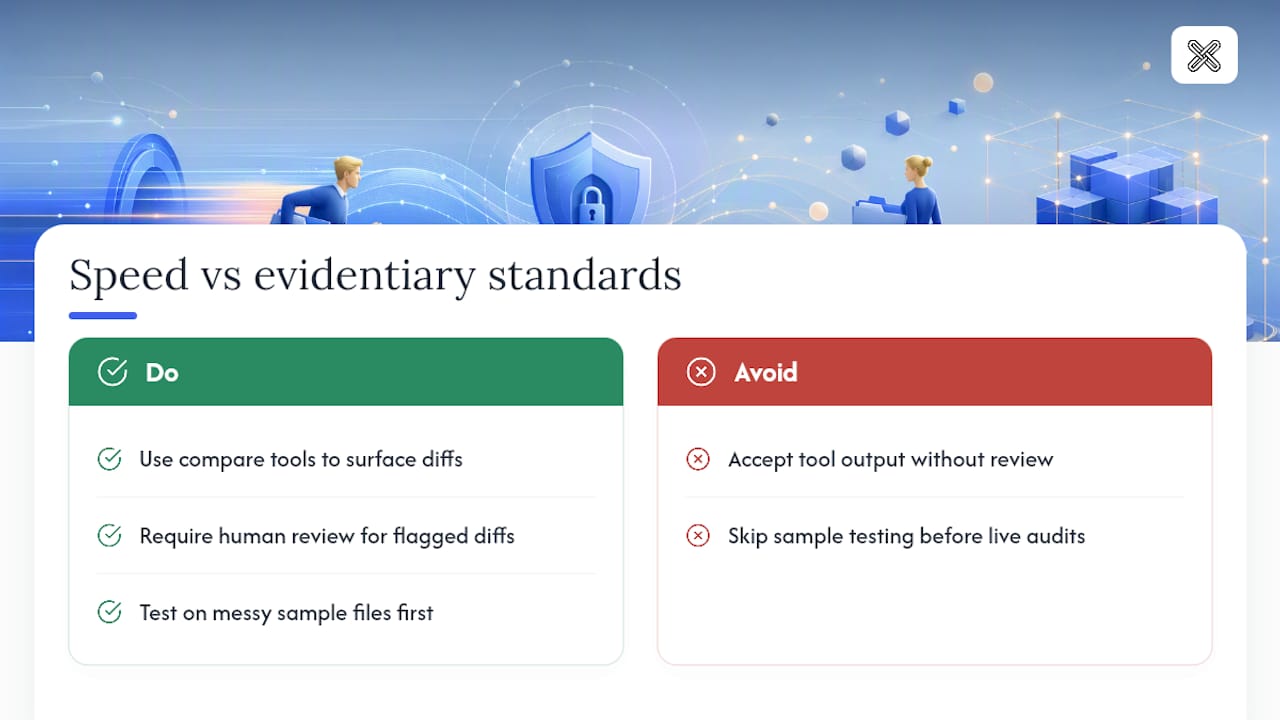
Automation should speed up review, not replace judgment. A compare tool can surface a thousand differences in seconds, but every flag still needs a human decision behind it before it counts as evidence. Run your team through a batch of deliberately messy sample files, scans, mixed formats, odd metadata, before the first live audit. You'll trust the output more once you've seen where it struggles.
Get Your Audit File Compare-Ready With LawtonPDF
LawtonPDF is the alternative to sending sensitive audit files through a cloud comparison service. Every folder, file, and spreadsheet compare runs entirely on your own machine, so nothing touches an external server before it lands in your working papers.

That matters most for legal, compliance, and finance teams handling privileged contracts, regulatory filings, or client records where a single upload to the wrong tool can create a confidentiality problem that outlasts the audit itself. LawtonPDF handles PDFs, Word documents, spreadsheets, and images in one workflow, producing the redlines and change logs your file needs without a subscription to a cloud platform that logs where your documents went. If you're organizing a folder ahead of a compare, the PDF organizing tools help clean up file sets before you run them through comparison. Start with the folder compare tool on your next audit batch and see what it flags on your first real file set.
Sources
- Preserving Attorney-Client Privilege in Internal Audits: Practical Steps for Legal, HR, and Compliance Teams - Spencer Fane
- Data privacy and audit evidence challenges: If it's not auditable, it's not usable - Mondaq
- Why local data matters in a fast-paced world - EY
- AI in Audit: The Confidentiality Crisis Nobody on LinkedIn Is Talking About | TaxRoutine
FAQ
What does folder comparison for audits actually produce? A defensible run produces redlines showing content changes, a file-level change log, and an exportable processing log with timestamps and user IDs attached to each action.
Why does local-only processing matter for audit files? Local processing keeps privileged and regulated documents off external servers, which preserves attorney-client privilege and supports chain-of-custody requirements.
Can automated comparison results stand alone as audit evidence? No. Audit evidence standards expect traceability and reproducibility, so every automated flag needs a documented human disposition before it counts as evidence.
What file types should a folder compare tool handle? It should cover PDFs, Word documents, spreadsheets, and images, including scanned or mixed-format files that require OCR before comparison. LawtonPDF's folder compare feature supports all of these locally.
How accurate is folder comparison on scanned or handwritten documents? Accuracy varies by tool and depends heavily on OCR quality, so testing against your actual messy files before a live audit run is the only reliable way to know your error rate.
This article is general information, not a substitute for advice from a qualified financial advisor. Consult a qualified financial professional about your own circumstances before acting on anything here.