Comparing sensitive files must happen entirely on your device, never through a browser upload or a cloud API. A local comparison tool can run on your Windows machine and cover PDF, Word (.docx), plain text, images, spreadsheets, and folders, with no file ever leaving your hard drive. If your team handles regulated or confidential material, that's the baseline, not a nice-to-have.
TL;DR:
- Files should be compared entirely on your device to prevent data exposure, especially for sensitive or regulated content.
- Local comparison tools handle PDFs, Word, and PowerPoint files reliably, but large files or batches may require adequate hardware and preprocessing.
- Many flagged differences are artifacts from text extraction, such as formatting, headers, or whitespace, not actual content changes.
- Preparing documents by accepting tracked changes, removing unnecessary elements, and hashing files enhances auditability and reduces false positives.
- PowerPoint comparisons can detect content, formatting, slide order, and embedded object changes, but manual review is recommended for animations and embedded data.
Table of Contents
- How Local Document Comparison Works (And Why Regulated Teams Need It)
- Which File Types Compare Reliably, and Which Differences Are Just Noise?
- Step-by-Step: Preparing and Running a Secure Local Comparison
- Building an Audit Trail That Survives Legal or Compliance Review
- Common Pitfalls That Cause False Positives (and How to Avoid Them)
- How to Compare PowerPoint Files in LawtonPDF, Step by Step
- Common Types of Differences in PowerPoint Files and How They Get Flagged
- Handling Embedded Objects and Multimedia During Comparison
- Tips to Optimize PowerPoint Files Before You Compare Them
- Troubleshooting Common PowerPoint Comparison Problems
- Why Local-Only Compares Aren't Just a Security Checkbox
- Compare PowerPoint Files and Everything Else, Without the Upload
- Sources
- FAQ
How Local Document Comparison Works (And Why Regulated Teams Need It)
Local processing means the comparison engine runs on your machine, either as a native desktop application or a browser tool using WebAssembly. Either way, no file gets sent to a server. A desktop app can read both files, extract the text and structure, and run the diff entirely in local memory. Nothing gets logged, cached, or transmitted anywhere.
The privacy case is straightforward. Local PDF processing eliminates the upload vector entirely, which removes the biggest source of accidental exposure: a file sitting on a third-party server you don't control. For healthcare teams, that also sidesteps the question of whether a vendor needs a Business Associate Agreement, since nothing protected ever leaves the building.
Local-only tools give regulated teams several concrete advantages:
- No upload risk, since files never transit the internet during comparison.
- A simpler HIPAA and GDPR posture, because there's no third-party processor in the data flow to vet or contract with.
- Full offline capability, useful for air-gapped networks or travel.
- Fewer vendor risk reviews, since there's no data processing agreement to negotiate.
Local processing does have real limits. Desktop apps handle large files better than browser tools, but both are bound by your machine's CPU and RAM. Comparing large files or batches requires adequate hardware; very large documents or large batches may strain desktop tools' memory and processing. Some advanced AI enrichment features, like automated summarization, still tend to require cloud compute. Enterprise teams with very high volume sometimes deploy a containerized, customer-controlled instance precisely to keep that scale local while still getting server-grade throughput.
Which File Types Compare Reliably, and Which Differences Are Just Noise?
A local comparison tool should reliably handle digitally-generated PDFs, .docx files, plain text, spreadsheets, and folder-level batch comparisons. Image files work too, but only with OCR, and that comes with caveats covered below.
Not every flagged difference is a real edit. Extraction pipelines, the software layer that pulls text out of a PDF or Word file before comparing it, routinely stumble on a few predictable things:
- Headers and footers shifting position or getting re-flagged as body text.
- Auto-numbering that renumbers itself when a paragraph is inserted or deleted elsewhere.
- Whitespace differences from a stray tab or double space.
- Smart quotes versus straight quotes, or an en dash swapped for a hyphen.
These are almost always extraction artifacts rather than substantive edits, and a reviewer who doesn't know to expect them can waste an afternoon chasing a phantom change. Scanned PDFs are the real limitation. Without OCR, a scanned page is just an image to the comparison engine, invisible text. Even with OCR, handwriting and low-resolution scans produce unreliable results.
Pro Tip: Run a quick visual scan of the diff report before you dig into details. If every flagged difference sits in the header, footer, or page-number region, you're looking at formatting noise, not a substantive edit.
Step-by-Step: Preparing and Running a Secure Local Comparison
A defensible comparison isn't just about running the tool. It's about the process around it. Here's the sequence that holds up under audit or legal review.
- Canonicalize your documents first. Accept all tracked changes in Word before comparing, and export your PDF from the final, agreed version. A document with unresolved tracked changes will produce a diff that mixes real edits with edit history, which is nearly impossible to read cleanly.
- Hash and snapshot before you compare. Generate a cryptographic hash (SHA-256 is standard) for each file, along with a metadata snapshot: file size, creation date, author field. This gives you provenance you can point to later if anyone questions which version you actually reviewed.
- Run the local compare. Load the file pair, or the whole folder if you're doing a batch review, into your comparison tool and let it run entirely on-device. Export the annotated report, and note the page and section reference for every flagged difference.
- Review by hand. Spot-check extracted lines and table cells against the original layout, not just the word count. Checking bounding box references, where a piece of text physically sits on the page, catches errors a text-only diff misses. Redact anything that needs it at this stage, before the file leaves your review queue.
- Re-hash and store. After redaction or final markup, hash the reviewed file again and attach reviewer metadata: name, date, and a short note on what was checked.
- Archive the full packet. Keep the report, both originals, all hashes, and your reviewer notes together in a secure, versioned document store.
Local comparison tools that support scripted, repeatable workflows make steps 2 through 5 far less tedious when you're running dozens of comparisons a week instead of one.
Building an Audit Trail That Survives Legal or Compliance Review
An audit packet is only as good as what's in it. For legal and finance teams, that means documenting more than just the diff output.
Your packet should include:
- The annotated comparison report itself, with page and line references for every flagged change.
- SHA-256 hashes of both the original and reviewed files.
- Timestamps for when the comparison ran and when review was completed.
- Reviewer initials or full name, tied to a specific case or matter number.
- A redaction log, if anything was masked or removed during review.
Store this packet in write-once storage or a versioned document management system, not a shared drive folder that anyone can overwrite. Linking every artifact to a case or matter number matters more than it sounds. When an auditor asks "show me the review trail for Matter 4471" six months later, you want a single folder that answers the question, not a scattered email thread.
Digital signatures need particular care. Never re-save or flatten a signed file before comparison, since that can invalidate the signature. Compare a working copy, verify the signature separately using your existing signature validation tool, and keep the signed original untouched in your archive. For teams handling redlines and markup at scale, a structured redaction and redline workflow keeps this process consistent across reviewers.
Common Pitfalls That Cause False Positives (and How to Avoid Them)
Most comparison headaches trace back to one of four predictable mistakes, and all four are avoidable with a bit of discipline before you hit "compare."
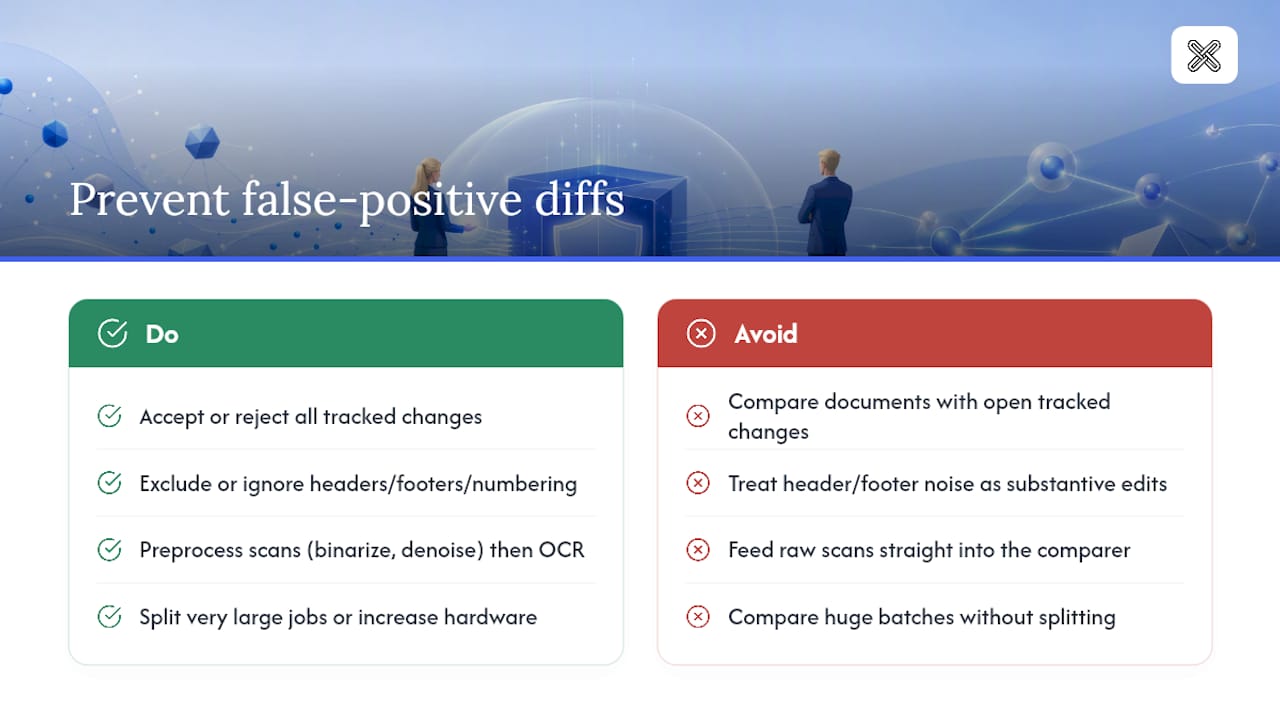
Unaccepted tracked changes top the list. If either document still has open track-changes markup, the diff will mix genuine edits with revision history, producing a report that looks alarming but means almost nothing. Accept or reject every tracked change before you run a final comparison.
Header, footer, and numbering noise comes next. If your tool lets you exclude headers, footers, and auto-numbered lists from the diff, use that setting. If it doesn't, train your reviewers to recognize and skip these flagged differences rather than treating every one as a substantive edit.
Scanned documents need preprocessing before OCR will produce usable text. Binarization (converting the image to pure black and white) and noise removal, both standard steps in OCR pipelines built on OpenCV, dramatically improve accuracy on low-quality scans. Run that preprocessing step, then OCR, then compare, rather than feeding a raw scan straight into your comparison tool.
Oversized files or batches will strain any desktop tool's memory. Split a very large comparison job into smaller batches, or size up your hardware, before comparing folders that run into the thousands of pages.
Pro Tip: Keep a short internal checklist taped to your monitor: accept changes, check for scans, split large batches. Ninety percent of comparison confusion traces back to skipping one of those three steps.
How to Compare PowerPoint Files in LawtonPDF, Step by Step
Comparing two versions of a slide deck follows the same local, no-upload principle as other document types. Here's the practical sequence.
- Open the compare tool and select your two PowerPoint files, or point it at a folder if you're reviewing several decks at once.
- Let the tool extract content locally. The tool reads slide text, layout, and structural elements entirely on your machine, with no server round-trip involved.
- Review the side-by-side or annotated output. Differences appear flagged by slide number, so you can jump straight to slide 14 instead of scrolling through forty slides looking for what changed.
- Check flagged items against the actual slide. A word-level diff on a title or bullet point is usually a clean, reliable signal. Layout and design changes benefit from a quick visual check alongside the report.
- Export the annotated report for your file, matching the audit packet approach used for other document types.
The workflow mirrors comparing two PDFs or Word documents, just applied to slide-based content instead of page-based content. That consistency matters for teams who compare a mix of file types daily. Learning one tool's interface once, rather than juggling separate apps for each format, cuts training time and reduces the chance a reviewer skips a step. For a broader look at applying this same discipline to contracts and briefs, see this legal document comparison workflow.
Common Types of Differences in PowerPoint Files and How They Get Flagged
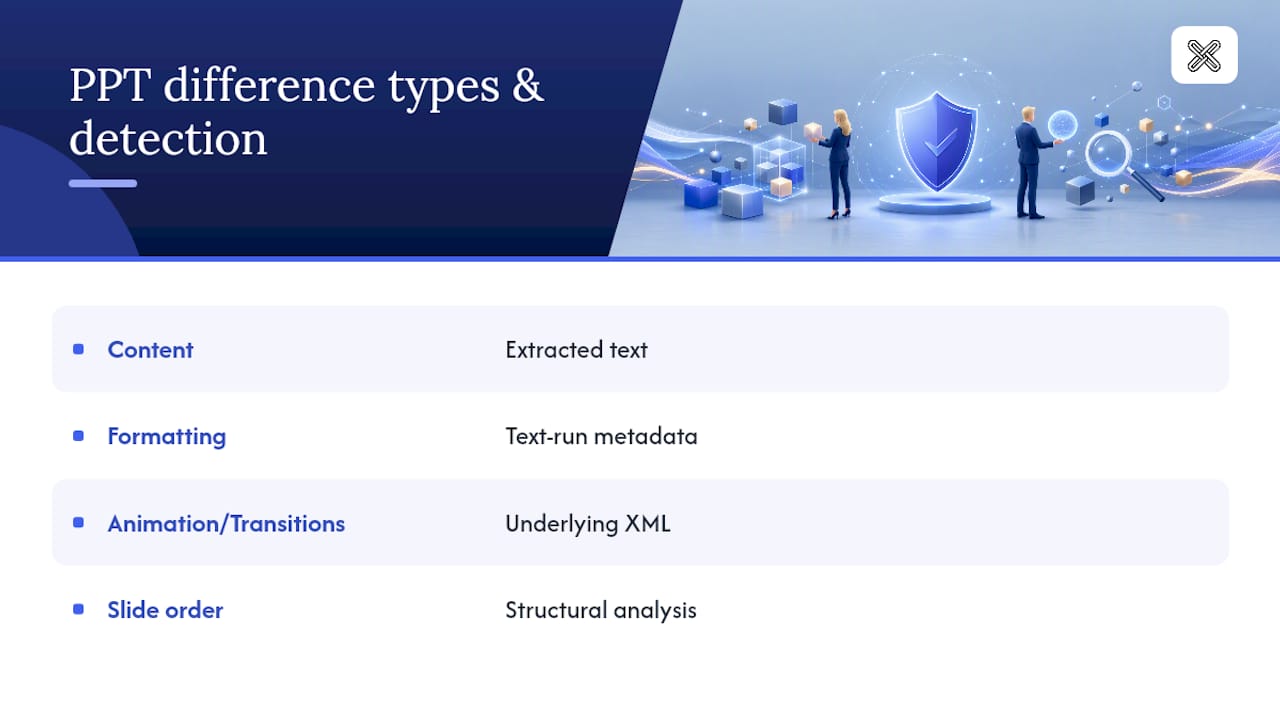
Slide decks generate a wider variety of differences than a Word document, because a slide isn't just text, it's text plus layout plus design plus sometimes motion.
Content changes are the most straightforward: added or deleted bullet points, edited titles, revised speaker notes. A local comparison tool detects these the same way it detects text changes in any document, by extracting the text layer from each slide and running a line-level diff.
Formatting changes include font swaps, color adjustments, resized text boxes, or a shifted logo. These show up differently depending on the tool's depth. Text-level detection catches font and color metadata attached to the text run. Purely visual shifts, like a logo nudged three pixels to the left, are harder to catch reliably without a visual comparison layer, so a quick eyeball check on flagged slides still earns its place in the workflow.
Animation and transition changes are the trickiest category. These live in the slide's underlying XML rather than the visible text or image layer, so a tool has to inspect that structural data specifically rather than just the rendered content. Not every comparison tool checks this layer by default, which is worth confirming before you rely on animation-diff results for a compliance sign-off.
Slide order changes, where slides get reordered, duplicated, or deleted entirely, show up as structural differences rather than content differences, and a good report will flag a missing or reordered slide separately from an edited one.
Handling Embedded Objects and Multimedia During Comparison
PowerPoint decks routinely carry more than text: embedded spreadsheets, linked charts, images, audio clips, and video. Each of these needs different handling during a compare.
Embedded spreadsheets and charts usually get treated as objects rather than parsed cell-by-cell, since a chart embedded in a slide isn't structured the same way a standalone spreadsheet file is. If your review specifically needs to catch a changed number inside an embedded chart, cross-check that object manually rather than relying solely on the automated diff. LawtonPDF's dedicated spreadsheet comparison tool is a better fit when the data itself, not its slide presentation, is what you need to verify.
Images get flagged when they're swapped, resized, or removed, typically by comparing file references and dimensions rather than pixel-by-pixel image analysis. A cropped version of the same photo may or may not register as a change, depending on how the tool handles image metadata.
Audio and video files embedded in a deck are generally detected as present or absent, added or removed, rather than analyzed for their actual content. No local tool is transcribing a video clip's audio track to check what changed inside it.
The practical takeaway: automated comparison catches structural and content-level changes reliably. Anything embedded that carries its own internal data, a chart's numbers, a video's audio, deserves a manual glance on top of the automated report, especially for a deck heading into legal or compliance review.
Tips to Optimize PowerPoint Files Before You Compare Them
A few minutes of prep before running a comparison saves real review time afterward.
- Flatten unnecessary layers. Decks that have accumulated years of copy-paste edits often carry hidden or duplicate objects stacked on top of each other. Clean these out before comparing, so the diff isn't flagging content nobody can actually see.
- Convert linked objects to embedded ones, or vice versa, so both files use the same reference type. A comparison between a deck with a linked spreadsheet and one with an embedded copy of the same data can produce a mismatch that has nothing to do with the actual content.
- Standardize the file format. Compare .pptx to .pptx rather than mixing an older .ppt file with a newer .pptx version, since format conversion itself can introduce structural differences that show up as false positives.
- Remove speaker notes you don't want reviewed, or explicitly include them in scope, so your reviewers know upfront whether notes are part of the comparison or not.
- Check for tracked comments. Unlike Word, PowerPoint comments don't get "accepted," but leftover reviewer comments can clutter a report if your tool surfaces them as content changes.
Two minutes of cleanup on each file, done consistently, cuts down on the noisy, non-substantive differences that eat into review time later.
Troubleshooting Common PowerPoint Comparison Problems
The report shows dozens of differences on slides that look identical. Check for hidden objects, duplicate text boxes stacked behind visible ones, or invisible placeholder text. These are common in decks that have been through many rounds of edits and rarely get cleaned up.
Animations or transitions aren't showing up as changes at all. Confirm your tool actually inspects the slide's structural XML rather than just the visible text and image layer. Not every comparison tool checks this by default.
A chart or embedded spreadsheet shows no change even though the underlying numbers were edited. This usually means the tool is comparing the object as a static reference rather than its internal data. Open the embedded object directly to verify, or use a dedicated spreadsheet comparison tool for the data itself.
The comparison is painfully slow or the app struggles on a large deck. Large embedded videos or high-resolution images inflate file size well beyond what the text content would suggest. Compress media inside the deck first, or split a very large presentation into smaller sections for comparison.
Slide order changes are confusing the report. If several slides were reordered, expect the diff to show more flagged differences than actual content changes. Check the structural summary first, if your tool provides one, before diving into line-by-line content review.
Why Local-Only Compares Aren't Just a Security Checkbox
Most teams treat "local processing" as a compliance requirement to satisfy and move past. That's a mistake. The real value shows up in the workflow itself, not just the security posture.
A local tool means you're never waiting on upload speed, never wondering if a server outage will delay a filing deadline, and never explaining to a client why their confidential deck sat on a third-party server for processing. Those are workflow advantages, not just privacy ones. Enterprise teams juggling containerized deployments or hybrid architectures are solving a real scaling problem, but for the vast majority of legal, finance, and healthcare teams, the honest answer is simpler: a capable desktop tool running on a normal workstation handles the job without any of that complexity.
The tradeoff worth being honest about is capability, not security. Local tools sometimes lag behind cloud services on advanced AI enrichment, automated summarization, semantic search across huge document sets. For the core task of catching what actually changed between two versions of a file, that gap rarely matters. What matters is whether the diff is accurate, the report is exportable, and the process leaves an audit trail someone can defend later.
— Lawton
Compare PowerPoint Files and Everything Else, Without the Upload
Some local comparison tools handle multiple file types for day-to-day workloads, running compares across PDF, Word, plain text, images, spreadsheets, folders, and slide decks, all without a single file leaving your machine.

Every comparison produces an exportable, annotated report built for the kind of review legal and compliance teams need to defend later, complete with page references and flagged differences ready for your audit packet. Folder-level comparison handles batch reviews without manual pairing, and read-only compare mode keeps your originals untouched throughout. If your team is currently piecing together separate tools for PDFs, spreadsheets, and slide decks, the PDF and legal document compare tool consolidates that into one local workflow. Explore the full document and PDF processing toolset and start a trial to see how a local-first comparison fits your team's existing review process.
Sources
- Vendor Risk Management: Evaluating Document AI Providers - LandingAI
- DharmaSadasivan/Pairity
- Why Local PDF Processing Matters: Privacy, Security & Compliance · PrivaPDF
- imshahinul/pdfcompare
FAQ
Can I compare PowerPoint files without uploading them anywhere?
Yes. LawtonPDF runs the comparison entirely on your local machine, so PowerPoint files, along with PDFs, Word documents, and spreadsheets, never leave your device during the process.
Does comparing PowerPoint files detect animation and transition changes?
Some local comparison tools inspect the slide's structural data to catch animation and transition edits, but not every tool checks this layer by default, so it's worth confirming before relying on it for compliance review.
Why does my PowerPoint comparison show changes on slides that look the same?
Hidden objects, duplicate text boxes, or leftover placeholder text from earlier edits are common causes. Cleaning up a deck before comparing usually resolves this.
Can local tools compare scanned or image-heavy PowerPoint content?
Image content within a slide can be flagged when swapped or resized, but scanned or handwritten material embedded as images requires OCR preprocessing and remains less reliable without it.
Is local-only comparison enough for HIPAA or legal compliance needs?
Local processing removes the upload and third-party retention risk that often complicates compliance reviews, since nothing leaves the device, though your organization's full compliance posture depends on additional controls like access logging and audit trail retention.