
The fastest defensible way to compare legal documents: normalize formats, run a legal-grade compare, triage the redline, then verify every material change with an attorney before anyone signs off. Skip a step and you're gambling with liability language, not saving time.
Run this checklist before you open a single contract:
- Normalize every file to a compatible format (convert scans with OCR, flatten tracked changes).
- Compare using a tool built for legal accuracy, such as Microsoft Word's legal blackline feature or a local-first tool like LawtonPDF.
- Triage results into material versus stylistic changes.
- Verify flagged clauses with attorney review and log the decision for your audit trail.
Key Takeaways
Legal document comparison works best as a four-step, auditable process: normalize files, run an accurate compare, triage by legal significance, and confirm material changes through attorney review.
| Point | Details |
|---|---|
| Normalize before comparing | OCR scanned files and flatten tracked changes to avoid noisy, unreliable diffs. |
| Match tool to file mix | Word's legal blackline suits Word-only workflows; cross-format needs call for dedicated tools. |
| Triage by legal weight | Sort flagged changes into material (liability, IP, termination) versus stylistic edits. |
| Keep an audit trail | Export comparison reports as negotiation records, not just final redlines. |
| Choose local processing for sensitive files | LawtonPDF compares PDFs, Word files, text, spreadsheets, and folders entirely offline for confidentiality-bound matters. |
Table of Contents
- What Is Legal Document Comparison and How Does It Work?
- How Do You Compare Two Contracts Step by Step?
- Which Features Actually Matter in a Comparison Tool?
- How Do You Tell If a Redline Change Is Legally Significant?
- Why Local-First Comparison Fits Law Firm Workflows
- Where to Go Next for Setup and Downloads
- Get a Secure, Local Compare Workflow Running Today
- Sources
- FAQ
What Is Legal Document Comparison and How Does It Work?
Legal document comparison is the process of identifying every difference between two versions of a contract, agreement, or filing, then determining which differences actually change legal meaning. That last part is the whole game. A moved paragraph and a deleted indemnity clause can look similarly disruptive in a diff report, but only one of them needs a partner's signature.
Three approaches dominate law firm workflows today. Manual redline (tracked changes in Word) works fine for a single round of edits between two attorneys who already know the document. It falls apart fast across multiple drafts, multiple parties, or long negotiation chains, where version drift creates a document nobody can fully trust anymore.
Word's Compare and Legal Blackline feature solves that drift problem. It generates a clean third document showing every insertion, deletion, and moved block between two versions, with options to ignore formatting or drill down to character level, according to Microsoft's own documentation. It's the default for Word-centric firms because it's already licensed and already familiar.
Dedicated compare tools and AI-assisted platforms go further, adding cross-format support (PDF, spreadsheets, folders), higher accuracy on scanned documents, and automated categorization of changes by risk area. The tradeoff is speed versus false positives: faster tools sometimes flag reformatting as substance, and AI-based flagging works best as a first-pass filter, not a final answer, since it speeds review without replacing attorney judgment.
Pro Tip: Choose local processing over cloud-based tools whenever the document touches privileged, unfiled, or client-confidential material. Once a document leaves your machine, you've added a data-handling question to your legal-risk question.
How Do You Compare Two Contracts Step by Step?
A defensible comparison isn't just running software. It's a documented sequence you could explain to a partner or a court if the deal ever gets contested.
- Prepare the files. Convert scanned documents with OCR, save both versions in the same file type, and strip out any lingering tracked-changes markup that would confuse the diff engine. Messy inputs produce noisy outputs.
- Run the comparison. Choose your settings deliberately: word-level comparison catches phrasing edits, character-level catches things like a single digit changed in a payment term. Decide whether to compare metadata and whether to ignore formatting differences, since a reformatted table shouldn't register as three "changes."
- Triage the results. Sort every flagged item into material or stylistic. Material changes touch liability, indemnity, termination, intellectual property, or payment. Stylistic changes are word swaps that don't shift obligation or risk.
- Route for attorney verification. Send flagged material changes to the reviewing attorney with context, not just a raw redline. Record the decision on each flag (accepted, rejected, escalated) to build your negotiation history.
Before you compare, confirm these settings: formatting differences ignored (unless formatting itself is disputed), the correct comparison granularity selected, and both files saved from a clean, non-corrupted source. Attorney at Work's walkthrough covers these Word-specific settings in more depth if you're running this inside Microsoft's native tool.
Which Features Actually Matter in a Comparison Tool?
Vendors love to list features. Most of them don't matter for legal work. Here's what does:
- Format support across PDF, Word, text, spreadsheets, and folders, since deals rarely arrive in one file type.
- Comparison accuracy, specifically how well the tool catches moved clauses, table edits, and OCR'd scanned content.
- Local versus cloud processing, which determines whether privileged material ever leaves your network.
- DMS and email integration, so compare results slot into your existing document management system rather than living in a separate silo.
- Output quality: a usable redline, a cumulative summary across multiple drafts, and an audit trail you can hand to a partner or opposing counsel.
- Licensing model, whether that's per-user, per-team, or firm-wide.
Accuracy and false-positive control matter more than export variety or interface polish. Guideflow's comparison research makes the same point: catching a moved clause or a scanned-in edit correctly is worth more than a longer feature list. A tool that flags fifteen false positives per contract wastes more attorney time than it saves, no matter how fast it runs.
Deployment matters too. For firms bound by client confidentiality agreements or regulatory data rules, offline processing with encryption at rest removes an entire category of risk. Cloud tools depend on a vendor's security posture; local tools depend on yours, which many firms find easier to control and audit.

Statistic callout: Legal teams increasingly treat comparison volume as a workflow bottleneck, not a one-off task, which is why testing accuracy against your own representative contracts before buying matters more than trusting a vendor's marketing claims. Run five real contracts from your own files through any tool before committing to a license.
How Do You Tell If a Redline Change Is Legally Significant?
Not every flagged difference deserves a partner's attention. Learning to separate real risk from visual noise is the skill that actually saves review time.
Triage these categories first, every time:
- Liability caps raised, lowered, or removed entirely.
- Indemnity language with new carve-outs or expanded scope.
- IP assignment clauses that shift ownership or licensing terms.
- Termination and survival provisions, especially anything that changes notice periods or post-termination obligations.
- Payment terms, including due dates, penalty structures, and currency or rate changes.
- Governing law and venue shifts, which can quietly change which court has jurisdiction.
Common false positives include clauses that moved sections without changing wording, table reflows that reformat numbers without altering values, and font or spacing changes that a diff engine still logs as an edit. Confirm these by reading the flagged text in context, not just the diff highlight.
A first-pass triage on a standard commercial contract typically takes an associate under 30 minutes once the workflow is routine. Full attorney review of flagged material changes takes longer and should scale with deal complexity, escalating anything touching liability or IP straight to a partner rather than waiting for a scheduled review cycle.
Pro Tip: Export the full comparison report, not just the final redline. If the deal later goes to negotiation or dispute, that report is your record of what changed, when, and who signed off on it.
Why Local-First Comparison Fits Law Firm Workflows
Cloud-based compare tools ask you to trust a third party with unfiled litigation exhibits, unexecuted M&A agreements, or regulated-industry contracts before the ink is dry. Local-first processing removes that trust requirement entirely, since the comparison happens on your own hardware and nothing leaves your network.
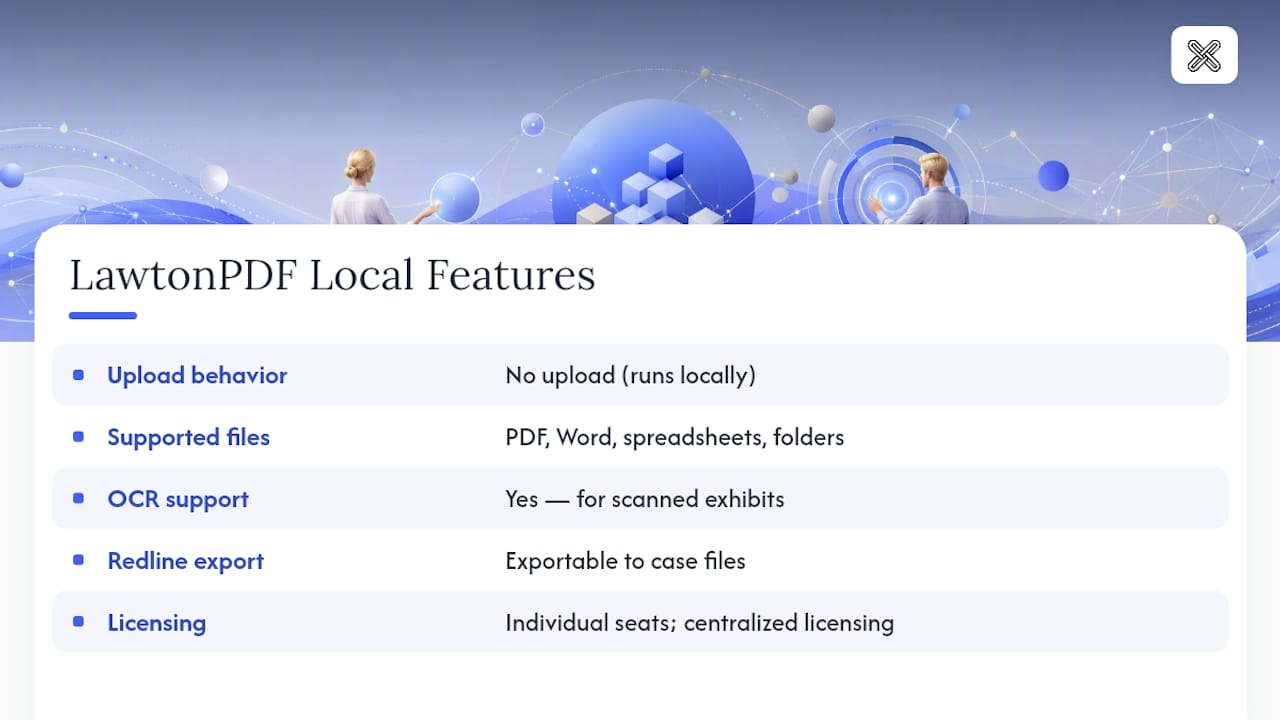
LawtonPDF was built around that constraint. It handles PDF, Word, text, spreadsheet, image, and folder comparisons entirely on the local machine, which matters for firms bound by confidentiality clauses or regulatory data-handling rules that make cloud upload a nonstarter. Scanned exhibits get OCR processing before comparison, redlines export cleanly for review, and the tool keeps an audit trail that documents what changed and when.
Practical scenarios where this matters:
- M&A due diligence, where dozens of draft agreements circulate before signing and none of them should touch a cloud server.
- Litigation exhibits, where chain-of-custody concerns make local processing the safer default.
- Regulated-industry contracts in healthcare or finance, where data-handling rules restrict where documents can be transmitted.
Small teams can run LawtonPDF's compare tool on individual licenses for immediate use; firm-wide deployment centralizes license management and standardizes the workflow across practice groups. Either path avoids the version-control chaos of emailing marked-up Word files between offices.
Pro Tip: If your firm handles a mix of PDF exhibits and Word contracts, standardize on one comparison tool that reads both natively. Switching tools mid-matter is where audit trails get fragmented.
A note from practice on adoption and trade-offs
Speed and attorney oversight pull in opposite directions, and the firms that get this right never let software make the final call. Local-first tools earned their place the moment a client asked where their draft agreement had been uploaded.
Where to Go Next for Setup and Downloads
- Microsoft's compare and legal blackline guide for exact Word settings.
- Attorney at Work's how-to for attorney-facing redline instructions.
- LawtonPDF's tools page for local compare downloads and deployment options.
Get a Secure, Local Compare Workflow Running Today
If you've been comparing contracts through Word's blackline feature or piecing together manual redlines, the limitation isn't the workflow, it's what happens to files that need to stay off the cloud entirely. LawtonPDF gives law firms a single local tool that compares PDFs, Word documents, spreadsheets, and full folders without uploading a single file anywhere.

That matters most when a matter involves unfiled litigation material, unexecuted M&A drafts, or client data bound by confidentiality terms that make cloud tools a non-starter. Every comparison runs on your own machine, with OCR support for scanned exhibits and exportable redlines that slot straight into your existing case files. Small teams can license individual seats; larger firms can standardize the workflow firm-wide through centralized license management.
Start with the PDF comparison tool on your next contract review and see how the redline holds up against your current process.
This article is general information, not a substitute for advice from a qualified lawyer. Consult a qualified legal professional about your own circumstances before acting on anything here.
Sources
- Compare document differences using the legal blackline option
- How to Compare Documents in Word: Redline Legal Drafts ...
- 6 best legal document comparison software for 2026 - Guideflow Blog
FAQ
How Can I Compare Two Legal Documents?
Normalize both files to the same format, run them through a compare tool such as Word's legal blackline or a local tool like LawtonPDF, then have an attorney verify every flagged material change before relying on the result.
How Do I Check if Two Documents Are Identical?
Run a character-level or word-level comparison rather than eyeballing them. Any tool that produces a redline with zero flagged insertions, deletions, or moves confirms the documents match exactly.
Can ChatGPT Compare Legal Documents?
General AI chat tools can highlight surface-level differences, but they lack the audit trail, format fidelity, and local processing that legal review requires, and they shouldn't be trusted to catch every clause-level change without a dedicated compare tool and attorney verification.
How Can I Compare Two Documents Online?
Cloud-based compare tools exist, but uploading privileged or confidential contracts to a third-party server creates a data-handling risk many firms can't accept. A local-first option such as LawtonPDF delivers the same comparison accuracy without the file ever leaving your machine.
What's the Difference Between a Diff Tool and a Legal-Grade Compare Tool?
General diff tools flag every character-level change with no legal context, while legal-grade tools like Word's legal blackline or LawtonPDF categorize changes, ignore formatting noise, and produce redlines and audit trails built for attorney review.