
Normalize noisy fields first, then run a diff with a local GUI tool or CLI pipeline to surface the changes that actually matter. Experts estimate roughly 90% of the work in log file comparison is filtering out noise before the diff even runs. Strip timestamps, replace UUIDs with fixed placeholders, and collapse ephemeral paths. What remains is a clean, diff-friendly signal. For sensitive data, keep everything local: a desktop app like Lawtonpdf or a CLI pipeline ensures your logs never leave your machine.
Quick start:
- Normalize: remove timestamps, UUIDs, and variable paths with regex substitutions.
- Diff: run a local GUI tool (Lawtonpdf, or a CLI
diff) on the cleaned files. - Focus: look for new or missing lines clustered near the failure timestamp.
Pro Tip: Save a sanitized, normalized copy alongside your raw logs. You'll want the raw version for legal timelines and the clean version for reproducible comparisons.
Table of Contents
- How do you compare logs: online, desktop, or CLI?
- Step-by-step workflows for GUI, CLI, and automated pipelines
- What are the privacy and file-size trade-offs?
- How should you prepare logs before running a diff?
- How do you read diff output and know what to prioritize?
- When a text diff isn't enough: moving to log analysis
- Key Takeaways
- Why Lawtonpdf is built for private, offline log comparison
- Further reading and authoritative resources
- FAQ
How do you compare logs: online, desktop, or CLI?
Each approach has a distinct trade-off. Picking the right one up front saves time.
Online browser-based tools
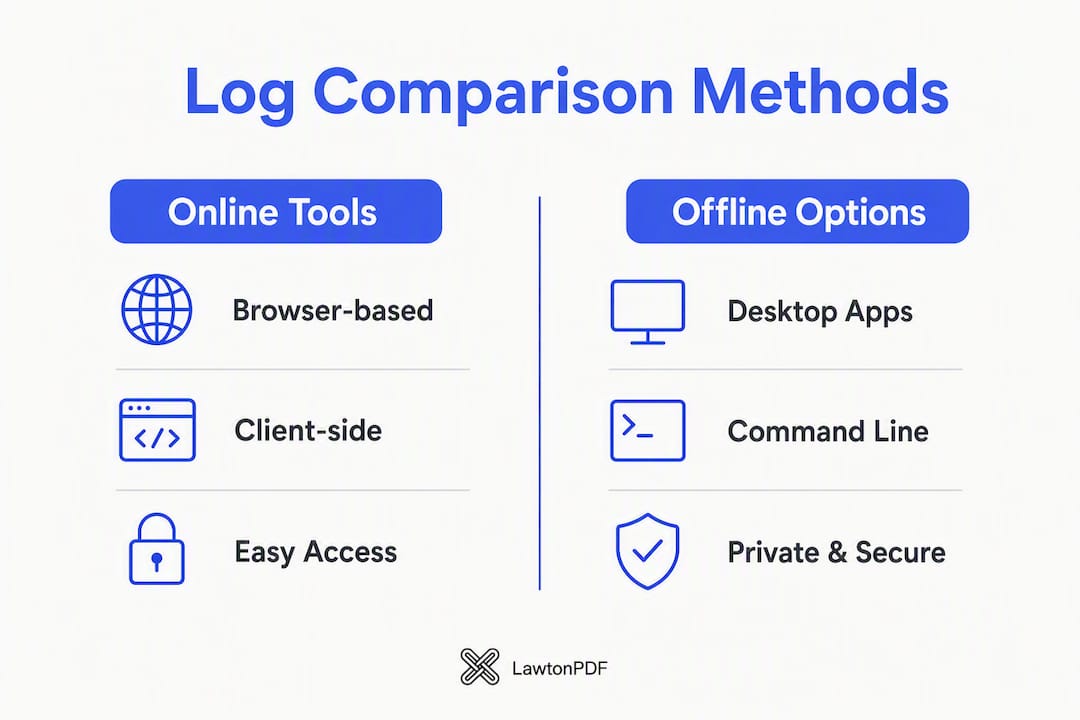
Browser-based comparers are fast for ad-hoc checks on small, non-sensitive files. The key distinction is client-side versus server-side processing. Client-side tools run the diff entirely in your browser and never upload your content. Server-side tools send your log data to a remote host. Not all tool pages make that distinction explicit, so verify the privacy policy before pasting anything sensitive.
Pros and cons:
- ✅ No installation required; works from any browser.
- ✅ Fast for small files and quick spot-checks.
- ❌ File-size limits (often 2 MB or less on public tools).
- ❌ Server-side tools expose sensitive log data to third parties.
Desktop GUI apps
Desktop apps handle large files, multi-format support (PDF, text, Word, spreadsheets), and folder-level comparisons without any upload. Lawtonpdf runs entirely on your Windows machine, so your logs stay on your hardware. This is the right choice when files are large, data is sensitive, or you need to export and save results locally. Teams handling regulated data — healthcare, legal, finance — benefit most from this model. For a broader look at desktop document comparison alternatives, the options vary significantly in format support and privacy posture.
Pros and cons:
- ✅ No file-size ceiling from a remote server.
- ✅ Full privacy: processing stays on your machine.
- ✅ Multi-format and folder-level diff support.
- ❌ Requires installation; Windows-specific for some tools.
Command-line pipelines
CLI pipelines are best when you need automation: pre-commit hooks, CI steps, or incident-response playbooks. Tools like kernc/diff-logs replace stochastic patterns (timestamps, UUIDs, hashes) automatically before handing off to a standard diff. The output is scriptable and integrates cleanly with alerting or ticketing systems.
Pros and cons:
- ✅ Fully automatable; integrates with CI/CD.
- ✅ Handles large files efficiently.
- ❌ Requires scripting knowledge to set up.
- ❌ No visual side-by-side view without additional tooling.
Step-by-step workflows for GUI, CLI, and automated pipelines
GUI quick-check workflow
- Open your baseline log and your target log in a side-by-side diff view.
- Run a normalization pass: strip timestamps, replace UUIDs, and filter lines you know are routine (health-check pings, cron noise).
- Start the comparison and let the tool highlight changed sections.
- Scroll to the cluster of differences nearest your failure timestamp — that's where the root cause usually lives.
- Export the diff output (PDF or text) and save it alongside the raw logs for your incident timeline.
CLI normalization and diff pipeline
- Normalize both log files with regex substitutions before running
diff. - Replace variable tokens with stable placeholders:
# Replace ISO timestamps
sed -E 's/[0-9]{4}-[0-9]{2}-[0-9]{2}T[0-9:\.]+Z?/TIMESTAMP/g' app.log > app_norm.log

# Replace UUIDs
sed -E 's/[0-9a-f]{8}-[0-9a-f]{4}-[0-9a-f]{4}-[0-9a-f]{4}-[0-9a-f]{12}/UUID/g' \
  app_norm.log > app_clean.log

# Replace hex digests (SHA-256 style)
sed -E 's/\b[0-9a-f]{40,64}\b/HASH/g' app_clean.log > app_final.log
- Run
diff(orkernc/diff-logs) on the two cleaned files:
diff baseline_final.log app_final.log > delta.diff
- Post-filter the output to surface only errors and warnings:
grep -E "^[<>].*\b(ERROR|WARN|FATAL)\b" delta.diff
- Save both
delta.diffand the raw context around changed sections.
Export tip: Keep the cleaned diff and a 20-line context window around each changed block. When you're writing an incident timeline, that raw context is what auditors and on-call engineers actually need.
Automated pipeline for CI or incident response
For repeatable comparisons, add a normalization step to your CI pipeline:
- On each run, normalize the fresh log with your regex script and store it as a build artifact.
- Pull the last known-good baseline artifact from your artifact store.
- Run
diff(orkernc/diff-logs) between the two normalized files. - If the delta exceeds a threshold (new ERROR lines, missing startup messages), fail the build or trigger an alert.
- Export a concise delta report and attach it to the incident ticket automatically.
Pro Tip: Version your normalization script alongside your codebase. When log formats change, your baseline comparisons stay reproducible because the script and the baseline evolve together.
What are the privacy and file-size trade-offs?
The privacy risk in log comparison is almost always the upload step. Many online comparers advertise client-side processing, but "client-side" is not universal. Before using any browser-based tool with production logs, confirm that the tool's privacy policy explicitly states no server-side storage.
File-size limits are the other practical constraint. Public online tools commonly cap uploads at 2 MB or less. That's fine for a short application log but inadequate for a multi-hour infrastructure log that can run into hundreds of megabytes. Desktop apps and CLI pipelines have no such ceiling — they're bounded only by your local disk and RAM.
Key considerations:
- Client-side browser tools: No upload, but verify the claim. Check the tool's documentation or network tab in your browser's dev tools to confirm no data leaves the page.
- Server-side tools: Convenient but carry real data-exposure risk for logs containing PII, credentials, or security event data. Regulated teams (HIPAA, SOC 2) should avoid these entirely. See on-premise vs cloud security trade-offs for a detailed breakdown.
- Desktop and CLI tools: No upload, no file-size ceiling, and no telemetry when the tool is local-first. Results stay on your machine.
- Export and storage: With server-side tools, your diff results may be stored remotely. With local tools, you control where results go and how long they're retained.
Statistic callout: Public browser-based comparers commonly cap uploads at 2 MB or less. A single hour of verbose application logs can easily exceed this threshold, making desktop or CLI tools the practical default for production environments.
How should you prepare logs before running a diff?
Normalization comes first. A diff on raw logs is almost always misleading — every timestamp difference registers as a changed line, burying the three lines that actually matter.
Here are the standard normalization steps, in order:
- Strip timestamps. Replace ISO 8601 dates, Unix epoch values, and human-readable timestamps with a fixed token like
TIMESTAMP. - Replace UUIDs and request IDs. Swap any UUID or correlation ID with
UUIDso the same logical event matches across runs. - Normalize hex digests. Replace SHA-1, SHA-256, and MD5 hashes with
HASH. - Collapse ephemeral file paths. Temp directories and PID-based paths change every run. Replace them with
PATHorPID. - Normalize log levels. Confirm that
WARN,WARNING, andwarnall resolve to the same token so level-based filtering works correctly. - Handle multi-line entries. Stack traces and JSON blobs often span multiple lines. Collapse them into a single logical line (or a consistent block delimiter) before diffing, or your diff tool will treat each line as an independent change.
For clustering, Anomalog's Smart Diff implements two-pass Drain and streaming LCS algorithms that group similar log lines into templates. This is more powerful than exact-line replacement when log messages vary slightly in wording but represent the same event class. Use exact-line normalization for well-structured logs (JSON, structured syslog); use clustering for free-form application logs where message text varies.
Pro Tip: Keep a sanitized copy of your raw logs and version a cleaned baseline. When your log format changes in a future release, you can re-normalize the baseline and maintain a reproducible comparison history.
How do you read diff output and know what to prioritize?
Start with new or missing lines clustered near the failure timestamp. Everything else is secondary.
Line-level granularity is the right default for logs. Word-level and character-level diffs are useful for prose or config files where a single changed word carries meaning, but log lines are usually atomic — a changed line is a different event, not a modified sentence. Stick to line-level diff for log file comparison unless you're comparing structured JSON fields, where a field-level diff makes more sense.
Red flags to prioritize in any log diff:
- New
ERRORorFATALlines that don't appear in the baseline. - Missing
startuporinitializationmessages (a service that didn't start cleanly). - State-change events (
CONNECTED→ absent,READY→ absent) that are present in the baseline but gone in the failing run. - New exception class names or stack trace signatures.
- Repeated new lines (a tight loop or retry storm that wasn't there before).
Anomalog's practitioner guidance reinforces this pattern: compare the failing run directly to the last known-good baseline, then focus on clustered differences rather than scanning every individual delta.
When a text diff isn't enough: moving to log analysis
Use signature-based log analysis when structural change or volume patterns matter more than individual line edits. A text diff tells you what changed. A signature-based tool tells you what new behavior appeared and how often.
LogCompare-style approaches cluster log lines into signatures and report delta percentages and anomaly scores. Instead of seeing 4,000 changed lines, you see: "Signature X appeared 340 times in the new run and zero times in the baseline." That's a meaningful signal. A raw diff buries it.
For local-first analysis at scale, logcrux supports 209 log format parsers, baseline tracking, and local anomaly classification — all without sending data to the cloud. Log Talon takes a similar local-first approach, aggregating logs from files, Docker, and Kubernetes while enabling natural-language queries on your own hardware.
Escalate from ad-hoc comparison to a log analysis platform when:
- You're seeing the same incident pattern across multiple hosts.
- You need trend detection over days or weeks, not just two point-in-time snapshots.
- Volume makes line-by-line review impractical (millions of lines per run).
- Your team needs a shared, queryable baseline rather than a one-off diff file.
Key Takeaways
The most effective way to compare logs is to normalize variable tokens first, then diff the cleaned output and focus on new or missing clusters near the failure point.
| Point | Details |
|---|---|
| Normalize before diffing | Strip timestamps, UUIDs, hashes, and ephemeral paths before running any comparison. |
| Choose the right tool | Use a local desktop app or CLI for large or sensitive files; browser tools suit quick, small checks only. |
| Focus on clusters | Prioritize new or missing lines near the failure timestamp, not every changed line. |
| Preserve raw artifacts | Keep both the raw logs and the cleaned diff for incident timelines and audits. |
| Lawtonpdf for local comparison | Lawtonpdf runs entirely on your Windows machine, supporting text, PDF, Word, and folder comparison with no upload required. |
Why Lawtonpdf is built for private, offline log comparison
If your logs contain sensitive data, the safest comparison happens on your own machine. Lawtonpdf is a local-first Windows desktop tool that runs every comparison on your hardware, with no cloud upload and no telemetry.


It supports text, PDF, Word documents, spreadsheets, and folder-level comparison in one application. You can export results locally, save cleaned diffs for incident records, and manage team licenses through a centralized admin console. For organizations under HIPAA, SOC 2, or internal data-handling policies, that local processing model removes the upload risk entirely.
Explore the full feature set and free Windows tools to see how Lawtonpdf fits your comparison workflow, then download and run your first diff without sending a single line of log data off your machine.
Further reading and authoritative resources
- LogCompare | Sumo Logic Docs — Documents signature-based comparison, delta percentages, and anomaly scoring for teams that need more than line-by-line diffs.
- kernc/diff-logs (GitHub) — A lightweight CLI utility that automates timestamp, UUID, and hash replacement before calling a standard diff tool; useful for CI pipelines.
- logcrux (PyPI) — Local-first Python tool with 209 format parsers, baseline tracking, and anomaly classification; no data leaves your host.
FAQ
How do you compare two log files quickly?
Normalize both files first (strip timestamps and UUIDs with regex), then run diff baseline_clean.log target_clean.log or open both in a local GUI tool. Focus on new or missing lines near the failure timestamp.
Is there a free tool to compare log files?
Yes. The diff command is free and available on every Unix-based system. For a GUI option, Lawtonpdf offers free Windows tools that support text and document comparison with local processing.
What does "client-side" mean for an online log comparer?
Client-side means the diff runs inside your browser using JavaScript, and your log content is never sent to a remote server. Always verify this claim in the tool's privacy policy or by checking your browser's network tab before pasting sensitive logs.
When should I use signature-based comparison instead of a text diff?
Use signature-based tools when you need to detect new behavior patterns or volume changes across large log sets. A text diff shows changed lines; a signature-based approach (like LogCompare) shows which event types appeared or disappeared and how frequently.
How do I handle multi-line log entries in a diff?
Collapse multi-line entries (stack traces, JSON blobs) into a single logical line or a consistent block delimiter before diffing. Most normalization scripts do this with a fold step that joins continuation lines to their parent event.