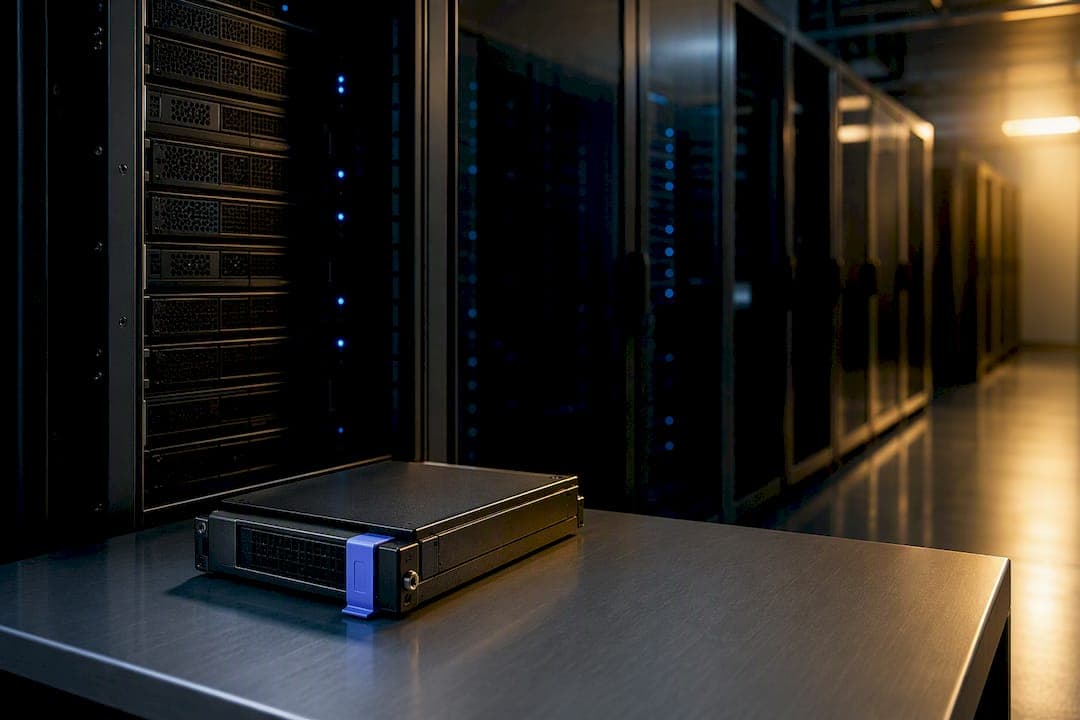
On-premise document processing runs capture, OCR, extraction, and workflow automation entirely on hardware you control, with no cloud API calls and no documents leaving your network. Choose it when data residency rules, predictable latency, or high-volume cost control matter more than the convenience of a managed cloud service. The right fit depends on your deployment architecture, capabilities you need, and how much operational overhead your team can absorb.
TL;DR:
- On-premise document processing is ideal for industries with strict data residency rules, such as healthcare, legal, finance, and government, due to enhanced data control.
- Hardware sizing should be based on peak OCR volume, with GPU acceleration recommended for high-volume vision-language models, and storage optimized for high IOPS.
- Core capabilities to evaluate include OCR accuracy, confidence scoring, classification, routing, local redaction, and support for local language and document types.
- Security controls must include no-exfiltration design, encryption, role management, audit trails, and third-party validation to meet auditor expectations.
- Planning for peaks involves provisioning for worst-case loads, using queues with backpressure, and reserving GPU resources, while disaster recovery requires regular backups and clear recovery procedures.
Table of Contents
- What Does On-Premise Document Processing Actually Cover?
- Which Deployment Architecture Fits Your Team?
- Which Core Capabilities Actually Matter?
- What Security Controls Do Auditors Expect?
- How Do You Plan for OCR Performance Spikes?
- How Does On-Premise Processing Fit Into Existing Systems?
- What Does On-Premise Actually Cost, and How Do You Migrate?
- What Ongoing Maintenance Should IT Plan For?
- How Do You Get Staff to Actually Adopt the New System?
- How Does On-Premise Processing Handle HIPAA and GDPR?
- What Happens When the System Goes Down?
- A Windows-Native Option Worth Evaluating
- Recommended Reading for Deeper Implementation Detail
- Get Started With Local-First Document Processing
- Sources
- FAQ
What Does On-Premise Document Processing Actually Cover?
On-premise document processing means the full pipeline, capture, OCR or intelligent document processing (IDP), field extraction, workflow routing, and archiving, runs on infrastructure you own or lease, with no calls to an external vendor's cloud API. Every byte of a scanned invoice or contract stays inside your firewall from ingestion to final storage.
The difference from cloud or hybrid setups is architectural and financial. A cloud service processes your files on someone else's servers and typically bills per page or per API call; on-premise shifts that cost into upfront hardware and licensing, but removes the risk of a third party ever touching a client file. Regulated sectors gravitate here for a reason:
- Legal teams processing discovery documents and privileged client files
- Health systems handling patient records under strict access rules
- Financial services firms managing account statements and audit trails
- Government agencies with mandated data sovereignty requirements.
Each of these industries shares one trait: the cost of a data breach outweighs the convenience of outsourcing compute.
Which Deployment Architecture Fits Your Team?
Deployment choice comes down to volume, risk tolerance, and how much IT staff you have to manage infrastructure. A small legal or finance team processing a few thousand pages a month rarely needs more than a well-specced desktop or single server. An enterprise ingesting hundreds of thousands of pages daily needs a different topology entirely.
- Desktop or single-node install. Runs on one workstation or server, suited to small teams with moderate, predictable volume.
- Clustered enterprise deployment. Distributes OCR and extraction across multiple nodes, often with GPU acceleration, to hit high throughput and consistent latency at scale.
- Air-gapped deployment. Physically isolates the processing environment from any network, common in defense, intelligence, and top-tier legal work, paired with a documented secure export/import process.
- Hybrid archive pattern. Processes on-premise but archives finished, redacted output to encrypted cloud storage for long-term retention.
Hardware sizing hinges on your OCR volume: CPU cores handle most text extraction fine, but GPU acceleration pays off once you're running vision-language models or high-volume table extraction. Storage should prioritize IOPS over raw capacity, since batch OCR jobs hammer disk read speeds. Containerized deployments (Docker/Kubernetes) offer easier scaling and rollback; Windows-native installs simplify licensing and integration for teams already standardized on Windows Server.
Pro Tip: Run a proof-of-concept batch at your expected peak volume, not your average volume, before finalizing hardware specs. Worst-case scanned-pages-per-minute is the number that actually determines whether your queue backs up during month-end processing.
Which Core Capabilities Actually Matter?
Not every on-premise platform handles the same document types with the same accuracy. Evaluation should focus on capabilities that change your architecture or your downstream validation workload, not just marketing checklists.
- OCR and IDP quality: how well the engine handles scanned versus born-digital PDFs, multiple languages, and degraded scans from older archives.
- Structured extraction with confidence scoring: extraction engines that flag low-confidence fields let your validation team focus effort where it's actually needed instead of spot-checking everything.
- Classification and routing: rule-based classification works for stable document sets; ML-based, template-less extraction matters more when document layouts vary constantly, like insurance claims or vendor invoices.
- Redaction that never leaves the local environment: redaction workflows should mask sensitive fields entirely within your infrastructure, with no raw content ever transmitted for processing.
- Local LLM and RAG support: platforms built for document chat and retrieval-augmented generation can build a searchable index and run hybrid retrieval with verification passes entirely on-device, so staff can query a contract archive in plain language without any of it touching the internet.
Some platforms also apply adaptive, page-level strategies, automatically choosing OCR, a vision-language model, or direct text extraction per page, which cuts down on manual template configuration for mixed document sets.
What Security Controls Do Auditors Expect?
Security planning for on-premise processing starts with proving a negative: that no document data ever leaves your environment. That's a stronger position than most cloud vendors can offer, but you still need documented controls to satisfy an auditor rather than just an architectural claim.
- No-exfiltration design. Network segmentation and firewall rules that block outbound calls from the processing environment, with logs proving it.
- Encryption at rest and in transit. AES-256 for stored documents, TLS for any internal service-to-service traffic, and a defined key rotation schedule.
- Role-based and privileged access management. Least-privilege service accounts for automated jobs, separate from human admin credentials.
- Audit trails and tamper-evidence. Immutable logs of who accessed, modified, or exported each document, tied to your retention and disposition schedule.
- Third-party validation. Periodic penetration tests and SOC 2 or HIPAA readiness reviews, especially before a first major client audit.
On-premise deployment is one of the more reliable paths to demonstrable data sovereignty for regulated industries, largely because there's no shared-responsibility ambiguity about where data physically sits. Server-side SDKs built for private infrastructure exist specifically to satisfy HIPAA and GDPR compliance requirements without any cloud dependency. A deeper comparison of the trade-offs is worth reading before you commit an architecture: see this breakdown of on-premise versus cloud security for local-first workflows.
How Do You Plan for OCR Performance Spikes?
Scanned documents are the resource hogs of any document pipeline. A born-digital PDF extracts text almost instantly; a scanned, skewed, low-resolution page can spike CPU and memory usage many times over, especially in batch runs where dozens of files hit the queue simultaneously.
- Provision for peak, not average. Measure your worst-case pages-per-minute in a proof-of-concept and size hardware to that ceiling, not your typical daily volume.
- Use queues with backpressure. A queue that throttles intake when workers are saturated prevents a memory crash during a monthly filing surge.
- Reserve GPU acceleration for the right workload. GPU spend pays off for vision-language models and heavy table extraction; plain OCR on clean text often runs fine on CPU alone.
- Track the metrics that predict failure. Pages processed per second, queue depth, and error rate together tell you when to add capacity before users notice slowdowns.
Pro Tip: Design your worker pool to absorb bursts rather than sizing for steady-state load. A queue that can temporarily grow is cheaper than hardware that sits idle 90% of the month.
How Does On-Premise Processing Fit Into Existing Systems?
Integration work is where most on-premise projects either succeed quietly or drag on for months. Documents typically arrive through scanner integration, monitored watch folders, inbound email, or direct API calls from an upstream system, and the processing engine needs to handle whatever mix of PDFs, TIFFs, images, and Office files your organization actually generates.
- Scanner and multifunction printer integration for physical intake
- Watch-folder ingestion for departments still saving files to shared drives
- Email-based ingestion for inbound invoices and correspondence
- API and connector support for ECM platforms, ERP systems, and databases
A typical flow looks like this: a document is scanned or dropped into a watch folder, OCR converts it to searchable text, extraction pulls structured fields, a validation step flags low-confidence results for human review, then the system routes the finished record to the right department and archives it. Tools that expose watched-folder ingestion and batch-indexing utilities make that pipeline reproducible without custom scripting for every new document type.
What Does On-Premise Actually Cost, and How Do You Migrate?
Total cost of ownership for on-premise processing includes more than the software license. Budget for server or workstation hardware, per-user or per-seat licensing, IT staff time for maintenance, backup and disaster recovery infrastructure, and a hardware refresh cycle every three to five years.
Migration typically follows a predictable sequence: inventory your current document types and volumes, reprocess a representative sample on the new system, run both systems in parallel long enough to compare accuracy, then cut over once confidence is high. Hybrid setups, where processing happens on-premise but finished archives move to encrypted cloud storage, often make sense for organizations that need local control during processing but don't want to manage long-term cold storage themselves.
- Document volume and growth trajectory over the next three years
- Regulatory obligations tied to where data physically resides
- Latency requirements for time-sensitive workflows
- Cost curve at scale compared to per-page cloud pricing
- How much control your compliance team requires over the pipeline
- Business continuity needs if a vendor's cloud service goes down
| Decision Factor | Favors On-Premise | Favors Cloud |
|---|---|---|
| Document volume | High, steady volume | Low, unpredictable volume |
| Regulatory scope | Strict data residency rules | Minimal compliance burden |
| Latency needs | Real-time, predictable | Flexible timing acceptable |
| IT staffing | In-house infrastructure team | Limited IT resources |
What Ongoing Maintenance Should IT Plan For?
Running document processing in-house means your team owns the full maintenance lifecycle, not a vendor's cloud operations staff. That's the trade-off for control: more responsibility, but also more visibility into exactly what's happening to your data at every step.
Software updates need a defined cadence. OCR engines and extraction models improve over time, and skipping updates for a year or two often means missing accuracy gains that would have reduced manual review load. Schedule updates during low-volume windows and always test against a sample batch before rolling out to production, since a model update can occasionally shift confidence scoring in ways that affect your validation thresholds.
Troubleshooting on-premise systems requires different instincts than cloud support tickets. When throughput drops or error rates spike, the first checks are usually queue depth, disk IOPS, and memory pressure on the OCR workers, not a vendor status page. Keep baseline performance metrics documented so your team can spot deviations quickly instead of guessing.
Backups deserve the same rigor as any other business-critical system. Document processing environments hold both the source files and the extracted metadata, so backup routines need to cover databases and file stores together, with regular restore tests, not just backup jobs that run and are never verified. For air-gapped environments specifically, backup and recovery procedures should follow the same documented chain-of-custody discipline used for data transport, cryptographically verifying that restored data matches what was backed up. A step-by-step guide to keeping air-gapped processing audit-ready covers this in more operational detail.
Budget staff time for this. A system that runs untouched for months tends to accumulate small configuration drift that surfaces as a bigger problem later.
How Do You Get Staff to Actually Adopt the New System?
Technology rollouts fail more often from adoption gaps than from technical flaws. A document processing system that's technically excellent but ignored by staff who keep emailing PDFs around the old way delivers none of the compliance or efficiency benefits you invested in.
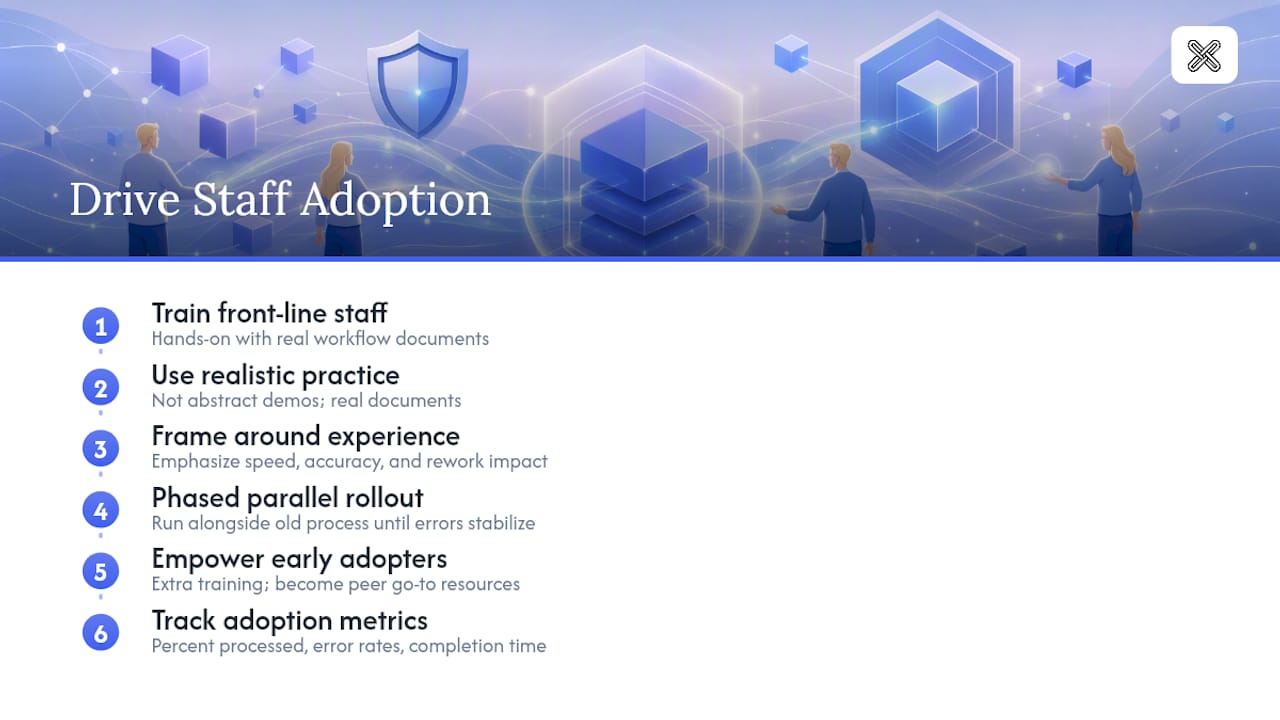
Start training with the people who touch documents daily, not just IT administrators. Front-line staff processing invoices or case files need hands-on practice with the actual interface, ideally using real (or realistic) documents from their own workflow rather than generic sample files. Abstract training on a system nobody has used yet tends to evaporate within a week.
Change management works best when you frame the shift around what staff actually experience, not the underlying architecture. Nobody in accounts payable cares that processing happens locally instead of in the cloud; they care whether the new system is faster or slower than what they're used to, and whether it makes mistakes that create rework. Address those concerns directly, and be honest about a short adjustment period.
Phased rollout beats a single cutover for most organizations. Run the new system in parallel with existing manual processes for a defined window, long enough to build confidence in accuracy, then retire the old workflow once error rates stabilize. Identify a few engaged users early, give them extra training, and let them become informal go-to resources for their teams. That kind of peer support resolves far more day-to-day friction than a help desk ticket ever will.
Track adoption the same way you'd track any other operational metric: percentage of documents processed through the new system versus the old one, error rates by user group, and time-to-completion trends. If adoption stalls in one department, that's usually a signal the training or the workflow itself needs adjustment, not a sign the technology failed.
How Does On-Premise Processing Handle HIPAA and GDPR?
Regulatory compliance is one of the strongest arguments for keeping document processing in-house, but it's not automatic just because the servers sit in your building. Compliance comes from documented controls, not physical location alone.
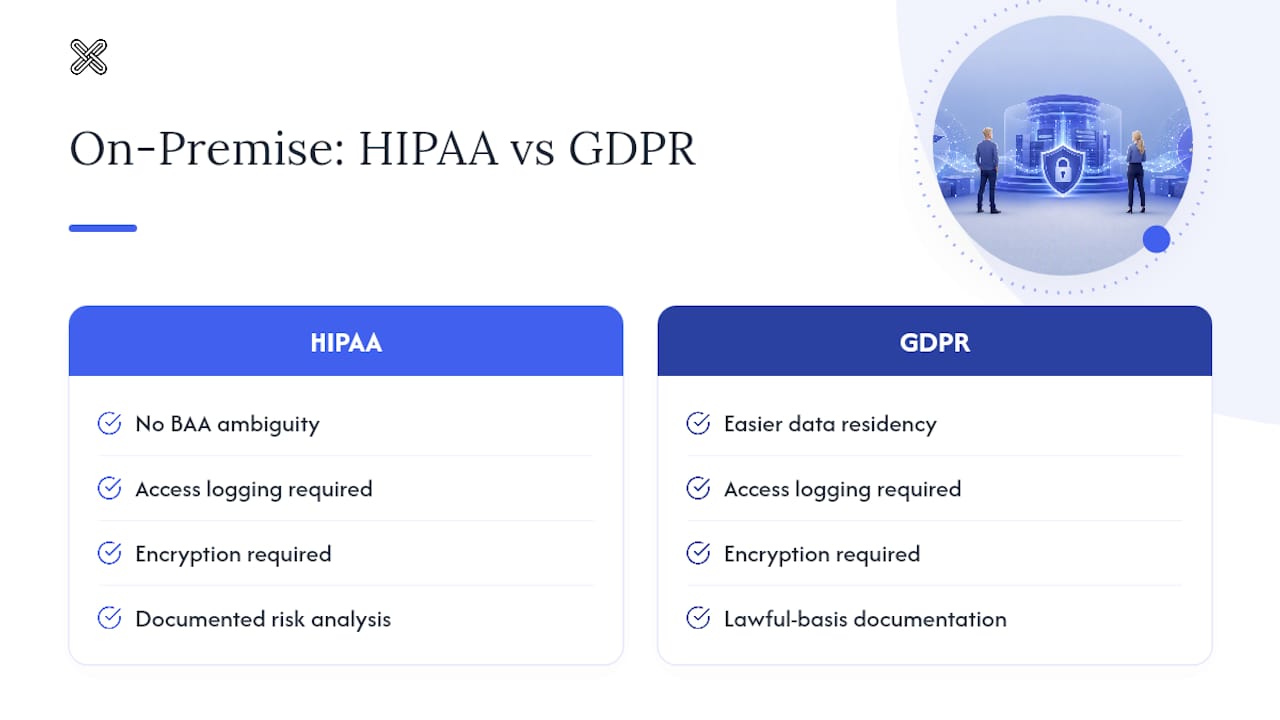
For HIPAA, on-premise processing simplifies the shared-responsibility question that comes up constantly with cloud vendors, since there's no ambiguity about a business associate agreement or a third party's access to protected health information. But you still need access logging, encryption, and a documented risk analysis covering the processing environment itself. Server-side SDKs designed for private infrastructure are built specifically to support HIPAA-compliant, fully on-device workflows without any external processing step.
GDPR compliance follows a similar logic for organizations handling EU resident data: data residency requirements are easier to satisfy when documents never cross a border in the first place, but you still need lawful basis documentation, data minimization practices, and a process for honoring deletion requests. On-premise processing doesn't exempt you from GDPR's substantive requirements; it just removes one category of risk, an external processor mishandling data, from the equation.
Regulated industries including healthcare, finance, and legal services choose on-premise specifically because auditability and data sovereignty are easier to demonstrate when there's a single, fully controlled chain of custody. Build your compliance documentation around that chain of custody from day one rather than retrofitting it after your first audit request.
What Happens When the System Goes Down?
Disaster recovery planning for on-premise document processing needs to answer one blunt question: how long can your organization function if the processing environment is unavailable, and what's your plan to bring it back?
Start with a recovery time objective and a recovery point objective specific to document processing, not just your general IT DR plan. A legal team mid-discovery deadline has a very different tolerance for downtime than a back-office team handling routine invoices. Define those thresholds explicitly rather than assuming a generic "same day" target covers every department.
Redundancy matters most for organizations running clustered enterprise deployments, where a failed node shouldn't take down the entire pipeline. Smaller desktop or single-node installs need a different approach: regular, verified backups and a documented rebuild procedure for standing up a replacement system quickly, ideally on standby hardware kept current with the production configuration.
Business continuity planning also has to account for the human side. If your OCR administrator is the only person who understands the system's configuration, that's a single point of failure just as real as a server outage. Document your architecture, backup procedures, and recovery steps somewhere more durable than one person's memory, and test the actual recovery process periodically rather than trusting it works because it did once during setup.
Air-gapped environments add a layer of complexity here: recovery data has to move through the same secure, verified export and import process used for normal operations, maintaining the same chain-of-custody documentation auditors will expect to see. Build that into your DR runbook explicitly, not as an afterthought when the system is already down.
A Windows-Native Option Worth Evaluating
Everything covered above, local processing, no external calls, full audit control, is the exact design principle behind LawtonPDF. It's a Windows-native application where PDF tools, document comparison, and OCR-driven capture all run on your machine, with nothing uploaded to any server. That makes it a natural fit for the Windows-first legal, finance, and research teams this guide has been talking about throughout: teams that need PDF merging, redaction, watermarking, and advanced comparison across PDFs, Word files, spreadsheets, code, and folders, without adding a single new exfiltration risk to their environment.
If you're evaluating it against the checklist above, start with a trial batch using real sample documents from your own archive, check the admin and team management controls if you're deploying beyond a single desktop, and confirm reprocessing accuracy against files you already know the correct output for.
Recommended Reading for Deeper Implementation Detail
For architecture patterns and GPU planning, start with the enterprise on-premise AI deployment overview. For OCR feature depth, read the practical on-premise OCR breakdown, and for local RAG patterns, check the localGPT project documentation.
Get Started With Local-First Document Processing
There are alternatives to sending sensitive files through a cloud pipeline: PDF tools, comparisons, and OCR scans that run on your own Windows machine, so nothing you process, merge, redact, or watermark ever touches an external server. That matters most for the legal, finance, healthcare, and research teams this guide has been written for, where a single accidental upload can turn into a compliance incident.

Some applications handle the everyday PDF work IT teams get asked about constantly: merging and organizing files, extracting or rotating pages, flattening and watermarking documents, and locking sensitive files with password protection, alongside advanced comparison across PDF, Word, text, code, spreadsheet, image, and folder formats. Teams that need centralized license management can step up to the Business plan, while individuals and small teams can start with Plus or the Free tier; current pricing details for Plus, Business, and Free are on the pricing page.
If your organization is already leaning toward keeping documents in-house for compliance reasons, the practical next step is to try LawtonPDF on a real batch of your own files and see how it handles your specific document mix. You can explore the full tool set or start directly with the PDF comparison feature if document comparison is your immediate need.
Sources
FAQ
What Is the Difference Between IDP and OCR?
OCR converts images of text into machine-readable characters, while intelligent document processing (IDP) goes further by classifying documents, extracting structured fields, and scoring extraction confidence. Most modern on-premise platforms combine both: OCR handles the raw text recognition, and IDP adds the structure and validation logic on top.
What Is Document Processing?
Document processing is the automated pipeline that takes a physical or digital document and turns it into structured, usable data, covering capture, OCR, extraction, classification, and routing into a workflow or archive. On-premise document processing runs that entire pipeline on infrastructure the organization controls, with no data sent to external servers.
What Is the Best Software for Scanning and Organizing Documents on Windows?
The right choice depends on whether you need enterprise-scale batch OCR or a straightforward desktop tool for merging, organizing, and comparing files. For Windows-based teams that want local processing with no cloud upload, LawtonPDF combines OCR-driven scanning cleanup, PDF organization, and document comparison in one application, with pricing detailed on its pricing page.
How Do I Make a Scanned Document Searchable Without Uploading It Anywhere?
Local OCR tools can convert scanned PDFs into searchable text entirely on your own machine, with the file never leaving your device. A step-by-step guide to converting scans into searchable PDFs walks through the process for teams that need this done without any cloud dependency.
Is On-Premise Document Processing More Expensive Than Cloud?
It depends on volume: cloud pricing scales with usage, so high-volume processing can cost more over time than an on-premise system's upfront hardware and licensing investment. On-premise also avoids per-page fees entirely once the infrastructure is in place, which is why regulated industries with steady, high-volume workloads often favor it for long-term cost predictability.