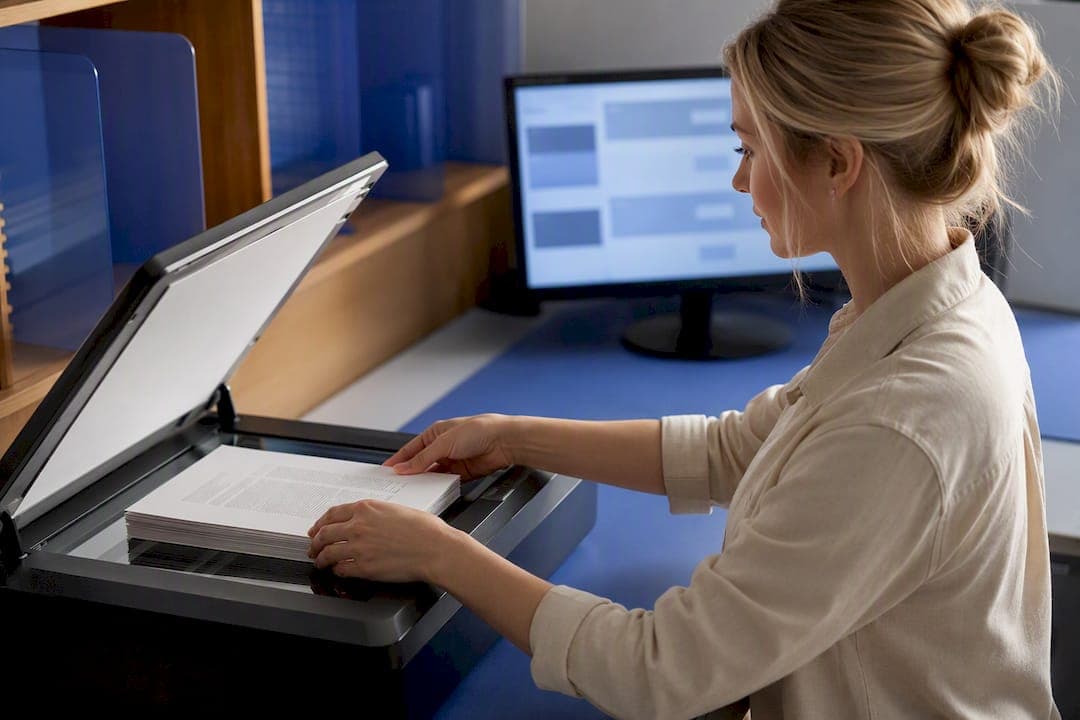
Run OCR (optical character recognition), and save the output as a searchable PDF. For sensitive files or large batches, a local desktop OCR app keeps every page on your machine. For a single quick document, mobile or online OCR gets you there in minutes. Handwriting and low-quality scans almost always need manual cleanup afterward.
TL;DR:
- Use local OCR software for converting large batches of sensitive or legal documents to ensure privacy and control over the files.
- Scan at 300 to 600 DPI with the correct language settings and avoid heavy compression to improve OCR accuracy and reduce errors.
- Verify OCR success by testing whether you can highlight or search for text; if not, rerun OCR or rescan at higher quality settings.
- Colour scans and complex layouts like multi-column pages or tables tend to decrease recognition accuracy, requiring manual cleanup afterward.
- Organize searchable PDFs with consistent naming, folder structure, and tagging to enhance retrieval and long-term document management.
Table of Contents
- Scan to Searchable PDF: Comparing Your Conversion Methods
- Step-by-Step Desktop OCR Workflow for Windows
- Scanning to Searchable PDF From a Phone or Scanner
- How Do You Know if a PDF Is Actually Searchable?
- Scan Settings That Actually Improve OCR Accuracy
- When Should You Keep OCR Local Instead of Cloud-Based?
- Fast Fixes for Common OCR Problems
- What Fonts and Languages Do OCR Tools Actually Support?
- Naming and Organizing Your Searchable PDFs
- Balancing File Size and Searchability
- A Practical Note From Lawton on Document Workflows
- Try Local OCR on Your Next Batch of Files
- Sources
- FAQ
Scan to Searchable PDF: Comparing Your Conversion Methods
Four practical paths get you from a flat scan to a searchable PDF, and each one fits a different situation. Online OCR tools are the fastest to try since there's nothing to install, but most upload your file to a server you don't control. Desktop OCR apps take a few minutes to set up, then run entirely on your computer, which matters when you're processing contracts, medical records, or a folder of 200 case files at once.
Mobile scanner apps shine for capture, not volume. Scanner hardware with built-in OCR sits between the two, handling high-volume jobs without a separate software step.
- Online OCR: Convenient, no install, but files typically pass through a third-party server, as seen with browser-based converters like PDF2Go.
- Desktop OCR: Requires installation, but processing stays local, which suits sensitive documents and large batches.
- Mobile scanner apps: Fastest for a single receipt or a quick page captured on the go.
- Scanner-integrated OCR: Built into bundled scanner software, ideal for offices scanning dozens of pages daily.
Pick based on what you're scanning, not just what's on hand. A one-off insurance form is fine online. A stack of client files belongs on desktop.
Step-by-Step Desktop OCR Workflow for Windows
A repeatable sequence beats guesswork, especially when you're processing more than a handful of files. Here's the workflow that holds up whether you're converting one document or an entire folder.
- Preflight your images. Check that scans are at least 300 DPI, straighten any tilted pages (deskew), crop out scanner borders, and avoid heavy JPEG compression that blurs text edges.
- Set the document language. OCR engines rely on language packs to recognize characters correctly, so select the right language, or multiple languages if a document mixes them.
- Run OCR and choose "searchable PDF" as the output. Most desktop tools let you process a single file or an entire batch folder in one pass.
- Save and verify. Export as a searchable PDF or PDF/A for long-term archiving, and keep your original scans in a separate folder in case you need to rerun OCR later.
LawtonPDF runs this entire process on your own hardware, which matters if you're handling legal or financial records that can't leave your network. You can batch-process a folder of case files, then use the PDF organizing tools to sort the results before filing them away.
Pro Tip: Never delete your original scans after OCR. If the text layer comes out garbled, you'll want to rerun the process at a higher resolution instead of starting from scratch.
Scanning to Searchable PDF From a Phone or Scanner
Mobile apps and scanner hardware solve a different problem than desktop software: speed at the point of capture. You open the app, snap the photo, and the software auto-crops the page edges and straightens the perspective before you even see a preview.
- Capture the page, confirm the auto-crop looks right, and select the correct language before running OCR.
- Save directly as a searchable PDF rather than a flat image, since most scanner apps default to plain image files unless you change the export setting.
- Check your scanner's bundled software for a "searchable PDF" or "OCR" export option. Many desktop scanning suites include this directly, as ScanSnap's documentation confirms.
- Transfer mobile scans to a desktop app when the document is sensitive or needs batch cleanup. A single-page receipt is fine to leave on your phone. A signed contract is not.
For receipts and small documents specifically, a dedicated scanning workflow keeps files organized from the start instead of piling up in your camera roll.
How Do You Know if a PDF Is Actually Searchable?
Three quick tests tell you whether OCR actually worked. Open the file, try to click and drag your cursor across a line of text. If you can highlight it, the text layer exists. If your cursor just draws a selection box around the whole page like it's an image, OCR either failed or was never run.
- Try Find (Ctrl+F). Search for a word you know appears in the document. If it jumps to the result, the PDF is searchable.
- Copy and paste a line of text into a text editor. Garbled characters mean OCR ran but misread the content.
- Check accessibility tools, like a screen reader, which will read image-only pages as blank.
- If errors are widespread, rerun OCR on just the affected pages rather than the whole document. Correct isolated typos directly in a PDF editor, and run OCR again with the correct language selected if you originally guessed wrong.
- If most pages come back badly recognized, don't patch text one line at a time. Re-scan the originals at a higher DPI instead; that fixes the root cause of the OCR errors OneLegal describes far faster than manual correction.
Scan Settings That Actually Improve OCR Accuracy
Most OCR failures trace back to the scan itself, not the software. Fix the input and the output usually follows.
- Scan at 300 to 600 DPI for standard typed text. Push toward 600 DPI if the document has small fonts, like a footnote-heavy legal filing.
- Set the correct document language before running OCR, and enable multi-language recognition if a page mixes, say, English and Spanish.
- Capture in high contrast or black-and-white for plain text documents. Color scanning adds file size without improving recognition.
- Deskew, crop, and denoise before OCR runs. A properly deskewed scan recognizes dramatically better than a page tilted even a few degrees.
- Watch for complex layouts. Multi-column pages, tables, and running headers or footers confuse OCR engines more than plain paragraphs. When a document is dense with these elements, manual cleanup after OCR is often faster than trying to perfect the automated pass.
Pro Tip: If you're scanning a mixed batch, a single wrong language setting can wreck accuracy across dozens of pages. Check it before you run OCR on the whole folder, not after.
When Should You Keep OCR Local Instead of Cloud-Based?
Some documents simply shouldn't leave your network, and the decision isn't really about convenience versus effort. It's about who else might see the file in transit.
- Legal filings and case evidence, where chain-of-custody matters.
- Health records, which carry regulatory obligations most cloud OCR tools weren't built to satisfy.
- Financial statements and tax documents, especially anything tied to a client account.
- Confidential contracts, including anything under an NDA.
Cloud-based OCR tools are genuinely convenient for a one-off form nobody cares about. But for anything on that list, local processing removes the upload step entirely. LawtonPDF runs OCR and its document comparison features directly on your computer, which is why legal and finance teams handling regulated document workflows lean on local-first tools instead of browser-based converters. If you're unsure which way to go, ask one question: would you be comfortable emailing this file to a stranger? If not, keep it local.
Fast Fixes for Common OCR Problems
Most OCR failures fall into a handful of predictable buckets, and none of them require starting over.
- Confirm the file is actually image-based. Some "scanned" PDFs already contain a text layer; check before you waste time re-running OCR.
- Wrong language selected is the single most common cause of garbled output. Rerun just the failing pages with the correct language set.
- Low resolution shows up as random character substitutions. Try 600 DPI if 300 DPI isn't cutting it.
- Handwriting rarely recognizes reliably with standard OCR. Plan on manual transcription for anything handwritten.
- Escalate when you're dealing with legal-evidence scans or a batch failure affecting dozens of files. At that scale, a targeted re-scan of the source documents is faster than page-by-page correction.
What Fonts and Languages Do OCR Tools Actually Support?
Modern OCR engines handle standard printed fonts well: Times New Roman, Arial, Calibri, and most serif or sans-serif fonts used in business and legal documents. Recognition accuracy drops with decorative or script fonts, since OCR models are trained primarily on common typefaces.
Language support has expanded considerably. Most desktop and mobile OCR tools now recognize dozens of languages, including English, Spanish, French, German, and many non-Latin scripts like Chinese, Japanese, and Arabic, though accuracy varies more with non-Latin character sets. The critical step is telling the software which language to expect before it runs. An OCR engine set to English will mangle a French document riddled with accented characters, even though the same engine handles French perfectly well when configured correctly.
Multi-language documents need special handling. If a contract includes both English and Spanish clauses, select both languages in your OCR settings rather than picking one and hoping for the best. Most desktop OCR tools support this multi-language mode; check your software's language settings before scanning a mixed document rather than after you've already run a failed pass.
Font size matters almost as much as font style. Body text at 10 to 12 points recognizes reliably at 300 DPI. Fine print, footnotes, or anything under 8 points needs a higher scan resolution, closer to 600 DPI, or the OCR engine starts guessing at characters instead of reading them cleanly.
Naming and Organizing Your Searchable PDFs
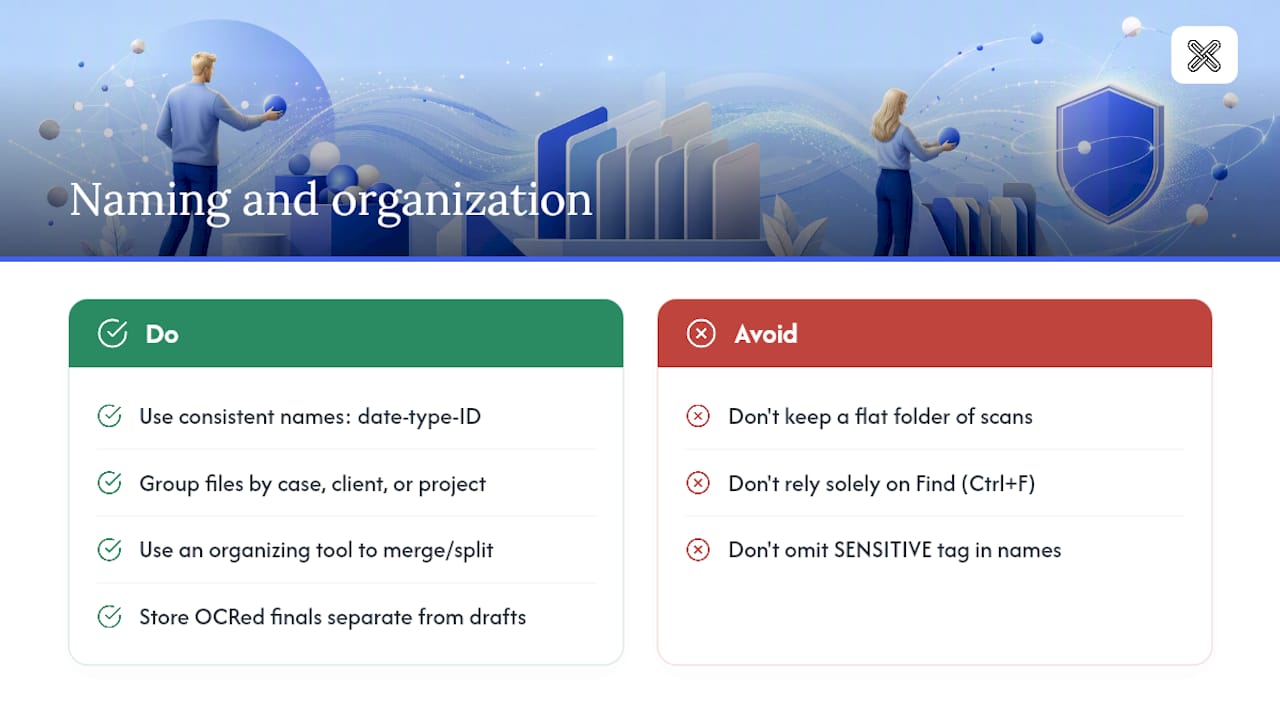
A searchable PDF is only as useful as your ability to find it again. Consistent naming turns a folder full of files into an actual archive instead of a digital junk drawer.
Structure file names around date, document type, and identifier: 2026-03-12_Contract_SmithVsJones.pdf beats scan001.pdf every time you're searching six months later. Since OCR now makes the text inside the document itself searchable, your file names only need to handle sorting and quick visual scanning, not every possible search term.
Group related documents into folders by case, client, or project rather than by scan date. A flat folder with 500 files named sequentially forces you to rely entirely on Find (Ctrl+F) inside each document, which works but wastes time compared to browsing a well-organized folder structure.
Once files are searchable, pair them with an organizing tool to merge related pages, reorder sections, or split oversized files into logical chunks. If you're managing case files or contracts that need periodic comparison, keep OCRed versions in a dedicated folder separate from working drafts, so a document comparison tool always points at the final, searchable version rather than an outdated scan.
Tag sensitive files clearly in their names too, something like _CONFIDENTIAL or _PRIVILEGED as a suffix, so anyone browsing the folder knows at a glance which documents need extra care before sharing.
Balancing File Size and Searchability
Running OCR adds a text layer to your PDF, and that layer barely changes file size. The real bloat usually comes from the underlying scan quality, not the OCR process itself.
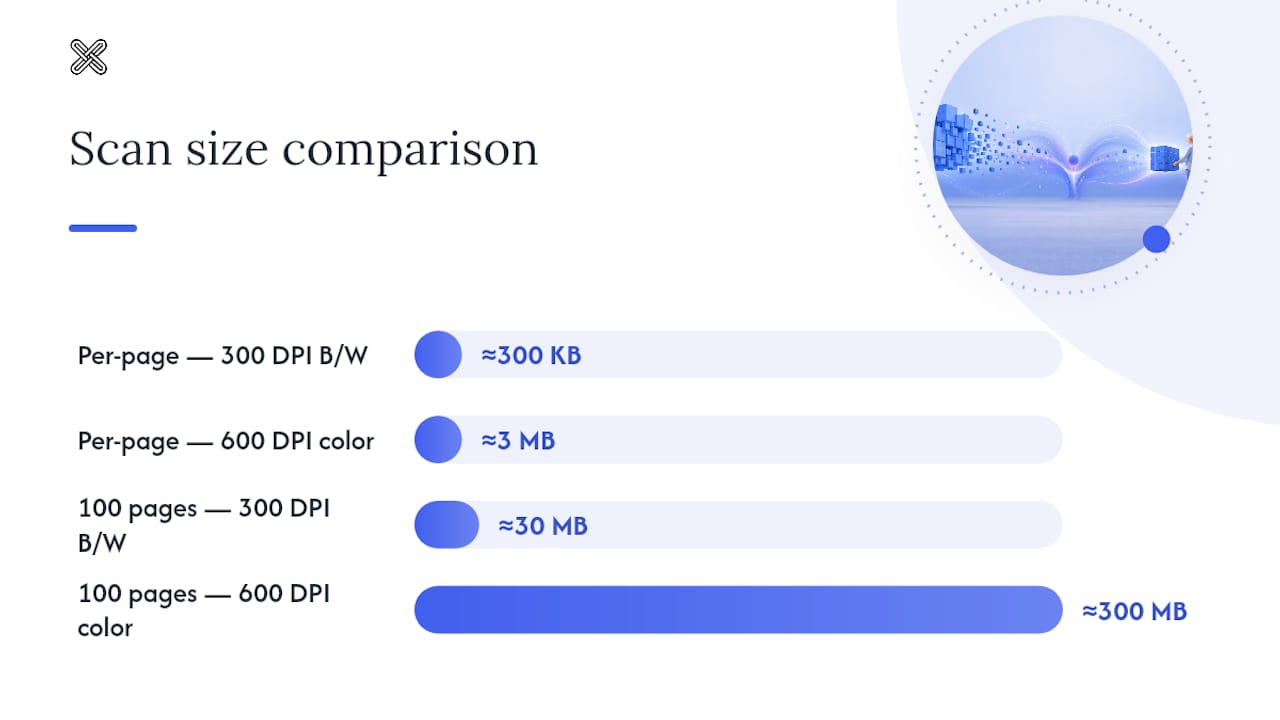
A 300 DPI black-and-white scan of a typed page runs a few hundred kilobytes per page. Scan the same page at 600 DPI in color, and you can be looking at several megabytes per page, which adds up fast across a 100 page document. If your source is plain text, black-and-white or grayscale capture keeps files manageable without sacrificing OCR accuracy.
Compression settings matter, but push them too far and you'll degrade the image enough to hurt OCR recognition before you even run the text-detection pass. The better order of operations: scan at a resolution suited to the content, run OCR while quality is still good, then compress the finished searchable PDF afterward if file size is a concern. Compressing before OCR risks blurring characters the engine hasn't read yet.
For archival purposes, PDF/A format preserves searchability long-term but doesn't inherently reduce size. If you're storing thousands of searchable PDFs, consider splitting oversized multi-page scans into logical sections with an organizing tool, which keeps individual files easier to open, search, and share without waiting on a 50-page document to load.
A Practical Note From Lawton on Document Workflows
Teams get accuracy and privacy backwards more often than you'd expect: they chase perfect OCR results while uploading sensitive files to whatever converter loads fastest. Get the scan quality right first. A clean 300 DPI capture with the correct language selected will beat a rushed scan run through the fanciest OCR engine available. Fix the input, and the accuracy problem mostly solves itself.
— Lawton
Try Local OCR on Your Next Batch of Files
If you've been uploading scans to a browser tool and hoping for the best, LawtonPDF gives you a different starting point: OCR that runs entirely on your own machine, with no upload step and no third-party server touching your files. That matters most when you're converting a folder of case files, contracts, or financial records where privacy isn't optional.

LawtonPDF batch-processes scanned folders into searchable PDFs, then lets you organize, compare, or password-protect the results, all without the file ever leaving your computer. If you're handling a stack of client documents this week, try running that batch through LawtonPDF's document tools and see how it handles your actual workload. You can download LawtonPDF and start converting your next folder today.
Sources
For readers who want to go further into scanner-specific settings or vendor documentation:
- Q. How do I create a text searchable PDF?
- Can I create a text searchable PDF file?
- How to make a PDF text searchable | OneLegal blog
FAQ
Can ChatGPT OCR a PDF?
ChatGPT can extract some text from images or PDFs, but it isn't purpose-built OCR software and doesn't reliably output a properly formatted searchable PDF file. Dedicated OCR tools, whether local desktop apps or scanner-bundled software, remain more consistent for actual document conversion.
How Can I Convert a Non-Searchable PDF to a Searchable One?
Run OCR using a desktop app, online tool, or scanner software, then save the output as a searchable PDF. LawtonPDF does this locally on Windows without uploading your files anywhere.
How Do I Search a PDF That Isn't Searchable?
You can't search text directly in an image-based PDF until you run OCR on it. Once OCR completes and adds a text layer, Find (Ctrl+F) will work normally.
What Is an OCR Searchable PDF?
It's a PDF where optical character recognition has added a hidden text layer beneath the scanned image, letting you select, search, and copy text that was originally just a picture of a page.
Why Does My OCR Output Look Garbled?
Garbled text usually comes from the wrong language setting or a low-resolution scan. Rerunning OCR with the correct language selected or rescanning at a higher DPI fixes most of these cases.