
The best way to compare Markdown files offline is a local desktop app that renders both files side-by-side and highlights structural changes, not just raw line differences. This approach keeps your files on your device, gives you a Markdown-aware diff, and works without any internet connection.
Two solid alternatives exist depending on your setup:
- Editor-based: VS Code with Markdown extensions gives you a cross-platform, side-by-side diff inside a familiar environment.
- CLI/git: Command-line workflows are scriptable, repo-aware, and handle multi-file diffs across branches or commits.
Quick trade-offs at a glance:
| Method | Ease of use | Diff fidelity | Best for |
|---|---|---|---|
| Desktop GUI app | High | Rendered/semantic | Non-technical reviewers, privacy-first teams |
| VS Code + extensions | Medium | Raw + preview | Developers, cross-platform users |
| CLI/git | Low | Raw or AST (with plugins) | Automation, repo history, scripting |
Key Takeaways
The most reliable way to compare Markdown files offline is a local desktop app with AST-aware, rendered diffs, keeping your files on-device and eliminating upload risk entirely.
| Point | Details |
|---|---|
| Best offline method | A local desktop app with rendered, side-by-side diffs gives the highest fidelity and privacy. |
| Editor alternative | VS Code with Markdown extensions provides cross-platform local diffs with no extra install. |
| CLI/git for automation | git diff and local diff servers handle multi-file and history-aware comparisons scriptably. |
| Normalize before diffing | Trim trailing whitespace and standardize line endings to remove false-positive changes. |
| Lawtonpdf on Windows | Lawtonpdf runs all text and document comparisons locally, with character-level highlighting and export options. |
Table of Contents
- How do you compare Markdown files offline? Three practical methods
- Which features matter when you compare Markdown locally?
- Step-by-step: compare two Markdown files locally with Lawtonpdf
- How to use VS Code for local Markdown diffs (cross-platform)
- CLI and git workflows for Markdown diffs (scriptable and repo-friendly)
- Rendered and semantic diffs versus raw-text diffs: when does each work?
- Common issues and quick fixes when comparing Markdown files offline
- Why local-first comparison is the right default
- Lawtonpdf handles your offline Markdown comparisons on Windows
- Sources
- FAQ
How do you compare Markdown files offline? Three practical methods
Method 1: Desktop GUI app (local rendered diff)
A dedicated desktop diff app parses your .md files and shows a rendered, side-by-side view. You see heading shifts, list reorders, and paragraph changes as formatted content, not a wall of + and - symbols. Tools like markdown-diff-viewer parse files into an abstract syntax tree (AST), match top-level blocks using similarity-weighted longest common subsequence (LCS), and add character-level highlighting and synchronized scrolling. That makes it far easier to spot what actually changed in a long document.
Pros: High fidelity, no upload required, works for non-technical reviewers. Cons: Windows or platform-specific installs; some tools require initial configuration.
Method 2: Code editor workflow (VS Code)
VS Code has a built-in diff view. Open the Command Palette, run "Compare Active File With…," and pick your second file. Add a Markdown preview extension to see rendered output alongside the diff. It runs entirely locally, integrates with your local git repo, and works on Windows, macOS, and Linux.
Pros: Cross-platform, no extra install beyond extensions, familiar to developers. Cons: Raw line diffs by default; rendered fidelity depends on the extension you choose.
Method 3: CLI and git-based workflows
git diff compares two files, two commits, or two branches from the terminal. You can pipe output to a pager, export it as a patch file, or feed it into a local HTML viewer. The markitdown-diff-mcp local server extends this further, producing structured JSON hunks and unified diffs from Markdown and other formats, all processed on-device.

Pros: Scriptable, handles multi-file diffs, integrates with repo history. Cons: Steeper learning curve; raw output requires extra tooling for rendered views.
Which features matter when you compare Markdown locally?
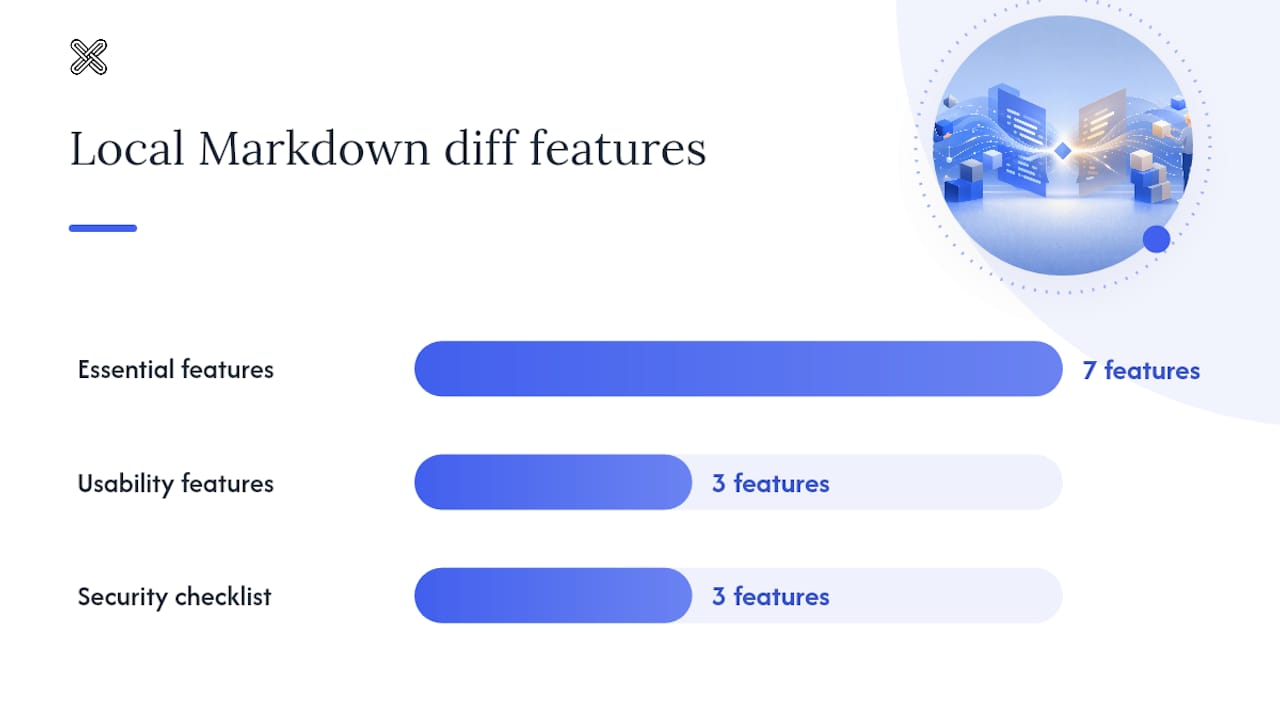
Not every diff tool handles Markdown well. Before you commit to one, check for these capabilities.
Essential features:
- Markdown/GFM rendering: The tool should parse and display formatted output, not raw syntax.
- Semantic or AST-aware diffs: Matching blocks by structure, not just line numbers, reduces noise from reflowed paragraphs. markitdown-diff-mcp produces structured JSON hunks that reflect this kind of block-level matching.
- Character-level highlighting: Word- or character-level inline diffs show exactly which words changed inside a paragraph.
- Synchronized scrolling: Both panes scroll together so you never lose your place in long documents.
- Git integration: Direct repo access lets you compare branches or commits without exporting files manually.
- Multi-file diffs: Folder-level comparison matters for documentation sets or content migrations.
- Export options: HTML, diff patch, and JSON exports let you share results or archive them. LineDiff supports HTML, Diff Patch, JSON, and Excel exports, plus a PWA mode for offline access to previously created comparisons.
Usability features:
- Keyboard navigation for fast review
- Dark and light themes
- File search within a diff session
Security checklist:
- Local-only processing with no file uploads
- Explicit file-access boundaries (allowed roots or working directory only)
- No account or sign-in required to run a comparison
Pro Tip: Of all the features above, AST-aware block matching and character-level highlighting make the biggest practical difference for documentation teams. Raw line diffs flag every reflowed paragraph as a change; AST-aware tools surface only what actually changed in meaning or structure.
Step-by-step: compare two Markdown files locally with Lawtonpdf
Lawtonpdf runs all comparisons locally on your Windows machine. No file ever leaves your device. Its text-compare tool handles .md files alongside plain text, code, and other document formats.
- Download and install Lawtonpdf from Lawtonpdf.
- Open Lawtonpdf and select Compare Text Files from the tools menu.
- Click Browse next to the left pane and select your first
.mdfile. - Click Browse next to the right pane and select your second
.mdfile. - Click Compare. Lawtonpdf generates a side-by-side diff with inline character-level highlighting.
- Scroll through both panes. Changed blocks appear highlighted; added and removed lines are color-coded.
- To save your results, click Export and choose HTML or diff patch format.

Pro Tip: If your Markdown files include YAML frontmatter (the --- block at the top), Lawtonpdf will flag it as content. To avoid frontmatter noise, strip or comment out the frontmatter block before running the comparison, then restore it afterward. The same applies to embedded image paths: if the paths differ between environments, normalize them to relative paths first.
Your files stay on your device throughout. Lawtonpdf never sends content to a server, which matters for legal documents, internal drafts, and any file under a confidentiality agreement.
How to use VS Code for local Markdown diffs (cross-platform)
VS Code's built-in diff view works on Windows, macOS, and Linux. With the right extensions, you get a rendered preview alongside the raw diff.
- Open VS Code and install the Markdown Preview Enhanced extension from the Extensions panel.
- Open your first
.mdfile in the editor. - Press
Ctrl+Shift+P(orCmd+Shift+Pon macOS) to open the Command Palette. - Type "Compare Active File With…" and press Enter.
- Select your second
.mdfile. VS Code opens a side-by-side diff view. - Click the preview icon in the top-right corner to open a rendered Markdown preview alongside the diff.
Choose the editor workflow when you want a quick comparison during active editing, when you are already working inside a local git repo, or when you need a cross-platform solution without installing a separate app.
Pro Tip: Before comparing, open VS Code settings and set "files.eol": " " and "editor.renderWhitespace": "all". This normalizes line endings and makes whitespace-only changes visible, so you can decide whether to ignore them. For files with YAML frontmatter, the GitLens extension lets you exclude specific line ranges from the diff view.
CLI and git workflows for Markdown diffs (scriptable and repo-friendly)
CLI workflows are the right choice when you need to automate comparisons, diff across branches, or integrate Markdown checks into a build pipeline.
Basic file comparison:
git diff --no-index file-v1.md file-v2.md
This compares two files outside a repo. Add --word-diff for inline word-level highlighting:
git diff --no-index --word-diff file-v1.md file-v2.md
Compare across branches or commits:
git diff main..feature-branch -- docs/README.md
Export a patch file:
git diff main..feature-branch -- docs/ > docs-changes.patch
Local structured diff with markitdown-diff-mcp:
The markitdown-diff-mcp server runs locally and produces structured JSON hunks and unified diffs from Markdown files. Configure allowed_roots to restrict file access to your working directory, and note that find/replace defaults to dry-run mode for safer local usage.
Multi-file diffs between directories:
git diff main..feature-branch -- docs/
This diffs every file under docs/ between the two refs and outputs a single unified patch.
Pro Tip: When you need to ignore formatting-only edits (paragraph reflows, whitespace changes), use an AST-based local diff tool rather than raw git diff. Parsing Markdown to an AST and matching blocks using similarity measures like Dice coefficient and character bigrams, as described in the markdown-diff-viewer approach, eliminates false positives from reflowed text and surfaces only structural or content changes.
Rendered and semantic diffs versus raw-text diffs: when does each work?
The right diff type depends on what you are reviewing and how much noise you can tolerate.
Quick answer: Use semantic or rendered diffs when document structure matters. Raw line-based diffs are fine for small edits or quick spot-checks.
AST-based matching works by parsing each file into a tree of blocks (headings, paragraphs, lists, code blocks) and aligning them by similarity rather than line position. A paragraph that was reflowed from two lines to three shows as unchanged. A heading that moved from H2 to H3 shows as a structural edit. This is the approach markdown-diff-viewer uses, combining similarity-weighted LCS with character-level highlighting for modified blocks.
Raw line-based diffs treat every line as a string. A single paragraph reflow produces a dozen changed lines even when the content is identical. That noise is manageable for a two-line fix but becomes a real problem in a 5,000-word document.
| Diff type | How it works | Best use cases | Typical noise level |
|---|---|---|---|
| Rendered/AST-aware | Parses blocks, matches by structure and similarity | Documentation reviews, legal redlines, publishing pipelines | Low |
| Raw line-based | Compares line by line as plain text | Quick code edits, small files, scripted patch generation | Medium to high |
For legal redlines or documentation audits, rendered diffs are worth the extra setup. For a quick check on a config file or a short README, raw git diff is fast enough.
Common issues and quick fixes when comparing Markdown files offline
Most problems with local Markdown diffs come from a handful of predictable sources.
- YAML frontmatter mismatches: Frontmatter fields like
date:ordraft:change between versions and flood the diff with noise. Strip or exclude the frontmatter block before comparing, or configure your tool to ignore lines between---delimiters. - Line-ending differences (EOL): Windows uses
CRLF; Unix/macOS usesLF. A file converted between systems shows every line as changed. Normalize withgit config core.autocrlf trueon Windows or rundos2unixon the file before diffing. - Whitespace and formatting noise: Trailing spaces, extra blank lines, and indentation differences trigger false positives. Run a quick normalization step (trim trailing whitespace, consistent EOL) before diffing to cut the noise significantly.
- Image and link path differences: Absolute paths differ between machines; relative paths may break after a folder move. Normalize all paths to a consistent relative root before comparing.
- Large-file performance: Files above a few thousand lines can slow down GUI diff tools. Break large documents into logical sections, use multi-file diff modes, or increase the memory allocation in your tool's settings. The markitdown-diff-mcp configuration includes a file-size cap and output character cap to prevent runaway processing on large inputs.
- Desktop tool configuration: Many desktop diff utilities need session-level settings adjustments to handle
.mdfiles correctly, including file-type rules and encoding settings.
Pro Tip: Before any comparison, run a one-line normalization: trim trailing whitespace and enforce consistent line endings. In most editors, "Save with Unix Line Endings" handles both. This single step removes the majority of false-positive changes in a typical Markdown diff.
Why local-first comparison is the right default
Sending documents to an external server for comparison is a habit worth breaking. Legal drafts, internal policy documents, and research notes often carry confidentiality obligations that a cloud diff tool cannot satisfy, regardless of its privacy policy.
Local processing removes that risk entirely. Your files stay in your working directory, the diff runs in your own memory, and nothing is logged on a third-party server. That is not just a privacy preference; for teams under HIPAA, attorney-client privilege, or NDA obligations, it is a compliance requirement.
There is also a reproducibility argument. A local tool produces the same result every time, on the same machine, with the same file state. Cloud tools can change their diff algorithms, update their parsers, or go offline. Your local workflow does not.
The JAD Markdown md-diff tool makes this point clearly: it processes files with 0 bytes uploaded, running entirely in the browser. That is a strong privacy guarantee for a one-off check. For teams doing repeated comparisons on sensitive documents, a fully local desktop app like Lawtonpdf takes that guarantee further by keeping processing off the network entirely.
Lawtonpdf handles your offline Markdown comparisons on Windows
If you want a Windows app that runs every comparison locally, Lawtonpdf covers text, document, image, spreadsheet, and folder comparison without touching a server. You get character-level highlighting, side-by-side views, and export options, all from a single install.
Lawtonpdf offers a free tier so you can test local text comparison before committing to a paid plan. For teams handling sensitive documents, the paid tiers add multi-file and folder-level diffs, which are useful for comparing entire documentation sets between branches or releases.
Start with the text-compare tool to run your first local Markdown diff today.
Sources
The sources below cover downloads, technical references, and deeper reading on local Markdown diff tools.
- PiotrTrzpil/markdown-diff-viewer
- justinritchie/markitdown-diff-mcp
- Compare Two Markdown Files — Free Diff Tool · JAD Markdown
- Compare Two Markdown Files — LineDiff
FAQ
Can you compare Markdown files offline without uploading them?
Yes. Desktop apps like Lawtonpdf and CLI tools like git diff run entirely on your machine. Browser-based tools such as JAD Markdown md-diff also process files locally with 0 bytes uploaded.
What is the difference between a raw diff and a rendered Markdown diff?
A raw diff compares files line by line as plain text; a rendered diff parses Markdown into blocks and matches them by structure, reducing noise from paragraph reflows and highlighting only meaningful content changes.
How do you handle YAML frontmatter when comparing two .md files?
Strip or exclude the frontmatter block before running the comparison, or configure your diff tool to ignore lines between --- delimiters. This prevents metadata fields from flooding the diff with false positives.
Which offline tool works best for large Markdown documentation sets?
For multi-file or folder-level comparisons, Lawtonpdf's folder-compare feature handles entire documentation directories locally. CLI workflows using git diff on a directory path are also effective for large sets across branches.
Does VS Code compare Markdown files locally?
Yes. VS Code's built-in "Compare Active File With…" command runs entirely on your machine. Adding a Markdown preview extension gives you a rendered view alongside the raw diff, with no files sent to an external server.