
You have three real options to compare folders: a desktop GUI app, command-line hashing, or a browser-based tool. For accuracy and privacy, skip the browser and use a local tool or script that verifies actual file content with something like SHA-256, not just file size or modified dates.
- GUI apps — best for reviewing and merging changes visually
- Command-line tools — best for automation, large datasets, and repeatable results
- Online compare tools — fine for quick, small, non-sensitive checks only
The catch: file size and timestamp checks alone can miss real content changes — two files can share identical size and modified dates while their contents differ. Lawtonpdf's Folder Compare tool runs entirely on your machine, which makes it a solid default when the files involved are sensitive.
Key Takeaways
Accurate folder comparison depends on verifying file content with hashing, not just checking size and modified date, and keeping sensitive files processed locally.
| Point | Details |
|---|---|
| Match method to the job | Use GUI tools for interactive review, CLI scripts for automation, and online tools only for small non-sensitive checks. |
| Hash for real accuracy | Size and timestamp checks can miss content changes; SHA-256 hashing confirms files actually match. |
| Stage remote compares | Build a local manifest or hash list before comparing over a network connection to avoid slow, unreliable reads. |
| Filter before you scan | Exclude folders like node_modules, .git, and build artifacts to cut noise from recursive compares. |
| Choose local tools for sensitive files | Lawtonpdf's folder compare processes mixed file sets, including PDFs and Word documents, entirely on your device. |
Table of Contents
- Which method fits your situation: GUI, CLI, or online?
- How do you run a GUI folder compare step by step?
- What command-line tools compare two directories?
- Is an online folder compare tool worth using?
- How do you compare huge or networked folders without it hanging?
- How do you verify a folder compare for audit purposes?
- How does Lawtonpdf handle mixed file sets and legal documents?
- Get a Local, Privacy-First Way to Compare Folders
- Sources
- FAQ
Which method fits your situation: GUI, CLI, or online?
Your choice comes down to four questions: how much data you're comparing, how sensitive it is, whether you need to merge changes, and how often you'll run the compare.
- You're reviewing changes interactively and might merge files — use a GUI app. It suits small to medium datasets where you want to see differences and act on them by hand.
- You're automating compares, running them in CI, or comparing huge datasets — use command-line scripts. They're reproducible and don't need a human watching the screen.
- You just need a quick, one-off check on small, non-sensitive files — an online tool works, but watch for upload size limits and think twice before sending anything confidential.
If your files touch client records, contracts, or anything regulated, that decision gets easier. Local processing wins by default.
How do you run a GUI folder compare step by step?
A GUI compare works best when you follow a consistent sequence instead of clicking around randomly.
- Open both folders in your comparison app and confirm the paths are correct before running anything.
- Turn on recursive mode if you need subfolders included; leave it off for a flat, single-level check.
- Switch to tree view so you can navigate nested folders without losing your place, a feature built into utilities like Windiff for exactly this reason.
- Apply filters to cut noise. Exclude patterns like
node_modules,.git, orbuildfolders using regex or wildcard rules so you're not scanning through generated files. - Read the status column. Most tools mark files as left-only, right-only, modified, or identical. Modified is where you spend your time.
- Preview before you copy. Open the diff view on any modified file before you sync or overwrite anything.
Pro Tip: Turn off automatic copy or merge settings before your first pass. Review every flagged change manually the first time you run a compare on a new folder pair — automatic sync on an unfamiliar dataset is how people accidentally overwrite the wrong version.
What command-line tools compare two directories?
Command-line compares give you speed, repeatability, and something a GUI can't: output you can feed into a script or a pipeline.
Robocopy ships with Windows and handles list-only compares well:
robocopy "C:\FolderA" "C:\FolderB" /L /NJH /NJS /NP /NS /E
The /L flag means "list only," so nothing actually copies. /NJH, /NJS, /NP, and /NS strip out job headers, summaries, progress percentages, and file sizes, leaving a clean list of what's different. Add /E to include empty subdirectories in a recursive scan. This gives you a fast, dry-run diff without touching a single file.
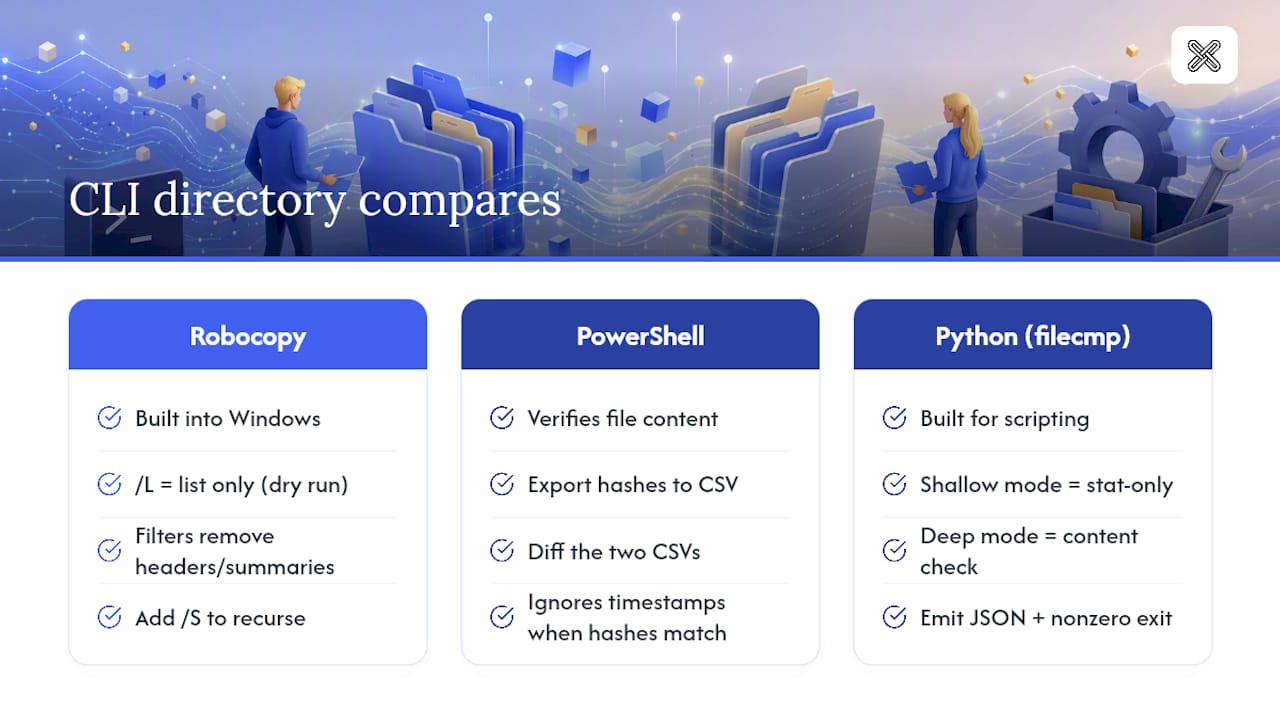
PowerShell goes a step further by verifying content, not just paths:
Get-ChildItem -Recurse | Get-FileHash -Algorithm SHA256 | Export-Csv hashes.csv
Run that against both folders, then diff the two CSV files. Matching hashes mean identical content, regardless of what the timestamps say.
Python's filecmp.dircmp class is built for scripting directory comparisons directly, with a shallow mode (stat-only, fast) and a deeper content check when accuracy matters more than speed, as documented in the standard library. For CI pipelines, have your script emit JSON output and a nonzero exit code whenever it finds a mismatch, so downstream steps can act on the result automatically.
Is an online folder compare tool worth using?
Online tools trade privacy and scale for convenience. Most compute checksums in your browser and cap file counts or total upload size, which makes them workable for a quick check on a handful of small files and a poor fit for anything larger or sensitive.
- Online tools: fast to start, no install, but limited by upload caps and not built for confidential material
- Local tools: handle large datasets without upload limits, and nothing leaves your device
- Remote servers: avoid comparing files live over a network connection; generate a manifest or hash list locally first, then compare those instead
- Security note: never upload regulated documents, contracts, medical records, or anything under an NDA to a browser-based comparison tool, no matter how convenient it looks
If you're unsure whether a file counts as sensitive, treat it as sensitive. That's the safer default.
How do you compare huge or networked folders without it hanging?
Large folders and network shares punish a naive compare. Network latency alone can turn a five-minute job into a half-hour one if you're reading every file live over the wire.
- Estimate the job first. Run a quick stat-only pass, counting files and total size, before you commit to a full hash-based compare.
- Build a local manifest. For remote or high-latency sources, generate a manifest (path, size, and either modified time or hash) locally, then compare manifests instead of live folders.
- Exclude what you don't need. Skip symbolic links, junctions, and large binary blobs unless you have a specific reason to check them.
- Run targeted deep compares. Once the quick pass flags likely differences, hash only those subtrees rather than the whole dataset.
Pro Tip: A hybrid approach, quick pass first, then targeted hashing, is how you get both speed and confidence without hashing every byte on a multi-terabyte share.
How do you verify a folder compare for audit purposes?
Size and modified-time checks are fast, but they're also the easiest way to miss a real difference. Two files can match on both counts and still contain different data, which is why experts treat shallow checks as a first pass, not a final answer.
- Use SHA-256 or a comparable hash whenever content integrity actually matters
- Export hash lists to CSV or JSON so the comparison leaves a paper trail
- Reserve byte-by-byte or cryptographic verification for legal, compliance, or chain-of-custody situations, where digital document authentication carries real weight in court
A useful report format keeps it simple: a summary count of matches and mismatches, followed by a CSV listing each mismatched file's path and hash value.
| Report Element | What It Contains |
|---|---|
| Summary counts | Total files scanned, matched, mismatched, and missing on either side |
| Mismatch detail | File path, hash value on each side, and last modified date |
| Excluded items | Symlinks, junctions, or patterns skipped, with the reason noted |
How does Lawtonpdf handle mixed file sets and legal documents?
Legal teams, finance departments, and anyone handling client files run into a specific problem: folders don't just contain code or text, they contain PDFs, Word documents, scanned images, and spreadsheets mixed together. Lawtonpdf's folder comparison tool processes all of that locally, so nothing leaves your machine.
- Point Lawtonpdf at both folders and run a recursive compare across the full tree
- Use its document view to open any modified PDF, Word file, or image directly and see what actually changed inside it, not just that the file differs
- Choose this over a CLI script when you need to inspect mixed file types by eye, or when the material is legal, medical, or financial and has to stay off any server
Pro Tip: For legal document sets specifically, pair the folder compare with a document-level comparison workflow so you catch both which files changed and exactly what changed inside them.
A working rule for professional folder compares
For sensitive work, run hash verification first, then review flagged files in a GUI before acting on anything. Save fully scripted, hash-only pipelines for repetitive jobs like nightly backups or CI builds, where no human review is needed and speed matters more than a visual check. That split, hash-first plus GUI review for anything touching client or legal material, is the workflow worth defaulting to.
— Lawton
Get a Local, Privacy-First Way to Compare Folders
If you've been piecing together robocopy commands and PowerShell scripts, or you're wary of uploading client files to a browser tool, Lawtonpdf gives you a faster path to the same result without either trade-off.

Lawtonpdf's folder comparison tool runs recursive compares on your own machine, no upload step, no size cap tied to a browser session. It's built for exactly the situation this guide covers: mixed file types, including PDFs and Word documents inside the same folder tree, where a raw file list from robocopy won't tell you what actually changed inside each document. Pair it with Lawtonpdf's PDF comparison tool when a folder compare flags a modified PDF and you need to see the exact difference on the page. If your work involves legal or financial documents where chain-of-custody matters, that local-only processing isn't a nice extra, it's the reason to choose it. Check out the full toolset and start comparing your first folder pair today.
Sources
- How to Compare Two Folders on Windows 11 and 10
- How to use Windiff utility
- filecmp — Compare files and directories (Python docs mirror)
FAQ
How can I compare two folders for differences?
Open both folders in a comparison app, enable recursive mode, and review the results marked as left-only, right-only, or modified. For guaranteed accuracy, verify flagged files with a SHA-256 hash rather than trusting size or date alone.
Is there a free tool that can compare folders?
Yes. Windows includes robocopy for command-line list-only compares, and Lawtonpdf offers a free tier for its folder comparison tool that runs entirely on your device.
How can I compare all files in two folders, including their content?
Use SHA-256 hashing on every file in both folders, then compare the hash lists rather than just file names and sizes. PowerShell's Get-FileHash command or Python's filecmp.dircmp in deep mode both handle this reliably.
Is there a way to compare two folders on Windows 11?
Windows 11 supports the same methods as earlier versions: robocopy with the /L flag for a dry-run list, PowerShell for hash-based verification, or a dedicated GUI app like Lawtonpdf for an interactive, recursive compare.