
The fastest way to compare text files is a browser-based diff tool for a one-off check, and a local desktop app or built-in Windows command when privacy, merging, or repeated comparisons are involved.
- Quick, low-stakes check: paste both files into an online diff tool and read the highlighted results in seconds.
- Private or repeat work: use a local GUI app like WinMerge, or a Windows command like
fcorcomp, so nothing leaves your machine. - Document-aware or sensitive comparisons: LawtonPDF compares text, PDFs, and folders locally, which suits legal, financial, or healthcare files that can't touch a server.
Key Takeaways
Choosing the right method comes down to one trade-off: online tools win on speed, while local apps and built-in commands win on privacy and merge control.
| Point | Details |
|---|---|
| Match tool to sensitivity | Use browser diffs for non-sensitive, one-off checks; switch to local apps for anything confidential. |
| Desktop apps win at merging | WinMerge-style tools add 3-way merge and folder compare that browser tools rarely match. |
| Command line suits automation | fc and comp return scriptable exit codes and byte-level detail for CI and integrity checks. |
| Verify privacy claims yourself | Check the browser's Network tab for outbound requests before trusting a "local-only" claim. |
| LawtonPDF for document-heavy work | Compares text, PDFs, and folders locally, suited to legal, finance, and healthcare review. |
Table of Contents
- Choose the Right Way to Compare Two Text Files
- When Should You Use a Browser-Based Diff Tool?
- Why Desktop Apps Handle Side-by-Side Diffs Better
- Can Command Lines or Editor Plugins Compare Files Faster?
- How Does Text Comparison Actually Work?
- When Should You Avoid Online Comparison Tools?
- Why LawtonPDF Fits Secure, Document-Heavy Comparisons
- How to Pick Your Comparison Method in Under a Minute
- What Most Guides Get Wrong About Comparing Files
- Get a Local Tool Built for Comparing More Than Just Text
- Sources
- FAQ
Choose the Right Way to Compare Two Text Files
Match the job to the method instead of defaulting to whatever tool is already open. Here's the quick logic developers, writers, and editors actually use.
- One-off check on non-sensitive text: a browser diff tool. Paste both versions, get instant word-level highlighting, done.
- Reviewing code changes or edited drafts regularly: a desktop GUI like WinMerge or the Notepad++ Compare plugin. You get side-by-side panes without re-uploading files every time.
- Automated or scripted checks (build pipelines, integrity checks): Windows' built-in
fcorcompcommands. They're fast, scriptable, and need no installation. - Legal, financial, or healthcare review where confidentiality matters: a local, document-aware tool such as LawtonPDF. It handles text, PDFs, and folders without any upload step.
Privacy risk rises and merge support matters more as you move from one-off checks toward professional review. Keep that trade-off in mind before you pick a tool out of habit.
When Should You Use a Browser-Based Diff Tool?
Browser tools win on speed. There's no install, no setup, and you get an answer in the time it takes to paste two blocks of text. Tools like Text-Compare and Diffchecker highlight word-level and character-level changes instantly, and many add syntax highlighting for code, which makes a one-line variable change easy to spot in a 200-line file.
The trade-off is what happens to your text. Some tools genuinely process everything client-side in JavaScript, meaning the content never leaves your device, but others send it to a server first. Large files can also hit size limits, and most browser tools offer limited or no merge functionality, so you can see differences but not act on them.
- No installation, works on any device with a browser.
- Instant word and character diff highlighting.
- Syntax highlighting for common code formats.
- Server upload risk if the tool isn't confirmed local-only.
- File-size caps and thin merge support compared to desktop apps.
Pro Tip: Open your browser's Developer Tools, click the Network tab, then run a comparison. If no outbound requests appear while you paste and diff your text, the tool computes locally and nothing was uploaded.
Why Desktop Apps Handle Side-by-Side Diffs Better
Desktop GUI apps are the right call once comparisons become routine, sensitive, or merge-heavy. WinMerge remains the reference point here: it shows two files in side-by-side panes, highlights word-level changes inline, and supports 3-way merging for resolving version-control conflicts. Microsoft Store apps like Compare Text Files offer a lighter version of the same idea for quick local diffs without extra features.
Look for these capabilities before you settle on one:
- Side-by-side panes with inline word highlighting.
- Three-way merge support for conflict resolution.
- Folder compare for checking entire directories at once.
- Syntax highlighting for source code.
- Export or save options for sharing a diff report.
A typical workflow looks like this:
- Open both files (or point the tool at two folders for a batch compare).
- Jump between highlighted diff blocks using next/previous navigation.
- Copy changes left-to-right or right-to-left as needed.
- Save the merged result to a new file or overwrite the original.
Most of these apps are Windows-focused and require installation, but that's the point: everything runs on your machine, which matters when the files aren't meant for anyone else's server.
Can Command Lines or Editor Plugins Compare Files Faster?
Command-line tools shine in automation. If you're checking file integrity in a build pipeline or verifying two config files match before deployment, a GUI is overhead you don't need.
Windows' fc command does line-by-line or binary comparisons and returns exit codes (0 for identical, 1 for different) that scripts can act on directly, using flags like /a for abbreviated output or /b for binary mode, per Microsoft's documentation. The comp command goes byte-by-byte and reports the exact offset of a mismatch, and it can compare whole sets of files with wildcards, according to Microsoft Learn. Both give raw text output rather than a visual UI, which is exactly what scripting and CI tasks need.
- Use
fcfor line-based diffs with readable, numbered output. - Use
compfor byte-level checks or wildcard comparisons across a folder. - Use the Notepad++ Compare plugin when you want an in-editor side-by-side view without leaving your code editor.
How Does Text Comparison Actually Work?
Diff tools detect changes at different levels, and knowing which level you're looking at changes how you read the results.
- Line-level diff: flags an entire line as changed even if only one word moved. Fast, but coarse.
- Word-level diff: highlights just the word or phrase that changed within a line. This is what most browser tools show by default.
- Character-level diff: the finest grain, useful for catching a single typo or a changed punctuation mark.
- Binary/byte diff: checks raw bytes rather than text, which is what
compdoes. It doesn't care about formatting, only exact matches.
A 3-way merge compares two versions against a shared original to resolve conflicting edits, which is standard in version control. A folder compare applies the same logic across every file in a directory tree, so you can spot which files changed before opening any of them individually.
When Should You Avoid Online Comparison Tools?
Never paste credentials, contract terms, medical records, or anything under an NDA into a web tool you haven't verified. If a document would cause a problem showing up on someone else's server, treat that as your line.
- Prefer local processing by default for anything sensitive.
- Confirm a browser tool's privacy claim using Developer Tools → Network, watching for zero outbound requests during the comparison itself.
- After comparing locally, clear temp files and confirm exported diffs are saved somewhere access-controlled, not a shared downloads folder.
Why LawtonPDF Fits Secure, Document-Heavy Comparisons
LawtonPDF compares text files, PDFs, spreadsheets, images, and entire folders, and every bit of that processing happens on your computer, not a remote server. That local-only design is the same reason legal, finance, and healthcare teams reach for it over browser tools: nothing about a contract redline or a patient record ever leaves the device.
- Compares plain text, code, PDFs, and folders in one tool.
- Exports and merges diffs without uploading anything.
- Fits workflows where document confidentiality is a requirement, not a preference.
If your comparisons involve contracts or formatted documents alongside plain text, the text compare tool and folder compare feature cover both without switching apps.
How to Pick Your Comparison Method in Under a Minute
Run through these questions before opening any tool:
- Is the content sensitive? If yes, skip browser tools unless verified local-only; use a desktop app instead.
- Do you need to merge changes, not just view them? If yes, a GUI app with merge support beats a command line.
- How big are the files, and how often do you compare? Large or frequent comparisons favor a desktop app over repeated pasting.
- Do line endings, case, or whitespace matter? Toggle "ignore whitespace" or "ignore case" settings first. Most false positives in a diff come from a trailing space or a Windows-versus-Unix line ending, not an actual content change.
What Most Guides Get Wrong About Comparing Files
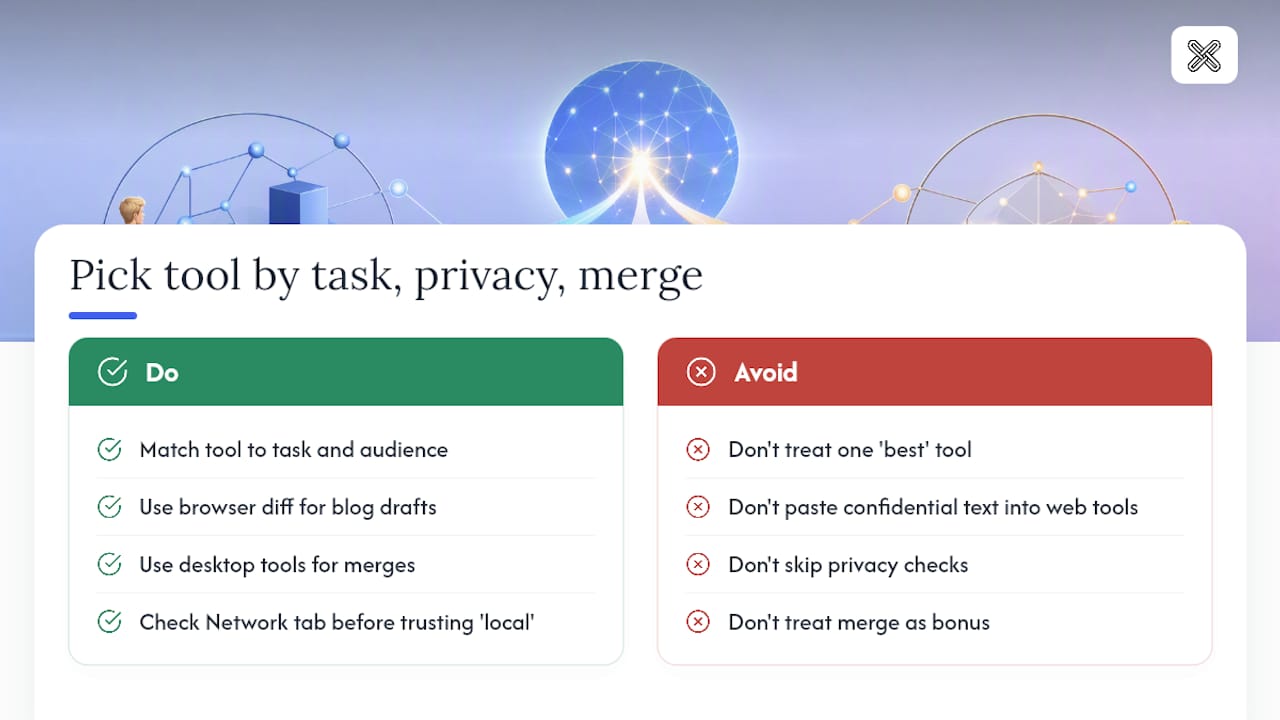
Most advice on this topic treats "best tool" as a single answer, and that's the wrong frame. The real question isn't which tool wins overall, it's which tool matches what you're comparing and who might see it. A browser diff tool is genuinely the right call for checking two drafts of a blog post. It is the wrong call for a client contract.
What gets underrated is how often people skip the privacy check entirely. Pasting text into an unfamiliar web tool takes five seconds, and most readers never think to open Developer Tools and confirm nothing was sent anywhere. That single habit, checking the Network tab before trusting a "local" claim, would prevent more accidental data exposure than any tool recommendation could.
The other miss is treating merge capability as a bonus feature instead of the actual point. Spotting a difference is trivial. Deciding what to do about it, and folding that decision back into a clean file, is the harder half of the job. That's why desktop tools with real merge support consistently outperform browser tools for anyone doing this more than occasionally.
Get a Local Tool Built for Comparing More Than Just Text
Browser diff checkers and command-line tools both do one thing well, but neither handles the mixed reality of most professional work: text drafts today, a PDF contract tomorrow, a spreadsheet the day after. LawtonPDF is built for that mix. It compares text files, PDFs, spreadsheets, images, and folders in a single local application, with zero uploads at any point.

That matters most for anyone handling client documents, financial records, or protected health information, where a browser tool's upload step is a liability regardless of how fast it is. LawtonPDF also handles the tasks that come after comparison: merging changes, organizing pages, and protecting the final file, all without leaving your desktop.
If you're ready to stop juggling separate tools for text, PDFs, and folders, explore the full document comparison toolset and see which plan fits your workflow.
Sources
- fc
FAQ
How can I compare two text files for differences?
Paste both files into a browser diff tool for a quick check, or open them in a local app like WinMerge for side-by-side highlighting and merge options.
Can Notepad++ compare text files?

Yes, through the Compare plugin, which adds an in-editor side-by-side view so you can spot changes without leaving your code editor.
What is the best program for comparing text files?
It depends on the job: WinMerge suits frequent side-by-side and merge work, fc and comp suit scripted checks, and LawtonPDF suits sensitive or document-heavy comparisons that need to stay local.
How can I compare two Notepad files?
Notepad itself has no built-in compare feature, so use the Windows fc command from a terminal, or open both files in a GUI tool like WinMerge or the Notepad++ Compare plugin for a visual diff.
Does comparing files online ever put my data at risk?
Yes, if the tool sends your text to a server. Check the browser's Network tab during a comparison, or use a local app when the content is sensitive.