
For reliable, low-noise CSV diffs on Windows or Linux, use a key-based CSV diff tool or a short pandas script. Only fall back to a line-by-line text diff for trivial, two-row checks where row order is guaranteed identical.
Here is how to pick your route:
- Key-based CLI tool (csvdiff, csv-diff, csvkit's csv-diff): best when rows may be reordered, files are large, or you need clean added/removed/modified output for scripts or audits.
- pandas merge with indicator: best when you need custom logic, column transformations, or dtype normalization before comparing.
- Line-by-line text diff (diff, PowerShell Compare-Object on raw text): acceptable only for tiny files where row order is fixed and formatting is identical.
Ready-to-run CLI and Python examples are in the worked examples section below.
Key Takeaways
For offline CSV comparison, key-based diff tools produce clean, actionable results on any file size, while preprocessing inputs to remove encoding and whitespace noise is what separates a reliable diff from a misleading one.
| Point | Details |
|---|---|
| Use key-based diff by default | Match rows by a unique column to avoid false positives from reordered rows. |
| Normalize inputs first | Fix encoding, strip BOMs, trim whitespace, and align delimiters before running any diff. |
| Test on a small sample | Run your script or CLI command on 20 rows before applying it to a full dataset. |
| Ignore noisy columns | Exclude timestamps and audit fields with --ignore-columns to keep diff output meaningful. |
| Lawtonpdf for Windows GUI | Lawtonpdf compares spreadsheets, CSVs, and folders locally with no upload and no terminal required. |
Table of Contents
- When should you use key-based vs. line-by-line comparison?
- How to compare CSV files offline on Windows
- Offline CSV comparison on Linux and via WSL
- GUI tools for offline CSV comparison when you prefer a visual interface
- Two worked examples you can copy and run
- Preprocessing steps and common issues to fix before comparing
- Understanding diff output and what to do next
- What actually matters when you compare CSVs offline
- Lawtonpdf handles local file comparison without the command line
- Sources
- FAQ
When should you use key-based vs. line-by-line comparison?
The answer depends on whether your rows have a stable unique identifier and whether row order can change between exports.
Key-based comparison matches each row by a column (or set of columns) that uniquely identifies it, such as an order ID or user email. Because rows are matched by value rather than position, reordering a file produces zero false positives. simonw/csv-diff documents this behavior clearly: specify --key and the tool treats that column as the unique identifier, so a row that moved from line 50 to line 200 is not reported as a change.
Line-by-line text diff treats the file as plain text. Insert one row at the top and every subsequent line shifts, flooding the output with false changes. It also breaks silently when quoting styles differ between files, since "Smith, John" and Smith, John look different as text even though they represent the same value under RFC 4180 rules.
| Situation | Best approach |
|---|---|
| Rows may be reordered between exports | Key-based diff |
| File has a unique ID column (order_id, user_id) | Key-based diff |
| You need per-cell before/after for modified rows | Key-based diff |
| Tiny file, row order guaranteed identical | Line-by-line text diff |
| Comparing config files with one value per line | Line-by-line text diff |
Pro Tip: Never use git diff or a plain text editor's diff view on a CSV with more than a few dozen rows. The output looks plausible but is almost always misleading the moment a single row is inserted or deleted anywhere above the change you care about.
How to compare CSV files offline on Windows
Windows gives you three practical routes without installing anything heavy: native PowerShell, Windows Subsystem for Linux (WSL), and portable GUI or CLI tools.
PowerShell: Import-Csv and Compare-Object
PowerShell's Import-Csv parses a CSV into objects, and Compare-Object shows rows present in one file but not the other. The Stack Overflow community consistently recommends this pattern as the fastest zero-install option on Windows:
$a = Import-Csv ".\file_a.csv"
$b = Import-Csv ".\file_b.csv"
Compare-Object $a $b -Property OrderID, Status, Amount
This works well for small files where you want a quick sanity check. Its limits: no cell-level highlighting, no ignore-columns flag, and performance degrades noticeably above roughly 50,000 rows. It also does not produce a structured diff you can pipe into another script cleanly.
WSL for Linux CLI tools on Windows
If you have WSL installed, you can run any Linux-native CSV diff tool directly from a Windows terminal. Install csvdiff or csv-diff inside your WSL distro and point it at files in your Windows filesystem via /mnt/c/... paths. This is the fastest path to production-grade key-based diffs on a Windows machine without a full Linux VM.
Portable Windows tools
- VisiData: a terminal spreadsheet tool that runs on Windows via pip; lets you load two CSVs and diff them interactively.
- WinMerge: a free, local GUI diff tool that handles text-based CSV comparison well for small files; no upload, fully offline.
- OpenRefine: runs locally in your browser (no cloud); useful for inspecting and cleaning CSVs before a formal diff.
Pro Tip: Windows often saves CSV files with a UTF-8 BOM and CRLF line endings. If your diff tool reports every row as changed, open both files in Notepad++, check Encoding → Convert to UTF-8 (without BOM), and save with Unix line endings before re-running the diff.
Offline CSV comparison on Linux and via WSL
Linux is the natural home for CSV diff tooling. Three CLI projects cover most use cases, and pandas handles anything requiring custom logic.
Key-based CLI tools
aswinkarthik/csvdiff is built specifically for database-dump CSVs. It supports primary-key flags, selective column comparison, an ignore-columns flag, and reports additions, modifications, and deletions cleanly. It handles million-row files quickly because it hashes rows rather than loading everything into a comparison matrix.
simonw/csv-diff is a Python-based tool focused on human-readable output. Specify --key to set the unique column, and it produces a clean JSON or human diff showing exactly which rows were added, removed, or changed and what changed within each row.
sen-ltd/csvdiff provides semantic CSV diffs by key column, classifies rows as added, removed, or modified, and outputs structured results suitable for CI pipelines or downstream scripts. Its per-column before/after format for modified rows is particularly useful for audit trails.
| Tool | Language | Key flag | Large-file performance | Output format |
|---|---|---|---|---|
| aswinkarthik/csvdiff | Go | --primary-key | Excellent (hashing) | JSON |
| sen-ltd/csvdiff | Go | --key | Good | JSON / text |
| csvkit csv-diff | Python | --key | Moderate | CSV-aware text |

For very large CSVs that do not fit in memory, sort both files by key using sort -t, -k1,1 and then pipe the sorted output into comm or a streaming diff tool. This avoids loading the full file into RAM.
Pro Tip: Install aswinkarthik/csvdiff via its GitHub releases page as a single binary (no dependencies). For simonw/csv-diff and csvkit, use pip install csv-diff and pip install csvkit respectively. If you prefer isolation, both run cleanly inside a Docker container.
pandas alternative
When you need dtype normalization, column mapping, or conditional logic before comparing, a short pandas script is more flexible than any CLI tool:
import pandas as pd

a = pd.read_csv("file_a.csv", dtype=str).fillna("")
b = pd.read_csv("file_b.csv", dtype=str).fillna("")

merged = a.merge(b, on="order_id", how="outer", indicator=True, suffixes=("_a", "_b"))
added   = merged[merged["_merge"] == "right_only"]
removed = merged[merged["_merge"] == "left_only"]
both    = merged[merged["_merge"] == "both"]
Reading both files with dtype=str prevents pandas from silently converting "007" to 7 before the comparison, which is one of the most common sources of phantom differences.
GUI tools for offline CSV comparison when you prefer a visual interface
Not every workflow belongs in a terminal. For small to medium files, a GUI can show differences faster than parsing JSON output.
- LibreOffice Calc: open both CSVs in separate sheets, use a formula like
=IF(Sheet1.A1=Sheet2.A1,"","DIFF")to flag cell-level differences. Fully offline, no install beyond LibreOffice itself. - Microsoft Excel: the same formula approach works; Excel's conditional formatting can color-code differences across two sheets for a quick visual scan.
- WinMerge: treats CSVs as text but aligns rows visually; best for small files where row order is stable. Runs locally with no upload.
- OpenRefine: runs as a local server in your browser; excellent for cleaning and inspecting CSVs before a formal diff, not a true diff tool but invaluable for preprocessing.
- VisiData: terminal-based but highly visual; load two CSVs and use the built-in diff mode for an interactive, column-aware comparison.
- modelica-tools/csv-compare: a specialized tool for numeric and curve-based CSV data; worth considering if your CSVs contain time-series or simulation output rather than tabular records.
Every tool listed here processes files locally. Nothing is uploaded to a server, which matters for finance, legal, or healthcare data.
Pro Tip: After a GUI diff, export the highlighted rows to a separate CSV before closing. Most GUI tools do not persist the diff state between sessions, so a saved export is your only record of what changed.
Two worked examples you can copy and run
Example 1: csvdiff CLI (aswinkarthik/csvdiff)
Assume customers_jan.csv and customers_feb.csv share a customer_id column. You want to find added, removed, and modified rows, and you want to ignore the updated_at timestamp column:
csvdiff customers_jan.csv customers_feb.csv \
  --primary-key customer_id \
  --ignore-columns updated_at \
  --output json
Sample output structure:
{
  "Additions": [{"customer_id": "1042", "name": "Rivera, Ana", ...}],
  "Deletions": [{"customer_id": "0891", "name": "Park, James", ...}],
  "Modifications": [
    {
      "Original": {"customer_id": "0234", "status": "active"},
      "Current":  {"customer_id": "0234", "status": "churned"}
    }
  ]
}
The --ignore-columns flag is what makes this output clean. Without it, every row with a changed updated_at timestamp would appear as a modification even when the business data is identical.
Example 2: pandas merge with indicator
import pandas as pd

# Read both files as strings to prevent dtype coercion
a = pd.read_csv("products_v1.csv", dtype=str).fillna("").apply(lambda c: c.str.strip())
b = pd.read_csv("products_v2.csv", dtype=str).fillna("").apply(lambda c: c.str.strip())

key = "product_id"
merged = a.merge(b, on=key, how="outer", indicator=True, suffixes=("_old", "_new"))

added   = merged[merged["_merge"] == "right_only"]
removed = merged[merged["_merge"] == "left_only"]
changed = merged[merged["_merge"] == "both"]

added.to_csv("added_rows.csv", index=False)
removed.to_csv("removed_rows.csv", index=False)
changed.to_csv("changed_rows.csv", index=False)
The .str.strip() call removes leading and trailing whitespace from every cell before the merge, which eliminates a large category of false positives. Note that dtype=str is non-negotiable here: without it, pandas may cast "00123" to 123 and report a change that does not exist in the data.
| Step | Why it matters |
|---|---|
dtype=str on read | Prevents silent numeric coercion of ID columns |
.fillna("") | Makes NaN values comparable as empty strings |
.str.strip() | Removes whitespace false positives |
suffixes=("_old","_new") | Keeps column names readable in the output |
| Export each subset | Creates auditable records of each change type |
Pro Tip: Always test your script on a 20-row sample before running it on a 500,000-row file. A dtype mismatch or a missing key column will fail loudly on a small file and save you from a long wait on a large one.
Preprocessing steps and common issues to fix before comparing
A diff is only as clean as the inputs. Most false positives come from formatting inconsistencies, not actual data differences. RFC 4180 defines the standard CSV format; deviations from it are the root cause of most comparison noise.
Checklist before every diff:
- Delimiter: confirm both files use the same separator (comma, semicolon, tab). A semicolon-delimited file opened as comma-delimited produces one giant column.
- Encoding: both files should be UTF-8 without BOM. Use Notepad++ on Windows to check and convert.
- Line endings: normalize to LF (Unix) or CRLF (Windows) consistently. Mixed line endings cause every row to appear changed in text-based tools.
- Headers: confirm column names match exactly, including case.
CustomerIDandcustomer_idare different columns to most tools. - Whitespace: strip leading and trailing spaces from cell values and column names before comparing.
- Key column types: if your key is numeric in one file and string in the other (
1042vs."1042"), tools may fail to match rows. Cast both to string. - Quoting: a value like
Smith, Johnmay be quoted in one file and unquoted in another. Normalize quoting before diffing.
Handling extra or missing columns
When one file has columns the other lacks, most key-based tools report every row in the wider file as modified. Map columns by name explicitly rather than by position. In pandas, select only the shared columns before merging:
shared_cols = list(set(a.columns) & set(b.columns))
a = a[shared_cols]
b = b[shared_cols]
Large-file and duplicate-key pitfalls
Duplicate values in the key column cause key-based tools to behave unpredictably: some tools pick the first match, others report an error. Deduplicate before diffing with sort -u or df.drop_duplicates(subset=key). For multi-gigabyte files, sort both files externally by key and use a streaming approach rather than loading everything into memory.
Pro Tip: Drop noisy columns like created_at, updated_at, or last_login from the diff entirely using --ignore-columns in csvdiff or by excluding them from your pandas merge. These columns change on every export and add zero signal to a data audit.
Understanding diff output and what to do next
Once you have a diff, the output typically classifies rows into three buckets: added, removed, and modified. In a key-based diff, "added" means the key exists in the new file but not the old one. "Removed" is the reverse. "Modified" means the key exists in both files but at least one non-key column value changed.
In a line-by-line text diff, "added" and "removed" refer to lines, not logical rows. A single row that moved position appears as both a removal and an addition, which is why key-based tools produce far cleaner output for tabular data.
Practical next steps after getting your diff:
- Data migration: export the "added" rows as an INSERT script and the "modified" rows as an UPDATE script. Most key-based tools output JSON, which you can transform with
jqor a short Python script. - Audit trail: save the full diff output as a timestamped file. For regulated industries, this becomes part of your change record.
- Human review: for small diffs, pipe the output into a readable format and share it with a subject-matter expert before applying changes.
- Verification: after applying changes, run the diff again between the updated file and the target. A clean diff (zero additions, removals, or modifications) confirms the operation succeeded.
Always sample-check a few rows from each category manually before applying bulk changes. A misconfigured key column can make legitimate changes look like deletions.
What actually matters when you compare CSVs offline
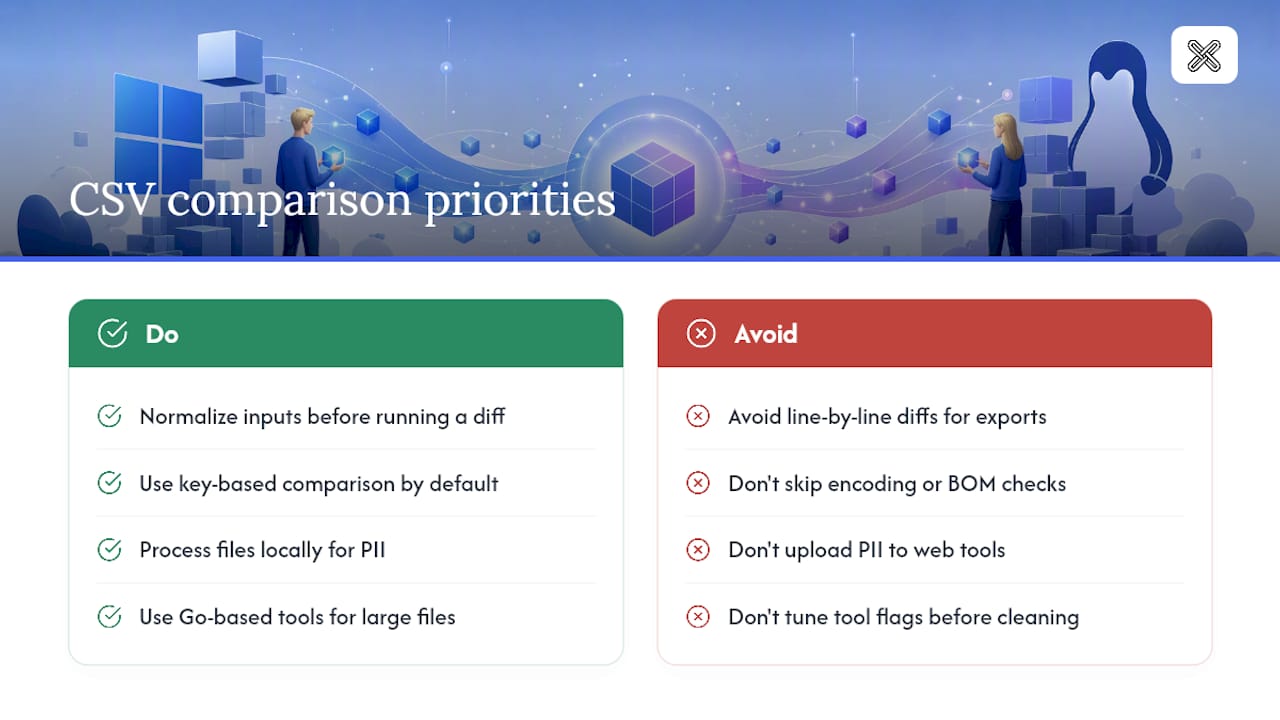
Most guides focus on which tool to install. The more important question is whether your inputs are clean enough to produce a meaningful diff in the first place.
The biggest time-wasters in CSV comparison are not tool limitations. They are encoding mismatches, BOM characters, and timestamp columns that change on every export. A practitioner who spends five minutes normalizing inputs before running a diff gets cleaner results than one who spends an hour tuning tool flags on dirty files.
Key-based comparison is the right default for almost every real-world CSV workflow. The only case where line-by-line text diff is genuinely appropriate is a config file or a two-column lookup table where row order is guaranteed and the file never grows. For anything that looks like a database export, a key-based tool is the correct choice, and the Go-based tools (aswinkarthik/csvdiff, sen-ltd/csvdiff) handle large files without the memory overhead that Python-based tools carry.
Local processing is not just a privacy preference. It is a practical necessity when files contain PII, financial records, or protected health information. Uploading a customer CSV to a web-based diff tool to save five minutes of setup time is a compliance risk that no audit will overlook.
Lawtonpdf handles local file comparison without the command line
If you need a packaged Windows application that compares files locally without any terminal setup, Lawtonpdf is built for exactly that workflow.

Lawtonpdf processes every file on your machine. Nothing leaves your computer. For legal, finance, and healthcare teams that handle sensitive data, that is the non-negotiable starting point. The spreadsheet comparison tool handles CSV and spreadsheet files side by side, and the folder compare feature lets you diff entire directories of CSV exports in one pass. You also get PDF, text, image, and document comparison in the same application, so you are not managing five separate tools for five file types.
No cloud. No upload. No subscription required to try it. Visit Lawtonpdf to download and run your first comparison today.
Sources
- simonw/csv-diff
FAQ
How do I compare two CSV files in Excel offline?
Open both files in Excel, place them in separate sheets, and use =IF(Sheet1.A1=Sheet2.A1,"","DIFF") in a third sheet to flag cell-level differences. Apply conditional formatting to color-code the results for a faster visual scan.
What is the best program for comparing CSV files locally?
For command-line use, aswinkarthik/csvdiff handles large files efficiently with primary-key matching and ignore-columns support. For a Windows GUI with no terminal required, Lawtonpdf's spreadsheet comparison tool processes files locally with no upload.
Can I compare two CSV files offline without installing Python?
Yes. The Go-based tools aswinkarthik/csvdiff and sen-ltd/csvdiff ship as single binaries with no runtime dependencies. Download the binary for your OS from the GitHub releases page and run it directly from the terminal.
How do I handle false positives when comparing CSV files?
Most false positives come from encoding differences, BOM characters, inconsistent line endings, or whitespace in cell values. Normalize both files to UTF-8 without BOM, strip whitespace, and use a key-based tool with --ignore-columns for timestamp fields before running the diff.
How do I compare very large CSV files offline without running out of memory?
Sort both files by key using an external sort tool (sort -t, -k1,1 on Linux), then use comm on the sorted output or a streaming-capable diff tool. Alternatively, aswinkarthik/csvdiff uses row hashing rather than in-memory comparison, making it practical for million-row files on standard hardware.