
The most reliable way to compare financial statements is to run the comparison locally, on your own machine, using a document-compare tool built for PDFs, Word files, and spreadsheets. Follow a three-step workflow: prepare your files, run the right compare mode, then review and export a verifiable report. Keeping the process local avoids hosting your client's data anywhere else, which matters more than most teams realize once independence rules enter the picture.
TL;DR:
- Comparing financial statements locally ensures complete control over sensitive client data and aligns with independence rules for attest engagements.
- Accurate comparison depends on thorough file preparation, including consistent naming and capturing snapshots or hashes before running mode-specific analyses.
- Different file types require tailored methods: PDFs need content-aware comparison with OCR, Word compares with tracked change filtering, and spreadsheets demand normalization and cell-level analysis.
- Exported reports must contain file hashes, compare settings, and structured data, organized in an evidence library to support audit reproducibility and compliance.
- Running comparisons early and batching quarterly statements help reduce false positives caused by OCR errors and formatting inconsistencies, saving review time.
Table of Contents
- How Do You Compare Financial Statements Step by Step?
- Comparing PDFs, Word Files, and Spreadsheets: What Changes
- What Do AICPA Independence Rules Say About Hosting Client Data?
- How Do You Create an Audit Trail for Comparison Reports?
- How Do You Cut False Positives When Comparing Statements?
- Notes From a Privacy-First Toolmaker on Real Comparison Workflows
- A Local, Auditable Way to Compare Financial Statements
- Where to Learn More About Independence and Evidence Rules
- Sources
- FAQ
How Do You Compare Financial Statements Step by Step?
A reliable comparison starts before you ever click "compare." Sloppy prep is where most false positives and missed material changes come from, not the software itself.
1. Prepare your files. Rename documents with a consistent convention (client, period, version number), gather any supporting schedules referenced in the statements, and take a snapshot of the originals. A timestamp or file hash locks in what you started with, so you can prove nothing was altered mid review. Work inside a locked folder that only your review team can touch.
2. Run the compare. Choose the mode that fits the file type, visual, text, or cell level, and set your sensitivity and materiality thresholds before you start, not after you see the results. Select which pages or tabs actually need reviewing; comparing an entire 40-page financial statement package when only the footnotes changed wastes reviewer time.
3. Review and triage. Sort every flagged difference into material or immaterial before anyone spends time investigating it.
- Annotate each material difference with a short note on what changed and why it matters.
- Capture a reviewer sign-off, even a simple initials-and-date, on the final triage list.
4. Export and archive. Generate a PDF report for human readers and a structured export, CSV or JSON, for anyone who needs to re-run or verify the diff later. Store both in your evidence library under the same naming convention you used in step one.
Pro Tip: Run a quick "dummy compare" on last quarter's already-reconciled statements before touching the current period. It confirms your thresholds are calibrated correctly and saves you from chasing phantom differences on the file that actually matters.
Comparing PDFs, Word Files, and Spreadsheets: What Changes
Each file type hides its changes differently, and a method that works well on one can miss the exact thing you're looking for in another.
- PDFs demand a content-aware compare rather than a pure image overlay, since a single reflowed paragraph can shift every line below it and trigger dozens of false flags. If any pages are scanned, apply OCR consistently across every version you're comparing, or the recognition inconsistencies will look like real edits.
- Word documents need a comparison method that understands tracked changes and can filter out formatting noise, such as a font swap or a margin adjustment, that has nothing to do with the numbers.
- Spreadsheets require comparing cells, formulas, and named ranges, not just displayed values. Normalize sheet structure first (matching row and column layouts) and apply a numeric threshold so rounding differences in cents don't bury the variance that actually matters.
- Cross-format compares, PDF against spreadsheet, are the trickiest. Extract the underlying tables from the PDF first so you're comparing structured data against structured data, not text against numbers.
Reconciliation tooling built for this exact problem can extract tables from both PDF and Excel sources and lay them side by side, producing a short narrative summary of what changed alongside the table itself. That combination, a visual table plus a plain-language summary, is what most reviewers actually want, rather than a raw list of cell coordinates.
What Do AICPA Independence Rules Say About Hosting Client Data?
Where you store a client's financial data during a comparison isn't just a technical choice. For attest engagements, it's an independence question.
The AICPA hosting-services interpretation treats custody as the trigger, not intent. If your firm takes custody of an attest client's data on your own servers, or effectively becomes their data backup, you risk impairing independence unless you remove that access or data within a reasonable period after the engagement ends.
Independence is affected when a firm hosts an attest client's data on its own systems; the deciding factor often comes down to who actually owns the software license being used to store or process that data.
The AICPA's own FAQ on the interpretation clarifies an important carve-out: if your firm doesn't provide attest services to that particular client, the hosting rule doesn't apply. But for clients where you do provide attest work, the practical steps are straightforward:
- Keep comparison processing local for any attest engagement, so no client data ever sits on a server you control.
- Document who holds the software license for any tool used to store or process client records.
- Remove or transfer client data promptly once the engagement closes, rather than letting it linger "just in case."
If a cloud tool is unavoidable for some other purpose, confirm the client owns the license and write down the access and termination timeline in the engagement file. A cloud-versus-local trade-off guide for accounting and law firms is worth reviewing before committing to any hosted workflow for regulated client work.
How Do You Create an Audit Trail for Comparison Reports?
A comparison that only lives in your memory or a Slack message isn't worth much to an auditor. What holds up is a report that another reviewer, months later, could reproduce exactly.
Every exported comparison should include the original file references, the exact compare settings used (sensitivity, thresholds, pages included), and page-level offsets so a reader can locate a flagged difference without hunting. Save the file hashes or checksums alongside a structured diff export, CSV or JSON works fine, so a second reviewer can independently confirm the results match.
- File hash or checksum of each version compared
- Compare settings (mode, threshold, scope)
- Structured diff export (CSV/JSON) plus the human-readable PDF report
- Reviewer name and sign-off date
Organize these outputs in an evidence library mapped to your actual audit requests. Structuring evidence by control area before the observation period cuts fieldwork time significantly for SOC 2 and SOX-style reviews, compared with scrambling to reconstruct what happened after the fact.
| Evidence element | Where it lives | Why it matters |
|---|---|---|
| Original files + hashes | Locked working folder | Proves the source documents weren't altered |
| Compare settings | Exported PDF report | Lets another reviewer reproduce the exact run |
| Structured diff (CSV/JSON) | Evidence library | Machine-readable backup to the PDF |
| Reviewer sign-off | Evidence library | Assigns accountability for the triage decision |
How Do You Cut False Positives When Comparing Statements?
Most wasted review time traces back to noise the software never should have flagged in the first place.
Set numeric thresholds for currency rounding before you run anything, so a one-cent rounding difference doesn't get treated the same as a $50,000 variance. Normalize headers, dates, and pagination across both versions first; a shifted header row alone can generate dozens of false diffs that have nothing to do with the actual numbers.
- Apply the same OCR settings across every scanned input in a batch, not just the first file.
- Spot-check a few recognized numeric fields manually before trusting the full OCR output.
- Batch-compare same-period folders together rather than one file at a time, then triage by materiality across the whole batch.
Pro Tip: When batching a folder of quarterly statements, run the smallest, simplest file first. If your thresholds flag noise on the easy one, they'll flag far worse on the complex consolidated statement waiting behind it.
Notes From a Privacy-First Toolmaker on Real Comparison Workflows
Most teams schedule their comparisons too close to the reporting deadline, then have to choose between a quick triage and a full forensic export. Build both into the calendar instead: a fast pass early for surprises, a complete export later for the record.
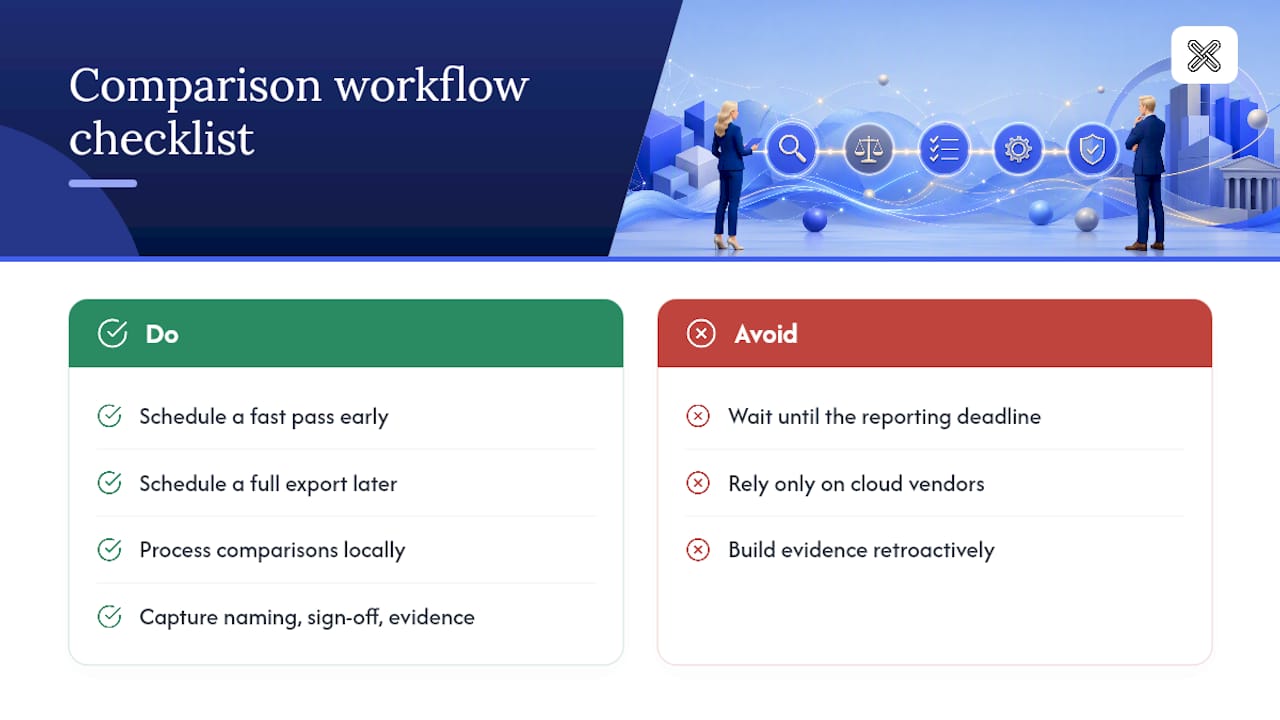
Local processing removes an entire category of vendor-risk review that cloud tools force onto compliance teams. There's no data-residency question to answer when nothing left the machine.
The checklist items teams forget aren't complicated. It's the naming convention that quietly drifts by version four, the reviewer sign-off nobody remembered to capture, and the evidence mapping that gets built retroactively instead of alongside the work.
— Lawton
A Local, Auditable Way to Compare Financial Statements
Lawtonpdf is built around the exact workflow this article describes: prepare, compare, review, export, all without a single file leaving your computer. Every comparison, whether it's a PDF against a prior version, a Word draft with tracked changes, or a spreadsheet full of formulas, runs locally, so there's no hosting question to answer and no client data sitting on someone else's server.

The PDF compare tool handles content-aware diffing for statements and legal documents, while the spreadsheet compare feature checks cells, formulas, and named ranges rather than just what's displayed on screen. For teams reconciling multiple periods at once, folder comparison batches the work instead of forcing you through one file at a time. Every comparison exports to a report you can drop straight into your evidence library, with the naming conventions and reviewer sign-offs already discussed above.
Explore the full toolset and download a trial to run your next comparison entirely on your own machine.
Where to Learn More About Independence and Evidence Rules
- The AICPA hosting services interpretation for the full independence rule text.
- The AICPA & CIMA FAQ for plain-language answers on license ownership.
- Lawtonpdf's practical guide to comparing PDFs for a hands-on workflow walkthrough.
Sources
- AICPA hosting services interpretation (egrove copy)
- 3 FAQs on the hosting services ethics interpretation | News | AICPA & CIMA
- Evidence Retention and the Audit Trail - SOC Type 2 (System and Organization Controls Type 2) - Bitlion
FAQ
What's the Safest Way to Compare Financial Statements?
Run the comparison on a local, offline tool that supports PDFs, Word, and spreadsheets, rather than uploading client statements to a cloud service you don't control.
Does Comparing Financial Statements Locally Affect Auditor Independence?
Local processing avoids the custody question entirely; the AICPA hosting-services interpretation only applies when a firm takes custody of attest client data on its own servers.
Which File Formats Cause the Most Comparison Errors?
Scanned PDFs with inconsistent OCR settings and unnormalized spreadsheets are the most common sources of false positives in financial statement comparisons.
What Should a Comparison Report Include for Audit Purposes?
It should include the original file references, the compare settings used, file hashes, and a structured export like CSV or JSON alongside the human-readable report.
Can LawtonPDF Compare Both PDFs and Spreadsheets?
Yes. Lawtonpdf runs PDF, Word, and spreadsheet comparisons locally, with dedicated tools for spreadsheet compare and folder-level batch comparisons.