Comparing PDFs means using software or browser tools that extract text or render pages visually, then highlight every insertion, deletion, and formatting shift between two versions. The three core approaches are text-based diffs (word or character level), pixel-level visual diffs, and side-by-side views. Each serves a different need: text diffs catch edited clauses in contracts, visual diffs catch moved logos or margin shifts, and side-by-side views let you read both versions in context. Your choice depends on document type, file sensitivity, and how much detail you need.
Primary comparison approaches:
- Text diff: extracts content and flags word or character changes
- Visual pixel diff: compares rendered pages to catch layout and image changes
- Side-by-side view: displays both documents in parallel for manual review
- Redline mode: combines both files into one marked-up document
How to compare PDFs using Adobe Acrobat Pro
Adobe Acrobat Pro's Compare Files tool is the most direct path for professional document review. It handles text-only diffs, pixel-level scanned document comparison, and presentation-style page matching, all from a unified interface.
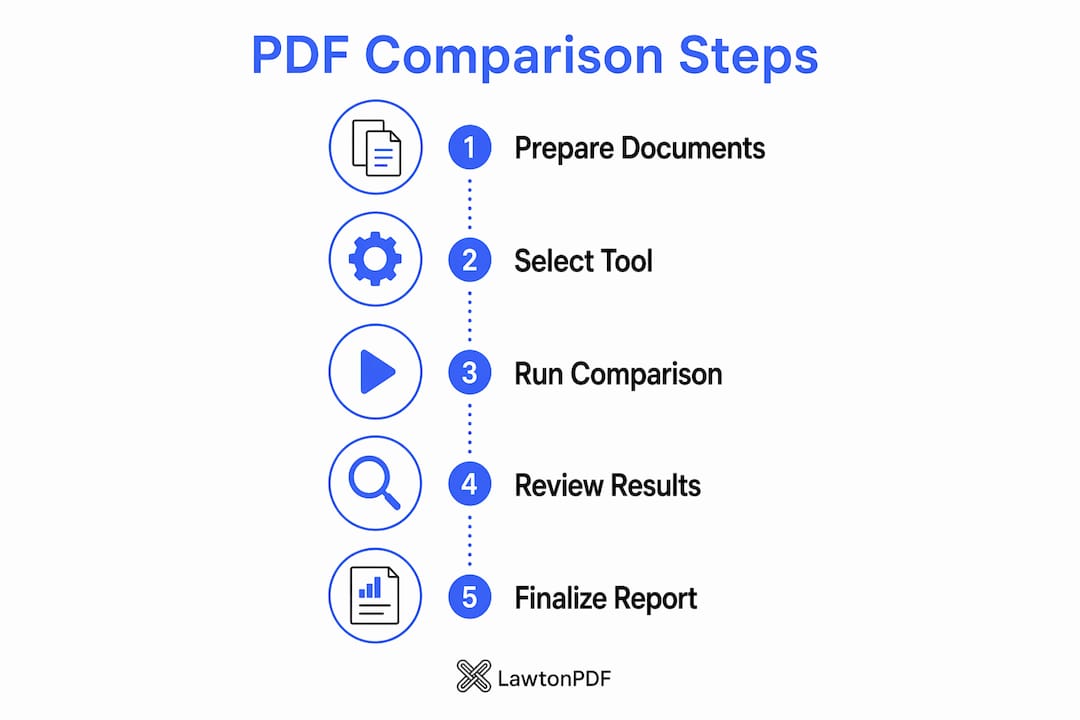
- Open both PDF versions in Acrobat Pro.
- Go to the All Tools pane and select Compare Files.
- Assign the older version to the "Old File" slot and the newer version to "New File." Use the swap arrows icon to reverse positions if needed.
- Select Settings to customize: set page ranges, choose document type (Reports/Spreadsheets, Presentation Decks, or Scanned Documents), and check Compare Text Only for large files.
- Click Compare. Acrobat generates a new document showing the comparison results.
- On the summary page, select Go to First Change to begin reviewing.
The Scanned Documents setting runs a pixel-by-pixel comparison, which catches image and layout differences that text extraction would miss entirely.
How to review and interpret your comparison results
The comparison report Acrobat generates is its own document, and knowing how to read it saves time. Start with the summary page for a high-level count of changes, then drill into specifics.
- Use Side-by-Side view (Ctrl+) to see both files in parallel, with colored bands connecting matching change regions across the two pages.
- Click any highlighted band to open a pop-up note listing every change within that region.
- Switch to Single Page view via the toolbar dropdown to focus on one file with all changes highlighted.
- Open the Filter menu to turn on annotations, formatting, and background differences, which are hidden by default.
- Use Previous Change / Next Change buttons to move sequentially through every flagged difference.
- Right-click any change to assign a status, which helps track review progress across a team.
Pro Tip: Filter out formatting and annotation changes first, then review text changes in isolation. This prevents minor style shifts from burying substantive content edits.
Free online PDF comparison tools worth knowing
Browser-based tools are a practical option when you don't have Acrobat Pro. The best ones process files entirely client-side, meaning no file data leaves your browser. That matters when the document is a contract, a regulatory filing, or anything confidential.
- ILovePDF offers a free online compare tool at ilovepdf.com/compare-pdf with a clean interface and no sign-up required.
- PDF Mavericks runs text extraction and diffing entirely in the browser using pdf.js and Google's diff-match-patch algorithm, with character, word, and line granularity options.
- LineDiff uses the Myers diff algorithm (the same one Git uses) and supports side-by-side or unified views with whitespace and case-ignore filters.
- Tools like pdf-diff.com support multiple view modes: side-by-side, unified, additions only, removals only, and a statistics dashboard.
Limitations to know: Text-based browser tools cannot compare scanned PDFs without OCR. A pure image scan yields empty text extraction, so the diff has nothing to work with. Run the file through an OCR tool first to add a searchable text layer.
Pro Tip: For visual layout checks on scanned files, use a pixel-diff tool like PanaPDF rather than a text extractor. Pixel diffs catch scanner artifacts, margin shifts, and image moves that text tools miss entirely.

Best practices for accurate and secure PDF comparison

Combining text and visual comparison gives you the most complete picture, especially for documents that mix legal clauses with charts or graphics. Text diffs catch reworded sentences; pixel-level comparison catches formatting shifts and image moves that text extraction skips.
For sensitive files, prioritize client-side tools that process everything locally. No server upload means no exposure risk, which matters for contracts, medical records, and financial reports.
Split large documents before comparing. Browser-based diff engines run in a single JavaScript thread, and files over roughly 100 pages can cause visible slowdowns or tab crashes. Compare chapter by chapter for reliable results.
Pro Tip: Page-by-page comparison prevents cascading false positives. If a page break shifts on page 3, a document-wide diff treats every subsequent page as changed. Page-by-page diffing isolates the actual change to the affected page only.
How to compare PDFs manually without software
Manual comparison works for short documents or when software isn't available. Print both versions and hold pages up to a light source to spot layout differences. For digital review, open both files in separate windows and resize them to fill half the screen each, then scroll in sync. Highlight passages in one version and cross-reference them in the other. This method is slow and error-prone for anything over a few pages, but it requires zero tools and works on any operating system.
Limitations and challenges of PDF comparison
PDF comparison tools struggle with several real-world scenarios. Layout changes like font swaps or margin adjustments are invisible to text-based tools; only pixel-based comparison catches them. Multi-column layouts can confuse text extraction, producing reordered output that generates false positives. Password-protected files must be unlocked before any comparison tool can read them. Scanned PDFs without an OCR layer yield empty text streams. And when page counts differ between versions, most tools flag every subsequent page as entirely changed, even when content is identical.
How to compare PDFs on different operating systems
Windows has the widest tool support. Adobe Acrobat Pro runs natively, and Lawtonpdf's offline comparison tools run entirely on local hardware with no cloud processing, making them well suited for privacy-sensitive workflows. Browser-based tools work in any Chromium or Firefox browser.
macOS supports Acrobat Pro and all browser-based tools. Preview does not offer a built-in diff feature, so dedicated software or a browser tool is necessary for anything beyond manual side-by-side review.
Linux users rely primarily on browser-based tools or command-line options. The pdf-diff package supports npx pdf-diff original.pdf modified.pdf directly from the terminal, with flags for HTML or JSON output and a --fail-on-diff option useful for automated pipelines.
Key Takeaways
Adobe Acrobat Pro and client-side browser tools cover the full range of PDF comparison needs, from legal text diffs to pixel-level visual checks, with privacy best served by tools that never upload your files.
| Point | Details |
|---|---|
| Choose the right diff type | Use text diffs for contracts and reports; use pixel diffs for scanned files and layout-sensitive documents. |
| Adobe Acrobat Pro workflow | Open Compare Files, set document type and page range in Settings, then use the summary report to navigate changes. |
| OCR before comparing scans | Scanned PDFs without a text layer produce empty diffs; run OCR first to add extractable text. |
| Prioritize client-side tools | Browser tools that process files locally keep sensitive documents off third-party servers entirely. |
| Split large files | Documents over roughly 100 pages can slow or crash browser-based diff engines; compare section by section. |
Need a secure, offline PDF comparison tool for Windows? Lawtonpdf processes every comparison locally on your machine, with no uploads and no cloud dependency.