
TL;DR:
- Using online or built-in tools works well for small, non-sensitive PDFs, while local desktop apps ensure privacy for confidential files. For batch extraction, dedicated desktop software like Lawtonpdf offers automation and security, avoiding cloud exposure. Always verify output immediately to confirm page accuracy and preserve annotations or signatures.
To extract pages from a PDF right now, you have three practical options: an online extractor for a quick one-off job, a built-in OS tool (macOS Preview or Windows Print to PDF) for no-install needs, or a local desktop app like Lawtonpdf for privacy-sensitive files and batch work.
TL;DR: For a single non-sensitive page, an online tool like Smallpdf or iLovePDF gets it done in under a minute. For a confidential contract or medical record, use Lawtonpdf or macOS Preview so the file never leaves your machine. For dozens of PDFs at once, a local desktop app with batch rules is the only practical path.
- Online extractor: Upload → select pages or range → download the new PDF.
- macOS Preview: Open PDF → select page thumbnails → Export as PDF.
- Windows Print to PDF: Open in Edge or Chrome → Print → set page range → Save as PDF.
- Lawtonpdf (local): Open app → add file(s) → choose Extract → set range → export.
Pro Tip: After any extraction, open the output file immediately. Confirm the page count, check that annotations are intact, and verify that form fields or signatures did not get dropped.
Table of Contents
- Which extraction method should you use?
- How to extract specific pages using an online PDF tool
- How to extract pages without uploading anything
- Why Lawtonpdf is the right tool for offline extraction
- How batch extraction works across many PDFs
- Privacy and security checklist before you upload a PDF
- Common problems when extracting pages and how to fix them
- Key Takeaways
- The method that actually fits the file
- Lawtonpdf keeps your documents off the cloud
- Useful sources and further reading
- FAQ
Which extraction method should you use?
The right method depends on three things: how sensitive the file is, how many PDFs you need to process, and whether you can install software. The table below maps those criteria to each approach.
| Method | Privacy | Cost | Batch support | Ease of use |
|---|---|---|---|---|
| Online tool (Smallpdf, iLovePDF, Adobe) | TLS in transit; file deleted per vendor policy | Free tier available; paid for larger files | Limited; one job at a time on free plans | Very easy; no install |
| Built-in OS (Preview / Print to PDF) | Fully local; no upload | Free | No; one file at a time | Easy; already on your machine |
| Local desktop app (Lawtonpdf) | Fully local; files never leave your computer | Free limited tier; subscription for teams | Yes; folder-level batch with naming rules | Easy; purpose-built UI |
When to pick each:
- Online tool: — Non-sensitive file, one-off task, no software to install.
- Built-in OS: — Quick single-page save, no third-party tools wanted, Mac or Windows already open.
How to extract specific pages using an online PDF tool
Online extractors handle the most common scenario: you have one PDF, you need a few pages out of it, and you want it done now. Here is a reliable workflow that works with tools like Smallpdf, iLovePDF, or Adobe Acrobat online.
- Choose a reputable extractor. Go to Smallpdf or iLovePDF. Both offer free tiers and clearly stated deletion policies.
- Upload your PDF. Drag and drop the file or click to browse. Most free plans accept files up to 100 MB.
- Select your pages. Click individual page thumbnails or type a range (for example,
2,4-6) in the range field. You can mix single pages and ranges in one entry. - Export and download. Click Extract or Split, then download the resulting PDF or ZIP file.
- Verify the output. Open the new file, confirm the page count matches what you selected, and check that text, images, and annotations are all present.
Security notes to check before you upload:
- Confirm the site uses HTTPS (TLS encryption in transit) — look for the padlock in your browser.
- Read the retention policy. Reputable tools delete files automatically within 1–24 hours; some offer immediate deletion after download.
- Avoid uploading documents that contain personally identifiable information (PII), protected health information (PHI), signed contracts, or legal exhibits to any cloud tool unless the vendor explicitly guarantees no human review.
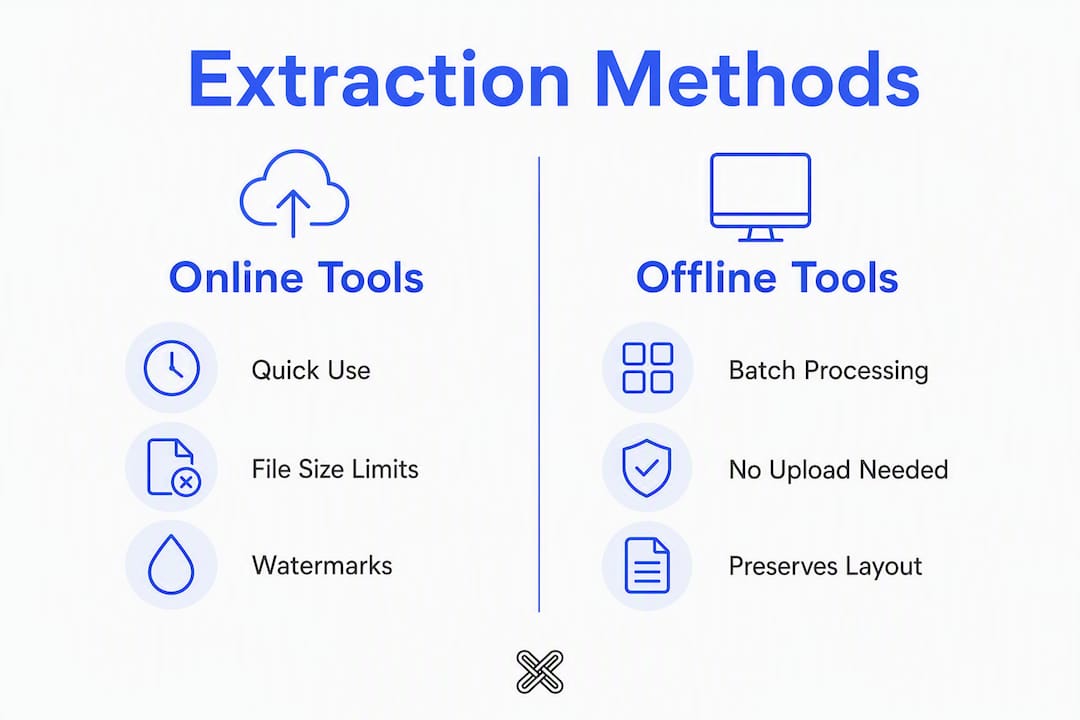
Typical free-tier limits: file-size caps (often 100 MB), page count limits, and watermarks or branding on output files. If your PDF is large, split it into smaller chunks first, then extract from each part.
Pro Tip: Canva also offers in-browser page extraction for quick edits — useful if you already have a Canva account and want a familiar interface for one-off tasks.
How to extract pages without uploading anything
Both macOS and Windows give you local extraction options that require zero third-party installs. They are not as powerful as a dedicated app, but they cover most single-file scenarios.
macOS Preview
- Open your PDF in Preview.
- Show the sidebar: View → Thumbnails.
- Click the page thumbnails you want to keep. Hold Command to select multiple non-consecutive pages.
- Go to File → Print → click the PDF dropdown at the bottom left → Save as PDF.
- Name the file and save. Only the selected pages appear in the new PDF.
Alternatively, drag selected thumbnails directly onto your desktop to create a new PDF from those pages.
Windows (Edge or Chrome Print to PDF)
- Open the PDF in Microsoft Edge or Google Chrome.
- Press Ctrl+P to open the Print dialog.
- Set the printer to Microsoft Print to PDF.
- Under "Pages," enter your range (for example,
3-7or1,4,9). - Click Print, choose a save location, and confirm.
When these methods work well: single pages, quick saves, no software budget. They are the fastest path for a one-page extraction on any machine you already own.
When to avoid them: batch jobs across multiple files, scanned PDFs that need OCR, or documents with interactive form fields. Print-to-PDF flattens the document, which removes form data, signature metadata, and interactive elements. If preserving those features matters, use a dedicated desktop tool instead.

Why Lawtonpdf is the right tool for offline extraction
For any file you would not email to a stranger, local processing is the correct default. Lawtonpdf runs entirely on your Windows machine with no cloud upload, no server-side processing, and no retention policy to read and trust. Your files stay on your hardware, period.
Here is how to extract pages in Lawtonpdf:
- Select Extract mode — from the tools panel.
Batch example: Load a folder of 50 monthly reports. Set the range to pages 1–2 (cover and summary). Run. Lawtonpdf produces 50 trimmed PDFs, each named after its source file, ready to share.
Desktop tools like Lawtonpdf also preserve original layout, fonts, and images during extraction, and they support split modes beyond simple page ranges, including splitting by bookmarks or blank pages.
Pro Tip: For recurring extraction jobs, check whether your desktop app supports command-line automation or watched-folder triggers. Wrapping an extraction command in a scheduled task eliminates manual steps entirely and keeps output naming consistent for downstream systems.
How batch extraction works across many PDFs
Batch extraction handles two distinct problems. The first is uniform-range extraction: you need the same pages (say, pages 1–3) pulled from every file in a folder. The second is rule-based extraction: pages fall on different numbers across documents, so you extract by content, such as a keyword, barcode, or bookmark label, rather than a fixed range.
Typical outputs:
- A ZIP containing one trimmed PDF per source file.
- Individually named PDFs following a template you define before the run.
A simple batch workflow:
- Collect all source PDFs into one folder.
- Define your extraction rule: a fixed range, a keyword match, or a bookmark name.
- Run the batch job on a small sample (3–5 files) first to confirm the output is correct.
- Run the full batch and verify a random selection of outputs before distributing.
Some advanced extractors can pull pages by content match across hundreds of files at once and return a ZIP for download. This solves the common problem where the same logical section falls on different page numbers across documents.
Pro Tip: Include the original filename and the extracted range in every output name, for example Invoice_March_2025_p1-3.pdf. It takes ten seconds to set up and saves significant time when you need to trace an output back to its source.
Privacy and security checklist before you upload a PDF
Before sending any PDF to an online tool, run through this checklist:
- File stored after processing: — Some tools keep files for analytics or debugging. Confirm this is not the case, or choose a different tool.
When to avoid cloud tools entirely: any document containing PII, PHI, legal exhibits, signed contracts, or proprietary business data. Use Lawtonpdf or macOS Preview instead.
Trust signals to look for on vendor pages: explicit retention windows, ISO/IEC 27001 or SOC 2 disclosures, no-signup-needed claims, and clearly stated file-size and page limits.
A quick verification method: upload a non-sensitive test file first, then check whether the vendor's privacy page matches what their marketing claims. If the two do not align, that is a signal to use a local tool.
Common problems when extracting pages and how to fix them
Passworded PDFs: Most tools prompt you for the password before processing. If you prefer not to enter a password into a cloud tool, unlock the file locally first using Lawtonpdf's unlock feature, then extract.
Scanned or image-only PDFs: A scanned PDF contains images of text, not actual text. Extracting pages works fine, but if you need the text to be searchable or selectable in the output, you need OCR (optical character recognition) applied first. Look for tools that support OCR extraction, or run OCR on the source file before extracting. Content-based extraction using keywords or barcodes also requires OCR for scanned documents.
Missing annotations, forms, or signatures: Print-to-PDF flattens interactive content. If your extracted pages are missing form fields or signature metadata, switch to a dedicated extraction tool that reads and writes the PDF structure directly rather than printing it. Desktop tools that preserve interactive fields are the correct choice here.
Large-file failures and timeouts: Online tools have file-size limits, and very large PDFs can time out mid-upload. Split the file into smaller segments first, extract from each segment, then use a merge tool to combine the results if needed. For consistently large files, a local desktop app avoids the upload constraint entirely.
Quick troubleshooting checklist:
- File password-protected? Unlock locally first.
- Scanned PDF? Apply OCR before extracting text-dependent content.
- Missing form fields? Use a desktop tool, not Print to PDF.
- Upload timing out? Split the file or switch to a local app.
- Output pages in wrong order? Re-check the range syntax and re-run.
Key Takeaways
For most users, the right extraction method comes down to one question: does this file contain sensitive information? If yes, process it locally.
| Point | Details |
|---|---|
| Online tools for quick tasks | Use Smallpdf, iLovePDF, or Adobe online for non-sensitive, one-off extractions with no install needed. |
| Built-in OS for zero-install needs | macOS Preview and Windows Print to PDF handle single-page saves locally, but flatten interactive fields. |
| Local app for sensitive files | Lawtonpdf processes entirely on your machine, so confidential documents never reach a third-party server. |
| Verify every output | Open the extracted PDF immediately and confirm page count, annotations, and form fields are intact. |
| Batch jobs need a desktop tool | Online batch tools apply one range to all files; Lawtonpdf supports per-file rules, naming templates, and folder-level automation. |
The method that actually fits the file
Most guides treat online tools and desktop apps as interchangeable. They are not. The difference is not speed or cost — it is exposure. Every file you upload to a cloud extractor transits at least one server you do not control, regardless of how good the vendor's deletion policy is.
For a one-page excerpt from a public report, that exposure is trivial. For a signed contract, a patient summary, or a financial statement, it is a real risk that no retention window fully eliminates. The practical rule is simple: if you would hesitate to email the file to a stranger, do not upload it to a free online tool.
The other underappreciated issue is output quality. Print-to-PDF, whether through macOS or a browser, is a rendering step. It converts the PDF to a printed image and saves that image as a new PDF. Interactive fields, signature metadata, and embedded fonts can all degrade in that process. A dedicated extraction tool reads the PDF's internal structure and writes a new file from it directly, which is why the output is cleaner.
For the vast majority of professional workflows, a local desktop app is not the cautious choice. It is the correct one.
Lawtonpdf keeps your documents off the cloud
If you need reliable, private page extraction without uploading files to a third-party server, Lawtonpdf's offline extraction tools are built for exactly that. Every operation runs on your Windows machine. No cloud. No retention policy to audit. No file-size anxiety.

What you get with Lawtonpdf:
- Full PDF tool suite: — Merge, organize, rotate, watermark, protect, and unlock files from one local application.
Lawtonpdf offers a free limited version so you can test the extraction workflow before committing. Team and business subscriptions unlock batch automation, watched-folder processing, and centralized license management. Start with the full tools suite to see what fits your workflow.
Useful sources and further reading
- Lawtonpdf Extract Pages tool: Step-by-step offline extraction for Windows users; the primary reference for local extraction workflows in this guide.
- Lawtonpdf Tools Suite: Full catalog of offline PDF operations including merge, organize, rotate, and protect.
- Lido Batch PDF Page Extractor: Covers batch extraction patterns, uniform-range jobs, and content-based (keyword/barcode) extraction.
- Smallpdf Extract PDF Pages: Online extractor with a clearly stated deletion policy; good reference for online tool limits and free-tier behavior.
- iLovePDF Split PDF: Online split and extract tool; useful for checking free-tier page and file-size caps.
- Canva Extract Pages feature: In-browser extraction for users already in the Canva ecosystem; covers one-off quick edits.
- ScoutMyTool Batch Page Extract: Documents how online batch tools apply a single range across multiple uploaded files and return a ZIP.
FAQ
How do I extract just certain pages from a PDF?
Upload your PDF to an online tool like Smallpdf or iLovePDF, select the specific page numbers or a range (for example, 1,3,5-8), and download the result. For sensitive files, use Lawtonpdf to do the same thing entirely offline.
How do I extract pages from a PDF for free?
Smallpdf and iLovePDF both offer free tiers that handle basic extraction without a paid account. On macOS, Preview is free and fully local. On Windows, the Print to PDF method in Edge or Chrome costs nothing and requires no download.
How do I extract multiple pages from a PDF at once?
Select a range or a comma-separated list of pages in your extraction tool (for example, 2-8). Most online tools and desktop apps like Lawtonpdf accept both formats in a single entry, producing one output PDF containing all selected pages.
How do I extract pages from a PDF fast?
The fastest path for a non-sensitive file is an online extractor: upload, click the pages you want, and download in under a minute. For recurring jobs or large batches, Lawtonpdf's batch extraction processes entire folders in one run, which is faster than repeating the online workflow for each file.