
The fastest way to get a usable, searchable receipt PDF is to scan with a document-scanning app or a dedicated scanner and immediately verify the OCR text is selectable. For occasional receipts, your phone's camera and a scanning app get the job done in under a minute. For monthly batches, a desktop scanner with an automatic document feeder (ADF) saves real time. Searchable PDFs matter because they let you find a specific vendor or amount later without digging through folders, and they're what your accounting software or the tax authority actually needs at audit time.
Your immediate next step: scan one receipt right now, open the PDF, and try to select or search the text on it.
- If the text highlights, OCR worked. File it.
- If nothing highlights, you have an image, not a searchable document, and it needs a rescan or a manual fix.
Quick check: A receipt scanned without OCR verification is just a picture. It won't show up in a text search six months from now when you need it for a return or a tax question.
Key Takeaways
Producing a usable receipt archive comes down to scanning with the right tool for your volume, verifying OCR immediately, and naming files consistently so they stay findable.
| Point | Details |
|---|---|
| Match method to volume | Use a phone app for occasional receipts, a desktop scanner for regular batches, and a human-verified service for large or high-stakes backlogs. |
| Verify OCR immediately | Try selecting or searching text right after scanning; if nothing highlights, rescan or add a manual note. |
| Capture vendor and total fully | Shoot overhead in indirect light and keep a small background margin so edge detection and OCR both work cleanly. |
| Name files by date first | Use YYYY-MM-DD_vendor_total so files sort chronologically without extra folders. |
| Keep processing local when privacy matters | Tools like LawtonPDF's ScanFix, merge, and password-protect features handle scan cleanup and archiving without uploading files to the cloud. |
Table of Contents
- What's the Best Way to Scan Receipts to PDF?
- How Do You Scan Receipts So They Come Out Legible?
- How Do You Make Sure a Scanned Receipt PDF Is Actually Searchable?
- How Should You Name and Organize Scanned Receipt Files?
- How Do You Connect Scanned Receipts to Your Accounting Workflow?
- A Local Windows Workflow for Scanned Receipts
- Our Take on Receipt Scanning Advice
- Keep Your Scanned Receipts Private With LawtonPDF
- Sources
- FAQ
What's the Best Way to Scan Receipts to PDF?
The right method depends on volume, not preference. Someone scanning three receipts a week needs a different tool than someone processing three hundred a month for a small business.
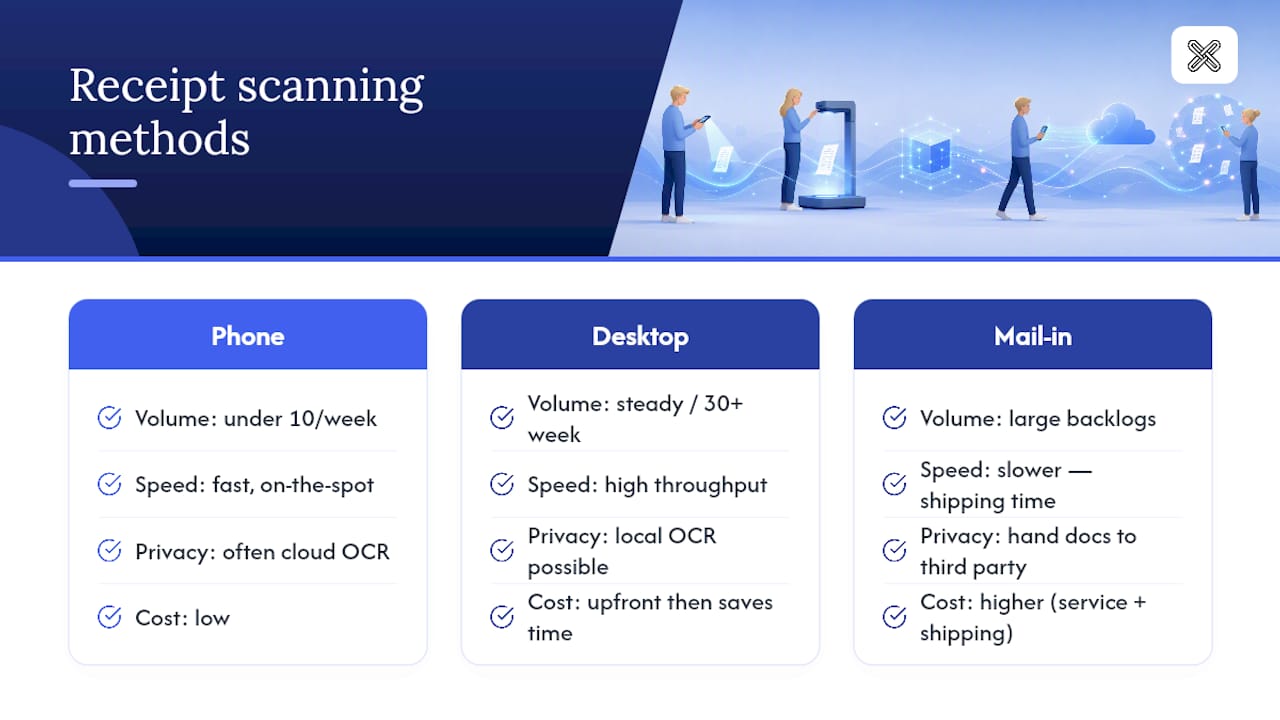
Phone scanning works best for occasional receipts, travel expenses, and anything you need to capture on the spot. Most scanning apps use edge detection and perspective correction to straighten a crumpled receipt automatically, and they can combine multiple receipts into one multi-page PDF before you even leave the parking lot. The upside is speed and portability. The downside is that many apps route your images through cloud servers for OCR processing, which matters if you're scanning anything with sensitive account numbers.
Desktop scanners with a flatbed or ADF are the better choice when you're processing receipts consistently, week after week, for a small business or a household budgeting routine. An ADF scanner can feed a stack of receipts through in sequence, producing consistent image quality without you holding a phone steady each time. Throughput is the real advantage here: what takes twenty phone captures takes one feed-and-walk-away pass.
Mail-in and human-verified digitization services make sense for large backlogs or specialized records where accuracy can't be left to automated OCR alone. Services like SquawkFree's logbook digitization combine OCR with human quality control, an approach built for high-integrity records like aircraft logbooks but relevant anywhere a data-entry mistake would be costly. The trade-off is cost and shipping time, plus handing physical documents to a third party.
Pro Tip: If you're not sure which method fits, count your receipts for one week. Under ten, use your phone. Over thirty, a desktop scanner pays for itself in saved time within a month.
How Do You Scan Receipts So They Come Out Legible?
Getting a clean scan on the first try saves you from rescanning later, and it's mostly about light and positioning, not equipment.
- Shoot from directly overhead. A tilted angle distorts the text near the edges and confuses OCR software when it tries to read straight lines.
- Use indirect light, no flash. Thermal receipt paper is shiny, and a direct flash creates a glare spot that wipes out whatever text sits underneath it.
- Leave a small margin of background visible, roughly half a centimeter around the receipt. A visible margin around the receipt helps your app's edge detection find the actual boundary instead of guessing.
- Flatten the receipt fully and capture its entire length in one shot, including the top line (the vendor name) and the bottom line (the total). Those two lines are the data points you'll search for most, so cropping them out defeats the purpose of scanning at all.
- Check the scan before you move on. Zoom in on the vendor name, date, and total. If any of the three is blurry, retake it now rather than discovering the gap during tax season.
Pro Tip: Faded thermal paper is the most common cause of unreadable scans. If a receipt has already gone gray, photograph it under a desk lamp rather than overhead room lighting; the closer, more direct light picks up faint print better.
How Do You Make Sure a Scanned Receipt PDF Is Actually Searchable?
A scanned receipt is only useful if the text inside it can be found later, and that depends entirely on whether OCR (optical character recognition) actually ran and worked. OCR is the process that turns a flat image of text into characters your computer can select, copy, and search. Without it, your PDF is a photograph wearing a document's file extension.

Verifying it takes ten seconds: open the PDF in any standard viewer and try to highlight a word, or run a search for the vendor's name. If the text selects or the search finds a match, OCR succeeded. Nothing happens, and you're looking at an image file.
When OCR fails, you have three practical fixes:
- Rescan with better lighting and a straighter angle. Most OCR failures trace back to glare, blur, or an off angle rather than a software problem.
- Increase contrast before scanning if your app allows it. Faded thermal print benefits from a contrast boost that darkens the text relative to the background.
- Add a short text annotation with the vendor, date, and amount directly on the PDF. This manual fix typically takes about thirty seconds and is often faster than a third rescan attempt, and it's usually sufficient for accounting purposes.
On the privacy question: local OCR processing keeps your receipt images on your own device, which matters if a receipt includes partial card numbers or account details. Cloud OCR sometimes handles complex or faded layouts more reliably, but it means uploading the image to a third-party server first, and it's worth knowing how that provider's privacy policy treats stored documents before you enable automatic cloud sync.
How Should You Name and Organize Scanned Receipt Files?
A consistent naming pattern is the difference between finding a receipt in five seconds and scrolling through a folder for five minutes. Use YYYY-MM-DD_vendor_total (for example, 2026-03-12_officesupplyco_47.50). Putting the date first means your files sort chronologically by default in any file browser, without you doing anything extra.
For grouping, one multi-page PDF per month or per trip beats dozens of single-page files. Merging individual receipts into a monthly PDF cuts your file count dramatically and makes handing a complete set to an accountant or attaching it to an expense report far simpler than sending thirty separate attachments.
Back up the archive in at least one of these ways:
- A cloud folder with version history, so an accidental edit or deletion isn't permanent.
- A local encrypted archive on an external drive, for full control with no third-party access.
- Both, if the receipts matter for tax records you may need years from now.
When a receipt's OCR simply won't cooperate, a one-line text note listing vendor, date, and amount attached to that PDF keeps it searchable even without functioning OCR.
How Do You Connect Scanned Receipts to Your Accounting Workflow?
Once your receipts are scanned and named consistently, the last step is getting them where they need to be without creating a new mess. Export finished PDFs to a shared cloud folder your accountant already has access to, or attach them directly to an email at month's end. Auto-folder rules, paired with OCR-backed search, let you type a vendor name and pull up every matching receipt from the year instead of hunting by date.
Before anything gets imported into accounting software, do a quick manual check: open the PDF, confirm the total matches what's expected, and confirm the vendor name reads correctly. That thirty-second check catches OCR misreads before they become a wrong number on a ledger.
- Cloud sync is convenient for sharing but means your financial documents live on someone else's servers.
- Local-only storage keeps full control but requires you to handle your own backup discipline.
A Local Windows Workflow for Scanned Receipts
If you'd rather keep receipt images off third-party servers entirely, a local Windows workflow solves that without giving up the searchable-PDF benefits. Processing everything on your own machine means sensitive account numbers or business details on a receipt never leave your computer.
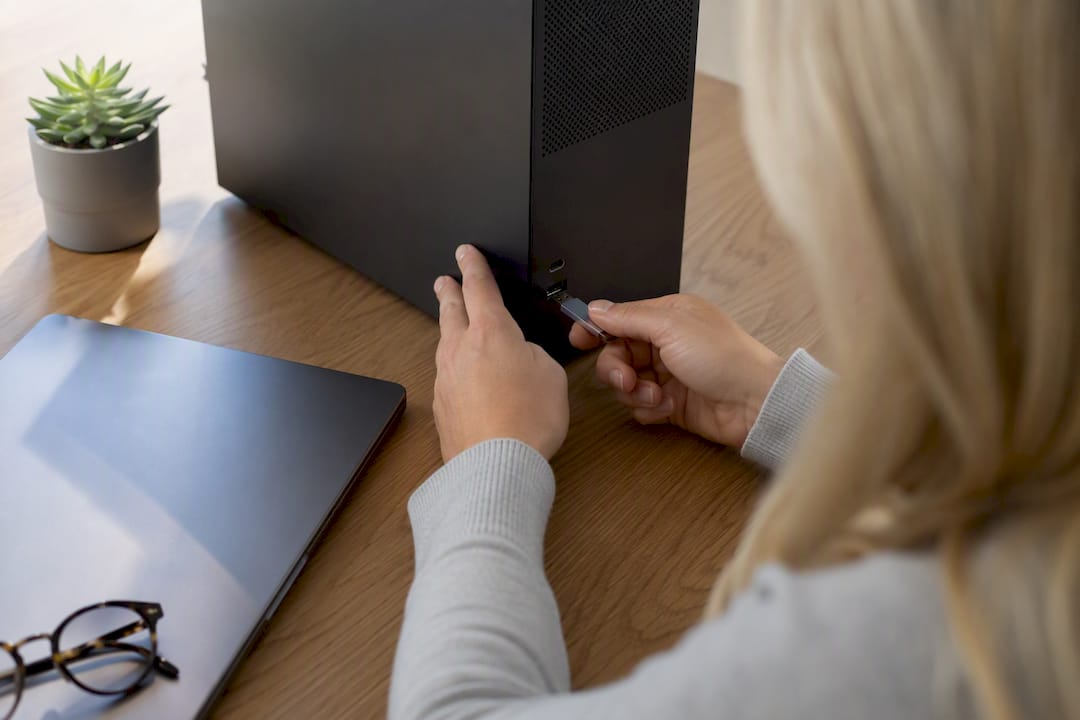
Start by improving image quality before OCR runs. ScanFix sharpens and corrects scanned images locally, which helps faded thermal receipts produce cleaner, more reliable OCR results on the first pass instead of the third.
Once individual receipts are clean, merge them into one monthly PDF instead of managing dozens of loose files. For receipts tied to business expenses or anything with financial detail worth protecting, password-protect the file before it sits in a shared drive or gets emailed anywhere.
Pro Tip: A simple four-step routine covers most of this: import your scans, run ScanFix, merge into a monthly PDF, then protect and back up locally. Repeat monthly and your archive stays current without a big year-end cleanup.
Our Take on Receipt Scanning Advice
Most guides treat receipt scanning as a one-time task: scan it, done. That's the wrong frame. A receipt PDF that isn't verified for searchable text is functionally useless the moment you need to find it, and that verification step is where most advice falls short. It's not enough to say "scan your receipts." The habit that actually pays off is a ten-second check after every scan, not a bulk cleanup project once a year when the shoebox overflows.
The conventional wisdom oversells cloud-based apps as the default answer for everyone. They're genuinely good for occasional, low-stakes receipts. But once you're dealing with business expenses, they introduce a privacy question most people never stop to ask: where does that receipt image actually go, and who else can see it?
Prioritize legibility at capture, OCR verification right after, and consistent naming before anything else. Automation and cloud integrations are worth adding later, but they're optimizations on a foundation that has to work manually first.
Keep Your Scanned Receipts Private With LawtonPDF
LawtonPDF processes every scan on your own Windows machine, so financial details on a receipt never touch a third-party server, unlike scanning apps that route images through the cloud for OCR. That matters most for small business owners handling expense records with account numbers or client details they'd rather not upload anywhere.

The workflow is straightforward: clean up scanned images with ScanFix, combine single receipts into one organized monthly PDF, and lock the finished file with a password before it goes anywhere near a shared drive. Each of these lives in the same local toolset, so you're not juggling three different apps to get from a stack of paper receipts to one searchable, protected archive.
If you're ready to try it, visit the LawtonPDF tools page to see the full set of local PDF utilities, including ScanFix, merge, and password protection, and start building your first monthly receipt PDF today.
Sources
Readers weighing cloud sync against local-only storage should review Google's privacy policy before enabling automatic backup of scanned receipts, since account-level controls vary by provider.
For high-integrity or specialized records, such as professional logbooks or documents where a data-entry error carries real cost, SquawkFree's human-verified digitization service offers OCR combined with manual quality checks. Readers wanting more background on how modern scanning apps handle edge detection and multi-page capture can check this writeup on AI receipt scanning.
For a Windows-based, local-only workflow, LawtonPDF's step-by-step guide to scanning on Windows 11 walks through the same import and cleanup steps covered above in more detail.
- Best Way to Scan Receipts (2026 Guide)
- Google privacy policy
- Aircraft Logbook Digitization - Human-Verified OCR | SquawkFree
- Dongip
FAQ
What is the easiest way to digitize receipts?
For occasional receipts, a phone scanning app is the easiest option because it produces a PDF in seconds and requires no extra hardware. For regular monthly volume, a desktop scanner with an automatic document feeder is faster overall despite the upfront setup.
What is the best scanner for scanning receipts?
A flatbed or ADF desktop scanner offers the most consistent image quality for regular batches, while a phone scanning app with edge detection handles occasional or on-the-go receipts just as well. The right choice depends on volume, not brand.
How do I scan a receipt?
Lay the receipt flat, shoot from directly overhead in indirect light with no flash, and leave a small margin of background visible around the edges. Then check that the resulting PDF has selectable text before filing it.
What is the best OCR software for receipts?
Any scanning app or scanner software with embedded OCR works, provided you verify the output by trying to select or search the text afterward. For privacy-sensitive receipts, local OCR tools such as LawtonPDF's ScanFix keep processing on your own device instead of uploading images to the cloud.