
For reliable large-scale Windows rollouts, pick one of two production-ready paths: Autopilot plus Intune for zero-touch modern management, or ADK and Configuration Manager (SCCM) imaging for exact image control, backed up by push tools like PDQ Deploy or ManageEngine Endpoint Central for on-prem fleets. Either path fails the same way: installing software in the wrong context (user versus system) or shipping a package format that doesn't match your management tool.
TL;DR:
- Using image-based deployment with ADK and DISM offers precise control over software and drivers but requires frequent updates to maintain consistency.
- Autopilot with Intune is ideal for standardized, cloud-identity-driven fleets, minimizing manual imaging but relying on OEM hardware registration.
- Push tools like PDQ Deploy are suited for on-prem, VPN-connected environments, especially during transitional phases with mixed or domain-joined devices.
- Silent install failures often stem from installers running in user context rather than system context, leading to incomplete or inconsistent deployments.
- Deployments should include staged rollouts with telemetry checks, staggered schedules, and secure package signing to ensure smooth, compliant, and auditable rollout processes.
Table of Contents
- How Do You Choose a Mass Deployment Approach for Windows Software?
- Essential Tooling and How Each Fits the Deployment Pipeline
- Which Packaging Format Should You Use: MSIX, MSI, or EXE?
- Why Do Silent Deployments Fail Even When They Report Success?
- How Should You Test and Roll Out Deployments in Stages?
- How Do You Plan Network Bandwidth for Bulk Installs?
- What Security Controls Belong in a Mass Deployment Plan?
- A Copyable Runbook for a 300-Device Rollout
- How Do You Manage Licensing and Activation Across a Large Fleet?
- How Do You Handle Compatibility Across Different Windows Versions?
- How Should You Communicate a Mass Software Rollout to Users?
- What Deployment Defaults Does LawtonPDF Recommend?
- Deploy LawtonPDF Across Your Fleet Without Cloud Dependency Risk
- Where to Go Next for Deployment Documentation
- Sources
- FAQ
How Do You Choose a Mass Deployment Approach for Windows Software?
Three approaches dominate enterprise Windows deployment, and each fits a different environment.
Imaging with DISM and ADK captures a reference machine's exact state (OS, drivers, baseline apps) and stamps it across new hardware. It gives you total control over what ships on day one, which matters when you run specialized line-of-business software or tightly regulated builds. The tradeoff is maintenance. Every driver update or patch cycle means touching the image again.
Modern management with Windows Autopilot and Microsoft Intune skips imaging almost entirely. Devices ship straight from the OEM, enroll on first boot, and pull down apps and policies automatically. This works best when your fleet is cloud-identity driven (Entra ID) and hardware is reasonably standardized, since Autopilot profiles rely on OEM-registered hardware hashes.
Push-based tools sit between the two. Products like PDQ Deploy or ManageEngine Endpoint Central target machines directly over your local network, which is the practical choice for on-prem, VPN-connected fleets that aren't fully cloud-managed yet.
A rough decision framework:
- Diverse hardware, no strong cloud identity yet → imaging with ADK/ConfigMgr
- Standardized hardware, Entra ID in place, want low long-term overhead → Autopilot + Intune
- Domain-joined machines with intermittent VPN access, need targeted pushes → PDQ or ManageEngine
- Mixed fleet in transition → run imaging and Intune side by side during migration
Essential Tooling and How Each Fits the Deployment Pipeline
Mapping tools to pipeline stages keeps teams from reaching for the wrong product mid-project. The Windows Assessment and Deployment Kit bundles WinPE and DISM, which handle image capture and offline servicing, including injecting drivers or updates into a Windows image before it ever boots on target hardware.
Configuration Manager remains the workhorse for on-prem OS deployment and app packaging, particularly in environments with existing distribution point infrastructure. Intune and Autopilot cover provisioning, app assignment, and lifecycle management once devices are enrolled, and Intune supports both device context and user context installs, with device context required for machine-scoped Win32 apps.
Here's how the toolset breaks down by function:
- Capture and offline servicing: ADK, WinPE, DISM
- On-prem packaging and OS deployment: Configuration Manager
- Provisioning and app lifecycle: Intune, Autopilot
- Targeted push installs: PDQ Deploy, ManageEngine Endpoint Central
- Scripted installers with logging: PSAppDeployToolkit
PSAppDeployToolkit deserves special mention because it wraps messy installers in a consistent PowerShell framework with built-in logging, close-app prompts, and rollback logic. It's become close to a community standard for wrapping legacy EXE and MSI installers that weren't built with silent deployment in mind.
Pro Tip: If you're inheriting a fleet of undocumented legacy installers, wrap each one in PSAppDeployToolkit before you touch Intune or ConfigMgr. The standardized logging alone will save you hours during your first failed-deployment investigation.
Which Packaging Format Should You Use: MSIX, MSI, or EXE?
Packaging format decides how predictably your software installs, updates, and uninstalls at scale, and it's worth getting right before you touch a deployment tool.
- MSIX is the modern standard for a reason. It gives you standardized install and uninstall behavior, update controls including forced updates, and native support across Intune, Configuration Manager, AppInstaller, and IIS distribution. Clean uninstalls alone eliminate a huge share of the registry cruft that plagues long-lived Windows fleets.
- MSI and EXE installers still dominate legacy software libraries. Both require you to define detection rules (file presence, registry keys, or product codes) and confirm the correct silent install switches, since a missing
/quietor/Sflag will hang a deployment across hundreds of machines simultaneously. Wrap these in PSAppDeployToolkit when the vendor hasn't documented silent switches. - AppInstaller works well for simpler, user-driven installs where IT wants self-service distribution through a web link or IIS server, without the full weight of MDM enrollment.
Whichever format you land on, build a CI/CD pipeline that automates builds, signs every package, and runs smoke tests before anything reaches production. A partner walkthrough on CI/CD and packaging pipelines for business software covers the automation side in more depth if you're building this from scratch.
Why Do Silent Deployments Fail Even When They Report Success?
The single most common root cause is context mismatch. Installers that run in user context instead of system context can report a clean exit code while leaving machine-wide registry keys or shared program files untouched. The deployment tool sees success. The next user to log in sees a missing app.
Work through these checks in order when a "successful" push doesn't behave as expected:
- Confirm the install ran in the intended context (system versus user) and matches how the app was packaged
- Check detection logic against actual files, registry keys, or product codes, not just the installer's exit code
- Rule out AppLocker or Group Policy restrictions silently blocking the executable
- Inspect for driver or firmware conflicts introduced by the same deployment batch
- Pull the installer log (MSI verbose logs, PSAppDeployToolkit logs, or Intune's IME log at
%ProgramData%\Microsoft\IntuneManagementExtension\Logs) before assuming the package itself is broken
Context mismatches are common enough that a smoke test checking both machine-level artifacts (ProgramFiles paths, HKLM keys, service presence) and user-level artifacts (HKCU keys, per-user shortcuts) after every install catches most of them before a help desk ticket does.
How Should You Test and Roll Out Deployments in Stages?
Skipping a structured pilot is how a packaging bug becomes a large incident instead of a minor inconvenience. A repeatable rollout follows four steps:
- Select a representative pilot cohort. Include every hardware profile and OS build in your fleet, not just the newest laptops sitting in IT's test closet.
- Define acceptance criteria before you start. Install success, app launch, correct user settings persistence, and no measurable performance regression all belong on the checklist.
- Run staged rollouts with hard gates. Move from pilot to site A to site B only after each stage clears its acceptance criteria, and keep a scripted uninstall or rollback ready at every gate.
- Pull telemetry, don't guess. Intune and Configuration Manager reporting, combined with PSAppDeployToolkit's per-device logs, gives you the go/no-go data instead of relying on help desk silence as a success signal.
Pro Tip: Treat "no complaints" as a false positive during pilot week. Users often work around a broken app for days before filing a ticket. Pull install and launch telemetry directly instead of waiting on feedback.
How Do You Plan Network Bandwidth for Bulk Installs?
Bandwidth planning is what separates a smooth rollout from a helpdesk queue full of "my computer is slow" tickets. Distribution points, cache servers, and branch cache configurations keep large packages from crossing the WAN redundantly, since each site pulls once and serves local peers from there.
A few operational habits go a long way:
- Stagger deployments by site and schedule pushes during off-hours to avoid daytime bandwidth contention
- Pre-seed large packages to local caches ahead of the push, or use USB-based pre-provisioning for sites with limited or no connectivity
- Estimate throughput per batch before committing a full rollout date, since a 2 GB package pushed to 50 machines simultaneously behaves very differently on a saturated 100 Mbps link than on a fiber backbone
Pre-seeding and staggered scheduling are consistently the fastest levers for avoiding WAN saturation during mass software updates, and they cost nothing but planning time.
What Security Controls Belong in a Mass Deployment Plan?
Security governance during mass deployment isn't optional overhead. It's what keeps a rollout from becoming an attack surface.
- Sign every package. Code signing certificates confirm origin and integrity, and unsigned packages should never reach a production distribution point.
- Enforce AppLocker or Group Policy whitelisting so only approved, signed applications can execute on corporate endpoints.
- Configure MSIX update settings deliberately. Decide which updates are forced and which wait for a testing window, since MSIX's update controls let you block activation until an update completes.
- Track license usage and activation state post-deploy, not just install counts, so you catch drift between purchased seats and active installs before an audit does.
Teams handling regulated documents should also review role-based access governance, since deployment security and document access control tend to share the same audit trail.
A Copyable Runbook for a 300-Device Rollout
A large batch deployment breaks cleanly into four phases, each with its own owner and exit criteria.
- Pre-deployment. Inventory hardware and OS builds, sign every package, build or update your reference image, and confirm your driver catalog covers every model in scope.
- Pilot. Install on the representative cohort, verify against acceptance criteria, and pull logs from Intune, ConfigMgr, or PSAppDeployToolkit before approving the gate.
- Staged rollout. Schedule site by site, pre-seed caches ahead of each site's push, and monitor install success rates in real time rather than waiting for an end-of-day report.
- Post-deployment. Run automated verification sweeps, generate a completion report, and trigger remediation scripts automatically for any device that fails acceptance.
| Phase | Primary Owner | Key Output |
|---|---|---|
| Pre-deployment | Packaging engineer | Signed packages, driver catalog, base image |
| Pilot | Deployment lead | Pass/fail report against acceptance criteria |
| Staged rollout | Site IT + deployment lead | Site-by-site install success rate |
| Post-deployment | Help desk + packaging engineer | Remediation tickets, final completion report |
For teams deploying document tools specifically, a step-by-step admin guide for desktop software rollouts maps closely to this same four-phase structure.
How Do You Manage Licensing and Activation Across a Large Fleet?
Licensing failures rarely show up during the pilot. They surface weeks later when a compliance audit or a vendor's phone-home activation server flags a mismatch between deployed seats and purchased licenses. Build activation tracking into the rollout itself instead of treating it as a separate finance task.
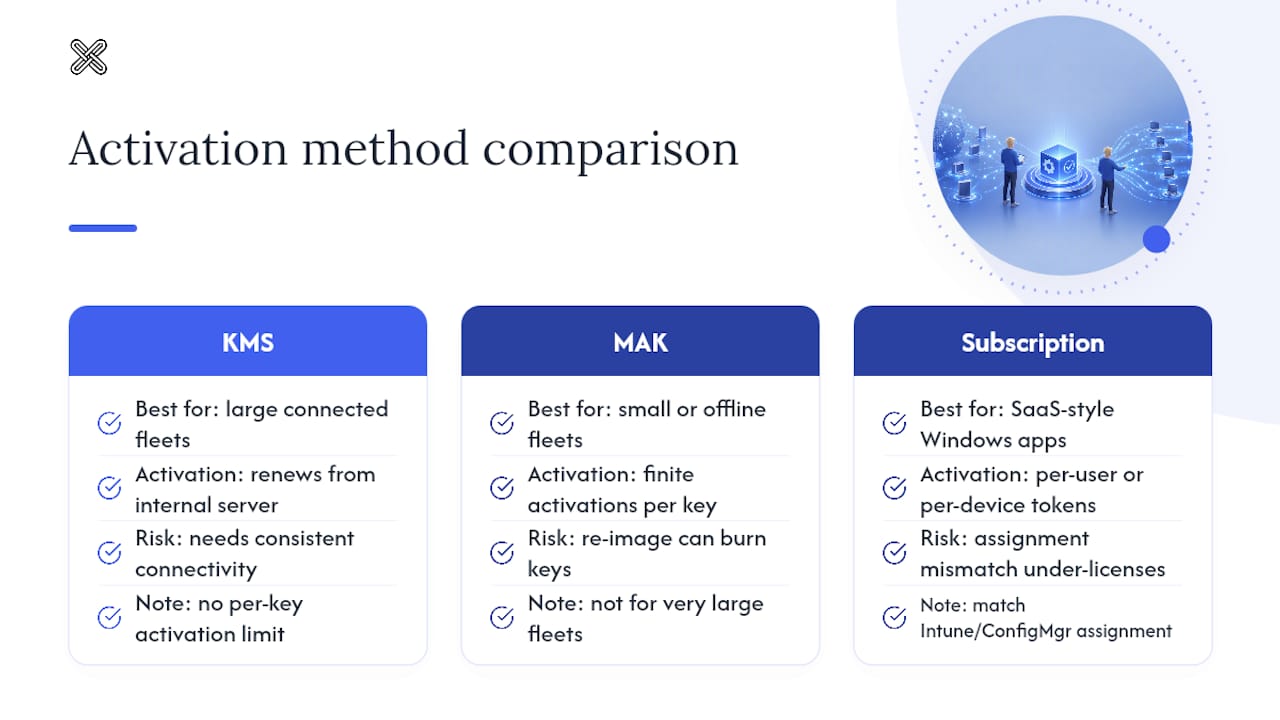
For volume-licensed software, confirm your activation method (KMS, MAK, or a subscription-based token) before the staged rollout begins, since switching activation models after 200 machines are already live creates a painful reconciliation project. KMS works well for large, consistently connected fleets because activation renews automatically against an internal server. MAK keys fit smaller or disconnected deployments better, but each key has a finite activation count that a botched re-image can burn through fast.
Track activation state as part of your post-deployment verification, not as an afterthought. A device that installs cleanly but never activates is still a failed deployment, even though every other acceptance criterion passed. Build this check into the same automated verification sweep that confirms install success and file presence.
Subscription-based software licensing, common in modern SaaS-style Windows applications, adds another wrinkle: per-user versus per-device entitlements need to match how you assigned the app in Intune or Configuration Manager. Assigning a per-user license through a device-context install can silently under-license your fleet. Reviewing license management practices built for Windows teams before the rollout starts is far cheaper than reconciling a mismatch across 300 activated seats after the fact.
How Do You Handle Compatibility Across Different Windows Versions?
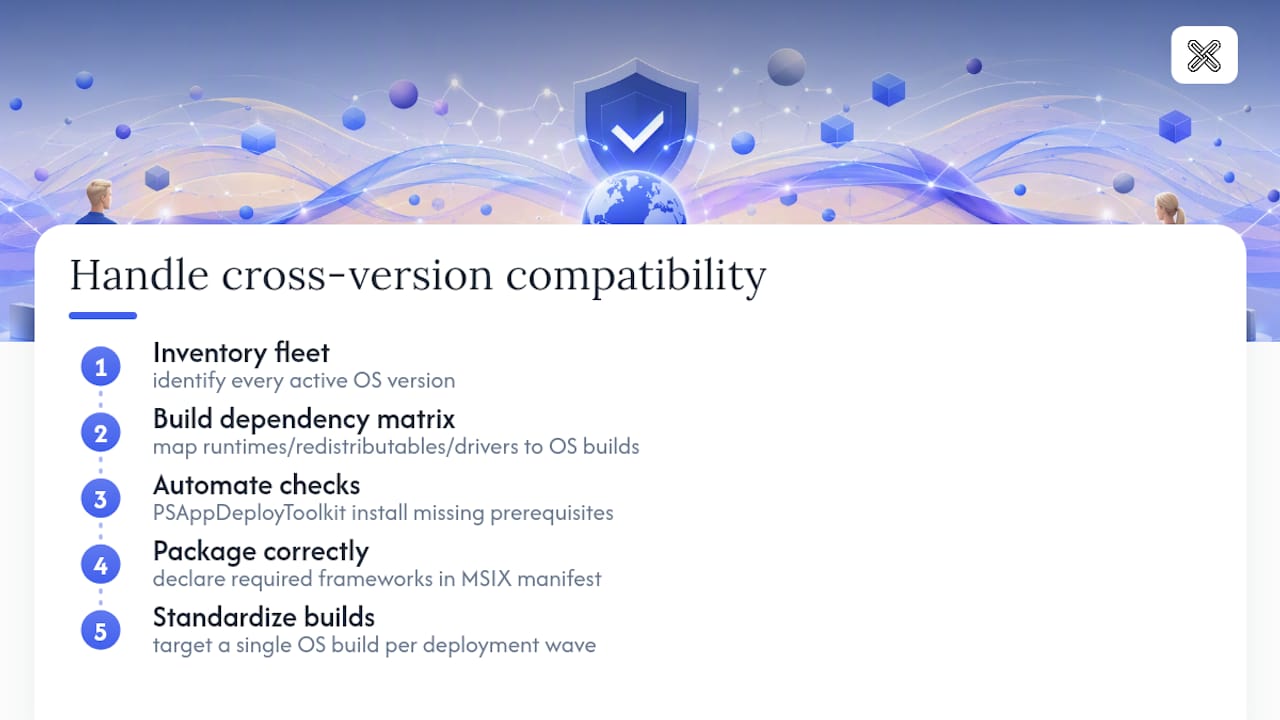
Mixed-version fleets are the norm, not the exception, in most enterprises running multi-year hardware refresh cycles. A package that installs cleanly on Windows 11 24H2 can fail silently on an older Windows 10 build still running in a warehouse or manufacturing floor, usually because of a missing .NET runtime, a Visual C++ redistributable, or a driver dependency that was never bundled with the installer.
Build a dependency matrix before your pilot, not during troubleshooting. List every prerequisite your software needs (runtime versions, redistributables, minimum build number) against every OS version still active in your fleet. PSAppDeployToolkit scripts can check for and install missing prerequisites automatically as part of the deployment sequence, which removes a huge share of version-specific failures before they happen.
MSIX packages handle some of this automatically through their manifest-declared dependencies, but that only helps if the packages your team builds actually declare those dependencies correctly. A manifest that omits a required framework package will fail cleanly on some builds and inconsistently on others, which is worse than a hard failure because it looks like a hardware problem instead of a packaging one.
Where possible, standardize your target OS build number across a deployment wave rather than deploying to "Windows 10 and 11" as a blanket category. Even within the same major version, different feature updates carry different default component sets, and that variance is where most cross-version dependency failures hide.
How Should You Communicate a Mass Software Rollout to Users?
Deployment failures aren't always technical. A rollout that works perfectly on every machine can still generate a flood of help desk tickets if nobody told users what to expect.
Send a short notice before the rollout starts, stating what's changing, roughly when it will happen, and what the user needs to do (usually nothing, for a system-context install). For anything that requires a restart or brief downtime, give a specific window rather than a vague "sometime this week," since ambiguity is what drives people to call the help desk mid-install.
For software that changes a visible workflow, a one-page quick reference beats a training session. Most users won't attend a scheduled walkthrough for a document tool or utility app, but they will read a single screenshot-annotated page when they hit a specific question. Save the live training sessions for software that changes how a team fundamentally does its job, not for every routine deployment.
After the rollout completes, close the loop. A short follow-up message confirming the deployment finished, along with a link to support resources, cuts down on the "did this actually happen" tickets that flood help desks after silent background installs. Users who never see visible confirmation tend to assume nothing happened, even when the install succeeded cleanly in the background.
What Deployment Defaults Does LawtonPDF Recommend?
Packaging a privacy-first Windows application for enterprise customers taught us to default to machine-context installs for core services whenever possible. It keeps behavior consistent across every user on a shared device and avoids the exact context mismatch that causes so many silent deployment failures elsewhere. User-context helpers still have a place, but only when a feature genuinely requires per-user state.
Pre-signing every package before it reaches a customer's distribution point isn't optional. It cuts down on help desk escalations tied to blocked or untrusted installers. We also publish admin-facing install scripts and prebuilt MSIX and MSI packages alongside clear admin guides, because IT teams shouldn't have to reverse-engineer silent install switches for software that's supposed to make their jobs easier.
— Lawton
Deploy LawtonPDF Across Your Fleet Without Cloud Dependency Risk
LawtonPDF is the alternative to cloud-based PDF platforms for teams that need document tools deployed at scale without sending sensitive files off-premises. Every comparison and merge, every redaction and password protection task runs locally on the machine it's installed on, which means your mass deployment plan doesn't need a separate data-residency review before rollout.

IT teams evaluating enterprise packaging can start with the document and PDF processing tools page to see what ships in a standard install, including the advanced PDF comparison feature legal and finance teams rely on for redline reviews. If your rollout plan already covers folder-level auditing, the folder compare tool fits directly into the same packaging workflow described above. For a deployment walkthrough specific to PDF software, review how to deploy PDF software across your organization, and when your local-first security review needs backup, the note on on-premise versus cloud security covers the tradeoffs your compliance team will ask about. Start by downloading a trial from the LawtonPDF homepage and test the packaged installer against your pilot cohort before committing to a full rollout.
Where to Go Next for Deployment Documentation
Bookmark these before your next rollout, since each one covers a different stage of the pipeline:
- Windows App Deployment by Using Microsoft Intune for context-specific assignment rules
- Managing your MSIX deployment (enterprise) for update and packaging behavior
- Windows deployment scenarios and tools for ADK, WinPE, and DISM reference material
- Enterprise app management in Microsoft Intune for Autopilot-driven app catalog management
- PSAppDeployToolkit project homepage for scripted installer patterns and community forums
Sources
- Windows App Deployment by Using Microsoft Intune
- Windows deployment scenarios and tools
- PSAppDeployToolkit - Project Homepage & Forums
FAQ
What Is the Best Way to Mass Deploy Windows Software?
For most organizations, Autopilot combined with Intune offers the lowest long-term overhead for mass deploying Windows software, while ADK and Configuration Manager imaging suits environments that need exact image control.
Can I Use MSIX for Legacy Applications?
Legacy EXE and MSI installers can often be wrapped into MSIX using the MSIX Packaging Tool, though apps with heavy driver dependencies or kernel-level components sometimes resist clean conversion.
Why Do Some Silent Installs Report Success but Fail to Work?
This almost always traces back to a context mismatch, where the installer ran in user context instead of the system context the deployment expected, leaving machine-wide components untouched.
How Do I Test a Deployment Before Rolling It Out to Everyone?
Run a pilot on a representative hardware and OS cohort, define acceptance criteria covering install success and user setting persistence, then move through staged site-by-site gates before full rollout.
Does LawtonPDF Support Enterprise Deployment Packaging?
Yes, the client offers a local-first Windows application with prebuilt MSIX and MSI packages and admin guides designed for IT teams handling enterprise-scale document tool rollouts.