
The fastest, safest route to deploy PDF software at enterprise scale is a six-step playbook: confirm your license model, configure the admin console, obtain and verify the installer, customize it with MST transforms or config files, push it through your chosen channel (Microsoft Intune, SCCM/ConfigMgr, GPO, Jamf, or PowerShell), then lock in a phased update process. Lawtonpdf is built for exactly this workflow: local-first processing, offline licensing support, and packaging-friendly MSI behavior make it a strong fit for security-conscious organizations that cannot route documents through cloud servers. For a read-only endpoint where no editing is needed, Sumatra PDF is a lightweight, zero-cost alternative worth keeping in your toolkit.
Your six-step action list:
- Audit your license count and choose named-user or device-based activation.
- Register your tenant in the admin console, assign roles, and configure SSO if supported.
- Download the signed MSI (or PKG for macOS), verify the hash, and confirm prerequisites.
- Build your MST transform:
msiexec /i "LawtonPDF.msi" TRANSFORMS="admin_customSettings.mst" /qn - Deploy through your channel of choice with a small pilot ring before broad rollout.
- Schedule phased updates through your patch management system with a defined rollback gate.
Key Takeaways
A successful enterprise PDF software deployment depends on completing inventory, licensing, and customization steps before any package reaches a production device.
| Point | Details |
|---|---|
| Complete inventory first | Collect OS versions, architecture, VDI presence, and license counts before building any package. |
| Match license model to use case | Use device-based licensing for shared workstations and VDI; named-user for assigned desktops. |
| Build and version MST transforms | Store transforms in source control and test against a clean VM before every pilot deployment. |
| Deploy in phased rings | Run a 10–20 device pilot for 48–72 hours before promoting to broad rollout across the fleet. |
| Lawtonpdf for local-first deployments | Lawtonpdf supports offline activation, MSI packaging, and local-only processing — start your pilot at lawtonpdf.com/tools. |
Table of Contents
- How to deploy PDF software: pre-deployment checklist
- License types and activation workflows
- Admin console setup and group structure
- Where to get installers and how to verify them
- How to customize installers with MST transforms and config files
- Deployment channels: Intune, SCCM, GPO, Jamf, and VDI
- Update and patch management after rollout
- Security and compliance considerations
- Troubleshooting common deployment failures
- The rollout approach that actually holds up
- Lawtonpdf fits this deployment playbook from day one
- Useful sources
- FAQ
How to deploy PDF software: pre-deployment checklist
Before you build a single package, collect the information that prevents rework.
Device inventory
- OS versions across the fleet: Windows 10 21H2+, Windows 11, macOS 13+, and any legacy builds that need separate packages.
- Architecture split: x86, x64, ARM64. A single x64 MSI will fail silently on ARM devices if you have not accounted for them.
- Virtualization presence: Citrix Virtual Apps, VMware Horizon, or Azure Virtual Desktop require separate packaging decisions (see the VDI section below).
- macOS enrollment status in Jamf or another MDM.
Network and bandwidth
- Confirm the installer size and multiply by your concurrent deployment target. A 150 MB installer pushed to 500 devices simultaneously without a distribution point or Delivery Optimization policy will saturate most branch links.
- Identify whether SCCM distribution points, Intune's Delivery Optimization, or a local file share will serve the payload.
Licensing and authentication data
- Total seat count and overage buffer (typically 10–15% above headcount).
- Activation model: named-user, device-based, or offline activation file.
- License keys, token endpoints, or offline activation files from the vendor.
- SSO/SAML metadata if the admin console supports federated identity.
Administrative access and tooling
- Service account with local admin rights on target devices.
- SCCM/ConfigMgr collection membership or Intune device group assignments.
- Jamf enrollment keys for macOS endpoints.
- Rollback gate definition: what failure rate triggers a halt? A common threshold is more than 5% of pilot devices reporting a non-zero exit code.
Pro Tip: Stage your pilot devices in an isolated test OU in Active Directory or a separate Intune device group before touching production. This lets you test transforms, detection rules, and activation without any risk to the broader fleet.
License types and activation workflows
Choosing the wrong license model creates activation failures that are painful to unwind at scale. Map your organization's use pattern to one of these four models before you touch the admin console.
| License Model | Centralized Assignment | Offline Use | Network Activation | Best Fit |
|---|---|---|---|---|
| Named-user | Yes | Depends on vendor | Yes | Knowledge workers with assigned devices |
| Device-based | Yes | Yes | Optional | Shared workstations, kiosks, shift workers |
| Concurrent/floating | Yes (license server) | No | Required | Labs, training rooms, variable demand |
| Site license | Yes | Yes | Optional | Large org-wide rollouts, flat-fee pricing |
Activation workflows to plan for:
- Online activation: The application calls a vendor endpoint on first launch. Requires outbound HTTPS to the activation server. Works for most named-user deployments.
- Offline activation: The vendor issues an activation file or token. The installer or a post-install script drops the file into a defined path. Required for air-gapped or classified networks.
- Token-based SSO: The application authenticates against your IdP (Azure AD, Okta) via SAML or OIDC. Reduces per-device activation steps but requires SSO setup in the admin console first.
- Per-machine registration: A single license key is embedded in the MST transform or registry key and applies to all users on that device. Correct for shared workstations.
Pitfalls to avoid:
- Never deploy a named-user license to a shared workstation. Every user who logs in will consume a seat, and you will overcount quickly.
- Do not activate on a per-user basis in VDI pooled environments. Use device-based or site licensing tied to the golden image instead.
- Confirm whether the license resets on uninstall. Some vendors count the seat as consumed until an explicit deactivation call is made.
Admin console setup and group structure
A well-structured admin console is what separates a repeatable deployment from a one-off install. Get this right before you distribute a single package.
Initial console setup
- Register your organization's tenant using an admin email domain that matches your SSO identity provider.
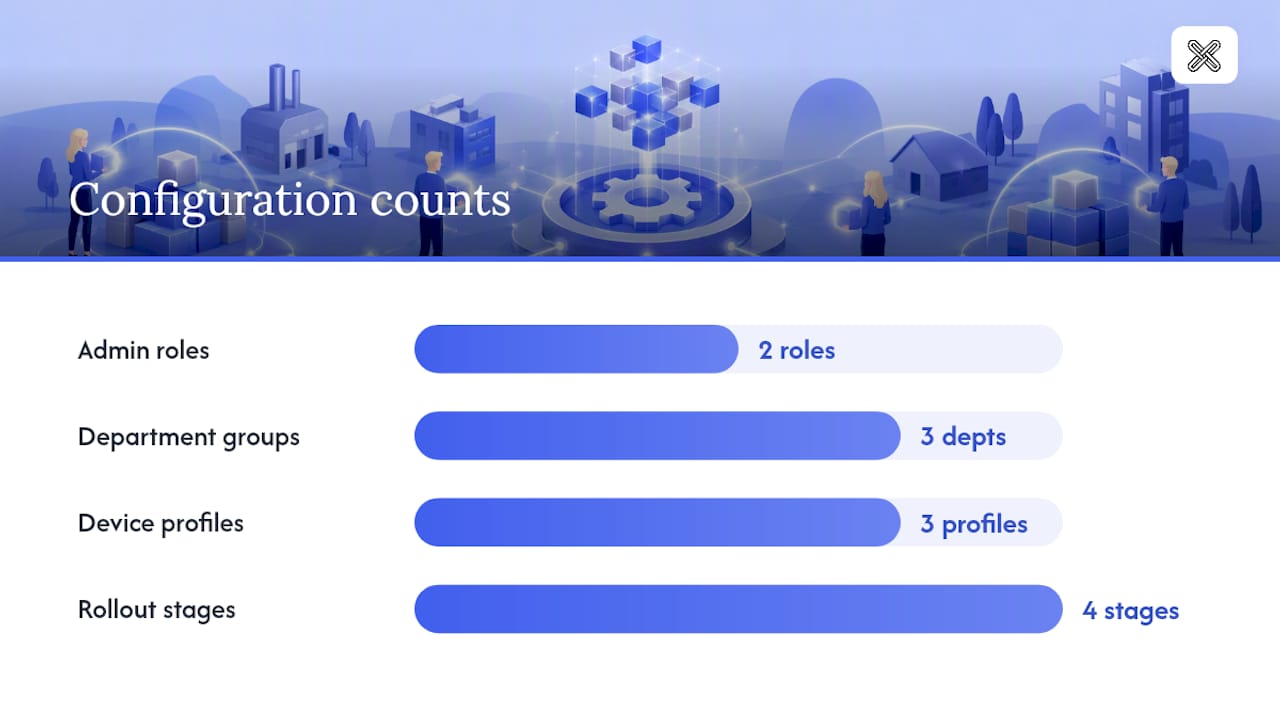
- Assign at minimum two admin roles: a primary deployment admin and a break-glass emergency account with a separate credential store.
- Configure SSO/SAML if the console supports it. Map your IdP groups to console roles so that offboarding a user in your directory automatically revokes their license.
- Enable audit logging before any license assignments. You want a record of every assignment, revocation, and policy change from day one.
- Set the auto-update policy to "admin-controlled" rather than "automatic." This prevents the application from self-updating outside your patch windows.
Group design
Structure groups around three axes: department (Legal, Finance, Engineering), device profile (standard desktop, VDI, macOS), and rollout stage (pilot, ring 1, ring 2, production). Mixing these axes in a single group makes rollback targeting nearly impossible.
Recommended admin policies to configure at this stage:
- Telemetry and analytics: set to minimum or off, especially for regulated industries.
- Default file-handling behavior: define the default save path and whether the app opens PDFs from the browser or hands off to the OS.
- Integration toggles: disable any cloud-sync or cloud-storage integrations if your policy requires local-only processing.
- Password and encryption defaults: pre-set minimum encryption strength for protected documents.
Console security checklist:
- Apply least-privilege: deployment service accounts should not have global admin rights.
- Rotate the emergency rollback account password quarterly and store it in your PAM vault.
- Confirm that the console session timeout is set to 15 minutes or less.
Where to get installers and how to verify them
Download installers only from the vendor's official admin portal or a verified distribution endpoint. Never pull an installer from a third-party mirror and push it to production.
Installer types you will encounter:
- MSI (Windows Installer): The preferred format for enterprise deployment. Supports transforms, silent install, and native integration with Intune, SCCM, and GPO.
- EXE (self-extracting): Often wraps an MSI internally. You can extract the inner MSI with
msiexec /a setup.exe /qb TARGETDIR=C:\Extractor a tool like 7-Zip for repackaging. - PKG (macOS): The standard macOS package format. Distributable via Jamf or another MDM as a policy payload.
- Architecture variants: Download x64 and ARM64 builds separately. Label them clearly in your distribution point.
Verification steps before distribution:
- Compare the SHA-256 hash the vendor publishes against the downloaded file:
Get-FileHash .\LawtonPDF.msi -Algorithm SHA256 - Confirm the code-signing certificate is valid and chains to a trusted root. Right-click the MSI in Windows Explorer → Properties → Digital Signatures, or use
signtool verify /pa LawtonPDF.msi. - Check the MSI version property:
msiexec /i LawtonPDF.msi /qn /l*v install.logon a test machine first.
Prerequisites to confirm:
- Windows Installer 5.0 or later (included in Windows 10 and 11).
- .NET runtime version required by the application (check the vendor's release notes).
- Visual C++ Redistributable if the installer does not bundle it.
Silent install command pattern to adapt:
msiexec /i "LawtonPDF.msi" /qn /norestart /l*v "C:\Logs\LawtonPDF_install.log"
Checklist before packaging:
- Correct architecture build confirmed.
- Correct language/locale build confirmed.
- Hash verified against vendor-published value.
- Code signature valid.
- Prerequisites present on at least one test device.
How to customize installers with MST transforms and config files
Customization is what turns a generic installer into an org-ready package that enforces your defaults from the first launch. Vendors commonly supply customization kits that produce MST transform files alongside the MSI, and the pattern is worth following even if you build your own.
Why bother with transforms?
A transform baked into the package means zero help-desk calls about "where do I save files" or "why is telemetry on." It also means every reinstall or repair operation applies the same defaults automatically, without a post-install script.
High-level MST workflow:
- Use Orca (from the Windows SDK) or a commercial tool like Admin Studio to open the MSI and create a transform.
- Modify the Property table to pre-seed the license key, set the install directory, and disable optional components.
- Modify the Registry table to write your org's default settings (save path, telemetry flag, integration toggles) at install time.
- Save the transform as
admin_customSettings.mstin the same directory as the MSI.
Settings worth baking into every package:
- Default save path locked to a network share or local documents folder.
- Telemetry and analytics disabled.
- Cloud-sync integrations disabled (critical for local-only processing policies).
- License key or activation token pre-seeded.
- Minimum encryption strength for password-protected documents.
Deploy command with transform:
msiexec /i "LawtonPDF.msi" TRANSFORMS="admin_customSettings.mst" /qn /norestart /l*v "C:\Logs\install.log"
PowerShell wrapper sketch for preflight checks:
$prereq = Get-ItemProperty "HKLM:\SOFTWARE\Microsoft\NET Framework Setup\NDP\v4\Full" -ErrorAction SilentlyContinue
if ($prereq.Release -lt 528040) { Write-Error "Requires .NET 4.8+"; exit 1 }
Start-Process msiexec -ArgumentList '/i "LawtonPDF.msi" TRANSFORMS="admin_customSettings.mst" /qn /norestart /l*v "C:\Logs\install.log"' -Wait -PassThru
Testing advice:
Run the transform against a clean VM snapshot before promoting to your pilot group. Check the install log for return code 0 (success) or 3010 (success, reboot required). Any other code warrants investigation before you scale.
Pro Tip: Store your MST files in source control (Git or Azure DevOps) alongside the MSI version they were built against. When the vendor releases a minor update, diff the new MSI's Property table against your transform before reusing it. Transforms built for one minor version often break silently on the next.
Deployment channels: Intune, SCCM, GPO, Jamf, and VDI
Choose your channel based on your management infrastructure, not on what is easiest to set up today. Each channel has a different detection model and failure mode.
Intune (Win32 app)
- Wrap the MSI and MST into an
.intunewinpackage using the Microsoft Win32 Content Prep Tool. - Upload to Intune → Apps → Windows → Add → Windows app (Win32).
- Set the install command:
msiexec /i "LawtonPDF.msi" TRANSFORMS="admin_customSettings.mst" /qn /norestart - Set the detection rule: Registry key
HKLM\SOFTWARE\LawtonPDFexists, or MSI product code present. - Assign to your pilot device group first. Use Intune's phased deployment rings (ring 0 = IT, ring 1 = pilot, ring 2 = broad) and set a 48-hour dwell time between rings.
- Configure restart behavior: "App install may force a device restart" if your MSI returns 3010.
SCCM / Configuration Manager
Use the Application model (not the Package model) so you get a proper detection method and compliance reporting. Set the deployment type to "Windows Installer (MSI file)" and point to your MSI + MST. Distribution point bandwidth: set a transfer rate limit during business hours to avoid saturating branch links. Detection method example: MSI product code or file version check on LawtonPDF.exe.
GPO / startup script
Appropriate for smaller environments or when Intune and SCCM are not available. Create a Computer Configuration → Windows Settings → Scripts (Startup) entry that calls your PowerShell wrapper. Apply the GPO to the target OU. Limitation: no native compliance reporting, so you will need a separate inventory query to confirm installation.
Jamf (macOS)
Upload the PKG to Jamf Pro → Packages. Create a Policy with the package as the payload and a script to pre-seed the license file to /Library/Application Support/LawtonPDF/license.dat. Set the trigger to "Enrollment Complete" for new devices and "Recurring Check-in" for existing ones. Handle notarization: confirm the PKG is notarized by Apple before distribution, or Gatekeeper will block it on macOS 13+.
VDI and non-persistent images
Install into the golden image during a maintenance window with the machine in "install mode" (for Citrix: change user /install). Use a device-based or site license tied to the image, not a named-user license. For persistent user settings, redirect the application's user-profile folder to a network path or FSLogix container. After sealing the image, test activation on a pooled clone before promoting.
PowerShell unattended script
$exitCode = (Start-Process msiexec -ArgumentList '/i "LawtonPDF.msi" TRANSFORMS="admin_customSettings.mst" /qn /norestart' -Wait -PassThru).ExitCode
if ($exitCode -notin @(0,3010)) { Write-EventLog -LogName Application -Source "Deployment" -EventId 9001 -Message "LawtonPDF install failed: $exitCode"; exit $exitCode }
Deployment channel comparison
| Channel | Best for | Detection method | Rollback ease | Compliance reporting |
|---|---|---|---|---|
| Intune Win32 | Cloud-managed, modern endpoints | Registry key / MSI product code | High (uninstall policy) | Native |
| SCCM/ConfigMgr | On-prem or hybrid, large fleets | File version / MSI product code | High | Native |
| GPO startup script | Small on-prem, no MDM | Manual inventory query | Medium | None native |
| Jamf | macOS fleet | Receipt / file exists | High | Native |
| VDI golden image | Non-persistent pooled desktops | Image version tag | Medium (re-image) | Via image management |
| PowerShell script | Ad-hoc, targeted remediation | Event log / registry check | Low | Manual |
Deployment checklist:
- Pilot group: 10–20 devices across representative OS versions and hardware.
- Rollback gate: halt if more than 5% of pilot devices report a non-zero exit code.
- Monitoring points: Intune/SCCM compliance dashboard, event log entries, help-desk ticket volume.
- Phased ring schedule: ring 0 (IT, day 1) → ring 1 (pilot, day 3) → ring 2 (broad, day 10).
For organizations that also need programmatic PDF generation and distribution, deplo.sh's CLI supports deplo deploy commands with TTL options for sharing generated PDFs via URL, which pairs well with a desktop deployment for user-facing editing workflows.
Update and patch management after rollout
The rollout is not the finish line. A poorly managed update process is where stable deployments unravel.
Phased update rollout:
- Download the new installer and verify its hash against the vendor's published value.
- Build or update the MST transform if the new version's Property table has changed.
- Deploy to your pilot ring and monitor for 48–72 hours. Check exit codes, activation status, and help-desk tickets.
- Promote to ring 1 (targeted, roughly 10–15% of fleet) and hold for another 48 hours.
- Promote to broad rollout only after ring 1 shows a clean compliance rate.
In-place upgrade vs. uninstall/reinstall:
- In-place upgrade (using the new MSI's upgrade code) is faster and preserves user settings. Use it for minor version bumps.
- Uninstall/reinstall is safer for major version upgrades where the schema of user-preference files changes. Script the uninstall silently first:
msiexec /x {ProductCode} /qn /norestart
Rollback strategy:
- Keep the previous MSI and MST in your distribution point until the new version reaches full compliance.
- Define a rollback trigger (e.g., more than 10% of ring 1 devices fail activation or report crashes).
- Test the rollback path in your pilot environment before broad rollout, not after something goes wrong.
Patch management integration:
- Schedule updates during defined maintenance windows to avoid interrupting users mid-document.
- Use Delivery Optimization (Intune) or SCCM bandwidth throttling to limit update traffic during business hours.
- Automate smoke tests post-update: a simple script that launches the application, opens a test PDF, and checks the exit code confirms the update did not break the install.
Security and compliance considerations
PDF software touches sensitive documents every day. The security configuration you set at deployment time is the one that will govern your organization's document risk posture for the life of that install.
Data processing model:
- Lawtonpdf processes all documents locally on the user's device. No file content is transmitted to a cloud server. For organizations under HIPAA, SOC 2, or internal data-residency policies, this is a meaningful control. Lock this behavior in your MST transform by disabling any cloud-sync or upload integrations at install time.
- For teams that need to evaluate private PDF editing for business, local-first processing eliminates an entire class of data-exfiltration risk that cloud-based tools introduce.
Permissions and least privilege:
- The deployment service account needs local admin rights only during install. Revoke or scope those rights immediately after.
- Do not run the installer as SYSTEM unless your packaging tool requires it. Use a scoped service account instead.
Firewall and endpoint protection rules:
- Allow outbound HTTPS to the vendor's activation endpoint (if using online activation). Scope the rule to the specific FQDN, not a broad IP range.
- Add the installer and application executable to your antivirus exclusion list during installation. Remove the installer exclusion after deployment completes.
- If using offline activation, no outbound rule is needed for activation. Confirm this with your network team before deployment.
Document protection features to preconfigure:
- Set minimum AES-256 encryption for password-protected PDFs in your transform or registry policy.
- Enable flatten and redact controls so users cannot accidentally expose hidden layers in documents sent externally. Lawtonpdf's password protection tools can be pre-configured to enforce these defaults.
- Disable print-to-PDF or export features if your DLP policy requires it.
Audit and logging:
- Enable admin console audit logging from day one (covered in the console setup section).
- Log all license assignment and revocation events to your SIEM.
- Retain install logs (
/l*v) for at least 90 days for compliance review.
Pro Tip: Lock the cloud-sync and telemetry settings via registry policy so users cannot re-enable them through the application's preferences UI. A user who re-enables cloud upload on a HIPAA-covered device creates a compliance event that is expensive to document and explain.
Troubleshooting common deployment failures
When an install fails, the log tells you almost everything. The mistake most admins make is skipping the log and guessing.
Installer fails with a non-zero exit code:
- Open the install log (
C:\Logs\LawtonPDF_install.log) and search for "Return value 3" — that line and the lines immediately above it identify the failing action. - Exit code 1603 is a generic fatal error. Common causes: insufficient permissions, a locked file from a previous install, or a missing prerequisite.
- Exit code 1638 means another version is already installed. Run
msiexec /x {ProductCode} /qnto remove it first.
License not activating:
- Confirm outbound HTTPS to the activation endpoint is not blocked by your firewall or proxy. Use
Test-NetConnection -ComputerName activation.vendor.com -Port 443to verify. - Check that the license key in your MST transform matches the purchased license type (named-user keys will fail on a device-based activation endpoint).
- For offline activation, confirm the activation file is in the exact path the application expects. Check the vendor's admin guide for the precise path.
Network and distribution point failures:
- If SCCM content fails to download, check the distribution point's content validation status and the client's
CAS.logandContentTransferManager.log. - For Intune, check the Intune Management Extension log at
C:\ProgramData\Microsoft\IntuneManagementExtension\Logs\IntuneManagementExtension.log. - Bandwidth throttling set too aggressively can cause timeout failures. Temporarily raise the limit during off-hours to confirm this is the cause.
Permission errors:
- Validate that the service account has local admin rights on the target device:
net localgroup administratorson the device. - If running via GPO startup script, confirm the script runs as SYSTEM and that SYSTEM has write access to the install directory.
Rollback and remediation:
- Silent uninstall:
msiexec /x {ProductCode} /qn /norestart /l*v "C:\Logs\uninstall.log" - After uninstall, re-run your detection rule to confirm the application is fully removed before redeploying.
- If transforms are suspected, test the MSI without the transform first to isolate whether the issue is in the base installer or the customization.
The rollout approach that actually holds up
Most deployment failures are not technical. They are planning failures dressed up as technical problems. An admin who skips the pilot ring because "we've done this before" is the same admin who spends a Friday night rolling back 800 devices.
The approach that consistently works is pilot-led, config-as-code, and phased. Build your MST transform in source control. Test it on a clean VM before it touches a single production device. Run a genuine pilot with a cross-section of your user base, not just IT staff who will tolerate a broken install. Measure success by help-desk ticket volume in the first two weeks, not just by the compliance dashboard showing green.

Lawtonpdf's local-first architecture makes it a natural fit for this kind of disciplined rollout. Because all processing stays on the device, there is no cloud dependency to configure, no data-residency exception to document, and no activation call that can fail because of a proxy misconfiguration. That simplicity pays off most in regulated environments where every external connection requires a risk assessment.
The organizations that get this right treat the deployment playbook as a living document. They version their transforms, log every change, and run a smoke test after every update. The ones that struggle treat deployment as a one-time event.
Lawtonpdf fits this deployment playbook from day one
If you have followed this guide to this point, you already know what to look for in a PDF tool built for enterprise deployment: offline licensing, MSI packaging, admin controls, and local-only processing. Lawtonpdf's full tool suite maps directly to those requirements.

The installer is MSI-compatible and supports silent deployment with transforms. Licensing supports offline activation, which means air-gapped and high-security environments can deploy without an outbound activation call. The admin console provides centralized license assignment and group management so you can apply the group structure this guide recommends. All document processing, including PDF comparison, merging, organizing, and protection, runs locally. No file content leaves the device.
To start your pilot, download the installer and admin tools from Lawtonpdf. For enterprise licensing, volume pricing, or deployment support, contact the Lawtonpdf team directly through the site. A pilot of 10–20 devices following the checklist in this guide is the right first step.
Useful sources
These references give you the exact commands, API examples, and version-specific details that go beyond what any single guide can cover. Consult the vendor's own admin documentation for precise switches before building production packages.
- Deplo: CLI examples for
deplo deploy, TTL-managed shareable PDF links, and batch generation patterns. Useful when your workflow includes programmatic PDF generation alongside desktop deployment.
FAQ
What is the best PDF software for enterprise deployment?
The best choice depends on your security and processing requirements. For organizations that require local-only document processing with no cloud dependency, Lawtonpdf offers MSI packaging, offline licensing, and centralized admin controls that align with enterprise deployment standards.
How do I deploy PDF software silently across Windows devices?
Use an MSI installer with a silent install command: msiexec /i "LawtonPDF.msi" TRANSFORMS="admin_customSettings.mst" /qn /norestart. Pair this with a PowerShell wrapper for prerequisite checks and push it through Intune, SCCM, or a GPO startup script depending on your management infrastructure.
What is the best free PDF reader for Windows with no editor features?
Sumatra PDF is a lightweight, open-source option for endpoints that only need read-only access. It has a small footprint and supports silent installation, making it practical for limited-use endpoints alongside a full editor deployment elsewhere in the fleet.
How do I handle PDF software licensing in a VDI environment?
Use device-based or site licensing tied to the golden image rather than named-user licenses. Named-user activation on pooled, non-persistent desktops will overcount seats every time a new session spins up. Pre-seed the license file or registry key in the image during your maintenance window.
How do I roll back a failed PDF software deployment?
Run a silent uninstall using the MSI product code: msiexec /x {ProductCode} /qn /norestart. Verify removal with your detection rule before redeploying. Keep the previous MSI and MST in your distribution point until the replacement version reaches full compliance across all rings.