
If you need to encrypt a PDF offline on Windows, LawtonPDF is the fastest local-first route: install it, open your file, set a password, and export a locked PDF without ever touching an internet connection. You have three practical paths to get there.
- A local desktop app (LawtonPDF) for a full toolkit with permissions, merging, and organizing built in.
- A single portable HTML file you download once and run straight from your browser, no install required.
- A command-line tool for batch-encrypting dozens or hundreds of files at once.
For most Windows users protecting sensitive contracts, medical records, or financial statements, the desktop app wins on convenience and control. If you just need to lock one file right now, grab LawtonPDF's protect-pdf tool and get it done in under a minute.
Key Takeaways
Offline PDF encryption works best when you combine a verified local tool with AES-256 protection and a password stored somewhere you'll actually remember.
| Point | Details |
|---|---|
| Choose the right method | Use a local GUI app like LawtonPDF for regular work, a single-file HTML tool for one-off files, or a CLI tool for batch jobs. |
| Verify before you trust | Confirm downloads come from the official site, check for a published checksum, and watch for outbound network activity during encryption. |
| Match encryption strength to recipients | Use AES-256 when you control both ends of the exchange; fall back to AES-128 for older reader compatibility. |
| Understand password limits | A password can't stop screenshots or revoke access once a recipient has both the file and the password. |
| LawtonPDF handles the full workflow | LawtonPDF encrypts, sets permissions, and manages PDFs locally on Windows with no upload step. |
Table of Contents
- Which Offline Method Fits Your PDF Encryption Needs?
- How Do You Encrypt a PDF Locally With LawtonPDF?
- What About Portable HTML Tools and Command-Line Encryption?
- What Does PDF Encryption Actually Protect?
- How Do You Verify an Offline PDF Encryption Tool Is Safe?
- Why Offline Encryption Deserves More Trust Than It Gets
- Lock Your PDFs Locally With LawtonPDF, No Uploads Required
- Sources
- FAQ
Which Offline Method Fits Your PDF Encryption Needs?
Not every job calls for the same tool. Matching the method to the task saves you time and avoids frustration later.
- Local GUI app. A desktop application like LawtonPDF handles password protection alongside merging, metadata cleanup, page extraction, and permission controls in one workflow. This is the right call when you're managing recurring document security, not just a one-off password.
- Single-file offline HTML protector. A portable browser-based tool you download once and run locally works well for a quick, single file you need locked right now, especially on a machine where you can't or don't want to install software. The PDF Protect project is a real example of this approach, embedding the qpdf encryption library directly in the page so it runs from your file system with no server involved.
- Command-line tools. Scriptable and built for volume, CLI tools like pdfk let you lock or unlock dozens of files in a single batch job, which matters if you're archiving records or automating a document pipeline.
Decision cues that matter most: how sensitive the content is, how many files you're processing, and whether recipients will open the PDF on older software that only supports weaker encryption.
Pro Tip: If you're encrypting a one-off file on a public or shared computer, use the portable HTML tool and disconnect Wi-Fi first. That way, even a compromised browser extension has nothing to send anywhere.

How Do You Encrypt a PDF Locally With LawtonPDF?
Here's the full walkthrough, start to finish, using LawtonPDF as your local-first tool.
- Open your PDF inside the app. Load the file you want to secure.
- Choose Protect / Password Protect. Enter a strong user password, the one recipients will need to open the file at all.
- Set owner permissions if you need them. You can separately restrict printing, copying, or editing. Choose AES-256 encryption when you know recipients are using a modern reader; this is the strongest option and the one PCMag's own password-protection guide recommends for anything sensitive.
- Export and save the locked file. Give it a clear filename so you don't confuse it with the unencrypted original.
- Reopen it to verify. The PDF should prompt for your password immediately. If it doesn't, something went wrong in the save step, and you should redo it before sending the file anywhere.
Before you close the app, run through this checklist: pick a passphrase long enough to resist guessing (a random phrase beats a short complex password), store it in a password manager rather than a sticky note, and write down a recovery plan in case you forget it. There is no back door once a strong password is set, by design.
Pro Tip: Test the locked file on a second device before you send it anywhere important. A password that works on your machine but fails to prompt on a colleague's reader means something exported wrong.
What About Portable HTML Tools and Command-Line Encryption?
Both options skip the install step entirely, which makes them useful in specific situations.
- Single-file HTML protector: download the release once, then double-click to open it in your browser. Drag your PDF onto the page, set a password, and save the encrypted output. For maximum peace of mind, disconnect your network connection before you start; the tool works identically offline since the encryption runs inside the page itself.
- CLI pattern: tools like pdfk typically follow a simple structure, something like
pdfk lock input.pdf --password-stdin, feeding the password through standard input rather than typing it as plain text in a visible command. This matters for scripts you might share or log. - AES-128 vs. AES-256: choose AES-128 if you're not sure your recipient's PDF reader supports the newer standard; it's more broadly compatible with older software. Choose AES-256 whenever you control both ends of the exchange.
- Portability for air-gapped machines: if you're prepping a USB stick for a computer with no internet access at all, include the single-file HTML protector alongside a README noting its checksum, so you can confirm the file wasn't altered before you trust it on a sensitive machine.
A single HTML file that embeds the qpdf library through WebAssembly can perform full AES-256 encryption from your file system, no server, no upload, no install, which makes it one of the more convenient options for a portable or air-gapped workflow.
What Does PDF Encryption Actually Protect?
Encryption locks the content streams and strings inside your PDF, the actual text and images, while leaving the document's catalog and cross-reference table readable so your PDF viewer can display a password prompt in the first place. That split is defined by the PDF ISO 32000 standard itself, not a shortcut any particular tool takes.
- AES-256 (PDF 2.0, handler revision 6) offers the strongest protection currently built into the format.
- AES-128 trades some strength for broader compatibility with older readers still in use.
- Permission bits can restrict printing, copying, or editing, but they only work if the viewer respects them. A reader that ignores permission flags will let someone print or copy anyway.
- A password protects the file, not the information inside it once opened. It cannot stop a screenshot, block copying after the document is unlocked, or revoke access after you've shared the file and password with someone.
PCMag's guide on this exact point is blunt: passwords lock the door, but they can't take back a key you've already handed someone. That's precisely where heavier controls, like audit trails and identity-bound access, start to matter for businesses with real compliance needs.
How Do You Verify an Offline PDF Encryption Tool Is Safe?
Trusting a tool with a sensitive document means checking its provenance first, not after.
- Download from the official source or the Microsoft Store rather than a third-party download aggregator, and check for a published checksum or signed release when one is available.
- Confirm processing actually stayed local. For browser-based tools, open your browser's developer tools, watch the Network tab while you encrypt a file, and confirm zero outbound requests fire. Running the whole process with Wi-Fi disconnected is an even simpler test.
- Validate the output. Open the encrypted PDF in a standard reader to confirm it prompts correctly, and compare a checksum of the file before and after if you want to rule out silent corruption.
- Practice password hygiene. Use a long passphrase stored in a password manager, and keep a written recovery plan somewhere safe, since a forgotten password on a properly encrypted file is not recoverable.
Pro Tip: If a tool claims to work offline but requires you to "sign in" first, that's a contradiction worth noticing. Genuine local tools don't need an account to lock a file on your own hard drive.
For teams that need more than password protection, whether that's an audit trail, granular permissions across a document library, or identity-bound access, a dedicated security framework built for enterprise document workflows is worth reviewing alongside your basic encryption plan.
Why Offline Encryption Deserves More Trust Than It Gets
The conventional advice on PDF security treats password protection as a checkbox: type a password, hit save, done. That undersells both the strength and the limits of what you're actually doing. A properly configured AES-256 password is genuinely hard to break by force. But it does nothing once the file leaves your hands and the recipient has both the document and the password, no matter how strong that password was.
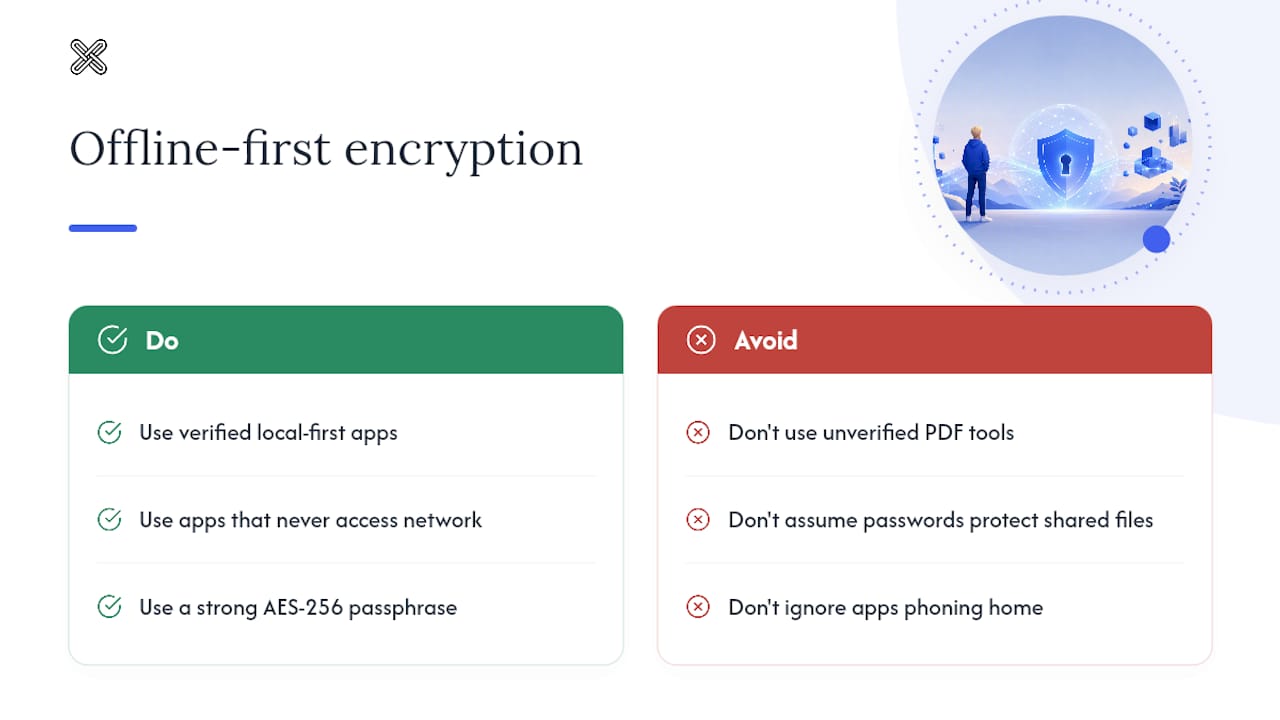
The bigger gap is trust in the tool itself. People will download a random PDF utility, run their tax documents through it, and never once check whether the software phoned home during the process. That's backward. The entire point of encrypting offline is defeated if the "offline" tool quietly uploads your file to verify a license or check for updates.
Prioritize the source of your tool before the strength of your password. A verified, local-first application that never touches the network, paired with a genuinely strong passphrase, beats a theoretically stronger algorithm running inside software you can't verify. That's the order most guides get backward.
— Lawton
Lock Your PDFs Locally With LawtonPDF, No Uploads Required
LawtonPDF handles the entire job on your own hardware. Open a PDF, apply AES encryption, set owner permissions for printing or editing, and export a locked file, all without your document ever leaving your computer.

Beyond password protection, LawtonPDF gives you a full local toolkit: merge files, extract pages, clean metadata, and unlock PDFs you control the password for, all running locally rather than routing through a server somewhere. That matters if you're handling contracts, medical records, or financial statements where "trust the cloud" isn't good enough. Legal and finance teams in particular tend to need that local-first guarantee paired with the document comparison tools LawtonPDF also includes, useful for catching redline changes without uploading either version anywhere.
Download the free tier from LawtonPDF's tools page and try the protect feature on your next sensitive file before you decide whether the paid tier's team features are worth adding.
Sources
FAQ
Can You Password Protect a PDF Without Acrobat?
Yes. Tools like LawtonPDF, portable single-file HTML protectors, and CLI utilities all apply AES encryption locally without requiring Acrobat at all.
How Do You Protect a PDF From Being Downloaded?
You can't fully prevent a file from being saved once someone has legitimate access to it; password protection restricts opening and permissions like printing or copying, but it relies on the viewer respecting those settings.
How Do You Unencrypt a PDF for Free Without Going Online?
If you know the password, a local tool like LawtonPDF's unlock feature can remove protection entirely offline; without the password, there's no reliable free method, since strong AES encryption is designed to resist exactly that.
How Can You Password Protect a PDF File Without Uploading It Anywhere?
Use a local-first tool that runs entirely on your device, such as LawtonPDF or a single-file HTML protector, and confirm no network requests fire during the process using your browser's developer tools.
Is AES-256 Encryption Overkill for a Personal PDF?
Not necessarily. AES-256 costs nothing extra to apply and offers stronger protection than AES-128, so it's worth using by default unless you know your recipient's reader can't support it.