
How to remove a PDF password quickly
Removing a PDF password means using the known password to decrypt the file and save an unprotected copy. You are not cracking anything. You are simply unlocking a file you already have the right to open.
Here is what to know before you start:
- You must know the password. No legitimate tool can bypass modern encryption. Brute-forcing AES-128 is computationally infeasible with current computing power, so any tool claiming to crack an unknown password is either ineffective or misleading.
- Decryption runs locally in browser memory or on your device. Your password is never sent to a server when you use a trustworthy tool.
- Two password types exist: the user password (required to open the file) and the owner password (restricts permissions like printing or copying). Providing either one is usually enough to decrypt and save an unprotected copy.
- Content, form fields, and annotations are preserved after unlocking. Digital signatures, however, become invalid by design.
- Be cautious of tools advertising password cracking. They typically only work on PDFs using obsolete RC4 encryption with weak passwords.
Step-by-step: how to remove a password from a PDF
The process is the same whether you use offline software or a browser-based tool. What changes is where the decryption happens.
- Back up your original file. Copy the password-protected PDF to a safe folder before doing anything else. This protects you if something goes wrong.
- Open your PDF tool. On Windows, open Lawtonpdf. On Mac or Linux, use a trusted browser-based tool that processes files locally.
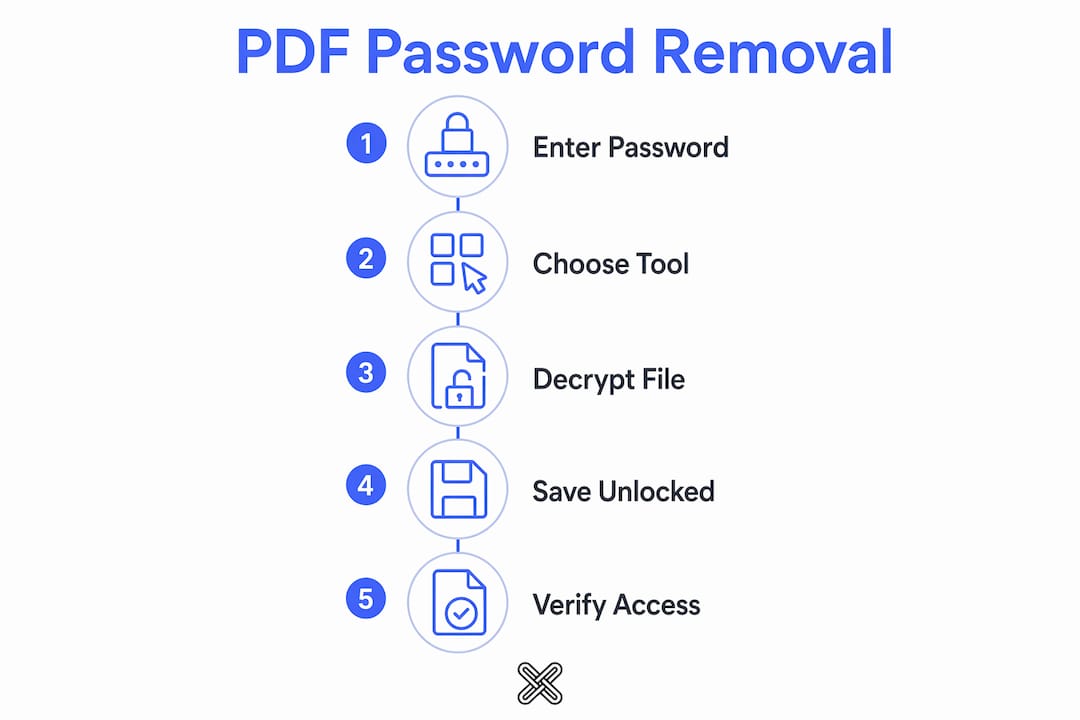
- Load the protected PDF. Drag and drop the file into the tool or use the file picker.
- Enter the password. Type the user password or owner password you received with the file. If the first one fails, try the other.
- Decrypt and save. Click the unlock or remove password button. Save the new file under a different name so you keep the original intact.
- Verify the result. Open the new file. If it opens without a password prompt, the removal succeeded. Try printing or copying text to confirm that owner restrictions are also gone.
Pro Tip: If you use a browser-based tool, press F12 to open Developer Tools, then click the Network tab. Run the decryption and watch for network requests. No outgoing requests means your file and password stayed on your device.
Why remove a PDF password? Common use cases
Passwords on PDFs serve a purpose during transit or initial sharing. Once you have confirmed access, keeping that protection layer often creates friction with no benefit.
- Internal sharing: Sending a password-protected file to colleagues means they need the password every time they open it. Removing it simplifies daily workflows.
- Editing and printing: Owner passwords can block copying, printing, or editing. Removing the password restores full access so you can annotate, print, or modify the document.
- Archiving: Long-term document storage works better without encryption layers. Future software may not support older encryption formats, and password loss means permanent inaccessibility.
- Compliance and accessibility: Some organizations require documents in accessible formats. Password protection can interfere with screen readers and accessibility tools.
- Legal document handling: When managing sensitive files during processes like document audits, having unprotected working copies speeds up review without compromising security at the storage level.
Understanding PDF security restrictions
PDF security works on two levels, and knowing which type you are dealing with changes your approach.

The user password (also called the open password) locks the file entirely. Nobody can view the content without entering it. The owner password (also called the permissions password) lets the file open freely but restricts what users can do, such as printing, copying text, or making edits. Some PDFs carry both; some carry only one.
Encryption strength varies. Older PDFs may use RC4, which is considered weak by current standards. Modern PDFs typically use AES-128 or AES-256, both of which are mathematically sound. Providing either password to a decryption tool is usually sufficient to strip all encryption and produce a clean, unprotected file.
One detail worth knowing: removing a password invalidates any digital signatures in the document. This happens by design, since the signature is tied to the document's exact state. If you need the signature to remain valid, keep the original protected copy alongside your unlocked version.
Removing a password is generally legal when you legitimately have the password and the right to use the document. Common examples include tax PDFs from your bank, contracts you negotiated, or files you protected yourself. Removing protection from a document you do not have rights to may violate copyright or DMCA law. When in doubt, consult a lawyer.
Offline software vs. online services: which should you use?
The core difference is where your file goes during decryption.
Online services upload your PDF to a remote server, decrypt it there, and send the result back. This is convenient but carries real privacy risk, especially for sensitive documents like financial records, legal contracts, or medical files. Many online tools process passwords server-side, meaning both your file and your password travel over the internet.
Offline software like Lawtonpdf handles everything on your local machine. No file leaves your computer. This approach suits professionals who work with confidential documents regularly and cannot risk exposure. Lawtonpdf also covers merging, organizing, comparing, and watermarking PDFs, so password removal is one part of a broader local document workflow.
Some browser-based tools occupy a middle ground: they run decryption entirely in your browser tab using JavaScript libraries, so the file never reaches a server. These can be safe, but you should verify local operation using the Developer Tools Network tab before trusting them with sensitive files.
For most business users, offline software is the safest default. For occasional personal use with non-sensitive files, a verified browser-side tool is a reasonable option.
Best practices for secure PDF password removal
Protecting your data during the unlocking process is as important as the removal itself.
- Choose local processing first. Local decryption keeps your password and file content on your device. Lawtonpdf processes everything offline, which removes the risk of server-side exposure entirely.
- Verify browser tools before use. Open Developer Tools, go to the Network tab, and confirm no file upload occurs during decryption.
- Always back up before modifying. Keep the original password-protected file. If you ever need to prove document authenticity, the original with its intact signature is your reference.
- Use only reputable tools. Adobe Acrobat, iLovePDF, and Lawtonpdf are widely recognized. Avoid unknown tools that ask for your password on a form without explaining where it goes.
- Remove passwords only when authorized. Responsible usage means you have the password and the right to use the document. This keeps you on the right side of copyright and computer-misuse laws.
Pro Tip: Keep your PDF tools updated regularly. Updates patch security vulnerabilities and maintain compatibility with newer PDF encryption standards, including AES-256.
Key Takeaways
Removing a PDF password requires knowing the password and using a tool that decrypts locally, preserving content while invalidating digital signatures.
| Point | Details |
|---|---|
| You must know the password | No tool can crack AES-128 or AES-256 encryption; brute-forcing AES-128 takes billions of years. |
| Two password types exist | The user password opens the file; the owner password controls permissions like printing and copying. |
| Local processing is safest | Offline tools like Lawtonpdf keep your file and password on your device, away from servers. |
| Content is preserved | Text, form fields, and annotations survive unlocking; digital signatures become invalid by design. |
| Legality depends on your rights | Removing a password is legal when you have the password and the right to use the document. |