
The fastest way to delete pages from a PDF depends on your priorities: use your browser's Print-to-PDF feature or macOS Preview for a single quick edit, an online tool for convenience when the file has nothing sensitive in it, or a local desktop app when the document contains anything private. For most people juggling contracts, scans, or reports, a local app is the safer default. Jump to the step-by-step section that matches your setup below.
TL;DR:
- Using local desktop apps for deleting PDF pages is the safest choice for sensitive documents like contracts or medical records, as it keeps files on your machine.
- Browser and built-in OS tools are suitable for quick, one-off edits on non-sensitive files, typically involving short documents with few pages.
- Online PDF tools are convenient but pose risks for confidential content because they require uploading files to third-party servers and may add watermarks or limit usage.
- Password protection, scanned image pages, read-only permissions, and cloud sync issues can prevent page deletion unless the file is unlocked or saved locally first.
- Always save edited files as new copies with suffixes like "_edited" to preserve originals and verify content before deleting or archiving.
Table of Contents
- Which Method Should You Use to Remove PDF Pages?
- How Do You Delete PDF Pages With Built-In Tools?
- How Do Online PDF Page Deleters Work?
- Why Local Desktop Apps Are the Safer Default
- Why Won't a PDF Let You Delete Pages?
- Your Quick Checklist for Deleting PDF Pages
- Why Lawton Recommends Local-First Editing for Sensitive Files
- What Actually Matters When You're Deleting PDF Pages
- Delete Pages Locally With LawtonPDF
- Sources
- FAQ
Which Method Should You Use to Remove PDF Pages?
Three approaches handle almost every page-deletion job you'll run into, and picking the right one comes down to file sensitivity, page count, and how fast you need results.
Browser or built-in OS tools (Windows Print to PDF, macOS Preview, Chrome's Save as PDF) work well for a one-off edit on a file you're not worried about. No installs, no accounts, and the process finishes in under a minute for short documents.
Online page-deleters are convenient when you're on a shared or unfamiliar computer and just need something fast, but they require uploading your file to someone else's server. Fine for a flyer or a public document. Risky for a signed contract, medical record, or anything with a client's name on it.
Local desktop apps keep the entire job on your machine. Nothing uploads, nothing sits on a third-party server, and you can process a folder of files instead of clicking through one at a time. This is the right call for legal files, financial statements, or any batch of documents where privacy actually matters.
A few things to keep in mind regardless of which route you pick:
- File count matters: one document favors browser tools; ten or more favors a desktop app with batch support.
- Sensitivity always wins: if you'd hesitate to email the file to a stranger, don't upload it to an unfamiliar web tool either.
- Save your edit as a new file, not an overwrite. If something goes wrong, you still have the original.
Once you know which lane you're in, the instructions below walk through each one.
How Do You Delete PDF Pages With Built-In Tools?
You don't need to install anything to remove pages from a PDF. Windows, macOS, and your browser already have what you need.
On Windows, use Microsoft Print to PDF:
- Open the PDF in any viewer and press
Ctrl+P. - Under "Printer," select Microsoft Print to PDF.
- Click More settings (or the equivalent options link) and enter the page range you want to keep under Custom pages. For example, if you're removing page 4 out of a 10-page file, enter
1-3,5-10. - Click Print, then choose a save location and file name.
This method builds a brand-new PDF containing only the pages you specified, which is exactly how the Microsoft Tech Community's guidance on deleting PDF pages describes it. It costs nothing, needs no internet connection, and never leaves your desktop.
On macOS, use Preview:
- Open the PDF in Preview and click View → Thumbnails to show the sidebar.
- Click the page (or
Cmd+click multiple pages) you want gone. - Press Delete.
- Go to File → Export as PDF (or Save) to write the changes to a new file.
Apple's own Preview instructions confirm this handles adding, deleting, and reordering pages entirely on your Mac, with no third-party software required.
In Chrome or Edge:
- Open the PDF in the browser tab.
- Press
Ctrl+P(orCmd+Pon Mac). - Under "Destination," pick Save as PDF.
- Enter the page range to keep in the Pages field.
- Click Save, then choose where to store the file.
Browser-based workflows like this one show up across most practical PDF tutorials, including wikiHow's rundown of page-removal methods, because they require zero setup.
Pro Tip: Save your edited file with a suffix like _edited (e.g., contract_edited.pdf) so you can quickly compare it against the original before deleting the source. If a page removal goes wrong, you haven't lost anything.
How Do Online PDF Page Deleters Work?
Most online tools follow the same basic pattern, which is why they're popular for quick jobs on non-sensitive files.
Typical workflow: upload your file to the site, wait for it to render page thumbnails, click the pages you want to remove (usually marked with a trash icon or checkbox), confirm the deletion, and download the finished PDF. Some sites let you drag pages to reorder them at the same time. Video walkthroughs of this exact process, like this one covering free PDF page removal, make the thumbnail-based interface easy to follow if you're new to it.
A few practical limits to know before you commit:
- Free tiers on many sites cap how many files or pages you can process per day.
- Some tools add a watermark to the output unless you pay for a subscription.
- Read the terms of service before uploading anything you wouldn't want stored on someone else's server, even temporarily.
That last point matters more than most people realize. Online PDF tools generally run on a freemium model that limits free usage and sometimes retains uploaded files for processing purposes. If your document contains a Social Security number, a client's financial details, or proprietary business content, that's a reason to skip the upload step entirely and use a local method instead.
Quick gut check: if you'd hesitate before pasting the content into a public forum, don't paste it into an unfamiliar web tool either. The convenience isn't worth the exposure for anything sensitive.
Why Local Desktop Apps Are the Safer Default
Uploading a file to a website means it travels across the internet, sits on a server you don't control, and gets processed by code you can't inspect. A local desktop app skips all of that. The PDF stays on your hard drive from open to save, and nothing about the deletion process touches an external server.
That distinction becomes especially relevant if you're handling more than an occasional file. High-quality local-first PDF software supports batch processing, so you can strip pages from twenty contracts in the time it would take to upload and download one file through a browser tool. There's no daily usage cap, no watermark forced onto your output, and no waiting on someone else's server load.
LawtonPDF is built around exactly this approach. It's a Windows application where every PDF operation, including page deletion, merging, extraction, and organizing, runs locally on your machine. Nothing uploads. Nothing gets processed in a cloud queue you can't see into.
The typical workflow inside a desktop app like this looks like:
- Open the PDF in the organize tool.
- Select the pages you want to remove from the thumbnail view.
- Delete them and reorder anything else that needs adjusting.
- Save the result as a new file by default, keeping your original untouched.
If you regularly work with legal filings, financial statements, or patient records, that save-as-new default isn't a minor convenience. It's the difference between a clean audit trail and a document you can't prove wasn't altered from its original state. LawtonPDF also handles extracting and splitting specific pages if you want to pull select pages out into their own file rather than deleting the rest.
Pro Tip: If you're cleaning up a batch of scanned invoices or contracts before archiving them, run the deletion pass locally first, then compare the edited files against your originals side by side rather than trusting a single visual scan. It catches mistakes a quick glance misses.
Why Won't a PDF Let You Delete Pages?
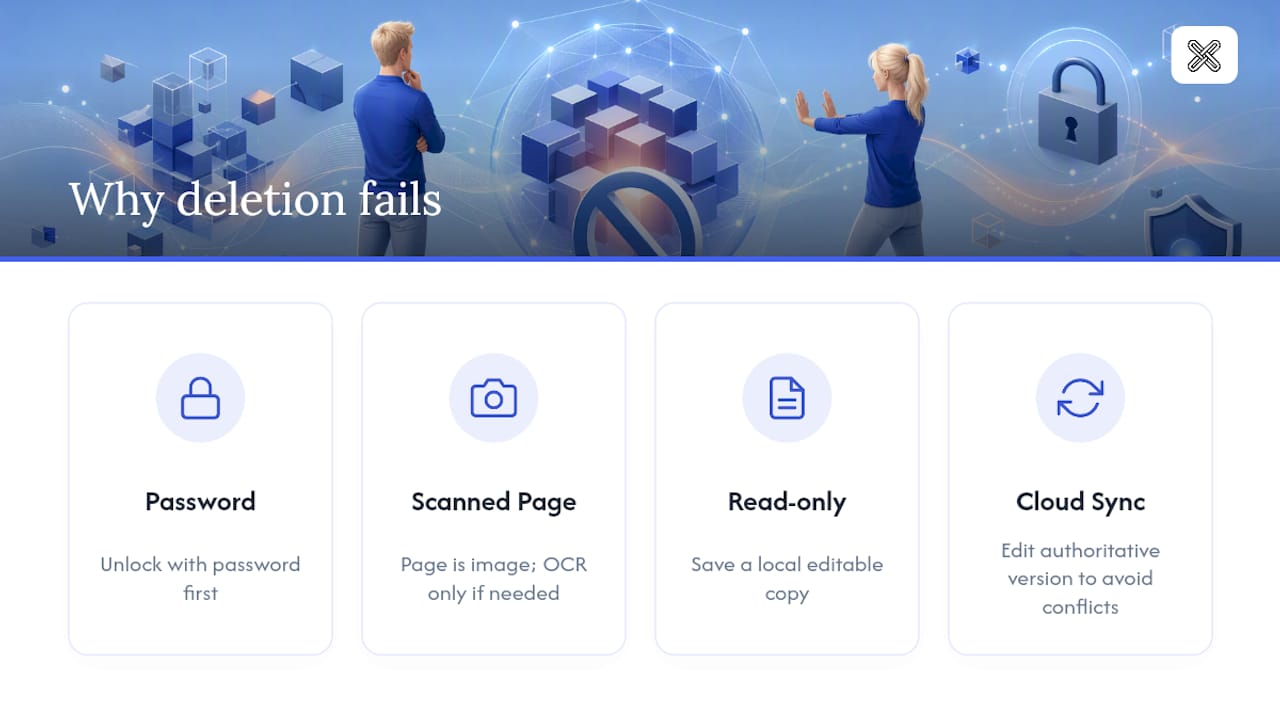
Sometimes the delete option just doesn't work, and the cause is almost always one of four things.
Password protection. If the PDF is encrypted, you'll need the password before any tool can touch it. If you own the file and know the password, unlock it in your PDF app first, then proceed with the edit.
Scanned image pages. A page that's actually a photo or scan (rather than embedded text) can usually still be deleted like any other page, but if you need to search or redact content on the remaining pages, you may need OCR first. If you just want to drop the scanned page, you don't need full OCR, just extract the pages you actually want to keep into a new file.
Read-only files. If the PDF is locked for editing or lives on a restricted drive, save a copy to your local machine first and edit that copy. Check your file system permissions if the issue persists.
Cloud-synced documents. Editing a file stored in a shared drive can create version conflicts if someone else has it open. Always edit the file in its authoritative location, whether that's your local drive or the shared folder's current version, to avoid your changes getting silently overwritten.
Your Quick Checklist for Deleting PDF Pages
Run through these steps in order and you'll avoid the most common mistakes people make when editing PDFs:
- Decide your privacy needs first. Sensitive content means a local desktop app. Non-sensitive, one-off edits can use a browser tool or online site.
- Open the file and note exact page numbers. Write down which pages you're removing before you start clicking, especially in long documents.
- Make the edit using ranges or thumbnails, depending on which tool you chose above.
- Save as a new file with a suffix like
_editedrather than overwriting the original. - Verify the output by opening the new file and checking page count and content before deleting or archiving the source.
Skipping step four is the single most common regret people report after a bad edit, since an overwritten original can't be recovered once you've closed the file.
Why Lawton Recommends Local-First Editing for Sensitive Files
I've watched enough legal and financial teams handle document cleanup to know the pattern: the files that matter most are exactly the ones people are tempted to run through the fastest available tool. A signed lease, a patient intake form, a client's tax return. These aren't documents you want sitting on a stranger's server, even briefly.
That's the reasoning behind LawtonPDF's approach. Every page deletion, extraction, and reorganization happens on your own hardware, with batch support for teams processing dozens of files a week instead of one at a time. There's no upload queue and no watermark tax for using the full feature set.
If you're cleaning up contracts, medical records, or financial statements, treat local processing as the default, not the exception. Speed matters, but not more than keeping a client's Social Security number off a server you've never heard of.
What Actually Matters When You're Deleting PDF Pages
Most advice on this topic treats every method as interchangeable, as if uploading a tax return to a random web tool carries the same risk as uploading a flyer. It doesn't, and pretending otherwise is where most people get burned.
The privacy question should come before the convenience question, every time. Ask what's in the file first, then pick your tool. A browser's Print to PDF or macOS Preview covers the harmless, one-off cases perfectly well, and there's no reason to install anything for a two-minute job on a public document. But once a file has a name, a signature, an account number, or a diagnosis in it, the calculation changes completely.
Where conventional advice falls short is treating "online tool" as a single category. Some are genuinely careful with data retention; plenty aren't, and you have no easy way to tell which from the outside. A local desktop app removes that guesswork entirely because there's nothing to trust. The file never leaves your machine.
Prioritize privacy first, speed second. The extra thirty seconds a desktop tool costs you is never the expensive part of a bad decision.
— Lawton
Delete Pages Locally With LawtonPDF
LawtonPDF is the offline alternative to uploading your documents to a web tool: every page deletion, extraction, and reorganization happens on your own Windows machine, with no file size caps, no watermarks, and no daily usage limits to work around.

Deleting pages inside LawtonPDF takes three steps: open your PDF in the organize tool, select the pages you want removed from the thumbnail view and delete them, then save the result as a new file so your original stays untouched. The same app handles extracting specific pages into a standalone file if you'd rather pull content out than delete around it, and it covers merging, password protection, and document comparison for anyone managing legal or financial paperwork on a regular basis.
If your files touch client data, financial records, or anything you wouldn't want cached on a stranger's server, start with the full LawtonPDF toolset and run your next edit locally.
Sources
- Add, delete, or move PDF pages in Preview on Mac — Apple Support
- How to Remove Pages from a PDF File — wikiHow
FAQ
How Do I Delete Unwanted Pages in a PDF File?
Open the file in Windows Print to PDF, macOS Preview, an online tool, or a desktop app like LawtonPDF, select the pages you want gone, delete them, and save the result as a new file to keep your original intact.
How Can I Remove Pages From a PDF Without Losing the Original?
Always use "Save As" or "Export" rather than overwriting the file directly. Most built-in tools and desktop apps, including LawtonPDF, default to creating a new file so your source document stays untouched.
Why Can't I Delete Pages From My PDF?
The four most common blockers are password protection, scanned image pages that need special handling, read-only file permissions, and cloud-sync conflicts if the file is open elsewhere. Unlocking, copying locally, or editing the authoritative version usually resolves it.
Can a Page Be Removed From a PDF?
Yes. Any standard PDF can have pages removed using built-in OS tools, browser-based Print to PDF, online editors, or local desktop software, though password-protected or scanned files may need an extra step first.
Is It Safe to Use Online Tools to Delete PDF Pages?
It depends on the content. Online tools are fine for non-sensitive documents, but files containing personal, financial, or proprietary information are safer edited with a local app like LawtonPDF, since the file never leaves your device.