
Convert images to PDF instantly using a browser converter, your phone's share sheet, a built-in OS tool, or a local Windows app for sensitive batches. Browser tools win for speed and a single quick file. Your phone handles a snapshot on the go. For scanned contracts, medical records, or a 200-page batch job, a desktop app like LawtonPDF keeps everything on your own machine.
TL;DR:
- Converting large batches of sensitive images requires a local desktop app to ensure privacy and handle high-volume processing effectively.
- Browser converters are ideal for quick, single-image jobs but may struggle with large or confidential batches due to memory and security limitations.
- Reordering images before adjusting page settings prevents sequence resets and reduces the need for redoing steps during mass conversions.
- Using "contain" fit mode prevents cropping for documents, while "cover" mode offers full-page coverage with some cropping, depending on the desired look.
- Lowering output resolution can significantly reduce file size for easier emailing without noticeable quality loss on most screens.
Table of Contents
- How Do I Convert Images to PDF? Choosing a Method
- How to Convert Multiple Images Into One PDF
- What Page Settings Actually Change in Your PDF
- Is It Safe to Convert Sensitive Images Online?
- Fixing Common Image-to-PDF Problems
- Why Local Processing Matters for Serious Document Work
- What Actually Matters When Choosing a Method
- Convert Batches Securely With LawtonPDF
- Selected Tools and Resources
- Sources
- FAQ
How Do I Convert Images to PDF? Choosing a Method
The right method depends on three things: how many images you have, how private they need to stay, and what device is in front of you. A single vacation photo needs a different tool than a folder of scanned tax documents.
Most free browser converters build the PDF entirely inside the browser tab. Tools using libraries like jsPDF or pdf-lib process JPG, PNG, WebP, and HEIC files without ever sending them to a server, which is worth knowing if you assumed "online" automatically means "uploaded" (ZeroCloudPDF). That distinction only holds for tools that explicitly say so. Plenty of converters still route your images through a server first, so check before you drag in anything sensitive.
Here's how the main options break down:
- Browser converters: fastest for one-off jobs, no install required, quality varies by site.
- Phone workflows: the iPhone share sheet or Android's file picker turn a photo into a PDF in two taps.
- Built-in OS tools: Windows' Print to PDF and macOS Preview handle single images without any extra software.
- Desktop apps: a local program like LawtonPDF processes large or confidential batches entirely on your computer.
If you're converting one screenshot for an email, use whatever's already open. If you're digitizing 40 pages of a lease agreement, skip the browser and go local.
How to Convert Multiple Images Into One PDF
Converting a stack of photos into a single PDF usually takes under a minute once you know the order of operations. The steps stay nearly identical whether you're using a browser tool, a phone, or LawtonPDF on Windows.
- Add your images. Drag and drop files into the converter window, or select them from your Files app or Photos library.
- Reorder the thumbnails. Drag pages into the sequence you want; most converters show live previews so you can confirm the order before generating anything (Pixellize).
- Set your page options. Pick page size, orientation, margins, and a fit mode.
- Generate and download. The tool builds the PDF and saves it to your device or downloads folder.
On an iPhone, open the Photos app, select your images, tap the share icon, and choose "Print," then pinch out on the print preview to save it as a PDF to Files. On Android, most file managers offer a "Create PDF" or "Share as PDF" option straight from the file picker.
Pro Tip: Reorder your images before you touch any page settings. Changing size or orientation after the fact often resets your sequence, and you'll end up redoing both steps.
For large batches, fast2pdf's guides note that adding, reordering, then generating in that exact order avoids most of the memory hiccups that occur when a browser tab tries to render dozens of full-resolution images at once.
What Page Settings Actually Change in Your PDF
Fit mode is the setting most people get wrong. Contain shrinks your image to fit inside the page without cropping, leaving white space on the sides if the aspect ratio doesn't match. Cover fills the entire page edge to edge, cropping whatever doesn't fit. Use Contain for documents where nothing can be cut off, like a signed contract page. Use Cover for photos where a clean, full-page look matters more than showing every pixel.
Page size matters more than people expect:
- A4 or US Letter: standard for printing, mailing, or anything going into a filing system.
- Fit-to-image: the page matches your image's exact dimensions, which is the best option for screenshots that should not be stretched or cropped.
- Margins: wider margins protect content from being trimmed during binding or three-hole punching.
Quality settings deserve a second look, too. Most converters let you lower resolution to shrink file size, which matters if you're emailing a dozen scanned pages and hitting attachment limits. Dropping from maximum quality to a mid-range setting can cut file size dramatically with barely a visible difference on screen (Pixellize).
Is It Safe to Convert Sensitive Images Online?
Passports, bank statements, and signed legal documents deserve a converter that never leaves your device. Local and in-browser tools process everything on your own hardware, which removes the biggest risk factor: a server somewhere holding a copy of your ID or your client's contract (UtiloKit).
You can usually tell the difference by checking a few things:
- Read the tool's privacy page for phrases like "processed locally" or "no upload."
- Open your browser's developer tools and watch the network tab. If you see your image files being sent out as requests, it's uploading them.
- Notice how fast the conversion happens. Instant results with no spinner are a strong sign the work is happening in your browser, not on a remote server.
Browser-based tools do hit limits with very large batches, since your tab has to hold every image in memory at once. When you're past a large number of files, a desktop app is the more reliable choice.
Fixing Common Image-to-PDF Problems
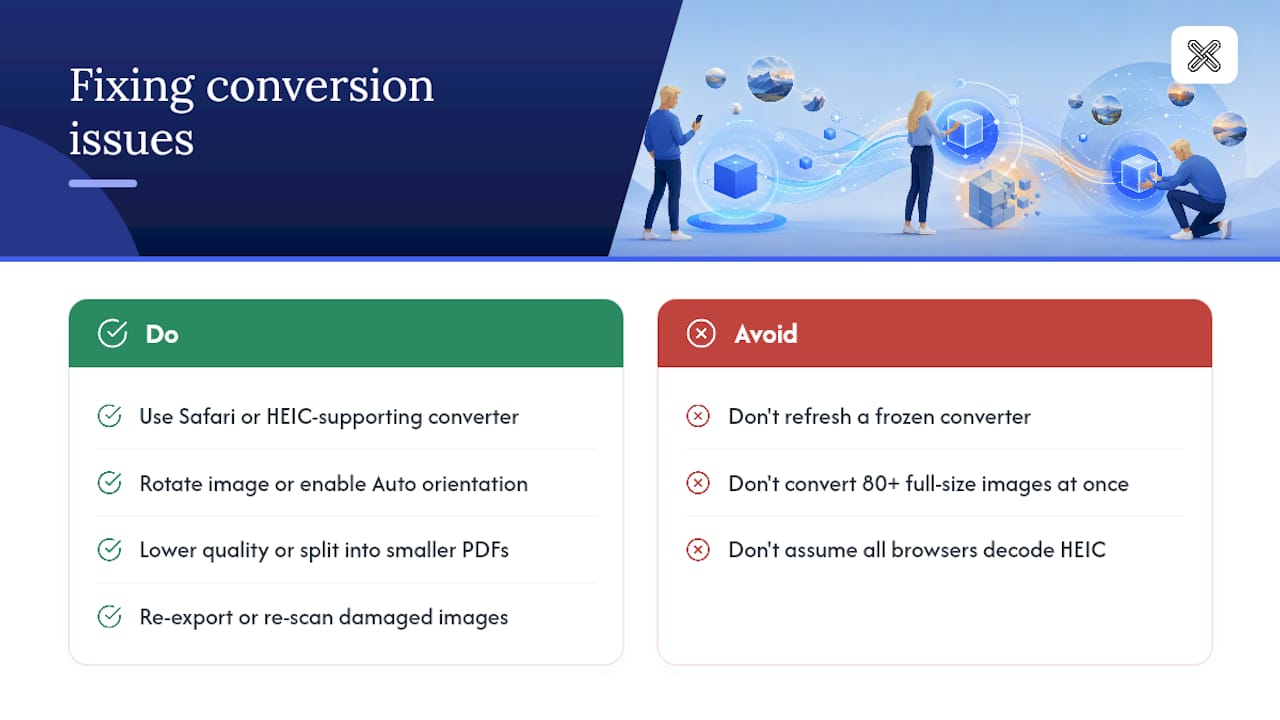
HEIC files not uploading? iPhones save photos in HEIC by default, and not every browser decodes it. Safari on iPhone handles HEIC natively, and dedicated converters that list HEIC support explicitly will process it locally without you needing to convert it first (ZeroCloudPDF).
Pages coming out sideways? Rotate the image manually before adding it, or look for an "Auto orientation" setting that reads the image's embedded rotation data.
File too large to email or upload? Lower the quality setting, or split a big batch into two smaller PDFs. Browsers can run out of memory trying to render 80+ full-size images into one document at once.
Corrupt or blank pages in your output? This usually means the source image itself is damaged. Re-export or re-scan the original before trying again.
Pro Tip: If a browser converter freezes on a big batch, don't refresh and retry the same way. Split your images into two groups of 20 to 30, convert each separately, then combine the resulting PDFs.
Why Local Processing Matters for Serious Document Work
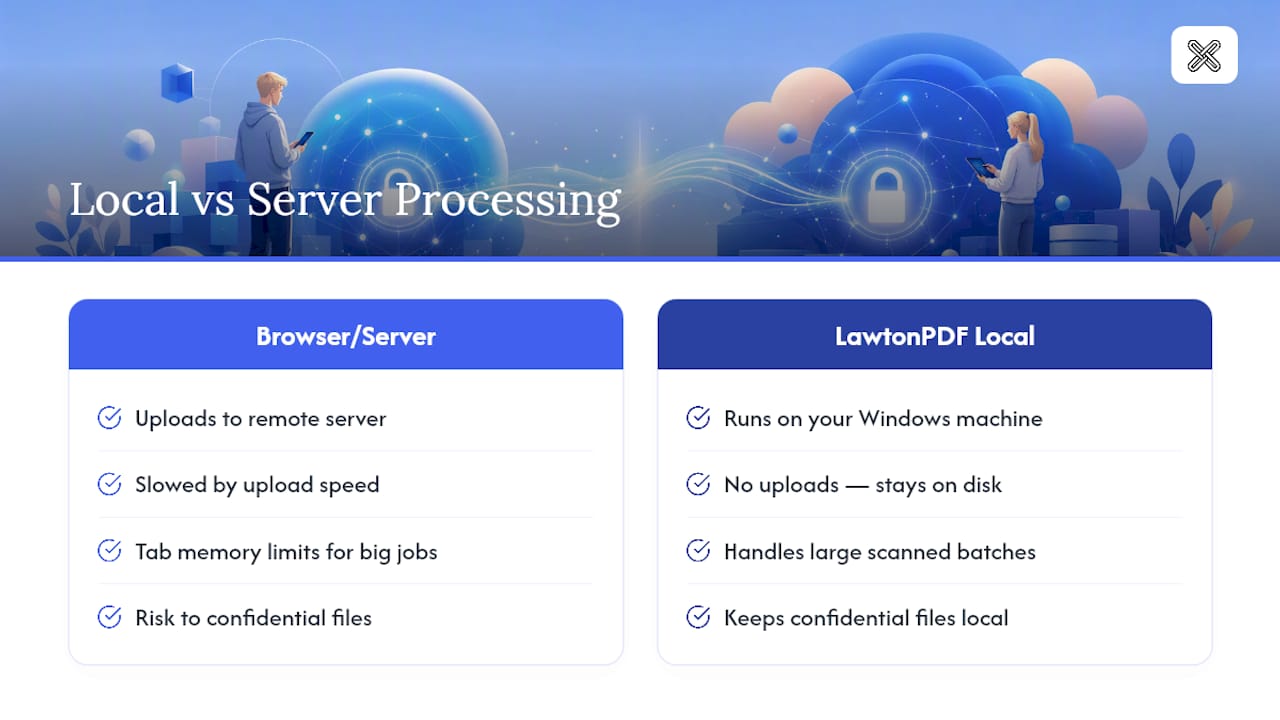
A browser tab is great until you're converting 200 scanned pages for a court filing or an insurance claim. At that scale, tab memory limits and upload speed start working against you, and if any of those pages are confidential, a server-based tool adds a risk you don't need. LawtonPDF runs entirely on your own Windows machine, so a large scanned batch never leaves your hard drive.
Beyond conversion, LawtonPDF handles the steps that typically come next: merging converted pages into one file, organizing and reordering them, extracting specific pages, and comparing document versions against an original. For a legal team converting a stack of exhibit photos, that means going from scanned images to a searchable, page-numbered, password-protected PDF without switching between five different tools. If your team already handles redlining PDFs for court-grade review, a local workflow that never uploads client files fits the same logic.
What Actually Matters When Choosing a Method
Most guides treat every image-to-PDF tool as interchangeable, which is bad advice once you factor in privacy and batch size. Speed and privacy pull in different directions more often than people admit, and the tool that's fastest for one photo is rarely the right choice for 150 scanned pages of a client file.
The conventional wisdom, "just use whatever converter shows up first in search results," ignores the upload question entirely. A converter that processes locally in your browser is fine for a grocery receipt. It's a different calculus for a passport scan or a signed settlement agreement, where you want zero chance of a copy sitting on someone else's server.
Prioritize in this order: figure out how sensitive your images are first, then how many you have, and only then worry about which app has the nicest interface. If the answer to either of the first two questions makes you hesitate, that's your signal to move off the browser and onto a local desktop tool. Fast and free are table stakes now. What is not table stakes is knowing exactly where your files went after you hit convert.
— Lawton
Convert Batches Securely With LawtonPDF
A desktop workflow ensures your images never leave your computer, no matter how many pages you're processing. That matters most when you're converting scanned contracts, medical intake forms, or a passport and ID batch that shouldn't touch a server.

Beyond the initial conversion, LawtonPDF lets you merge multiple image-based PDFs into one file, reorder and organize pages, and add password protection before you send anything out. If you're regularly digitizing paperwork for filing or legal review, the document comparison tools also let you check a converted scan against an original version, page by page. Reach for this type of desktop tool when you're handling more than a handful of images, when confidentiality is non-negotiable, or when you know you'll need to organize and protect the file right after converting it. Download the full toolset and run your next batch entirely offline.
Selected Tools and Resources
- Pixellize, an image-to-PDF tool with page size, margin, and fit-mode controls.
- UtiloKit, a no-signup, no-watermark converter built for privacy.
- SquawkFree's logbook digitization guide, a real-world example of converting photographed records into verified digital files.
Sources
- Image to PDF Converter Free, No Watermark | Pixellize
- Image to PDF Converter — Free, No Upload, No Limits | UtiloKit
FAQ
How Do I Convert an Image to PDF?
Open a browser converter or your phone's share sheet, add the image, choose your page settings, and generate the PDF. On Windows, you can also use Print to PDF directly from any image viewer.
How Can I Convert Multiple Images to PDF at Once?
Add all your images to a converter or a tool like LawtonPDF, drag the thumbnails into the order you want, then generate a single combined PDF instead of converting each file separately.
Can I Convert JPG to PDF on My Phone?
Yes. On iPhone, select the photo in Photos, tap share, choose Print, then save the print preview as a PDF. On Android, most file managers include a direct "Create PDF" option.
Is There a Free Adobe JPG to PDF Converter?
Adobe offers a free web-based JPG to PDF tool with usage limits on its free tier. Browser-based alternatives with no sign-up and local processing, and desktop apps like LawtonPDF for larger or private batches, cover most of the same needs without those caps.
What's the Difference Between Contain and Cover Fit Modes?
Contain shrinks your image to fit the page without cropping. Cover fills the entire page edge to edge, cropping any part that doesn't match the page's aspect ratio.