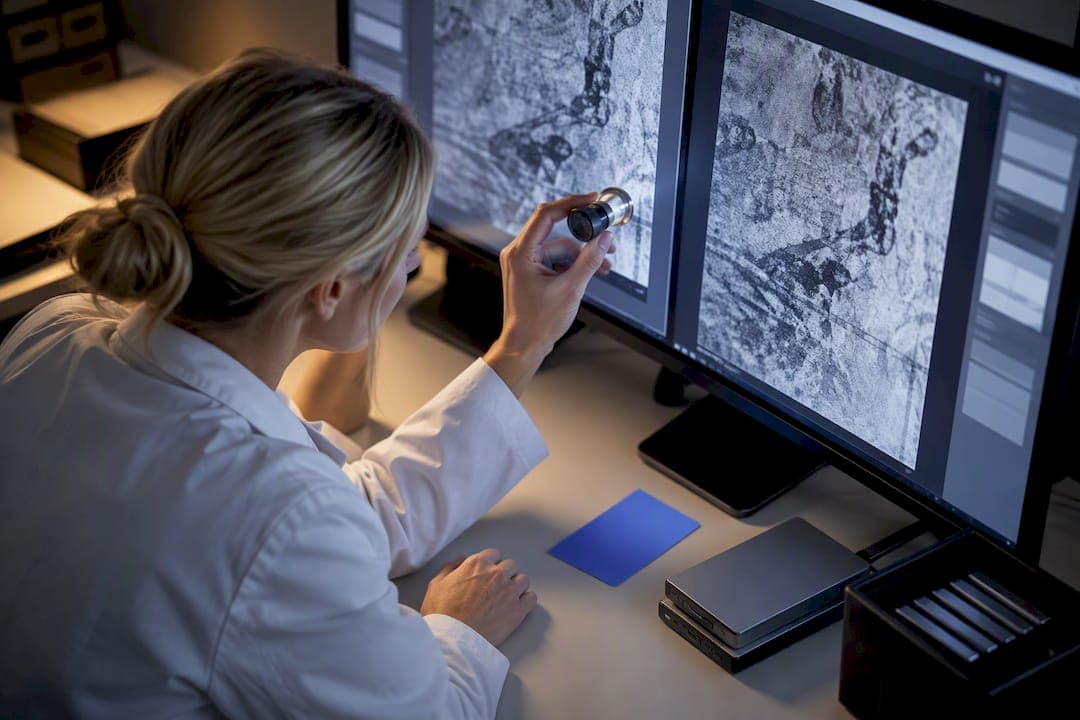
For pixel-accurate, offline TIFF comparison, run OpenImageIO's idiff for strict numeric diffs and inspect files with iinfo before you touch multipage sets. Use tiffcmp for structural checks on non-tiled TIFFs, and reach for a local visual tool when a human needs to sign off. If your team can't upload files to a browser tool, LawtonPDF's local image comparison gives you inspection, diffing, and an exportable record without sending a single byte off your machine.
TL;DR:
- Numeric command-line tools like
idiffandoiiotoolprovide precise, repeatable pixel error metrics essential for automated batch regression testing.- Structural comparison with
tiffcmpis limited to non-tiled TIFFs and requires converting tiled files before use, making it unsuitable for all TIFF types.- Visual review tools with synchronized zoom and overlay features are necessary for final approval or detecting subtle, low-contrast differences that numeric metrics miss.
- Always inspect TIFF file structure with
iinfo -abefore comparing, as mismatched image geometry or channel counts cause false failures.- LawtonPDF offers a local, secure alternative for offline image and multipage document comparison, ideal for sensitive data in legal, healthcare, and finance workflows.
Table of Contents
- How Do You Compare TIFF Images Offline?
- What's the Right Workflow for Single and Multipage TIFFs?
- What Do the Numbers and Diff Images Actually Mean?
- Which Commands Actually Get the Job Done?
- How Does LawtonPDF Fit Into This Workflow?
- When Should You Trust the Numbers vs. Your Own Eyes?
- Try LawtonPDF for Local, Auditable TIFF Comparison
- Where to Verify These Tools' Exact Behavior
- Sources
- FAQ
How Do You Compare TIFF Images Offline?
Offline TIFF comparison splits into two camps: numeric command-line diffing and visual desktop review. Picking the wrong one for the job wastes time and, worse, hides real defects.
Command-line numeric diffs are precise, scriptable, and reproducible. OpenImageIO's idiff and oiiotool compare pixel values directly and hand back mean error, maximum error, and a count of failing pixels. Run the same command twice on the same files and you get the same answer, which matters when a QA pipeline runs the check a thousand times a night.
Structure-level comparison is a different question entirely. LibTIFF's tiffcmp checks decompressed image data scanline by scanline and lists differing bytes, but it does not compare tiled image data and will error out on tiled TIFFs. If your files come from a tiled export pipeline, either convert them to scanline layout first or skip tiffcmp for that job.
Visual desktop review earns its place when a machine can't judge "close enough." A good desktop workflow gives you synchronized zoom and pan, overlay or subtraction views, and the ability to export the diff image for a colleague. Subtraction and heatmap views catch low-contrast changes that a plain side-by-side comparison will miss entirely.
Before you commit to any tool, confirm it actually runs locally. Plenty of "free image comparison" sites are just browser front ends that upload your files to a server somewhere, which defeats the point if you're handling scanned contracts, medical records, or unreleased design files.
- Numeric diffs (idiff, oiiotool): best for automated regression testing and large batches
- Structural diffs (tiffcmp): best for verifying scanline-based TIFFs haven't changed at the byte level
- Visual review: best for final human sign-off and catching issues numbers alone won't flag
Pro Tip: If you're not sure which category a TIFF falls into, run iinfo -a first. It tells you whether you're dealing with a single flat image, a tiled file, or a multipage stack before you pick your comparison method.
What's the Right Workflow for Single and Multipage TIFFs?
A repeatable workflow matters more than any single tool. Here's the sequence that holds up whether you're checking one scanned page or a 200-page archival batch.
- Inspect first. Run
iinfo -aon both files to capture pixel dimensions, channel count, bit depth, and subimage count. Skipping this step is the single most common cause of a confusing false failure, since mismatched geometry or channel counts will throw off any pixel diff before it even starts. - Decide your comparison type. Are you checking for byte-for-byte identity, structural (TIFF tag) identity, or rendered-pixel identity? Regression testing on archived masters usually wants zero tolerance; scanner output QA usually needs a small percentage tolerance.
- Document any normalization. If you plan to resample or remap channels before comparing, write that step down. Normalization can hide real problems, so it belongs in the audit trail, not as a silent preprocessing step.
- Handle multipage files by index. Compare matching page indices, and split subimages explicitly (OpenImageIO's
-sisplitoption works well here) before running batch comparisons. Watch out for SubIFDs and non-standard subimage chains, since some tools mis-report page counts or compare the wrong logical page entirely. - Run the comparison. Use
idifforoiiotoolwith explicit thresholds for pixel-level checks, ortiffcmpfor structure checks on non-tiled files. Save the difference image only when a failure exceeds your threshold, so you're not drowning in output from files that pass. - Record everything. Save the exact commands, tool versions, input file metadata, and diff outputs. That record is what turns "looks fine" into something you can actually defend six months later.
What Do the Numbers and Diff Images Actually Mean?
A mean error near zero with a handful of failing pixels usually means compression noise, not a real defect. A high maximum error concentrated in one region almost always points to a real content change, a missing element, or a corrupted page.
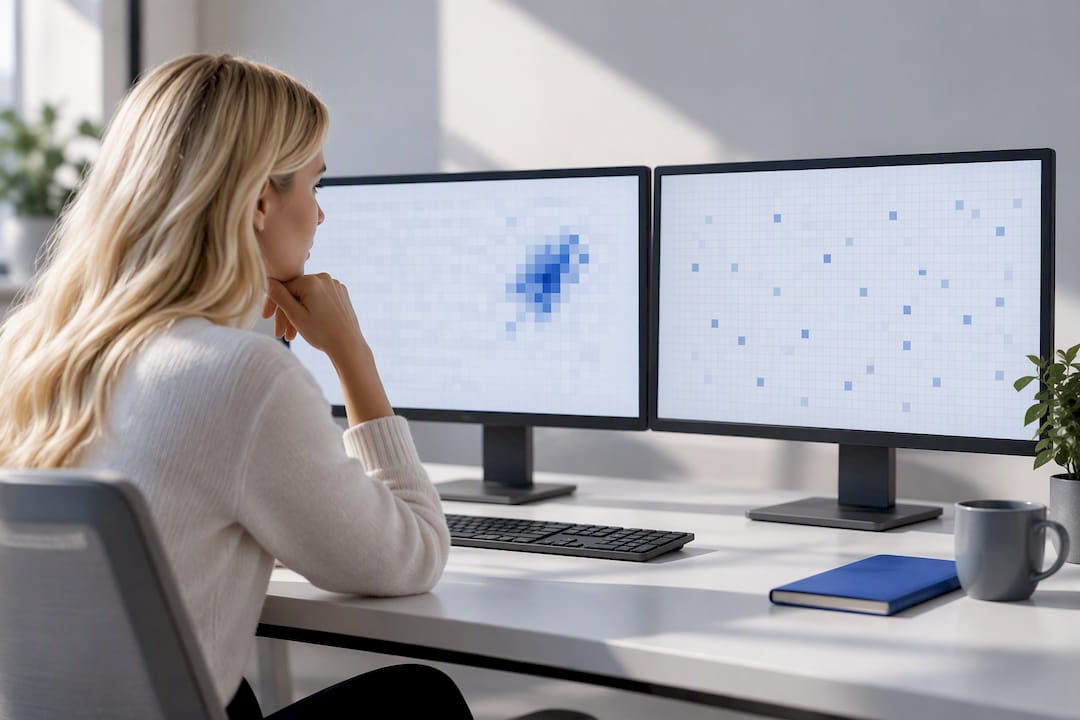
Visual patterns tell you more than the raw numbers alone. A diff image with a hard one-pixel edge outline around text or line art usually means a sub-pixel rendering offset, not a content problem. A diff that's faint and spread evenly across the whole image often points to bit-depth or color-space conversion noise rather than an actual change. A diff that's completely blank except for a corner stamp or timestamp usually means the pixels match and only metadata differs.
Geometry mismatches are the pitfall that trips up the most teams. A DPI change or a print-size adjustment can make two visually identical pages look like they failed a pixel comparison, when the real issue is that the images were never the same resolution to begin with.
By the Numbers: OpenImageIO's
idiffreports mean error, maximum error, and a failing-pixel count for every comparison. Treat a low mean error with a near-zero maximum as a pass; treat a high maximum concentrated in a small pixel count as a targeted defect worth investigating, not noise.
Widespread, low-magnitude differences across an entire page are usually safe to accept as compression artifacts. Concentrated, high-magnitude differences in specific regions deserve a closer look every time. Always attach the diff image and both files' metadata to your report. A number alone tells a reviewer almost nothing.
Which Commands Actually Get the Job Done?
These four examples cover the vast majority of offline TIFF comparison needs, from a single scanned page to a full multipage archive.
- Inspect structure:
iinfo -a file.tiflists every subimage and its metadata, including dimensions, channels, and data type, which you need before comparing multipage or multi-image TIFFs. - Numeric pixel diff:
idiff -o diff.tif -abs old.tif new.tifcompares two equal-resolution images and writes an absolute-difference TIFF, alongside mean error, maximum error, and failing-pixel counts. - Scripted diff:
oiiotool old.tif new.tif --diff --absdiff -o diff.tifgives you the same kind of diff output inside a scriptable pipeline, useful when you're running comparisons across hundreds of files. - Structural byte check:
tiffcmp -l old.tif new.tiflists differing image-data bytes scanline by scanline. Skip it on tiled TIFFs, since tiffcmp doesn't compare tiled data and will error out.
For ImageMagick, extract pages first, then compare page by page. ImageMagick has a known history of only processing the first page of a multipage TIFF, so a direct comparison on the multipage file itself can silently skip everything after page one.
Pro Tip: Keep a small folder of known-good "golden" TIFFs and run your comparison commands against them regularly. If your tooling ever reports a false failure on a file that hasn't changed, you'll catch a broken pipeline before it burns a whole QA cycle.
How Does LawtonPDF Fit Into This Workflow?
Command-line tools are excellent for automated regression testing, but not every team wants to maintain scripts and interpret raw error numbers by hand. LawtonPDF runs entirely on your own computer and offers image and multipage document comparison alongside its PDF tools, so nothing gets uploaded to a server as part of the process.
That local-first design matters most for teams that can't risk sending files outside their own network in the first place.
- Covers inspection, side-by-side and difference-based comparison, and diff export in one desktop application
- Runs comparisons on multipage documents without splitting files manually first
- Fits legal, finance, and healthcare teams that need an auditable local record of every comparison
- Works alongside LawtonPDF's PDF comparison tools when a TIFF-based scan needs to be checked against a converted PDF version
For a team without a QA engineer on staff to maintain idiff scripts, this is the practical middle ground between raw command-line tooling and a browser-based comparison site you can't fully trust with sensitive files.
When Should You Trust the Numbers vs. Your Own Eyes?
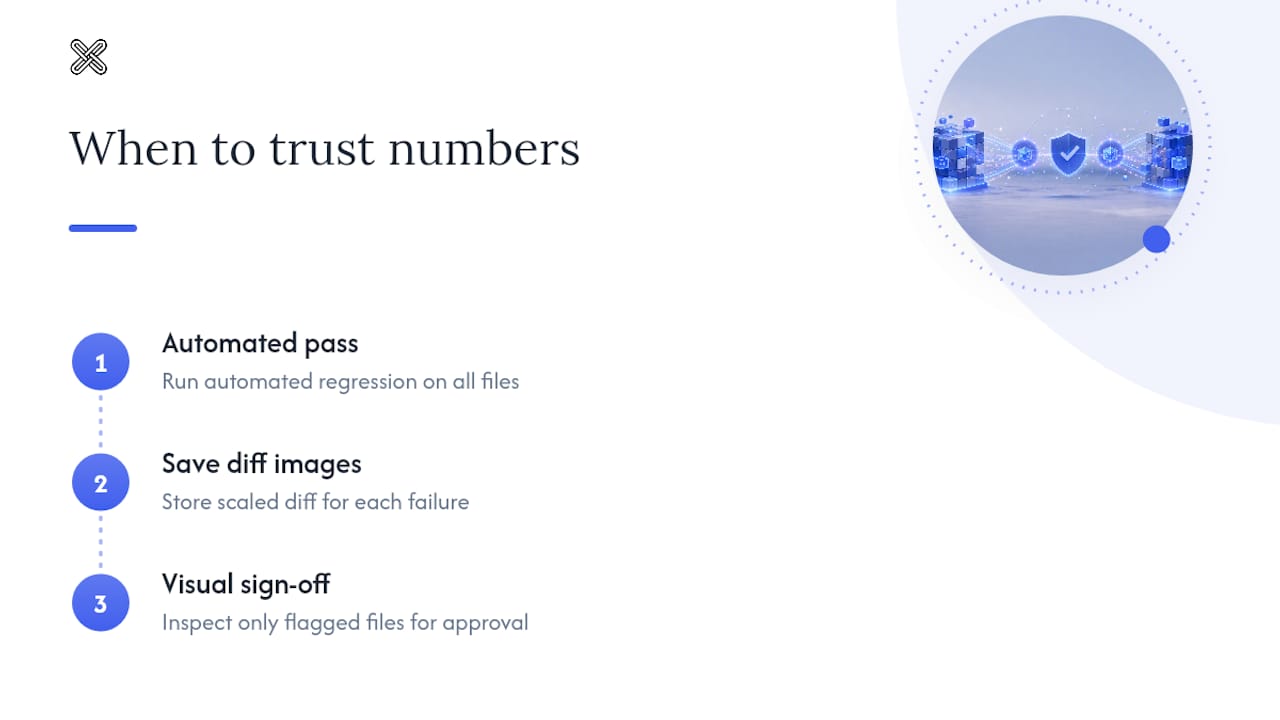
Numeric automation wins for regression testing and any batch job with more than a handful of files. It's consistent, it's scriptable, and it doesn't get tired at file 400 of 500.
Visual review is still where final sign-off belongs. Numbers can tell you that pixels differ; they can't always tell you whether that difference matters to the person who has to approve the file. The workflow that holds up best in practice runs an automated idiff pass first, saves a scaled diff image for every failure, and then routes only the flagged files to a focused visual inspection. That combination catches scale without burying a reviewer in files that never had a real problem.
— Lawton
Try LawtonPDF for Local, Auditable TIFF Comparison
LawtonPDF is built for exactly the workflow this article walks through: local image and multipage document comparison, with no upload step and no cloud processing standing between your files and your results. That matters for legal teams comparing scanned exhibits, finance teams checking archived statements, and healthcare organizations handling records that simply can't leave the building.

Because everything runs on your own hardware, you get the same privacy control as a command-line workflow with a much shorter learning curve. LawtonPDF offers Plus and Business plans alongside a Free tier, so you can start with the tools you need and scale up as your team's comparison volume grows. Check out the full document and image tool set and see whether your next TIFF comparison job runs faster without ever touching the cloud.
Where to Verify These Tools' Exact Behavior
Check the official documentation before you build a pipeline around any of these commands. OpenImageIO's idiff and iinfo docs cover exact flags and thresholds, LibTIFF's tiffcmp page details its scanline and tiled-file limitations, and ImageMagick's community forums document known multipage quirks.
Sources
- Comparing Images With
idiff— OpenImageIO documentation - Getting Image information With
iinfo— OpenImageIO documentation - tiffcmp — LibTIFF documentation
FAQ
What Is the Best Free Tool for Comparing TIFF Images?
For strict pixel-level accuracy, OpenImageIO's idiff is free, open source, and gives you mean error, maximum error, and failing-pixel counts in one command. For a desktop workflow with visual review built in, LawtonPDF's image comparison tool offers a free tier that runs entirely offline.
How Can You Compare Two TIFF Images Without Uploading Them?
Run a local command-line tool like idiff or oiiotool, both of which process files entirely on your own machine with no network step involved. If you'd rather use a visual interface, a local desktop application like LawtonPDF compares images and multipage documents the same way, without ever sending files to a server.
Can ChatGPT Compare Two Photos for Pixel-Level Differences?
ChatGPT and similar AI chat tools can describe visible differences between two images in general terms, but they aren't built for pixel-accurate, reproducible comparison. For QA work that needs an exact mean error, maximum error, or failing-pixel count, a dedicated tool like idiff or a local comparison application is the reliable choice.
What's the Best Open Source Tool for Comparing Files?
For images specifically, OpenImageIO's idiff and oiiotool are the standard open source choices for pixel-level diffing, while LibTIFF's tiffcmp handles structural, scanline-level comparison on non-tiled TIFFs. The right pick depends on whether you need pixel values, byte-level structure, or a broader comparison across document types.
Why Does tiffcmp Fail on Some of My TIFF Files?
tiffcmp does not compare tiled image data and will error out when it encounters a tiled TIFF. Convert the file to a scanline layout first, or use an OpenImageIO-based tool instead, which handles both tiled and scanline TIFFs without that restriction.
How Do You Compare Multipage TIFF Files Accurately?
Inspect the file first with iinfo -a to confirm the actual page and subimage count, since SubIFDs and non-standard subimage chains can cause some tools to miscount pages. Then compare matching page indices directly, or split subimages explicitly before running a batch comparison, so every page gets checked and none get silently skipped.