
The fastest, safest way to compare code files offline is to run a local diff, whether through your editor, a CLI command, or a desktop app, so no source code ever leaves your machine. For most developers, that means git diff --no-index for quick ad-hoc checks or a local-first desktop app like LawtonPDF when you're comparing folders, mixed file types, or need an exportable report.
- Editor/IDE compare: best for quick visual checks while you're already coding.
git diff --no-index: best for arbitrary files, even outside a repo.diff/ Windowsfc: best for scripting and automation.- Local desktop app (LawtonPDF): best for folders, binaries, and mixed document types.
The moment code touches an unknown server, you've lost control of it. Offline comparison isn't a preference for cautious developers, it's the baseline for anyone handling proprietary or client code.
Keep reading for the exact commands, IDE steps, and troubleshooting fixes for each method.
Key Takeaways
Comparing code files offline is fastest and safest when you match the tool to the job: CLI for scripting, editor for quick checks, and a local desktop app for folders and mixed formats.
| Point | Details |
|---|---|
| Default to local tools | Use git diff --no-index, your editor, or a desktop app before any web-based checker. |
| Match tool to scale | CLI and editors suit single files; desktop apps suit folders and binaries. |
| Normalize before diffing | Fix line endings, whitespace, and minification to avoid false-positive diffs. |
| Verify true offline execution | Use airplane mode or a network inspector to confirm nothing uploads. |
| Use LawtonPDF for mixed reviews | LawtonPDF compares code, PDFs, spreadsheets, and folders locally in one app. |
Where to Find Official Command and Tool Documentation
- Microsoft's fc command reference covers full syntax, flags, and exit codes.
- The Visual Studio compare documentation details IDE and command-line workflows.
- The WinDiff utility guide explains folder-tree and line-by-line comparisons.
Consult these directly when you need a full flag reference beyond what's covered here.
Table of Contents
- Which Offline Method Should You Use to Compare Code Files?
- How Do You Compare Code Files Using an Editor, CLI, or Local App?
- When Should You Use CLI, Editor, or a Desktop App?
- Why Does Local Processing Matter for Comparing Code?
- What Causes Noisy or Incorrect Code Diffs?
- Why LawtonPDF Fits Mixed Code and Document Reviews
- Get One Private App for Code and Document Comparisons
- Sources
- FAQ
Which Offline Method Should You Use to Compare Code Files?
Picking the right tool comes down to three questions: how big are the files, are they text or binary, and how fast do you need the result?
- Pasted snippets or two small files: your editor's built-in diff view.
- A handful of source files, no repo initialized:
git diff --no-index. - Scripted or batch comparisons:
diffon Linux/macOS orfcon Windows. - Folder trees, binaries, or mixed PDF/code/spreadsheet audits: a local desktop app.
- Very large files (100MB+) or entire repositories: disk-based tools rather than browser tools, since in-browser diff tools may disable heavy UI features like minimaps to preserve responsiveness on massive inputs.
| Point | Details |
|---|---|
| Snippets | Use your editor's paste-and-diff or split view for quick, throwaway checks. |
| Single files, no repo | Run git diff --no-index to get a unified patch without initializing a repository. |
| Folders and mixed formats | Use a local desktop app with folder/tree compare and binary-safe modes. |
| Massive files or full repos | Prefer disk-based CLI tools or desktop apps over browser tools for stability. |
How Do You Compare Code Files Using an Editor, CLI, or Local App?
Each method takes under a minute to set up. Here's exactly how to run each one.
Editor/IDE workflow (VS Code or Visual Studio):
- In VS Code, select both files in the file explorer, right-click, and choose "Compare Selected."
- In Visual Studio, use the command line or the IDE's compare feature to view files side-by-side; Microsoft's own documentation covers both GUI and command-line compare workflows if you need deeper configuration.
- Review inline highlights, then use "Accept Change" or copy blocks manually if merging.
Command-line recipes:
For an arbitrary pair of files outside any repository:
git diff --no-index path/to/fileA.js path/to/fileB.js
This produces the same unified-patch format developers already know from repo diffs, which is why many developers prefer git diff --no-index for ad-hoc comparisons over one-off GUI tools.
On Linux or macOS:
diff -u fileA.py fileB.py
On Windows:
fc /b fileA.exe fileB.exe
The fc utility supports ASCII and binary modes, and returns exit code 0 for identical files, 1 for differences, and 2 for an error, which makes it scriptable in batch files or CI checks that never touch the internet.
Local desktop app workflow:
- Open LawtonPDF and load two files or two folders into the comparison view.
- Run the compare. Text and code get line-by-line highlighting; binaries get a binary-safe diff instead of a garbled text view.
- Export the result as a patch file or a shareable report for code review records.
Pro Tip: Before comparing minified JavaScript, generated JSON, or files with inconsistent line endings, run them through a formatter first. A one-line minified file will show as "100% different" even when the logic is identical, so normalize formatting before you diff.
When Should You Use CLI, Editor, or a Desktop App?
- Tiny snippets: paste into your editor's split view; no setup needed.
- Single files during code review:
git diff --no-indexor your IDE's compare command. - Entire folders or repositories: a folder-compare tool that walks directory trees, since tools like WinDiff can compare whole folder trees and surface structural changes a single-file diff would miss.
- Binary files (compiled executables, images embedded in a repo): binary-safe modes like
fc /b, never a plain text diff. - Mixed audits involving code, PDFs, or spreadsheets: a local-first desktop app that handles all formats in one place.
Your decision criteria should weigh four things: how sensitive the files are, how large they are, whether you need syntax-aware semantic diffs that ignore formatting noise, and whether you need to merge changes afterward rather than just view them. When privacy is non-negotiable and the file set spans code plus documents, a local-first app like LawtonPDF removes the guesswork of juggling three different tools.
Why Does Local Processing Matter for Comparing Code?
Running comparisons locally prevents proprietary code, API keys, or client data from ever reaching a third-party server. This is why documentation on secure code audits recommends moving to local-sandbox processing instead of server-side tooling whenever regression testing touches sensitive algorithms.
- Run comparisons fully offline; enable airplane mode if you want a hard guarantee.
- Prefer browser-local tools that execute entirely in-page over any service that uploads files to a server.
- Use desktop apps for large or sensitive reviews rather than web-based diff checkers.
- Never paste proprietary code into an unfamiliar online diff tool, even a "free" one.
- If you're unsure whether a tool phones home, check your browser's network inspector while it runs.
Pro Tip: After a sensitive audit, clear any temporary workspace or scratch files the comparison tool created. A local sandbox is only as private as its cleanup.
What Causes Noisy or Incorrect Code Diffs?
Most "false positive" diffs trace back to five culprits: CRLF versus LF line endings, character encoding mismatches, tabs versus spaces, minified files, and files too large for a smooth UI experience.
- Line endings: toggle an "ignore line endings" option, since vendor guidance recommends ignoring whitespace or line-ending differences to stop formatting-only changes from masquerading as real edits.
- Whitespace-only changes: use
git diff --no-index -wto ignore whitespace, orfc /won Windows to compress whitespace during comparison. - Minified or generated files: run a formatter or prettifier first; comparing minified JSON against its readable source will show noise, not signal.
- Very large files: switch to a desktop app or
git diffon disk. Browser-based tools can slow down or disable UI features once files reach a certain size.
Pro Tip: For files running into the tens of thousands of lines, split them into logical chunks (by function or section) and compare each chunk separately. It's faster to review and easier to catch a real change buried in noise.
Why LawtonPDF Fits Mixed Code and Document Reviews
Most CLI tools handle code well but fall apart the moment your review includes a PDF, a spreadsheet, or a folder mixing all three. LawtonPDF processes everything locally, comparing text, code, PDFs, images, spreadsheets, and entire folders without sending a single file to a server.
- Folder and tree compare for reviewing entire project directories at once.
- Binary and text modes so compiled files don't get mangled into unreadable diffs.
- Syntax highlighting for readable, color-coded code comparisons.
- Exportable patches and reports for code review documentation or compliance records.
- Fully local execution, matching the same local-sandbox principle security-focused documentation recommends for sensitive audits.
If your workflow regularly crosses between source code and documents, the folder and file compare tool is worth a look as your single local application for both.
A Practical Note From Testing
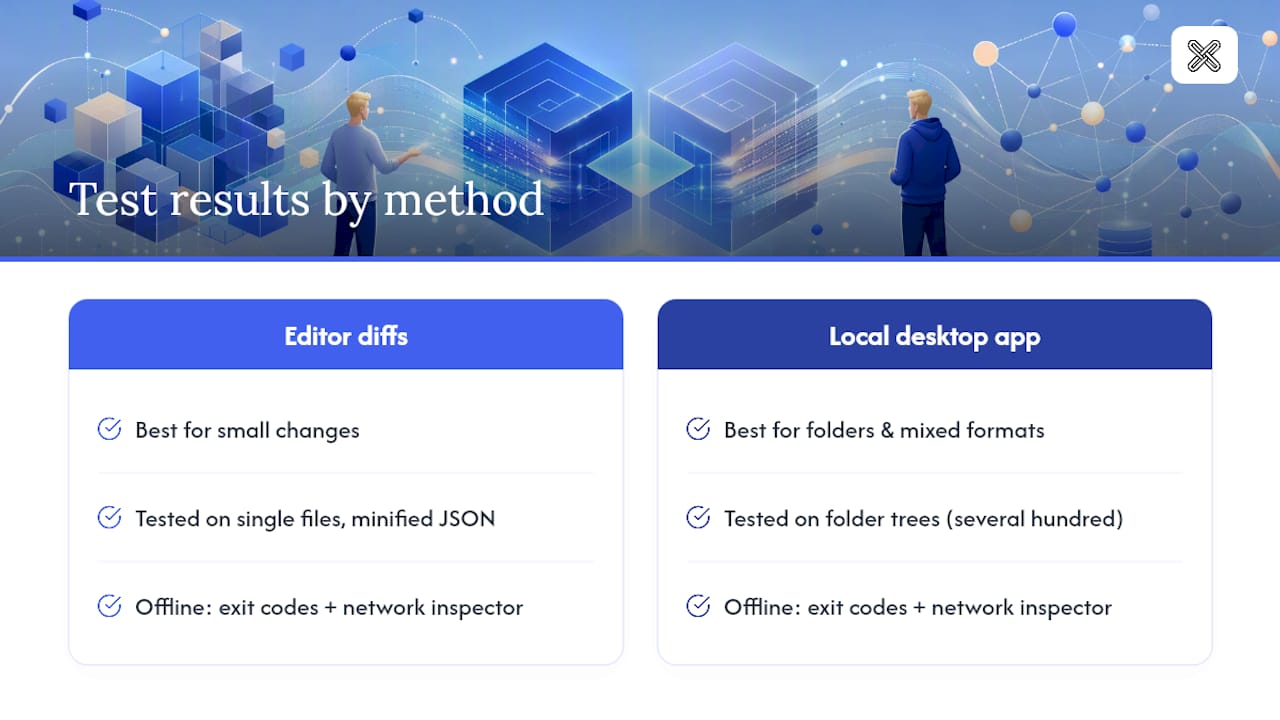
Testing spanned single files, minified JSON, and folder trees up to several hundred files. Editor diffs won for speed on small changes; the local desktop app won once folders and mixed formats entered the picture. Exit codes and a network inspector confirmed each method stayed fully offline.
Get One Private App for Code and Document Comparisons
If you're currently juggling git diff, a browser-based checker, and a separate PDF viewer just to review one pull request, LawtonPDF replaces all three with a single local application. Every comparison runs on your machine, so proprietary code, client contracts, and internal specs never touch a server.

For developers, that means:
- Local-only processing with zero uploads, even for large folders.
- Folder and tree compare alongside single-file text and code diffs.
- Exportable patches and comparison reports for review records or compliance audits.
- One tool instead of three, whether you're diffing a Python script, a contract PDF, or a spreadsheet of test data.
If your team also handles compliance workflows, SOC 2 compliance guidance is worth reviewing alongside your local-processing setup to keep audit trails airtight. Start a comparison now on the document and PDF processing tools page and see how a single local app handles your next code-and-document review.
Sources
- fc - Windows commands
- How to use WinDiff utility
- Compare files in Visual Studio
- Tools - WinDiff
- How to use Windiff.exe to compare the contents of a file or directory (Ivanti KB)
FAQ
How Do You Compare Two Code Files Without Going Online?
Use git diff --no-index for a quick command-line comparison, your editor's built-in compare feature for a visual check, or a local desktop app like LawtonPDF for folders and mixed file types.
What Is a Good Offline Tool for Comparing Text?
Windows users can use the built-in fc command for scripted comparisons, or a local desktop app for a visual, folder-aware compare that also handles code, PDFs, and spreadsheets in one place.
Where Can You Get a Code Compare Tool?
For CLI comparisons, git and diff ship with most development environments already. For a GUI experience covering code, documents, and folders, download LawtonPDF and run it fully offline.
How Do You Compare Two Text Files in VS Code?
Select both files in VS Code's file explorer, right-click, and choose "Compare Selected" to open a side-by-side diff view with inline highlighting.
Does Fc Work on Binary Files, Not Just Text?
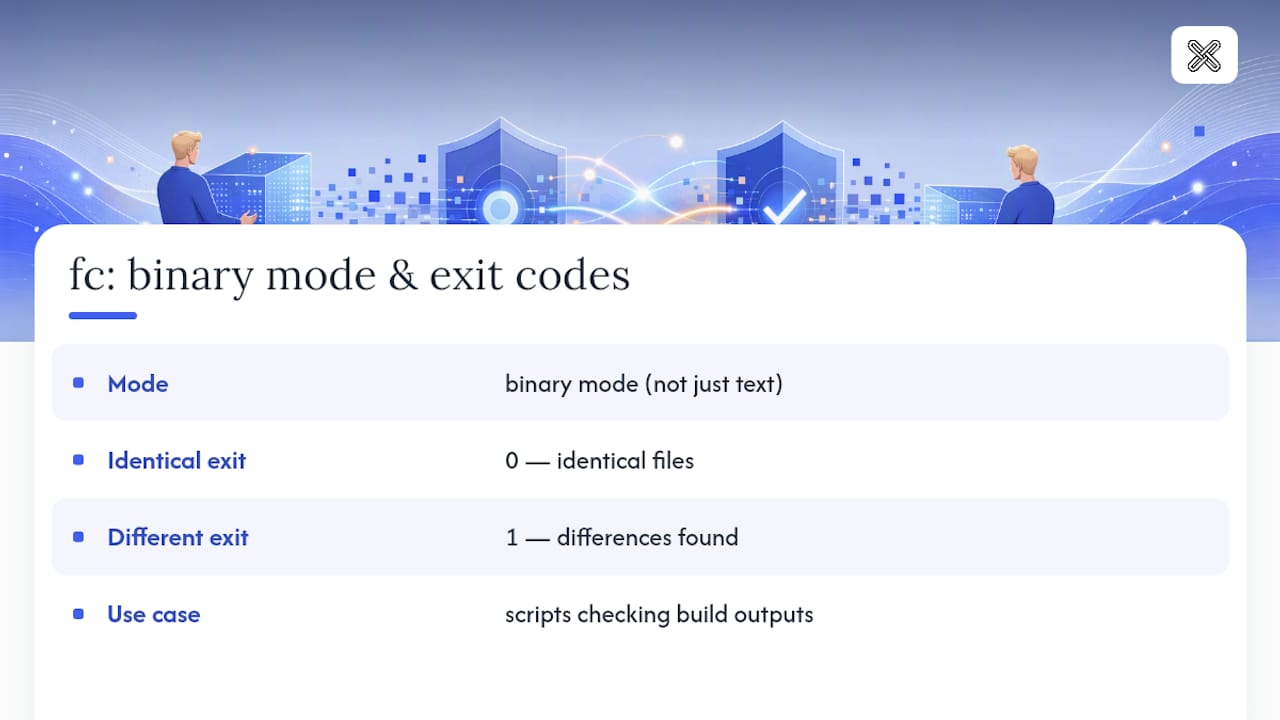
Yes. Running fc /b compares files in binary mode, and the command returns exit code 0 for identical files and 1 when differences are found, making it useful for scripts that check build outputs.