
A secure PDF workflow enforces four things without exception: encryption at rest and in transit, content sanitization at capture, cryptographic signatures for tamper evidence, and an audit trail covering every handoff. Skip any one of these and the workflow has a hole. AES-256 encryption and standards-based digital signatures are the trusted backbone here, and a local-processing tool like LawtonPDF gives privacy-sensitive teams a way to apply them without routing files through someone else's server.
TL;DR:
- Proper encryption with AES-256 and digital signatures are essential; weaker legacy encryption can be brute-forced, and DRM controls are needed for expiring or device-specific access.
- Redacting sensitive information requires deleting hidden text and metadata, not just visual blackouts, to prevent recovery after distribution.
- Capturing and classifying documents at the scan stage ensures downstream protections like signing and archiving are properly secured from the start.
- Automating PDF processes must include audit logs, key management, and failure handling to maintain security and control across high-volume workflows.
- Local processing tools like LawtonPDF eliminate upload risks by performing all actions on your device, crucial for regulated, privacy-sensitive industries.
Table of Contents
- What Does a Secure PDF Workflow Checklist Look Like?
- Encryption and Password Protection: When to Use Which
- How Do You Redact a PDF Without Leaking the Original Text?
- Digital Signatures and E-Seals: What Actually Proves a Document Wasn't Altered
- How Should You Set Up a Secure Scan-to-Sign Workflow?
- Can You Automate Secure PDF Processing Without Losing Control?
- What Belongs in a PDF Audit Package?
- Five Checks to Run Before You Hit Send
- Why Local Processing Changes the Risk Calculus
- Where LawtonPDF Fits Into This Workflow
- Sources
- FAQ
What Does a Secure PDF Workflow Checklist Look Like?
You don't need a security team to run a tight PDF workflow. You need a sequence, followed in order, every time.
- Secure intake — capture the document into a restricted location, never a shared desktop or personal cloud folder.
- OCR and classify — extract text and tag sensitivity level immediately, before anyone forwards the file.
- Encrypt or protect — apply a password or certificate-based protection matched to the document's risk.
- Redact and sanitize — remove hidden text, layers, and metadata, not just visible content.
- Sign or seal — apply a cryptographic signature for tamper evidence.
- Store with RBAC and MFA — restrict who can open, edit, or forward the file.
- Attach the audit package — logs, certificates, and timestamps travel with the document.
- Set retention and revocation rules — decide now how long the file lives and how access gets pulled later.
Intake and classification happen at capture, because everything downstream depends on knowing what you're protecting. Signing and archiving can happen later, but they should never happen without the earlier steps already locked in.
Encryption and Password Protection: When to Use Which
Not all PDF passwords do the same job. A Document-Open password blocks anyone without the password from viewing the file at all. Owner-only restrictions, by contrast, let people open the document but limit printing, copying, or editing. Plenty of workflows use owner restrictions when they mean to require a full open password, and that gap is where leaks happen.
AES-256 encryption is the standard worth insisting on. Weaker legacy encryption in older PDF readers can be brute-forced with commodity hardware; AES-256 cannot be cracked that way in any practical timeframe. The PDF Association names encryption, alongside redaction and digital signatures, as one of the three methods that actually move the needle on PDF security.
Pro Tip: If a document needs to expire, get pulled back after distribution, or stay locked to a specific device, plain password protection won't do it. That's when you need DRM-style controls, which support expiry, revocation, and device locking at the cost of requiring a compatible viewer.
A few operational rules keep encryption from breaking down in practice:
- Never email a password in the same thread as the protected file.
- Use a secrets vault or secure key exchange for automated workflows, not a spreadsheet.
- Generate per-document keys rather than reusing one password across a batch.
- Rotate service-account credentials on a schedule, not only after an incident.
How Do You Redact a PDF Without Leaking the Original Text?
Visual redaction, drawing a black box over text, is one of the most common failure points in document security. The text underneath still exists. OCR layers, hidden text objects, and metadata frequently survive a cosmetic cover-up, and that's exactly how sensitive information ends up recoverable after a document has already gone out the door. Case reviews of redaction failures in legal filings show this happening again and again, often with real consequences.
Real redaction removes the underlying object, not just its appearance. Before you distribute anything, run through this:
- Search the file for the exact sensitive strings you redacted, confirming zero hits.
- Inspect document metadata (author, revision history, comments) for leftover references.
- Flatten the file and sanitize embedded objects so nothing hidden survives the export.
- Re-run OCR if the document was scanned, to confirm no readable text layer remains underneath.
Pro Tip: Scanned documents are riskier than born-digital PDFs because OCR sometimes indexes text that visual redaction never touched. Manual redaction is fine for a one-off letter; anything with volume or legal exposure calls for a dedicated redaction tool that strips content at the object level.
Digital Signatures and E-Seals: What Actually Proves a Document Wasn't Altered
A signature image, the scanned squiggle pasted onto a contract, proves nothing. A cryptographic signature is different: it binds a hash of the document to a certificate, so any later edit invalidates the signature. That's the tamper evidence a secure workflow actually needs, and it's the reason the PDF Association lists digital signatures as one of the three core protections for PDF documents.
Signature assurance isn't one-size-fits-all:
| Level | What it proves | Typical use case |
|---|---|---|
| Simple | Intent to sign | Internal acknowledgments, low-risk forms |
| Advanced | Signer identity plus document integrity | Vendor contracts, HR paperwork |
| Qualified | Identity verified by a certified authority | Regulated filings, high-value legal agreements |
For anything regulated or high-value, retain the signature certificate chain and a timestamp alongside the document itself, not just the signed PDF. Automated sealing APIs, including Adobe's electronic seal service, let organizations apply tamper-evident seals at scale and support verification in standard viewers, which matters once you're signing hundreds of documents a week instead of one at a time.
How Should You Set Up a Secure Scan-to-Sign Workflow?
Capture-phase mistakes are the ones that quietly undermine every control you apply afterward. If a scanned document goes into a shared drive before anyone classifies it, you've already lost the chain of custody.
- Standardize scanner profiles across the team so output resolution and format stay consistent.
- Run OCR immediately after scanning, not days later when the file has already circulated.
- Apply classification metadata (confidential, internal, public) at the same step.
- Save the file straight to a restricted intake location, never a shared desktop or a consumer cloud folder.
- Lock the version that will be signed before it gets routed to anyone else for approval.
Treating scanning, OCR, and signing as connected processes rather than separate errands helps make the workflow trustworthy. A secure scan-to-sign checklist built around this principle standardizes metadata at ingestion specifically so redaction and access logging downstream can be automated with confidence instead of guessed at.
Can You Automate Secure PDF Processing Without Losing Control?
Batch scripts and command-line tools work well for high-volume, low-latency needs, applying the same password or watermark to hundreds of files overnight. API-based sealing fits better when documents need signing the moment they're generated, inside a live application flow.
Either approach needs the same guardrails:
- Attach an audit log entry to every file the automation touches, not just a summary count.
- Preserve original metadata through the process rather than stripping it accidentally during conversion.
- Store encryption keys in a vault the automation calls at runtime, never hardcoded in a script.
- Handle retries and failures explicitly, so a dropped connection doesn't leave a half-protected file sitting in an output folder.
- Scope service accounts with role-based access control and rotate their tokens on a schedule.
What Belongs in a PDF Audit Package?
Chain of custody depends on logging the right events: creation or ingestion, redaction, signing, every view or access, modification, and revocation. Centralizing document handling with comprehensive audit logging consistently reduces risk compared with fragmented, ad-hoc processes where nobody can reconstruct who touched a file.
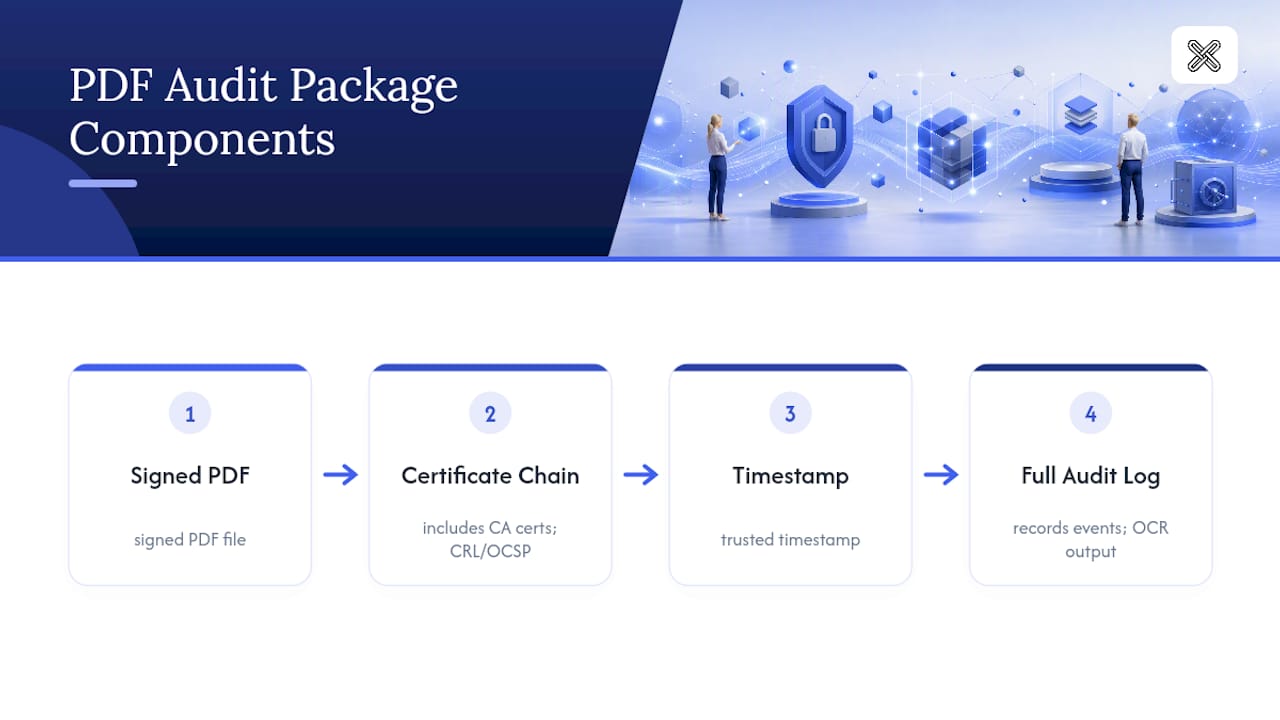
A defensible package bundles the signed PDF itself with the certificate chain, a timestamp, the full audit log, and any OCR output used to verify redaction. Revocation strategy matters just as much as creation: set expiry dates, use CRL or OCSP checks to confirm a signature certificate is still valid, and apply DRM-style revocation when a document needs to be pulled back after it's already out.
Five Checks to Run Before You Hit Send
Run these five checks on every sensitive PDF before distribution:
- Confirm the open password or encryption is actually active, not just applied to an earlier draft.
- Search the file for redacted strings to confirm they're gone, not just covered.
- Validate the signature and check the timestamp.
- Clear metadata, including author names and revision history.
- Confirm the audit package is attached and complete.
Pro Tip: Don't roll a new workflow out to the whole team at once. Pilot it with one department for two weeks, measure how many files fail these five checks, then adjust before wider rollout.
Why Local Processing Changes the Risk Calculus
Legal, healthcare, and finance teams keep landing on local-first tools for one reason: nothing leaves the machine. Centralized, auditable workflows with RBAC already cut accidental exposure. Pairing that with local processing removes the upload step as a risk entirely.
— Lawton
Where LawtonPDF Fits Into This Workflow
LawtonPDF is the local-processing alternative to cloud-based PDF tools for teams that can't risk sensitive files touching an external server. Every action, password protection, redaction, comparison, organizing, unlocking, runs on your own hardware, so the encryption and sanitization steps covered above happen without a file ever leaving your machine.

That matters most for legal, healthcare, and finance teams handling regulated documents, where a cloud upload is itself a compliance question nobody wants to answer. LawtonPDF's password protection tool applies AES-256 protection locally, its comparison engine checks PDF, text, and folder differences without a third-party server in between, and its organizing tools handle the merge, split, and rotate steps your intake process needs. Teams that need centralized administration and license management across multiple users can compare the Plus and Business plans, and a free tier is available for individuals who want to test the workflow before committing. Start with the full tools overview and see which steps in your current process are ready to move local.
Sources
- Building trust in digital document security
- How to Create a Secure Scan-to-Sign Workflow for Contracts, Forms, and PDFs
- Top three ways to improve your PDF Document Security
FAQ
Is There a Reliable Way to Secure a PDF?
Yes. Combine AES-256 encryption, true content redaction (not visual masking), and a cryptographic digital signature. The PDF Association names these three controls as the most effective methods available.
Why Do Some Teams Move Away from Standard PDF Handling?
Not because PDFs themselves are insecure, but because manual, fragmented handling, emailing passwords, skipping redaction verification, storing files on shared drives, creates the exposure. Centralized, audited workflows fix that without abandoning the format.
How Can You Tell if a PDF Is Actually Safe to Send?
Run the five pre-send checks: confirm encryption is active, verify redactions removed underlying text, validate any signature, clear metadata, and confirm your audit package is attached.
Which PDF Tool Is Safest for Sensitive Documents?
A tool that processes files locally removes the upload risk entirely. LawtonPDF runs password protection, redaction-adjacent organizing, and comparison directly on your device, so sensitive files never reach an external server.
What Does LawtonPDF Cost?
LawtonPDF offers Plus, Business, and Free plans; current pricing is available on the LawtonPDF pricing page.