On Windows 11, you can scan paper straight to PDF using the built-in Windows Scan app — or, when needed, Windows Fax and Scan plus Microsoft Print to PDF. Windows Scan is the faster, cleaner option for most users. It saves directly to PDF without extra steps.
Quick steps at a glance:
- Open Start, search "Scan," and launch the Windows Scan app
- Select your scanner from the dropdown
- Set Source to Flatbed or Feeder
- Set File type to PDF
- Click Scan, then Save
Scans land in Pictures > Scans by default. To change that, click the save path shown in the app before scanning and pick a new folder.
Key Takeaways
The fastest way to scan to PDF on Windows 11 is the Windows Scan app, with Lawtonpdf handling merging, OCR, and security for everything the built-in tools can't finish.
| Point | Details |
|---|---|
| Use Windows Scan first | Open Start, search "Scan," set file type to PDF, and save to Pictures > Scans. |
| Fallback: Fax and Scan + Print to PDF | Scan to image, then print to Microsoft Print to PDF when the modern app won't work. |
| Match DPI to document type | Use 200–300 DPI for text, 300–600 DPI for photos, to control file size. |
| Fix scanner issues with drivers | Download TWAIN or WIA drivers from the manufacturer's site before reinstalling the app. |
| Lawtonpdf for post-scan work | Merge, OCR, reorder, and password-protect scanned PDFs locally with no cloud upload. |
Table of Contents
- How do you scan to PDF on Windows 11 with the Scan app?
- How does the legacy Windows Fax and Scan workflow create PDFs?
- How do you create multi-page PDFs from scanned documents?
- What should you do when your scanner isn't working on Windows 11?
- Why does local scanning and PDF processing protect your privacy?
- A practical Windows 11 scanning workflow worth using every day
- Lawtonpdf handles what Windows Scan leaves unfinished
- Sources
- FAQ
How do you scan to PDF on Windows 11 with the Scan app?
Windows Scan is free, ships with most Windows 11 installs, and handles PDF output natively. If it's not on your machine, open the Microsoft Store and search "Windows Scan" to install it.
Step-by-step:
- Press Start, type Scan, and open the app
- Under Scanner, choose your connected device
- Under Source, pick Flatbed (single pages) or Feeder (ADF, multiple pages)
- Set File type to PDF
- Choose Color mode: Grayscale for text, Color for photos
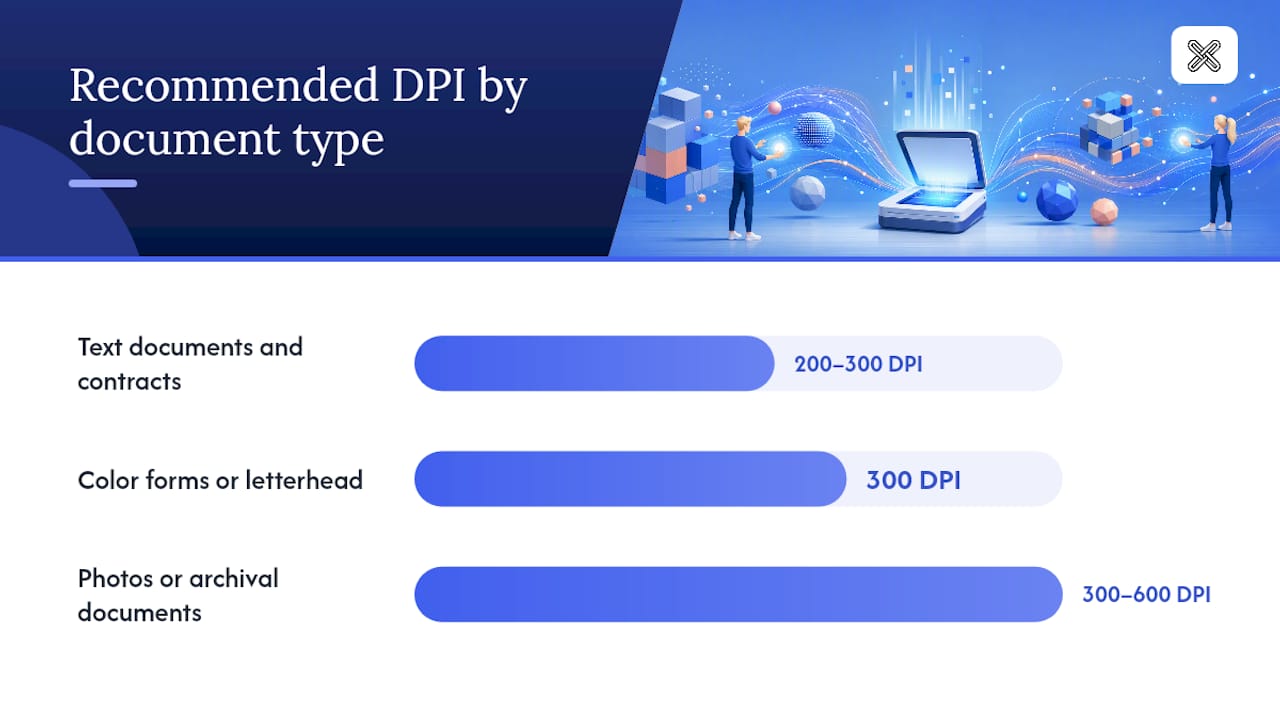
- Set Resolution (DPI): 200–300 DPI for text documents, 300–600 DPI for photos
- Click Scan
- Click View to check the result, then Save (or change the save folder first)
Recommended settings by document type:
- Text documents and contracts: 200–300 DPI, Grayscale — good balance of clarity and file size
- Color forms or letterhead: 300 DPI, Color
- Photos or archival documents: 300–600 DPI, Color
Pro Tip: Scan one test page at your chosen DPI before running a full batch. A 300 DPI grayscale page typically stays under 200 KB; bumping to 600 DPI can multiply that several times over. Confirm the file size works for your storage or email limits before committing to a long job.
How does the legacy Windows Fax and Scan workflow create PDFs?
Windows Fax and Scan is still available on Windows 11, but it does not export PDFs directly. You scan to an image first, then convert using Microsoft Print to PDF. It's a two-step process, and it's worth knowing when your scanner's driver only works with the older interface.
How to enable it:
- Open Settings > System > Optional Features
- Click Add a feature, search for Windows Fax and Scan, and install it
- Open it from Start
Scanning and converting to PDF:
- Click New Scan and configure your scanner settings
- Set file type to PNG or JPEG, then click Scan
- Open the scanned image in any viewer (Photos, Paint)
- Press Ctrl + P to print
- Choose Microsoft Print to PDF as the printer
- Click Print, name the file, and save
When to use this path:
- Your scanner only works with legacy TWAIN drivers
- The Windows Scan app doesn't detect your device
- You need to scan from an older ADF that behaves inconsistently with the modern app
Common pitfalls: Each scan creates a separate image file, so multi-page documents require extra steps to combine. The PDF quality depends on the image resolution you chose at scan time — you can't improve it after the fact.
How do you create multi-page PDFs from scanned documents?
Multi-page PDFs are where the built-in tools start to show limits. Built-in apps vary in multi-page PDF handling, and local desktop tools are often the most reliable way to create and edit multi-page PDFs without uploading documents to the cloud.
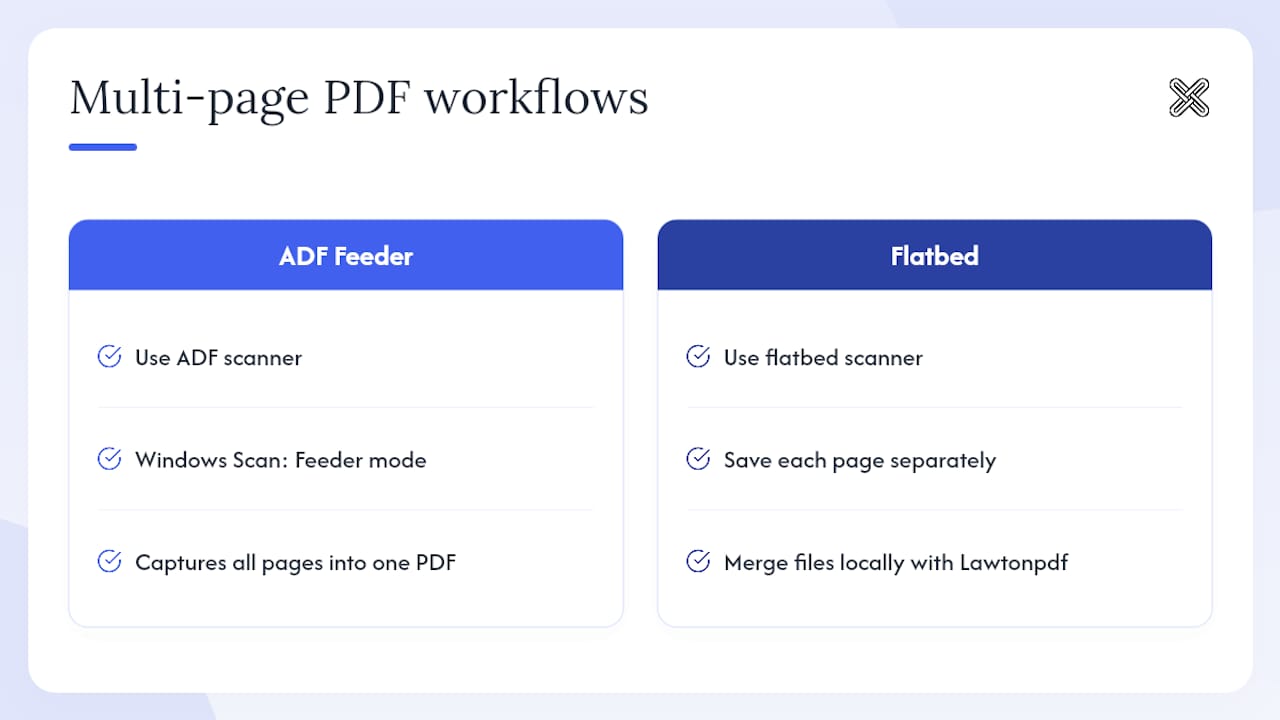
Using an ADF (Automatic Document Feeder):
- Load all pages into the feeder tray
- In Windows Scan, set Source to Feeder
- Set File type to PDF
- Click Scan — the app captures all pages into one PDF automatically
Using a flatbed scanner:
- Scan each page separately as a PDF or image
- Combine the individual files into one PDF using a local tool
Combining pages into one PDF with Lawtonpdf:
- Open Lawtonpdf's organize tool
- Import your individual scanned PDFs or images
- Reorder, remove blank pages, or rotate as needed
- Export as a single merged PDF
Everything runs on your PC. No file leaves your machine. For legal documents, medical records, or financial files, that matters.
Pro tip for flatbed users: Name each scanned page with a number prefix (01_page, 02_page) before merging. It keeps the order clear and saves time when you import into any local tool.
What should you do when your scanner isn't working on Windows 11?
Most scanning failures on Windows 11 trace back to one of three causes: a loose connection, a missing driver, or a corrupted app. Work through this checklist before assuming a hardware problem.
Physical checks:
- Confirm the scanner is powered on
- Try a different USB port or cable
- Clear any paper jam in the ADF tray
- Restart both the scanner and the PC
Driver fixes:
Microsoft's support documentation recommends downloading drivers directly from the scanner manufacturer's support page rather than relying on Windows auto-detection. Search your scanner's model number on the manufacturer's site, download the latest TWAIN or WIA driver for Windows 11, and run the installer.
- Go to the manufacturer's support site
- Search your scanner model
- Download the Windows 11 TWAIN or WIA driver
- Uninstall the old driver from Device Manager first
- Install the new driver and restart
App fixes:
- Reinstall Windows Scan from the Microsoft Store
- Enable Windows Fax and Scan via Settings > Optional Features
- Use Microsoft Print to PDF as a fallback conversion method
Pro Tip: If your scanner shows up in Device Manager but not in Windows Scan, try switching between WIA and TWAIN drivers. Some older scanners only expose themselves correctly through one of the two protocols.
Why does local scanning and PDF processing protect your privacy?
Every document you scan contains information. When that file passes through a cloud service for conversion or OCR, it leaves your control. Local processing keeps it on your hardware from start to finish.
Keeping scans private means keeping them local. Privacy-conscious workflows process documents on-device — no upload, no third-party server, no exposure. For healthcare records, legal contracts, and financial statements, on-premise document handling is the standard that compliance teams rely on.
Steps to keep your scans private:
- Save scans to a local drive, not a synced cloud folder
- Disable automatic OneDrive or cloud backup for your Pictures > Scans folder
- Use local OCR and merge tools instead of browser-based converters
- Password-protect sensitive PDFs before sharing them
Lawtonpdf runs entirely on your Windows PC. Merge, OCR, reorder, rotate, and password-protect PDFs without sending a single byte to an external server. For teams in healthcare, legal, or finance, that local-first approach aligns with the document control practices those fields require.
A practical Windows 11 scanning workflow worth using every day
The cleanest daily workflow isn't complicated. Check that your scanner drivers are current, use Windows Scan for single-page jobs, and bring in Lawtonpdf when you need to clean up, merge, or secure the output.
Recommended workflow:
- Verify drivers are up to date before starting any scanning session
- Use Windows Scan for single pages or short ADF runs, saving directly as PDF
- For multi-page jobs, use the ADF if available; otherwise scan pages individually and merge with Lawtonpdf's ScanFix tool
- Run OCR on text-heavy scans so the PDF is searchable
- Password-protect any file that contains personal or sensitive information before sharing
One filing tip that saves real time: Name every scanned file with the date first in YYYY-MM-DD format (2026-05-15_contract.pdf). It sorts chronologically in any folder without renaming later.
Lawtonpdf handles what Windows Scan leaves unfinished
Windows Scan gets the document off the paper. Lawtonpdf handles everything after that — on your PC, with no cloud processing involved.

Lawtonpdf's PDF tools cover the full post-scan workflow for Windows 11 users:
- Merge multiple scanned pages into one clean PDF
- ScanFix to remove blank pages, straighten, and reorder
- OCR to make scanned text searchable and selectable
- Rotate and organize pages without re-scanning
- Password protect sensitive files before sending
No subscription required to start. Try the free tools now at Lawtonpdf and see how much faster a local-first workflow runs compared to uploading files to a web converter.
Sources
- How do I scan a document now with Windows 11? - Microsoft Q&A
- Install and use a scanner in Windows | Microsoft Support
- Windows Scan - Free download and install on Windows
FAQ
Does Windows 11 have a built-in scanner app?
Yes. Windows 11 includes the Windows Scan app, available by searching "Scan" in Start or downloading it free from the Microsoft Store. It supports flatbed and feeder sources and saves directly to PDF.
How do I scan directly to PDF on Windows 11?
Open Windows Scan, select your scanner, set File type to PDF, and click Scan. The file saves automatically to Pictures > Scans unless you change the save path before scanning.
How do I make a multi-page PDF from scanned pages?
Use an ADF with Windows Scan set to Feeder mode — it captures all pages into one PDF. For flatbed scans, save each page separately and merge them into a single file using a local tool like Lawtonpdf.
Does Microsoft have a PDF scanner?
Microsoft doesn't offer a dedicated PDF scanner, but the Windows Scan app exports directly to PDF, and Microsoft Print to PDF converts any scanned image to PDF through the print dialog. For merging, OCR, and securing scanned PDFs, Lawtonpdf fills the gap with fully local processing.