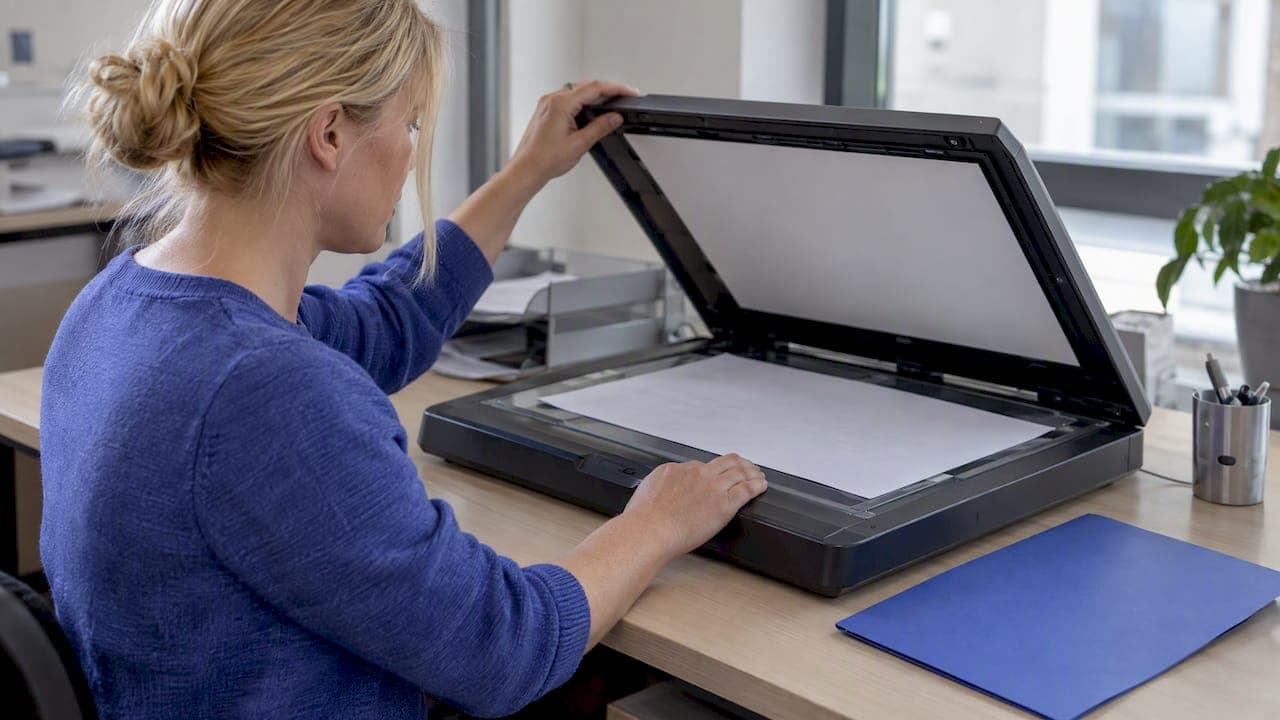
Set your scanner's document size to Legal (8.5 x 14 in), scan at 300 dpi, and save the output as PDF. Turn off Auto Detect and any "fit to page" scaling before you start, since these are the settings that most often shrink or crop legal pages down to letter size. Once the scan is done, open the PDF and check its page properties to confirm it reads 8.5 x 14 in. That one check saves you from resubmitting a stack of misformatted pages.
TL;DR:
- Using the correct scanner settings, such as setting the document size to Legal and disabling auto-detection, prevents cropping or shrinking issues before scanning.
- Most office scanners with ADF support at least 14-inch document lengths, but users should verify their model’s maximum feed length to ensure compatibility.
- Confirming the final PDF measures exactly 8.5 by 14 inches after scanning avoids misformatted submissions and saves rework.
- Scanning in black-and-white at 300 dpi generally provides accurate OCR results and manageable file sizes for text documents.
- Local tools like LawtonPDF enable users to verify, resize, and make scanned PDFs searchable without uploading sensitive files to cloud services.
Table of Contents
- A quick checklist for producing a legal-size PDF
- Which scanner or method works best for legal-size pages
- Where to find the Legal size setting in your scanning software
- How to scan legal documents with a phone
- Fixing cropped or letter-sized scans
- Making scanned PDFs searchable without bloating the file
- Handling mixed page sizes and printing them correctly
- Fix and verify legal-size scans locally with LawtonPDF
- A scanning habit that prevents rescanning an entire stack
- Try LawtonPDF for your post-scan PDF work
- Sources
- FAQ
A quick checklist for producing a legal-size PDF
Most scanning mistakes happen before the scan even starts, not after. The settings below take less than a minute to set up and will save you a reprint later.
- Open your scanner software and set the document size preset to Legal (8.5 x 14 in). If there's no preset, enter the custom dimensions exactly.
- Turn off Auto Detect. This feature frequently misreads a legal sheet as letter size and crops the bottom off.
- Set the output format to PDF, and enable multi-page combine if you're scanning more than one sheet into a single file.
- Choose 300 dpi for standard text documents. Reserve 400 dpi for small or dense print, or for records you're archiving long term.
- Pick black-and-white or grayscale for text-only pages. This keeps file size manageable without hurting readability.
- Scan one test page first, then open the resulting PDF and check its page properties immediately.
- If the dimensions are off by more than a quarter inch in either direction, adjust the settings and rescan before running the full stack.
That last step matters more than people expect. A scanner that defaults to letter size will keep defaulting to letter size until you change the profile, not just the single job.
Which scanner or method works best for legal-size pages
The right hardware for the job depends on the paper itself. A document feeder is fast, but it has limits. A flatbed is slower, but it handles fragile pages better.
- ADF (automatic document feeder): check the feeder's maximum document length first. Many feeders support up to 14 inches, but not all do, and ADF compatibility for legal-size documents varies by model.
- Flatbed scanners: best for fragile, brittle, or oversized pages. Align the sheet carefully against the glass, hold it flat with an edge guide, and deskew afterward if the image comes out tilted.
- Overhead or wide-format scanners: the better choice for bound volumes or documents that can't be fed or pressed flat without damage.
- Fallback for unsupported scanners: if your scanner won't accept a 14-inch sheet, scan it in two passes and merge the images, or as a last resort, fold the bottom margin under and stitch the scans together digitally.
Pro Tip: Check your scanner's manual for its exact maximum feed length before buying extra equipment. Many office-grade models already support legal size; the limitation is usually in the default software profile, not the hardware.
Where to find the Legal size setting in your scanning software
Every scanner brand buries this setting in a slightly different menu, but the logic is the same everywhere: find Document Size, select Legal, and save it as your default profile.
- ControlCenter and similar scanner utilities: go to Configuration, then Scan, then Document Size, and select Legal or enter 8.5 x 14 in manually. Save the configuration as a profile so you don't have to repeat it. Brother's own guidance on how to configure Document Size to Legal walks through the exact menu path.
- Epson and comparable scan utilities: open the device's scan settings panel, set Document Size to Legal, and disable Auto Detect or Auto Crop, since either one can override your manual setting.
- macOS Image Capture or Print Center: choose the Size field from the dropdown menu and select a Legal preset, or enter custom dimensions before scanning. Apple's own instructions for scanning with a Mac cover where this control lives.
- No explicit Legal preset available: enter 8.5 x 14 in manually in the custom size fields, run a single test page, and confirm the output before scanning the rest of your documents.
Most modern scanners can handle legal-size paper without trouble. According to Ricoh's scanner guidance, scan failures usually trace back to a software setting rather than a hardware limit, which means the fix is almost always a menu change, not a new machine.
How to scan legal documents with a phone
A phone can produce a clean legal-size PDF, but only if you control the crop manually instead of trusting the app's auto-detect.
- Use a flat, stable surface and a scanning app that lets you confirm or adjust page size manually before export.
- Keep the camera parallel to the page and use even lighting to avoid the skew that triggers bad auto-crop results.
- For a full legal-length page, capture the entire sheet top to bottom in one frame, then set the exported page size to Legal before saving.
- Combine multiple pages into a single PDF within the app, then open the exported file and check its page properties.
Mobile scanning apps vary in how they handle non-letter paper. If you're capturing documents on an iPhone specifically, this guide to creating PDFs on iPhone covers export settings that apply directly to legal-length pages.
Fixing cropped or letter-sized scans
When a scan comes out wrong, the cause is almost always one of four things, and each has a direct fix.
- Auto-detect produced a nonstandard size. Turn it off and set Legal manually instead of letting the software guess.
- The driver defaulted back to Letter. Change the saved profile, or switch to a scanning app that lets you lock in Legal as the default.
- Pages fed in skewed through the ADF. Reseat the paper guides, flatten any curled edges, and for stubborn pages, switch to the flatbed instead.
- A submission portal rejected the file for size. Use a page-size verification tool to scale the PDF to exactly 8.5 x 14 in, since most portals accept a tolerance of about a quarter inch either way.
Pro Tip: Save a dedicated scan profile named something like "Legal 300 dpi PDF" so you never have to rebuild these settings from scratch for the next job.
Making scanned PDFs searchable without bloating the file
A scanned page is just an image until OCR turns it into searchable text, and the settings you choose affect both accuracy and file size.
- Scan at 300 dpi for reliable OCR results on standard text. Library of Congress technical guidelines recommend 300 to 400 dpi for accurate text recognition and archival quality.
- Reserve 400 dpi for very small print or long-term archival copies, since it roughly doubles file size for a marginal readability gain on most text.
- Use black-and-white or grayscale for text documents. Save color scanning for pages where it's actually needed, like photographs or color-coded forms.
- If the finished PDF is too large to share or upload, downsample embedded images or apply medium JPEG compression for distribution copies.
- Confirm OCR worked by searching for a unique word in the document or copying a line of text out of the PDF.
300 to 400 dpi is the resolution range the Library of Congress recommends for accurate OCR and archival-quality scans. Staying at the lower end of that range keeps files light enough for routine sharing without sacrificing legibility.
Handling mixed page sizes and printing them correctly
A scanned file that mixes legal and letter pages needs a decision up front: keep the original sizes, or standardize everything to Legal.
- Preserving original sizes avoids unwanted scaling, and most print systems route each page to the matching tray automatically.
- If a recipient requires every page to be Legal size, scale carefully and check for new margins or edge cropping introduced by the resize.
- On a Mac, Print Center and similar print queues manage mixed-size PDFs well. Apple's own guide to printing PDFs with mixed paper sizes explains how the routing works.
- Test a small sample print before running a large batch, especially when the file mixes sizes you haven't printed together before.
Fix and verify legal-size scans locally with LawtonPDF
Once the scan is done, the real test is whether the PDF measures exactly 8.5 x 14 in, and LawtonPDF checks that without ever sending the file anywhere.
- LawtonPDF runs entirely on your own computer, so sensitive scans, legal filings, and client records never leave your machine.
- Open a scanned PDF, check its page properties to confirm 8.5 x 14 in, and adjust the size or margins locally if it's off.
- Run or repair OCR directly in the app so the finished file is searchable before you file or send it.
- Merge multiple single-page scans into one properly ordered PDF without uploading anything to a third-party service.
A short example: scan a test page, open it in LawtonPDF, run "fix page size" to lock it to exactly 8.5 x 14 in, apply OCR, and export the verified file. The whole check takes under a minute and catches sizing errors before they reach a hundred-page batch.
A scanning habit that prevents rescanning an entire stack

Test before you commit. Scan two pages, open the PDF, and check the page properties before you feed in the rest of a large stack of legal documents. It takes thirty seconds and saves an afternoon of rework.
Save a profile labeled something specific, like "Legal 300 dpi PDF," and make it the default for every legal-size job going forward. Scanners revert to old habits the moment you skip this step, usually right before a deadline.
— Lawton
Try LawtonPDF for your post-scan PDF work

Scanning the page correctly is half the job. Getting the PDF verified, searchable, and properly merged without uploading client files to a cloud service is the other half, and that's where LawtonPDF's tools come in.
- Verify exact page size and metadata on any scanned PDF before you submit or print it.
- Run OCR locally so scanned legal documents become searchable without leaving your computer.
- Merge multi-page scans into a single ordered file and organize pages with the PDF organizing tools.
- Compare scanned versions against originals using the PDF comparison tools for legal and finance documents.
LawtonPDF offers multiple subscription plans, including options for basic tasks. Check current pricing and plan details to find the right fit for your workflow.
Sources
- How To Scan Legal Size Documents And Paper - Ricoh Scanners
- Page Size Tool — ePrepare guidance
- National Digital Newspaper Program 2026 Technical Guidelines for Applicants
- Print PDFs with mixed paper sizes on Mac - Apple Support
- Configure the ControlCenter4 Advanced mode document size for legal scanning
FAQ
How do I scan a legal-size document to PDF?
Set your scanner's document size to Legal (8.5 x 14 in), disable Auto Detect, and choose PDF as the output format. Scan at 300 dpi, then open the finished file and check its page properties to confirm the dimensions before filing or sending it.
What is the best scanner for legal-size paper?
Any scanner whose ADF supports a document length of at least 14 inches will handle legal paper, and most office-grade models do. For fragile or bound pages, a flatbed or overhead scanner is the safer choice since it avoids the feed and skew issues that come with automatic feeders.
Why is a PDF scan so large?
Color scans and high resolutions like 400 dpi produce much larger files than black-and-white or grayscale scans at 300 dpi. For text-only documents, switching to grayscale and staying at 300 dpi, which the Library of Congress recommends as a minimum for accurate OCR, usually brings the file size down without hurting readability.
How do I change a PDF to legal size?
If the original scan came out at the wrong size, the cleanest fix is rescanning with the correct Legal preset rather than resizing the PDF afterward, since resizing can crop or distort the content. When rescanning isn't possible, a local tool like LawtonPDF can adjust the page size and margins directly, or a page-size verification tool can scale the file to meet a portal's required tolerance.