
Offline license activation works by exchanging files between two machines: the air-gapped system generates a request file, an internet-connected machine uploads that request to the vendor and receives a signed response, and you import that response back on the offline system. Not every vendor supports this, and not every license type qualifies. Subscriptions and floating licenses often can't be activated this way. Once imported, you verify the activation locally before trusting the system to run.
TL;DR:
- Offline activation is limited to licenses that explicitly support file exchange and typically excludes subscriptions and floating licenses.
- Preparing involves verifying documentation, gathering license details, identifying hardware IDs, and choosing secure transfer media before starting.
- The process requires generating a request file, transferring it to an internet-connected machine, obtaining a signed response, and importing it back to activate the license offline.
- Offline deactivation may not always be supported, so organizations must carefully record and manage seat releases, especially in environments with strict licensing controls.
- Common errors include device mismatches or corrupted files, which can be resolved by re-exporting requests, verifying checksums, and updating licenses before expiry.
Table of Contents
- Quick Checklist: The 6-Step Offline Activation At-A-Glance
- What to Prepare Before You Start
- How to Activate Offline: Step-by-Step
- Deactivation and Reclaiming Seats
- Troubleshooting Common Activation Errors
- Operational Best Practices for Offline License Management
- LawtonPDF Notes: Licensing in Locked-Down Environments
- Trade-Offs: Privacy vs. Manageability
- Deploy LawtonPDF Without Sending a Single File to the Cloud
- Sources
- FAQ
Quick Checklist: The 6-Step Offline Activation At-A-Glance
Before diving into the details, here's the process in order. Keep this nearby while you work through your first offline activation.
- Generate the offline activation request on the offline machine.
- Transfer the request file to an internet-connected machine using approved media.
- Upload the request to the vendor's activation portal, or send it to vendor support.
- Download the activation or response file and carry it back.
- Import the response into the offline machine and confirm the activation succeeded.
- Generate a deactivation file later if you need to reclaim that seat.
This sequence holds across most vendors, though the exact terminology shifts. Tableau calls its files OfflineActivationRequest and OfflineActivationResponse, and describes uploading the request from an online machine to its activation page before importing the response back on the server.
What to Prepare Before You Start
Offline activation fails most often because someone skipped a prerequisite, not because the process itself is fragile. Confirm these before you touch the offline machine:
- Verify your vendor actually documents offline activation for your license type. Some restrict it to perpetual or test licenses and exclude monthly or yearly subscriptions that expect periodic online check-ins.
- Have your license ticket, product key, and any admin portal credentials ready before you start.
- Identify the hardware ID or machine fingerprint the license will bind to. Most systems generate this automatically, but you should know where to find it if support asks.
- Choose your transfer method (USB drive, other removable media) and decide how you'll verify file integrity, ideally with a checksum.
- Record the current license state on the offline machine and back up its configuration before making changes.
Pro Tip: Check whether your vendor distinguishes between "offline activation" and an "offline grace period." A grace period lets an occasionally-connected machine run temporarily unlicensed, which is a different mechanism than the file-exchange workflow this article covers, and it won't work on a permanently air-gapped system.
How to Activate Offline: Step-by-Step
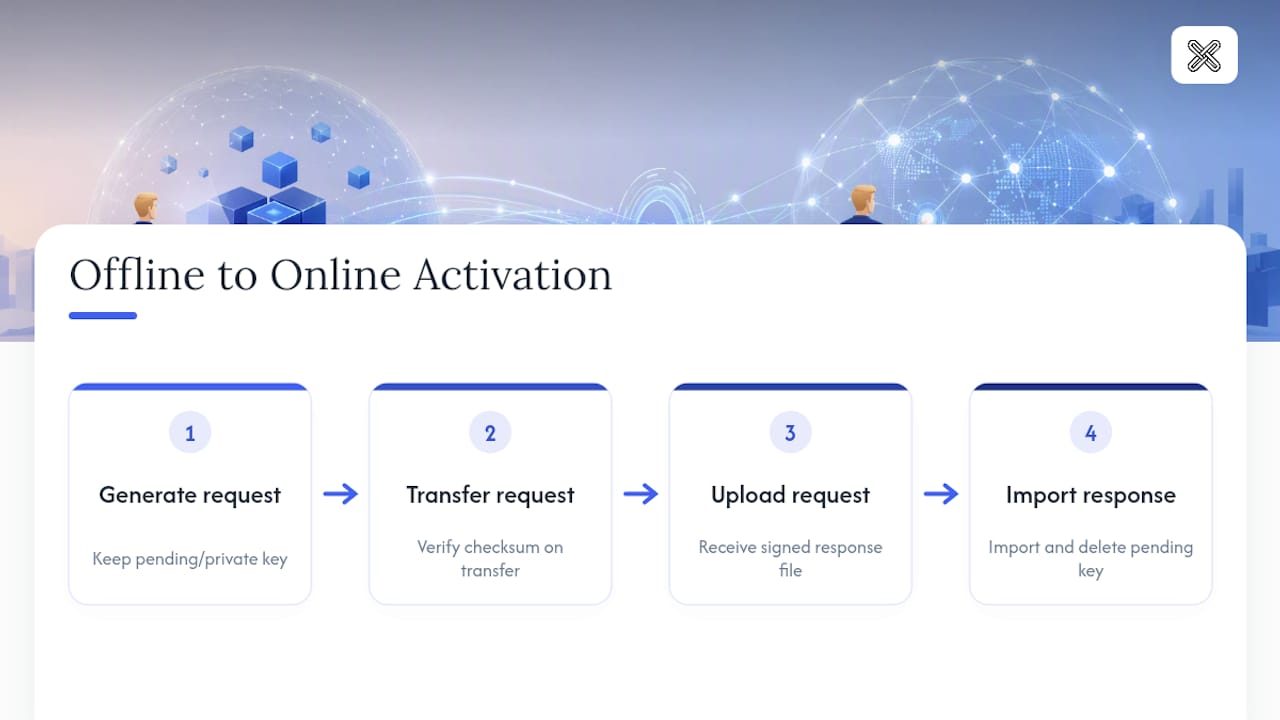
The core workflow has four stages, and each one has a failure point worth knowing about before you hit it.
Step 1: Generate the request on the offline machine. Use the product's UI or command-line tool to create the activation request. This typically produces two files: a request file (something like device.req) that's safe to transfer, and a local pending or private key (pending.key) that must stay on that machine. Name your files clearly, especially if you're managing several offline systems at once. Losing track of which request belongs to which device is one of the most common self-inflicted headaches in this process.
Step 2: Move the request file to an online machine. Copy it over on your approved media and verify the checksum matches before you go any further. A corrupted transfer at this stage usually produces a cryptic error later, when it's harder to diagnose. CodeMeter's documentation stresses this checksum step specifically because a bad transfer here wastes an entire activation cycle.
Step 3: Upload the request and get the response. On the online machine, submit the request through the vendor's activation portal, or email it to support if no self-service option exists. You'll get back a response file, often named something like activation.lic or response.zip. This is the signed artifact that turns your request into a working license.
Step 4: Import the response and verify. Carry the response file back to the offline machine and import it through the same UI or CLI you used for Step 1. Once import succeeds, delete the pending key. Don't keep it around "just in case." Run whatever verification command your product offers, licenses list, about, or an equivalent, and confirm you see a success message. Then test a feature that only works with an active license, not just the activation status screen.
Security note: never transmit the pending or private key. Only the request file leaves the offline machine. This design exists specifically so a response can't be replayed or copied onto a different system, and it's also why importing a response on the wrong machine fails cleanly with a mismatch error rather than corrupting anything.
For teams managing several locked-down installs at once, a written deployment checklist for desktop software saves you from repeating this diagnosis on every machine.
Deactivation and Reclaiming Seats
Offline seats aren't automatically returned when you retire a machine. You have to release them deliberately, and not every vendor makes that possible.
- Generate an offline deactivation file on the machine you're retiring, then upload it to the vendor portal to release the seat back to your pool.
- Some vendors can't process offline deactivation at all. In that case, the seat may be permanently consumed, even after you wipe the machine.
- Keep the deactivation receipt and the vendor's confirmation as your record. That documentation is the only proof you'll have that the seat was actually freed.
- If offline deactivation isn't supported, plan your seat allocation with that limitation in mind, and document the asset retirement so nobody assumes a seat is available when it isn't.
Troubleshooting Common Activation Errors
Most offline activation failures fall into a handful of categories, and most have a fast fix.
- "Issued for a different device" or mismatch errors: the request was generated on, or the response applied to, the wrong machine. Re-export the request from the correct system and start over.
- Malformed or corrupted file: re-download the response and verify the checksum before importing again.
- Expired offline certificate: these certificates carry an expiration date, and you need to request a refresh before that window closes, not after.
- Activation succeeds but features are missing: this usually means an entitlement update is needed on the vendor side, not a local fix.
- Before contacting vendor support, gather your logs, the original request and response files, and the hardware ID. Support will ask for all three.
Operational Best Practices for Offline License Management
A handful of habits separate teams that manage offline licenses smoothly from teams that lose track of seats entirely.
- Keep an inventory mapping every offline-activated machine to its specific license ticket and activation details.
- Set calendar reminders to refresh offline certificates well before they expire, not the week they do.
- Verify checksums on every transfer, and write-protect the removable media once the transfer is confirmed.
- Where your vendor supports it, prefer temporary "borrow" or floating-seat leases over full offline binding. A borrowed seat can be reclaimed automatically once the machine reconnects, while a fully offline-bound seat usually can't.
- Log every deactivation confirmation and entitlement change somewhere your whole team can find it later.
Pro Tip: Treat offline-activated seats as a separate, higher-friction bucket in your license inventory. Reserve them strictly for machines that genuinely cannot connect, and route everything else through online or floating activation. A dedicated license management process makes that separation easy to enforce instead of something you remember only after a seat goes missing.
LawtonPDF Notes: Licensing in Locked-Down Environments
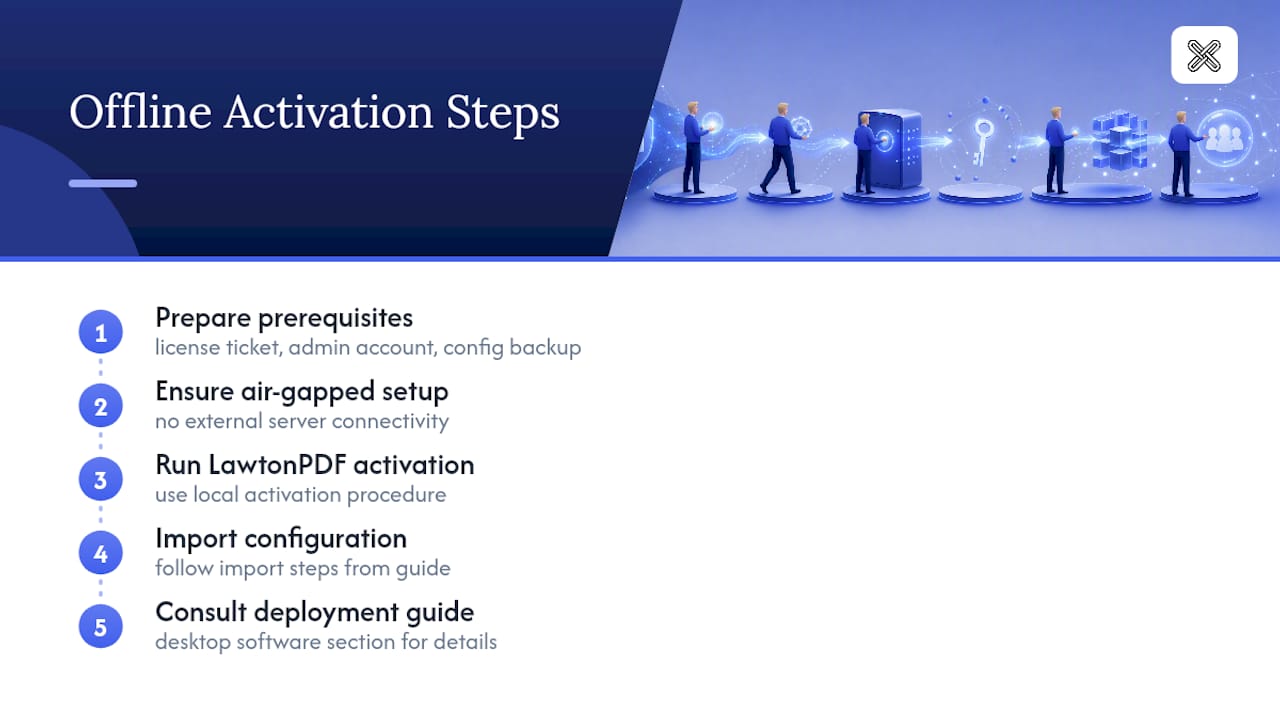
This software processes documents locally, which makes it a natural fit for air-gapped or privacy-sensitive deployments where nothing should touch an external server. If you're rolling it out in that kind of environment, have your license ticket, a local admin account, and a backup of your configuration ready before you begin. Then follow LawtonPDF's own activation and import steps for your specific deployment, covered in more detail in the deployment guide for desktop software.
Trade-Offs: Privacy vs. Manageability
Offline activation earns its complexity on machines that genuinely can't connect. Anywhere else, it's the wrong default: online or floating seats are easier to audit, reassign, and renew. If you do go offline, pair it with strict inventory and refresh tracking, or you'll end up with orphaned seats nobody can account for.
— Lawton
Deploy LawtonPDF Without Sending a Single File to the Cloud
If you've just spent this much effort keeping activation files off the internet, you already understand why local-first software matters. LawtonPDF processes every document, comparison, and edit on the machine it's installed on, with no cloud upload step to secure, audit, or worry about during an offline deployment.

That matters for legal teams comparing contracts, healthcare organizations handling records, or any IT department that can't risk sensitive files leaving the building. Team licensing generally works the same way whether machines are fully connected or locked down, and setup steps usually include confirming license tickets, preparing admin credentials, and following the activation flow for the environment. Explore the full toolset to see what's included, or visit the LawtonPDF product page to evaluate licensing options for your team.
Sources
- Activate Tableau Server Offline - Tableau
- Offline License Activation - LicenseSpring
- Offline activation · Serial Studio
- Offline license activation - NAPA / CodeMeter
FAQ
Can I Activate a License Offline Without Any Internet Access at All?
Yes, as long as your vendor supports offline activation and you have access to a second, internet-connected machine to complete the upload and download steps. The offline machine itself never needs to connect.
How Can I Activate a Windows License Offline?
Windows supports offline activation through a phone-based or file-based process depending on the version, but it still requires reaching Microsoft's activation servers from some connected device or phone line. Check Microsoft's own activation documentation for the exact steps for your Windows edition.
How Does Offline Licensing Work in General?
It works through a request-and-response file exchange: the offline machine generates a request, an online machine uploads it to the vendor, and the vendor's signed response gets imported back to complete activation.
Can You Activate Office Offline?
Office generally requires periodic online check-ins rather than a true one-time offline activation, so most Office subscriptions don't support the air-gapped workflow described here. Perpetual Office licenses have historically supported phone activation, which functions similarly to file-based offline activation but doesn't need a second machine.
What Happens If I Import a Response File on the Wrong Machine?
The import fails with a cryptographic mismatch error rather than corrupting your installation, because the response is cryptographically bound to the hardware ID from the original request. Generate a fresh request on the correct machine and repeat the exchange.