
Lock a PDF from editing by setting an owner (permissions) password that disables modification, copying, and printing, then back it with flattening so form fields can't be reopened. Add a visible watermark first, flatten second, set permissions third, and verify last. If you need to stop people from opening the file at all, add a separate user password. Permissions are viewer-enforced, not unbreakable, so match the method to how sensitive the document actually is.
TL;DR:
- Setting only an owner password permits anyone to open the PDF but prevents editing, copying, and printing in compliant viewers.
- Flattening form fields before applying permissions locks in filled data and removes interactive widgets that could be altered later.
- Combining watermarking, flattening, and permission settings provides layered protection against casual editing and leaks.
- Permissions are viewer-enforced and can be bypassed with OCR, screenshots, or owner password removal, so they are deterrents for typical misuse.
- Local, offline tools like LawtonPDF ensure sensitive documents are protected without exposing them to online risks or third-party servers.
Table of Contents
- Lock PDF Permissions: 5 Quick Methods Compared
- How to Set an Owner Password to Disable Editing, Copying, and Printing
- Flattening and Rasterizing: Locking Forms and Finished Pages
- Watermarks and Rights Metadata: The Visible Layer
- What Locking a PDF Doesn't Stop (and How to Check It Worked)
- LawtonPDF: Lock, Flatten, and Watermark Without Uploading Anything
- When "Locked" Is Enough (and When It Isn't)
- Publishers and Legal Teams Need Predictable Locking, Not Guesswork
- Get LawtonPDF and Lock Your Next PDF in Minutes
- Sources
- FAQ
Lock PDF Permissions: 5 Quick Methods Compared
You have five real tools for this job, and they solve different problems. Picking the wrong one is the most common mistake people make when they try to secure PDF files: they set a password and assume the document is now bulletproof, when it only blocks the specific action they configured.
- Owner (permissions) password. This disables editing, copying, and printing inside conformant viewers, while letting anyone open the file without a password. It's the right call when you want the document freely readable but not alterable.
- User (open) password. This encrypts the file so it requires a password just to view it. Use this when the content itself is sensitive enough that even opening it needs a gate, not just editing.
- Flattening. This bakes filled-in form answers and annotations into the page itself, stripping out the editable widgets. It's the best move for finalized forms, contracts with fillable fields, or anything where someone could otherwise reopen a text box and change a number.
- Rasterizing (converting pages to images). This removes selectable text entirely by turning each page into a flat image. It stops copy-paste and most casual text edits cold, but it also breaks accessibility tools and makes the file resistant to search, so it's a tool of last resort rather than a default.
- Watermarks and XMP rights metadata. A visible "CONFIDENTIAL" or "DO NOT EDIT" stamp doesn't technically restrict anything, but it signals intent and discourages casual misuse. Rights metadata embedded in the file's XMP data can also declare read-only intent for systems that check it.
If your files involve client data, medical records, or anything under a confidentiality agreement, resist the urge to run them through a random web converter. Every upload to an unfamiliar online tool is a copy of that document sitting on someone else's server. A local, offline PDF editor keeps the entire process on your machine, which matters more than most people realize until the file in question is a signed NDA or a patient chart.
The strongest real-world setups don't pick one method. They stack watermark, flattening, and permissions together, since layered protection addresses different attack types at each step. A watermark deters a casual editor. Flattening removes the tempting form fields. Permissions block the menu commands most people would reach for first. None of them alone covers everything, but together they cover almost every realistic scenario short of a determined attacker with specialized tools.
How to Set an Owner Password to Disable Editing, Copying, and Printing
The single most important distinction in PDF security is the one most guides skip past too fast: an owner password and a user password do completely different jobs. The PDF format actually defines two separate passwords: the owner password protects the permission flags (editing, copying, printing), while the user password encrypts the file and blocks it from opening at all. If you only set an owner password, anyone can still open and read the document. They just can't legally edit, extract text from, or print it in a viewer that respects those flags.
That distinction shapes almost every decision in this section. If your goal is "let people read this, but stop them from changing it," you want an owner password. If your goal is "nobody without the password should even see this," you need a user password too, layered on top.
Step-by-step: setting permission flags
- Open the PDF in a tool that supports permission-based protection, not just simple password locking.
- Choose the protect or encrypt option, then select "set permissions" rather than "require password to open."
- Set an owner password. This is the password stored to unlock the permission dictionary later, not one your recipients will ever type.
- Disable the specific permissions you want blocked: modify document, extract content/copy, and print (or print at low resolution only).
- Save as a new file, and keep the original unprotected version somewhere safe in case you need to edit it again later.
Behind the scenes, a properly built tool re-encrypts the file using AES-256 to store that permission dictionary securely, which is the same encryption standard Adobe Reader and macOS Preview recognize when they gray out the Print command. Weaker or older encryption schemes exist, but AES-256 is the baseline you want if the tool gives you a choice, since it's what modern viewers consistently honor.
Adobe's own documentation for restricting PDFs lays out exactly which options map to which behavior: printing can be set to none, low resolution, or high resolution, and "changes allowed" ranges from no changes at all to allowing only commenting or form filling. Adobe's help pages spell out each permission tier explicitly, which is useful to check against whatever software you're using, since not every tool exposes the same granularity.
Pro Tip: Test your locked PDF in a second viewer before you send it out. A tool might apply the permission flags correctly, but if you only check the result in the same program you used to set them, you won't catch a viewer that ignores those flags entirely.
Verifying the lock actually worked
Don't trust the "success" message. Open the finished file in Adobe Reader or macOS Preview, and try the actions you disabled. Attempt to print. Try to select and copy a block of text. Check whether the editing tools in the toolbar are grayed out or missing. If any of those still work, the permission flags weren't applied correctly, or the viewer you tested in doesn't enforce them (more on that in the limitations section below).
Once you've confirmed it, store the owner password somewhere separate from the file itself, a password manager rather than a note in the same folder. Losing the original editable version means you'll need to fully recreate the document if you ever need to change it, since the whole point of permissions is making that hard to do.
Flattening and Rasterizing: Locking Forms and Finished Pages
Flattening and rasterizing solve two different problems, and mixing them up leads to either an unnecessarily bloated file or a form that isn't actually locked. Flattening converts AcroForm widgets, text boxes, checkboxes, and annotations into static page content, removing the interactive elements while leaving the underlying text layer intact. Flattening form fields removes the editable widgets but doesn't, by itself, stop someone from editing the surrounding body text with a full-featured PDF editor.
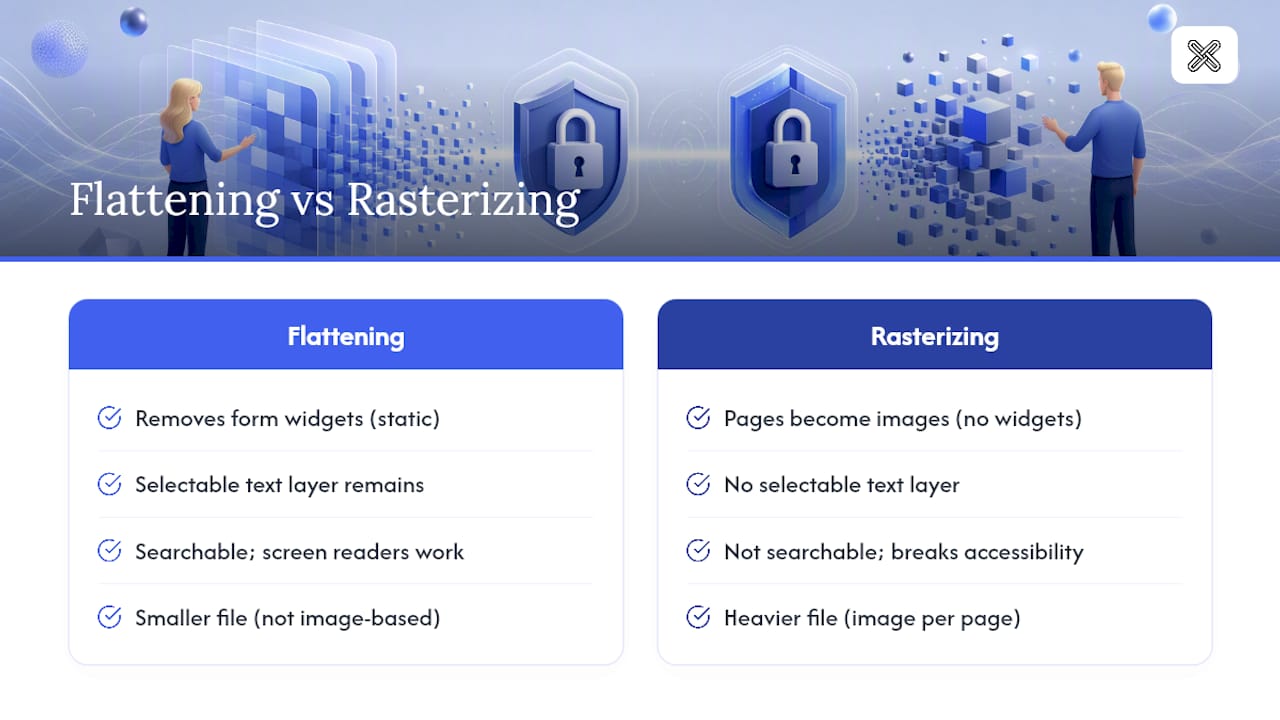
Rasterizing goes further by converting each page into a flattened image, eliminating the selectable text layer entirely. There's no text to copy, no field to reopen, nothing to select. The trade-off is real: rasterized pages are heavier, they're invisible to search and screen readers, and they can't be indexed by anything relying on extractable text.
When to use which
Use flattening when you have a filled-out form, whether that's a signed contract, an intake form, or an application, and you want the answers locked in place without destroying the document's usability. Use rasterizing when the document is a finished, visual artifact (a signed agreement, a final proof, a certificate) where nobody has any legitimate reason to need selectable text going forward.
- Flatten form fields and remove the Annots dictionary to strip out interactive widgets from a filled form.
- If you need the underlying text protected too, pair flattening with permission flags rather than relying on flattening alone.
- Reserve full rasterization for cases where you're comfortable losing searchability and copy-paste entirely.
- If accessibility matters (screen reader compatibility, ADA compliance for public documents), keep a tagged, text-based version on file even after you distribute a rasterized copy.
- Run OCR on a rasterized page only if you specifically need a hidden, searchable text layer restored for your own internal indexing, not for the recipient's editing convenience.
A tool built for this uses libraries like pdf-lib to strip the AcroForm structure directly, and that approach is effective for locking form widgets but leaves the page body text as vulnerable as it was before. That's the detail worth remembering: flattening a form is not the same as locking a document, and treating them as interchangeable is how "locked" PDFs end up getting edited anyway.
The order matters here, too. Flatten first, then apply permission flags. Set permissions before flattening, and re-opening the file to flatten it later can sometimes reset or complicate those flags depending on the tool. Flattening then locking permissions produces the most consistent protection for forms specifically, since the widgets are gone before the file gets its final encryption pass.
Watermarks and Rights Metadata: The Visible Layer
A watermark stops nothing on its own. It's not a technical barrier, and anyone with basic PDF editing software can remove a poorly placed one in seconds. Its value is entirely psychological and procedural: it tells a reader, at a glance, that the document is a draft, confidential, or not the version they should be redistributing. That's still worth doing, because most unauthorized edits and leaks aren't the work of a determined attacker. They're a colleague forwarding the wrong file, or a client not realizing a document was still in draft form.
- Place watermark text diagonally across the page, large enough to be unmissable but light enough not to obscure the content underneath.
- Use direct language: "CONFIDENTIAL," "DRAFT," or "DO NOT DISTRIBUTE" reads faster than a vague company slogan.
- Add the watermark before you flatten the page, not after, so it becomes part of the static content rather than a removable layer someone could delete separately.
- Consider XMP rights metadata alongside the visible mark to declare read-only intent in the file's own properties, which some document management systems check automatically.
Pro Tip: If your watermark is a separate overlay object rather than part of the flattened page, someone with a basic editor can select and delete it in a few clicks. Flatten immediately after watermarking, not before, so the two become inseparable from the page itself.
Visible deterrents are enough on their own for low-stakes internal circulation, drafts shared with a small trusted group, or proofs going out for feedback. They stop being enough the moment the document leaves your control entirely, gets emailed to an external party, or contains information where an accidental edit could cause real harm. At that point, a watermark is a nice-to-have riding on top of the actual technical protections, not a replacement for them.
What Locking a PDF Doesn't Stop (and How to Check It Worked)
Permission flags and encryption solve different threats, and neither one is absolute. Permissions are enforced by the viewer reading the file, not by some unbreakable seal on the document itself. A conformant viewer respects the flags you set and grays out the relevant menu options. A nonconformant one, or a tool built specifically to strip protections, can simply ignore them.
That's the core limitation to internalize: permissions are a deterrent aimed at ordinary users using ordinary software, not a defense against someone actively trying to break in.
Here's what commonly gets past a permissions-only lock:
- OCR workarounds. Even a permission-locked PDF that blocks text extraction can be screenshotted and run through optical character recognition to reconstruct editable text.
- Nonconformant editors. Some free or lesser-known PDF tools simply don't check the permission dictionary before allowing edits.
- Owner password removal. If someone has (or guesses) the owner password, they can strip the permission dictionary entirely and re-save the file with no restrictions at all.
- Screenshots and photographs. No permission flag stops someone from photographing their screen, which defeats copy-paste restrictions without touching the file's protections at all.
Treat permission flags as a deterrent against casual misuse, not a security wall. The moment content is sensitive enough that a screenshot or an OCR pass would cause real harm, permissions alone are the wrong tool for the job.
For that level of sensitivity, layer a user (open) password on top of your permission settings, so the file requires a password just to view, not just to edit. That combination, encryption plus permissions, is what actually stands between casual access and a locked document.
Before you send anything out, run this quick verification pass:
- Open the file in at least two different viewers (Adobe Reader and a second one, ideally Preview if you're on a Mac).
- Try to print, copy text, and edit. Confirm the restrictions hold in both.
- If you have access to a technical inspector like qpdf, check the permission flags directly rather than trusting the UI alone.
- Send a test copy to one actual recipient on the hardware and software they'll actually use, since permission enforcement can vary slightly by platform.
LawtonPDF: Lock, Flatten, and Watermark Without Uploading Anything
Every step in this workflow, watermarking, flattening, and setting permissions, can be done entirely offline, and for sensitive documents that's not a minor convenience. Some browser-based tools now run permission-setting entirely in the browser using WebAssembly rather than uploading files to a server, which is a meaningful privacy improvement over the many web tools that still process your document on someone else's infrastructure. LawtonPDF takes that same local-first principle further as a desktop application: nothing you touch ever leaves your machine.
LawtonPDF handles the entire recommended sequence in one place:
- Watermark documents with custom text, positioning, and opacity before anything else happens to the file.
- Flatten form fields and annotations to bake filled answers into the page and strip out editable widgets.
- Protect with both owner (permissions) and user (open) passwords, using AES-256 encryption for the permission dictionary.
- Verify locally by reopening the finished file in the same session, no round trip to a server required.
For legal teams, healthcare organizations, and finance staff working with material that can't leave a controlled environment, that local processing isn't a nice extra. It's often the difference between a workflow that satisfies internal data-handling policy and one that doesn't. A file that never leaves your hard drive can't be intercepted in transit and doesn't sit in some third party's temporary storage while it's being converted.
Pro Tip: Run the full sequence in one sitting: watermark, then flatten, then set permissions, then verify by reopening the finished file before you send it anywhere. Doing each step in a separate tool increases the chance you'll skip the verification pass entirely.
If you already have a password-protected PDF that needs its restrictions changed or removed because you're the original owner, that's a separate, straightforward step rather than something requiring a full rebuild of the document. And once a locked file is circulating, if you ever need to confirm that a distributed copy wasn't altered from your original, running the two versions through a document comparison tool settles the question faster than eyeballing pages side by side.
When "Locked" Is Enough (and When It Isn't)
Not every document needs the same level of protection, and treating every file as if it's a legal contract wastes time you don't have to spend. The right question isn't "how do I lock this PDF as hard as possible," it's "what actually happens if this specific file gets edited or leaked?"
For internal drafts, proofs circulating for approval, or documents going to a small trusted group, watermark plus flattening plus permissions is genuinely sufficient. Nobody in that loop has a strong incentive to strip protections, and the friction of doing so is usually enough to prevent accidental changes, which is the actual risk you're managing.
For legal agreements, medical records, or payroll documents, that combination isn't enough on its own. Anything where an unauthorized edit or an unauthorized viewer could cause real financial, legal, or personal harm needs a user (open) password layered on top, strict control over who receives the file at all, and a clear policy on how long you retain both the protected copy and the original editable source. A contract that isn't properly locked down before signature can create real disputes later about which version was actually agreed to.
A quick way to calibrate: ask who could plausibly access this file beyond your intended recipient, and what the worst outcome looks like if they edited or leaked it. If the answer is "an annoying but fixable inconvenience," permissions and flattening cover you. If the answer involves legal exposure, financial loss, or someone's private medical information, add encryption and think hard about whether the file needs to exist outside a controlled system at all.
Keep the original editable file, store owner and user passwords in a password manager rather than in the same email thread as the document, and version your locked files clearly (v1-final, v2-signed) so nobody downstream confuses a draft with the document that actually matters.
Publishers and Legal Teams Need Predictable Locking, Not Guesswork
The gap between "I locked this PDF" and "this PDF is actually locked" is where most of these workflows fail in practice. It's not that people pick the wrong tool. It's that they set one restriction, assume it covers everything, and never test the result in a second viewer before sending it out. A permission flag that works perfectly in the software that created it can be silently ignored by whatever the recipient happens to open it with.
What surprises most people is how much of this comes down to sequencing rather than tool choice. Watermarking after flattening instead of before leaves the mark removable. Setting permissions before flattening a form can produce inconsistent results depending on the software. The order isn't a minor detail, it's the difference between a document that holds up and one that looks locked but isn't.
The other underappreciated point is that "more security" isn't always the right answer. Slapping a user password on every internal draft just trains your colleagues to see passwords as friction to route around, usually by asking someone to just send the unprotected version instead. Reserve the strongest protections for the documents where the stakes actually justify them, and you'll get better compliance across the board, not worse security.
If there's one habit worth adopting from a production-workflow discipline like PDF preflight checking, it's this: never consider a file finished until you've reopened the output and checked it against what you intended, not what the software told you it did.
— Lawton
Get LawtonPDF and Lock Your Next PDF in Minutes
Everything in this guide, watermarking, flattening, setting owner and user passwords, and verifying the result, runs locally inside LawtonPDF with no upload step and no cloud processing standing between your document and anyone else's server. That matters most for exactly the files this article is about: contracts, financial statements, and records you can't risk sending through a third-party converter just to add a password.

Start with the Password Protect PDF tool to set your owner and user passwords with AES-256 encryption, or head to the full tools page to flatten and watermark a document before you lock it down. If you're rebuilding a form-heavy file first, the flatten tool handles that step separately so you can run the whole sequence in order. Download LawtonPDF and run your next finalized document through the complete workflow before it leaves your desk.
Sources
- Pdf4
- Prevent printing of a PDF with permission settings — JAD Apps
- Restrict printing, editing, and copying PDFs — Adobe Help
FAQ
How do I make my PDF not editable?
Set an owner (permissions) password that disables the modify and extract permissions, and flatten any form fields first so there's nothing interactive left to reopen. Tools like LawtonPDF's protect feature handle both steps locally.
How can I protect a PDF from editing and copying?
Disable the "changes allowed" and "content copying" permissions when you set your owner password, ideally using AES-256 encryption for the permission dictionary, then verify the result in a second PDF viewer before distributing it.
How do I password protect a PDF so people can view but not edit it?
Set only an owner (permissions) password, leaving the user (open) password blank. This lets anyone open the file freely while blocking editing, copying, and printing in any viewer that respects the permission flags.
How do I stop a PDF from being copied?
Disable the content extraction permission when setting your owner password. Keep in mind this stops copy-paste in conformant viewers but doesn't prevent someone from retyping the content or using OCR on a screenshot.
What's the difference between an owner password and a user password?
An owner password protects the permission flags, like editing and printing, while letting anyone open the file. A user password encrypts the document itself and requires the password just to open it at all.