
You make PDF/A by matching the tool to the file: a full-featured desktop PDF editor for a single native PDF, an OCR-based command-line tool like OCRmyPDF for scanned pages, and trusted online converters only for small, non-sensitive files. Whatever route you take, the job isn't finished until you validate the result with veraPDF or a comparable tool, because a "Save As PDF/A" click doesn't guarantee a compliant file.
Here's the quick breakdown by job type:
- Single native PDF (Word, LibreOffice, or a report you built digitally): use a desktop PDF editor's export or Save As function and pick the PDF/A conformance level you need.
- Scanned document or image-only PDF: run OCR first, then convert. A CLI tool built for this, like OCRmyPDF, handles both steps at once.
- Large batch of files: use a desktop editor's batch export wizard or a scripted command-line pipeline instead of converting files one at a time.
Pro Tip: Before you convert anything, embed your fonts and fill in basic metadata (title, author, keywords). Fixing these after the fact means reconverting the file from scratch.
Key Takeaways
Making a valid PDF/A file requires choosing the right conversion path for your source document, then validating the output against ISO 19005 before treating it as archived.
| Point | Details |
|---|---|
| Match tool to file type | Use a desktop editor for native PDFs, OCRmyPDF for scans, and CLI or batch export for large volumes. |
| Embed fonts and metadata early | Add title, author, and keyword metadata before conversion to avoid reconverting later. |
| Validate every file | Run veraPDF or an equivalent validator after conversion, never rely on a "Save As" success message alone. |
| Fix root causes, not symptoms | Missing fonts, encryption, and image-only pages are the most common validation failures. |
| Prep sensitive files locally | Tools like LawtonPDF clean, merge, and unlock documents on your own machine before you convert or archive them. |
Table of Contents
- How to Make PDF/A With a Desktop PDF Editor
- Can You Make PDF/A Online, and Should You?
- Exporting PDF/A From Microsoft Word and LibreOffice
- Batch and Command-Line Conversion for Scanned Files and Archives
- Which PDF/A Conformance Level Should You Choose?
- Why PDF/A Conversions Fail and How to Fix Them
- How to Validate a PDF/A File Before You Archive It
- What to Do When a PDF/A File Fails Validation
- A Pragmatic Take on Archival-Ready PDFs
- Prepare and Protect Your Files Before You Archive Them
- Validators and Standards Worth Bookmarking
- Sources
- FAQ
How to Make PDF/A With a Desktop PDF Editor
For a single native file, a desktop PDF editor is your fastest reliable path. Tools like Adobe Acrobat and PDF-XChange both include a direct export-to-PDF/A workflow that handles font embedding and conformance checks in one pass.
- Open the file in your PDF editor.
- Go to the export or "Save As" menu and select PDF/A as the format.
- Choose your conformance level (more on that below) — 1b is the safe default for most archival needs.
- Confirm the tool embeds all fonts used in the document. Most editors flag missing fonts automatically.
- Save the file, then run it through a validator before calling the job done.
If you're converting more than a handful of files, look for a batch or action-wizard feature. Acrobat's Action Wizard and PDF-XChange's batch conversion tool both let you point at a folder, apply the same PDF/A settings across every file, and walk away while it processes.
- Batch tools save real time on repeat archival jobs, like digitizing years of contracts or reports.
- Always spot-check a few outputs from a batch run rather than assuming every file converted cleanly.
- Watch for warnings about transparency, layers, or embedded multimedia. These often need manual cleanup even in a batch job.
Pro Tip: Run the Preflight or export-options check before finalizing. It catches font and accessibility metadata problems that a validator will flag later, so you fix them once instead of twice.
Can You Make PDF/A Online, and Should You?
Free online converters like PDF24 and iLovePDF work fine for a quick, low-stakes conversion. They're the simplest option for a single file with no sensitive content, but they come with real limits worth understanding before you rely on them for anything archival.
- Upload your PDF to the converter.
- Select the PDF/A profile you want (most tools default to PDF/A-1b or PDF/A-2b).
- Download the result and run it through a validator immediately. Don't assume the site's own "success" message means the file is truly compliant.
Online tools process your document on someone else's server, which matters a lot if the file contains client records, financial data, medical information, or anything under a retention or privacy requirement. Before uploading anything sensitive, check the site's stated privacy policy and how long it retains uploaded files. Many delete files within hours, but policies vary and aren't always enforced consistently.
- Skip online converters entirely for regulated or confidential archives. Use a desktop tool that processes files locally instead.
- If a converted file fails validation, check for lingering encryption or password protection first. Most online tools can't handle password-protected inputs correctly.
- If the source was a scanned page with no real text layer, an online converter won't fix that. You'll need OCR first.
Exporting PDF/A From Microsoft Word and LibreOffice
If your document started life as a Word file, you don't need a separate PDF tool to get a valid archival export. Both Microsoft Word and LibreOffice have PDF/A built into their export dialogs.
- In Word (Windows), go to File > Save As, choose PDF as the file type, then click Options.
- Check the box for PDF/A compliant near the bottom of the options dialog, then save.
- In LibreOffice, go to File > Export As > Export as PDF, open the PDF/A tab, and select the conformance version you need.
LibreOffice's export dialog is more transparent about which PDF/A version it's targeting, which helps when you need a specific conformance level for a submission requirement. Word's checkbox approach is simpler but gives you less control over the resulting profile.
- Mac versions of Word have historically lagged behind Windows on PDF/A export options, so double-check the Save As dialog on Mac before assuming the checkbox exists.
- Older LibreOffice versions may only support PDF/A-1, so confirm your version if you need PDF/A-2 or PDF/A-3 features like attachments.
- Whichever program you use, run the output through a validator before archiving. Office exporters are convenient, but institutional guides warn that some export and print-to-PDF paths can produce image-only or rasterized output that fails strict PDF/A checks even though the file "looks" fine.
Batch and Command-Line Conversion for Scanned Files and Archives
Scanned documents need a different approach than native digital files, because a scan is just a picture of text until OCR gives it a real, searchable text layer. Skipping this step is one of the most common reasons archived scans fail accessibility and compliance checks later.
- Install OCRmyPDF, an open-source command-line tool built specifically for this workflow.
- Run a command like
ocrmypdf --output-type=pdfa-1 input.pdf output.pdfa.pdfon a single scanned file to add a text layer and output PDF/A-1 in one pass, per the OCRmyPDF documentation. - Adjust the
--output-typeflag for a different conformance target, or add flags for deskewing and cleanup if your scans are crooked or noisy. - For a full folder of scans, wrap the command in a simple shell script that loops through every file, so you're not typing the same command by hand a hundred times.
An OCR-first approach doesn't just satisfy the archival requirement. It makes the archive actually usable, since staff and researchers can search the text years later instead of squinting at a scanned image.
| Approach | Privacy | OCR capability | Best for |
|---|---|---|---|
| CLI scripts (OCRmyPDF) | Fully local | Built-in, scriptable | Large scanned archives, automated pipelines |
| Desktop batch export | Fully local | Depends on editor's OCR module | Native digital files, moderate volume |
| Managed online batch | Data leaves your machine | Varies by provider | Small, non-sensitive jobs only |
Pro Tip: If a scan repeatedly fails validation because of missing glyphs after OCR, try subsetting and embedding whatever fonts are available before resorting to rasterizing the page. Rasterizing kills searchability, so treat it as a last resort, not a first fix.
Which PDF/A Conformance Level Should You Choose?
PDF/A comes in several conformance levels, and picking the wrong one is a common reason files get flagged during a formal archival review. The standard, defined under ISO 19005, breaks down into a few practical tiers.
- PDF/A-1b preserves visual appearance only. It's the safe, minimal default for most everyday archiving.
- PDF/A-1a adds structural and accessibility requirements (tagged content), useful when the archive needs to support screen readers.
- PDF/A-2a/2b support newer PDF features like transparency and JPEG2000 compression, with 2a again requiring accessibility tagging.
- PDF/A-3 allows embedded file attachments (like the original source spreadsheet behind a report), which 1 and 2 do not.
Institutional archival guidance, including the PDS PDF/A Guidelines, often recommends PDF/A-1 for straightforward archival submissions and reserves the newer levels for cases with a specific technical need.
- Choose 1b when you just need a stable, long-term visual copy and don't need accessibility tagging.
- Choose 2a when a legal or organizational policy requires accessible archives for screen reader users.
- Choose 3 when the file needs to carry its original source data along with it, like an invoice bundled with its underlying spreadsheet.
Why PDF/A Conversions Fail and How to Fix Them
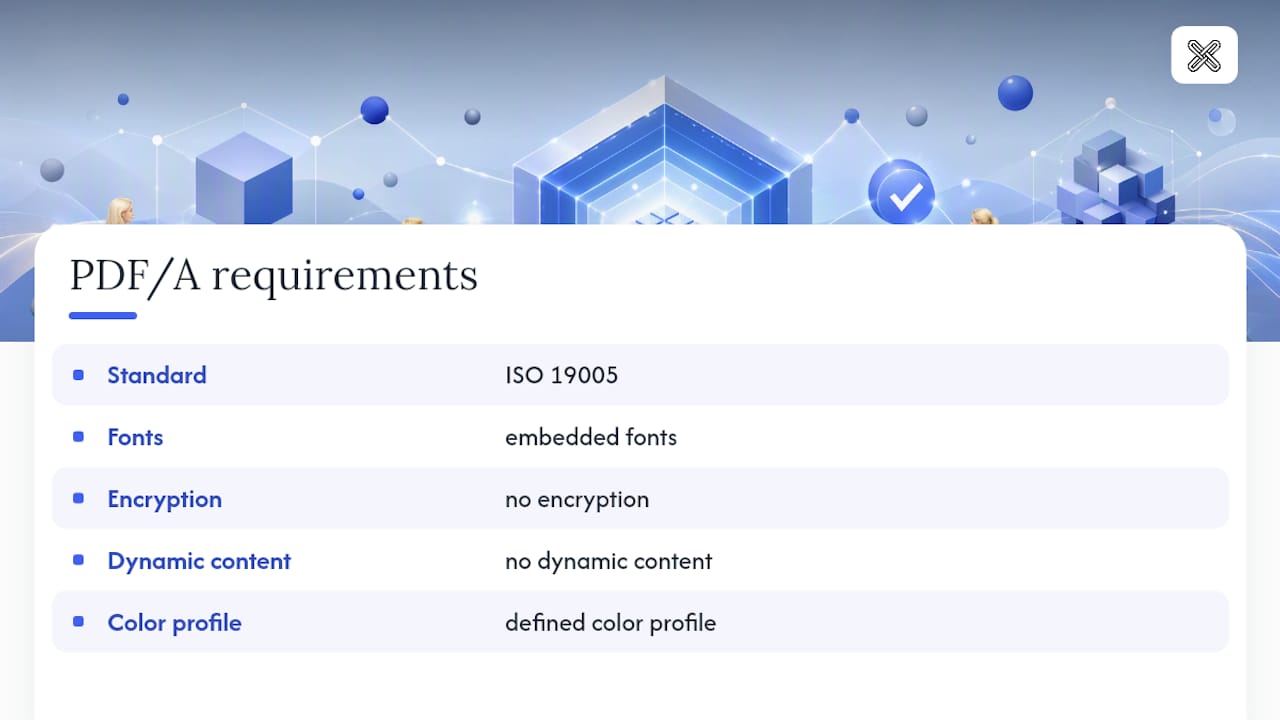
Most failed conversions trace back to a handful of repeat offenders. A regular PDF allows things that PDF/A explicitly forbids, because the standard is built around one goal: making sure the file renders identically decades from now, with no dependency on fonts, plugins, or software that might not exist anymore.
- Missing embedded fonts. The file references a font that isn't packaged inside it, so rendering isn't guaranteed on another machine.
- Encryption or password protection. PDF/A doesn't allow this, since a locked file defeats long-term accessibility.
- JavaScript or embedded multimedia. Interactive or dynamic content isn't self-contained and gets rejected.
- Unsupported color profiles. Files need a defined, embedded color space rather than relying on the viewing device's default.
- Rasterized or image-only text. A page that's really just a picture has no real text layer, which breaks both search and accessibility.
- Identify which error the validator flagged.
- If fonts are missing, reopen the source file and embed or subset the fonts before re-exporting.
- If the file is encrypted, remove the password protection first, then convert.
- If pages are image-only, run OCR before attempting PDF/A export again.
- Add or correct metadata (title, author, keywords) since institutional guidance consistently flags incomplete metadata as a preventable, easy-to-fix failure.
- Re-run the validator to confirm the fix actually resolved the issue rather than introducing a new one.
Pro Tip: Font problems are almost always a subsetting issue. If your editor supports it, embed the full font rather than a subset when you're not sure which characters the document uses. It's a slightly bigger file, but it avoids missing-glyph errors down the line.
How to Validate a PDF/A File Before You Archive It
Validation is the step that separates a file that merely says "PDF/A" from one that actually passes archival scrutiny. veraPDF is the tool most institutions rely on, and it comes in both GUI and command-line versions depending on your workflow.
- Run your converted file through veraPDF, choosing the conformance profile you targeted during conversion (1b, 2a, and so on).
- Read the resulting report. It lists specific rule violations, not just a pass/fail flag.
- Map each error back to a likely cause: a font error usually means embedding failed, a color error usually means an unsupported profile, and a metadata error usually means a missing required field.
- Fix the source issue, re-export, and re-run the validator until the report comes back clean.
For institutional or government-adjacent archives, the PDS Validate Tool wraps veraPDF with additional checks specific to that submission context, which is worth knowing if you're archiving under a formal standard rather than for internal use.
- Use veraPDF's desktop GUI for one-off checks on individual files.
- Use its command-line mode when validation needs to run as part of an automated batch pipeline.
- Treat a quick online validator as fine for a fast sanity check, but not as your final compliance record for anything that matters long term.
- If the same error keeps showing up across a whole batch, the fix probably belongs upstream in your conversion settings, not in each file individually.
What to Do When a PDF/A File Fails Validation
A failed validation report isn't a dead end. It's a prioritized to-do list, and most fixes fall into a short, predictable set of actions.
- Check for missing font embedding first. It's the single most common failure and usually the easiest to fix.
- Remove any encryption or password protection, since PDF/A doesn't permit either.
- Add or correct metadata fields the report flags as missing, particularly title and author.
- Flatten transparency or layered content if the validator specifically calls it out as unsupported for your target conformance level.
- Open the source document, not the failed PDF/A output, whenever possible. Fixing the source avoids compounding conversion errors.
- Apply the specific fix the validation report identifies.
- Re-export using the same conformance level and settings you used originally.
- Re-run the validator and compare the new report against the old one to confirm the flagged issues are gone.
- If the source file no longer exists or repair isn't practical, rebuild the document from the best available copy and start the conversion process again.
A workflow that automates conversion for large batches benefits from routing failures into a separate queue for manual review, so you're not rebuilding hundreds of files by hand when only a handful actually need it.
A Pragmatic Take on Archival-Ready PDFs
Most people treat PDF/A conversion as a formality, one checkbox in an export dialog. That mindset is exactly how organizations end up with archives full of files that look compliant but fail the moment someone actually runs a validator against them years later.
The fix isn't a better converter. It's a standardized habit: convert, validate, log the result, and only then call the file archived. Treat validation as a required step, not an optional extra, and keep a record of which conformance level and validator version you used for each batch. That record matters more than it seems when someone needs to explain, five years from now, why a document does or doesn't meet an audit requirement.
Metadata deserves the same discipline. Title, author, and keyword fields feel trivial when you're converting a single file, but at archive scale, they're what makes a document findable and accessible again. Skipping them now just means someone reconverts the file later.

Prepare and Protect Your Files Before You Archive Them
Long-term archiving starts before conversion, and that's where LawtonPDF fits in without ever sending your documents to someone else's server. Every tool runs locally on your machine, so a sensitive contract, medical record, or financial file never leaves your computer during prep work.

Before you convert, you often need to clean up the source file first: merging related documents into one archive-ready PDF, removing password protection that would otherwise break PDF/A conversion, or fixing a skewed, noisy scan so OCR actually produces usable text. LawtonPDF's merge tool, ScanFix scan cleanup utility, and password removal tool handle exactly that groundwork, all processed locally with nothing uploaded to the cloud. Once your file is validated and archived, LawtonPDF's compare tool also lets you check a repaired version against the original to confirm nothing was lost in the fix. Browse the full toolset and start prepping your next archival batch today.
Validators and Standards Worth Bookmarking
A handful of references cover almost every troubleshooting question you'll run into during archival work.
- veraPDF, the open-source validator most archives and regulators treat as the standard reference for checking ISO 19005 conformance.
- PDS Validate Tool, which wraps veraPDF with checks tailored to institutional and government submission contexts, per the PDS PDF/A Guidelines.
- OCRmyPDF documentation, the reference for command-line flags and options when converting scanned archives.
- The Aalto University conversion guide, a practical walkthrough of Word, LibreOffice, and PDF-XChange export steps.
| Validator | Type | Best use case |
|---|---|---|
| veraPDF | Desktop GUI and CLI | Full-profile validation for any PDF/A conformance level |
| PDS Validate Tool | Desktop, built on veraPDF | Institutional or government-standard submissions |
| Online validators | Web-based | Quick, one-off checks on small, non-sensitive files |
Sources
- VeraPDF — open-source PDF/A validation (conference paper)
- PDF/A Guidelines — PDS
- Converting a file or files to a PDF/A compliant version — Aalto University
- OCRmyPDF documentation
FAQ
How do I turn a regular PDF into PDF/A?
Open it in a desktop PDF editor and use the Export or Save As function to select a PDF/A conformance level, then validate the result with veraPDF to confirm it actually meets the standard.
How do I remove PDF/A formatting from a file?
Most desktop PDF editors let you re-export the file as a standard PDF, which strips the PDF/A-specific restrictions like disallowed encryption and dynamic content; the file itself doesn't need special "unlocking."
Can I convert a PDF to PDF/A for free?
Yes. Free tools like PDF24, iLovePDF, and LibreOffice's built-in export can all produce PDF/A, though you should avoid uploading sensitive files to any online converter and always validate the output afterward.
What does it mean to create a PDF/A file?
Creating a PDF/A file means producing a version of a PDF that meets the ISO 19005 standard: embedded fonts, no encryption, no dynamic content, and a defined color profile, so the document renders identically decades from now.
Why did my PDF/A file fail validation?
The most common causes are missing embedded fonts, leftover encryption, unsupported color profiles, or pages that are really just scanned images with no real text layer underneath.