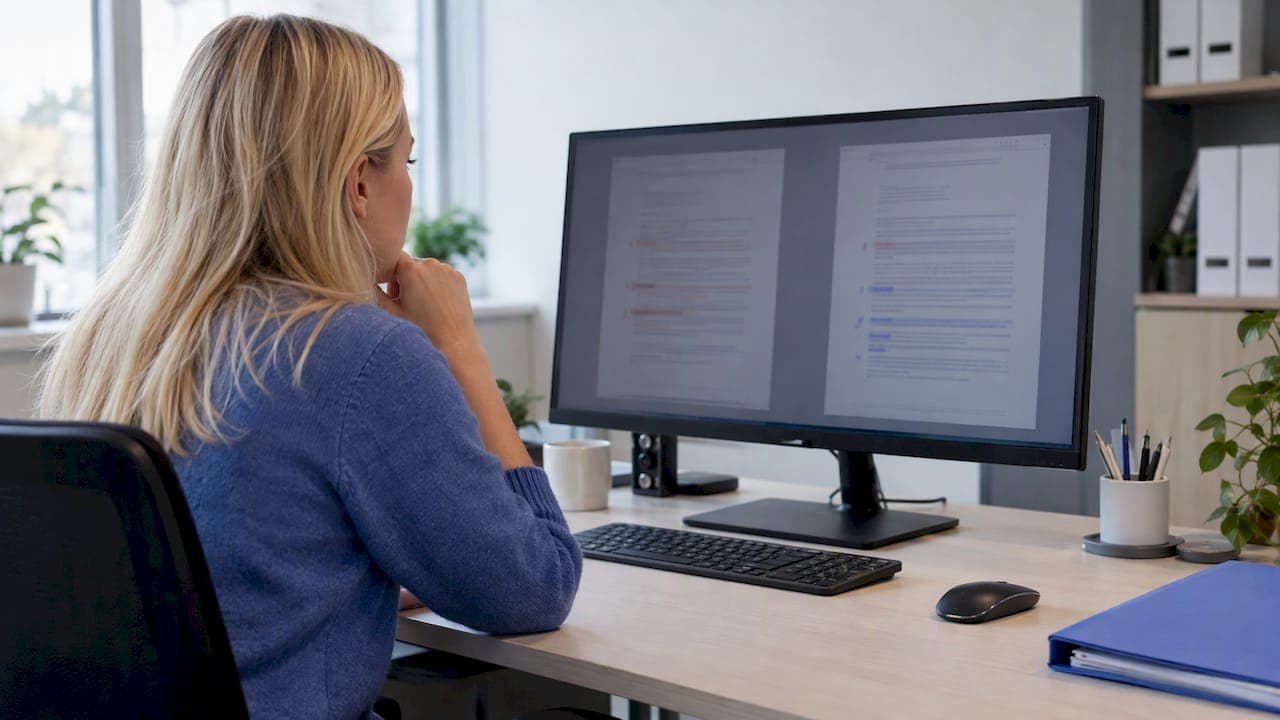
A side by side diff lines up two versions of a file in parallel columns, so you can read the changes next to each other instead of decoding plus and minus markers. Use it when a human needs to review long files or prose. You can produce one with Git or Python's difflib.HtmlDiff, or use a desktop app.
TL;DR:
- Use unified output when you need an applicable patch; choose side by side for human judgment, and use ndiff for small edits within individual lines.
- For loose text files, classic Unix diff creates a two column view, while Git’s word highlighting helps locate small prose edits and moved code.
- Python’s difflib.HtmlDiff creates shareable, two column HTML reports; use a standalone page or embedded table, and sanitize untrusted text before publishing.
- For noisy comparisons, mask timestamps and build numbers, scan a change summary first, then inspect suspicious passages and rerun after filtering to verify genuine edits.
- For PDFs, spreadsheets, and images, choose a document comparison app rather than line based tools; verify local processing before comparing confidential files.
Table of Contents
- What do side-by-side, unified, and ndiff formats each show?
- How do you produce a side-by-side diff on the command line?
- How do you build an HTML side-by-side diff with Python?
- How do you cut noise from a large diff?
- How do you run a side-by-side diff in LawtonPDF?
- How do you read and navigate the diff in LawtonPDF?
- Where does a side-by-side diff help in document review and legal work?
- Which side-by-side diff tools fit different document types?
- Why does a side-by-side diff suit PDFs and complex documents?
- A practical workflow: pick a view, narrow, and verify
- How we help with side-by-side comparison and secure local processing
- FAQ
- Sources
What do side-by-side, unified, and ndiff formats each show?
Every diff format answers a slightly different question, so the right choice depends on whether a person or a program will read the result.
- Side-by-side places both versions in columns. It is the best view for scanning, because you see the old and new text at the same moment and can compare context without mentally merging lines.
- Unified condenses everything into one stream with
-and+markers. It is compact and patchable, which is why code reviews and terminal workflows lean on it. Python's difflib documents unified output with a default context of 3 lines. - Context diffs cluster the before and after versions of each change into separate blocks. They carry the same information as unified output in a more verbose layout.
- Ndiff reports detailed line and inter-line changes, so it is useful when a single line was edited in small ways.
Word-level highlighting deserves a special note. It is computed on top of a line diff, not instead of one. Git, for example, finds the changed lines first and then marks the changed words inside them. That means a rearranged paragraph can produce different intra-line highlights than a dedicated word-diff engine would.
The practical rule: pick unified when the output must be applied as a patch or pasted into a ticket, and pick side-by-side when a person has to judge whether the changes make sense.
How do you produce a side-by-side diff on the command line?
Git and classic Unix diff both cover the basics. Work through these steps in order, and stop at the one that answers your question.
- Compare two loose files with Git. Run
git diff --no-index old.txt new.txt. The--no-indexflag tells Git to compare arbitrary files instead of tracked repository content, as the Git documentation describes. - Switch to word-level output for prose. Add
--word-diff=plainfor bracketed markers,--word-diff=colorfor colored words, or use--color-wordsas a shortcut. Git treats whitespace as the default word boundary unless you supply--word-diff-regex. - Get a true two-column view with classic diff. Run
diff -y old.txt new.txt(ordiff --side-by-side old.txt new.txt). Set the total column width when lines are long, and--suppress-common-linesto hide identical lines. - Control color deliberately. Git's
--colorflag acceptsalways,never, orauto. Useautoin scripts so ANSI escape codes do not leak into redirected files. - Surface moved code. Add
--color-movedso a relocated block is not mistaken for a deletion plus an addition. Thezebramode alternates colors to make moved blocks stand out. - Pipe sensibly. If you page the output, use
less -Rso color codes render correctly. If you redirect to a file for processing, leave color off.
Pro Tip: Run diff -y old.txt new.txt | less -S to keep wide columns on one line and scroll sideways instead of letting long lines wrap and break the alignment.
Classic diff -y is simple and fast, but it works line by line and does not highlight which words changed. That is the main reason people reach for Git's word modes or a graphical tool when the edits are small.
How do you build an HTML side-by-side diff with Python?
When you want a shareable report instead of terminal output, Python's standard library does the heavy lifting. The difflib.HtmlDiff class generates an HTML table or a full HTML file showing a side-by-side, line-by-line comparison with inter-line and intra-line highlights.
A minimal recipe looks like this: read both files into lists of lines, create difflib.HtmlDiff(), call make_file(fromlines, tolines), and write the returned string to an .html file. Open it in any browser and you have a two-column report.
- Pick the method by destination. Use
make_filefor a standalone page andmake_tablewhen you want to embed the comparison inside a larger HTML document. - Limit the noise. Pass
context=Truealong withnumlinesto show only changed regions plus a few surrounding lines, instead of the entire file. - Choose the format by purpose. HtmlDiff is built for presentation. When you need something patchable, use
unified_difforndiffinstead. - Treat the output as untrusted if the input is. The result is HTML, so if the compared text can contain user-controlled markup, escape or sanitize it before publishing the report.
This route fits teams that want a repeatable report: a script runs after each build, writes an HTML file, and attaches it to a review. It does not need a server or an account.
How do you cut noise from a large diff?
A diff that flags every timestamp and build number buries the changes that matter. Filtering is mostly about deciding what counts as a real difference.
- Normalize before comparing. Strip or mask timestamps, session IDs, and build numbers with a quick script or
sedpass on copies of the files. Then the diff shows only meaningful edits. - Start coarse, then narrow. Begin with a line-level side-by-side view to see where changes cluster. Then switch to word-level highlighting for the hunks that look suspicious, especially in prose.
- Detect moved blocks. Turn on
--color-movedwith thezebramode so relocated code reads as a move, not as unrelated deletions and additions. - Summarize first. Git's
--statoption adds a human-readable change summary, and--summarydescribes added, deleted, renamed, and copied files. Use them when a full side-by-side pass would be too noisy. - Collapse and paginate. For very large files, reduce context lines, export to HTML, or page through results after reading the summary.
Git's own guidance:
--statand--summarycan be combined with patch output, so you can read the overview and the detail in one run.
One more caution: the diff algorithm affects what you see. Git's --diff-algorithm option can change alignment, so if two runs disagree about where a block moved, try another algorithm before concluding that the file changed in a different way.
How do you run a side-by-side diff in LawtonPDF?
Command-line tools shine for plain text, but a contract or report usually arrives as a PDF or Word file. Here is how we handle that in LawtonPDF, entirely on your own computer.
- Open LawtonPDF and choose the comparison tool from the main menu.
- Select your first document as the original version, then select the second as the revised version. Both files can be PDFs, Word documents, text files, images, or spreadsheets.
- Start the comparison. Processing runs locally, so nothing is uploaded to an external server.
- Review the comparison results.
- Review the comparison when you need to share your findings with a colleague.
If you need to compare two folders instead of two files, choose the folder option and select both directories. You can then work through the files that differ without opening each pair by hand.
Keep your original files untouched while you compare them, so you can run the comparison as often as you like while a draft is still moving.
How do you read and navigate the diff in LawtonPDF?
A diff is only useful if you can tell at a glance what it is saying. In the comparison view, review the original and revised versions to locate differences.
Start at the top and work down. Focus on highlighted passages first, because unchanged text rarely needs your attention. When a highlight covers a whole paragraph, read both sides slowly: a paragraph can look new when it was merely moved or reworded.
Keep both documents aligned as you scroll. This matters most in long files, where drifting out of alignment makes you compare the wrong pages. Word offers the same idea in its View Side by Side with Synchronous Scrolling feature, which Microsoft describes as visual inspection, not a semantic change report. That is a useful reminder for any side-by-side view: it shows you where the documents differ, and you still decide whether a difference is meaningful.
When you find a change that matters, note the page and section so a reviewer can jump straight to it. If a comparison looks noisier than expected, check whether the two files were exported with different settings, such as fonts or margins, since layout differences can read as content changes.

Where does a side-by-side diff help in document review and legal work?
Side-by-side comparison earns its keep wherever someone has to confirm that a revised document says what it was supposed to say.
- Contract redlines. A counterparty returns a "clean" draft with edits you did not request. Comparing it against your last version shows exactly which clauses moved, shrank, or gained new wording.
- Policy and compliance updates. When a policy is reissued, reviewers can confirm that only the intended sections changed before sign-off.
- Filing and exhibit checks. Before a document goes out, a team can verify that the final PDF matches the approved draft, with no stray edits introduced during export.
- Version audits. If two copies circulate under similar names, a comparison settles which one contains the later changes.
- Editorial review. Writers and editors compare manuscript revisions to see what an edit pass actually touched. For teams that manage review and revision cycles, tools such as Alhora's track-changes work show how much attention document-change workflows get.
In every case the benefit is the same: a person sees both versions together and spends time on judgment, not on hunting for edits. Because legal and finance documents are often confidential, running the comparison locally also removes one more question from the review.
Which side-by-side diff tools fit different document types?
No single tool covers every file type well, so match the tool to the material.
For plain text and code, Git and diff -y are the quick answer, and Python's HtmlDiff produces a shareable report. If you prefer a graphical interface for text and folders, Meld is an established tool for interactive side-by-side comparison.
Word documents have their own route. Microsoft Word lets you open two files and use View Side by Side with synchronized scrolling, which helps you read both versions together.
PDFs, images, and spreadsheets are where text tools break down, because a PDF is a layout, not a stream of lines. A line-based diff will not tell you that a table cell changed or that an image was swapped. We built LawtonPDF for exactly this gap: it compares PDFs, Word documents, text, images, spreadsheets, and folders in one application, so you do not need a different tool for each format.
The trade-off to weigh is where processing happens. Some command-line and desktop tools can keep files on your machine; check where processing happens before choosing one. Choose accordingly when the documents are sensitive.
Why does a side-by-side diff suit PDFs and complex documents?
PDFs are hard to compare by eye. Page breaks shift, tables reflow, and a single reworded sentence can sit in the middle of a dense paragraph. A side-by-side view helps because it keeps both versions visible together, so you can judge changes in context instead of in isolation.
A side-by-side view can be useful when a project mixes document formats. A team might hold a contract as a PDF, the working draft as a Word file, and a pricing exhibit as a spreadsheet. Having one comparison workflow for all of them cuts the friction of switching tools mid-review.
Privacy is the other advantage. Local processing can help keep sensitive documents off external servers. For legal teams, finance professionals, and healthcare organizations, that is often the deciding factor, since it keeps confidential files under your control.
Our approach also pairs naturally with the PDF tools in the same application. After a comparison, you can merge, organize, extract pages, rotate, flatten, watermark, protect, or unlock files without leaving the app. One local tool covers the review and the cleanup that follows it.
A practical workflow: pick a view, narrow, and verify
Treat a diff as a funnel, not a single command. Scan first with a summary or --stat to learn where the changes live. Open the side-by-side view for context on those files, then switch to word-level highlights on the hunks that still look suspicious.

Match the tool to the job. Use the command line for scripted checks, HtmlDiff for reports you can hand to someone else, and a desktop app when files are multi-format or private.
Finish with a verification pass. If you normalized timestamps or ignored whitespace, re-run the comparison afterward to confirm the remaining changes are real, not artifacts of your filters.
— Lawton
How we help with side-by-side comparison and secure local processing
Command-line diffs are great until the document is a lengthy PDF or a spreadsheet. 
A desktop application that processes files locally can let you review changes across formats without sending files to an external server. Here is what you get:
- Comparison for PDFs, Word documents, text, images, spreadsheets, and folders.
- Local processing, so confidential contracts and records stay on your machine.
- A desktop interface for reviewing comparisons.
- PDF tools in the same app: merge, organize, extract pages, rotate, flatten, watermark, protect, and unlock.
Start with the Free version to explore LawtonPDF. When your team needs more, details about the Plus and Business plans are on our pricing page. Open LawtonPDF, load two versions of a document, and see exactly what changed.
FAQ
What is a side by side diff?
A side by side diff shows two versions of a file in parallel columns, with differences highlighted. It is built for human review, because you can read old and new text together. Unified diffs, by contrast, stack changes in one stream with - and + markers.
How do I compare two files side by side in the terminal?
Run diff -y old.txt new.txt for a two-column view, and add -W to set the width. For Git users, git diff --no-index old.txt new.txt compares arbitrary files, as the Git documentation explains. Add --word-diff when you need word-level changes.
Can I get an HTML side-by-side diff without a special tool?
Yes. Python's difflib includes HtmlDiff, which produces an HTML table or full file with a side-by-side, line-by-line comparison. Escape or sanitize the compared text first if it might contain user-controlled markup.
How do I compare PDFs and Word files side by side?
Line-based command tools do not understand PDF layout, so use an application built for documents. Choose an application that supports the file types you need, and check whether it processes files locally.