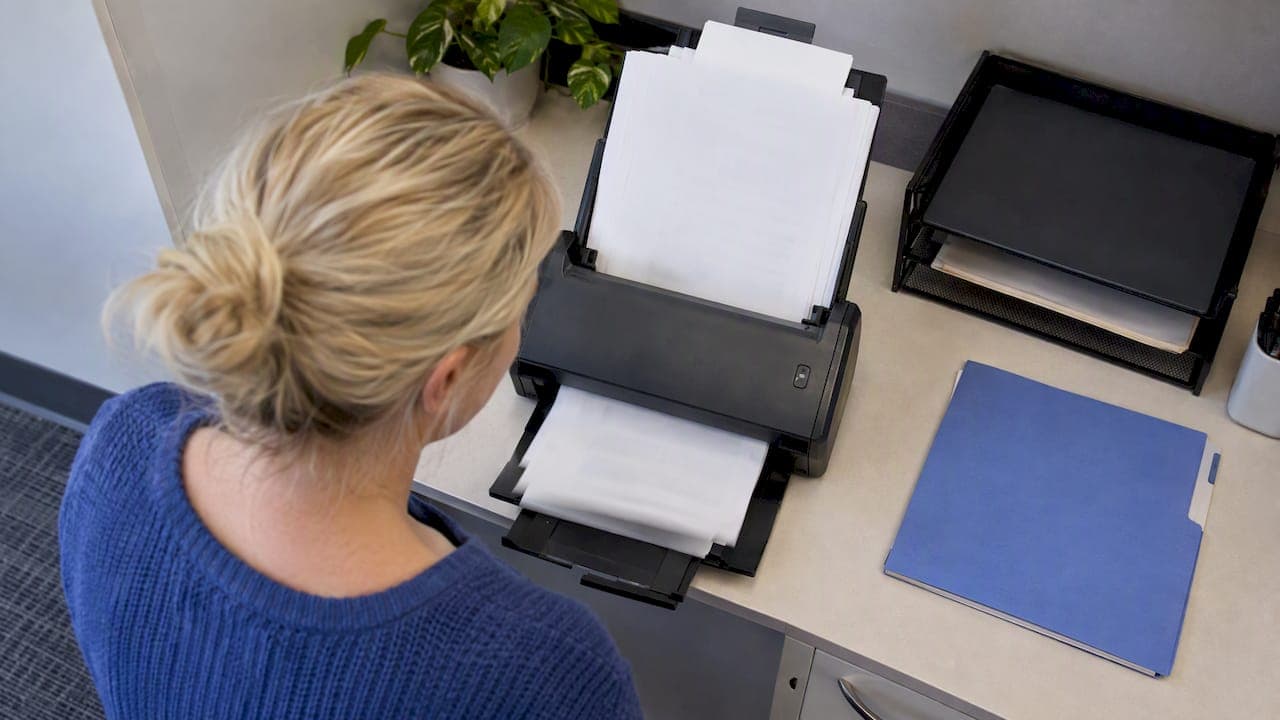
A straightforward way to scan to PDF on Windows 10 is to use the Windows Scan app: install it from the Microsoft Store, pick PDF as the file type, and scan. If your scanner is older, scan to an image and save it with Microsoft Print to PDF. On your phone, the OneDrive app saves multi-page scans as PDFs automatically.
TL;DR:
- For ordinary text, set resolution to 300 DPI and use grayscale; higher resolution enlarges files, while color preserves meaningful stamps or charts.
- Older scanners may require Windows Fax and Scan to save each page as an image, then Microsoft Print to PDF; pages remain separate unless merged.
- OneDrive supports up to 10 pages per scan and saves PDFs automatically, but phone image quality suffers from shadows, curved pages, and tilted angles.
- Desktop Word can convert a scanned PDF into editable text, but results depend on page layout and scan quality; straighten and crop pages first.
Table of Contents
- Which scanning route fits your setup?
- How do you scan directly to PDF with the Windows Scan app?
- What if you have an older scanner? Use Windows Fax and Scan
- Can you scan with your camera or phone instead?
- Which settings give you a clean, searchable PDF?
- What should you do when Windows can't find your scanner?
- Why keep your scanned PDFs on your own machine?
- How can we help you manage PDFs after scanning?
- FAQ
- Sources
Which scanning route fits your setup?
Windows 10 offers several practical routes, and the right one depends on your hardware and how fast you need the file.
- Windows Scan: Best for modern scanners and printers. It saves PDFs directly.
- Windows Fax and Scan: A legacy app that still works with older hardware, though it may need a second step to produce a PDF.
- Windows Camera plus Microsoft Print to PDF: Useful when you have no scanner at all and only a webcam or tablet camera.
- OneDrive mobile: The quickest option when a document is in front of you and your phone is in your hand.
If you need to edit the text afterward, scanning is only half the job. Word can open a scanned PDF and convert it into an editable document, and we cover that in the settings section below.
How do you scan directly to PDF with the Windows Scan app?
The Windows Scan app is the cleanest path because it lets you choose PDF as the file type and set everything else in one window. Here is the full sequence:
- Connect your scanner, turn it on, and wait a few seconds for Windows to recognize it.
- Open the Microsoft Store, search for "Windows Scan," and install the app. Then launch it from the Start menu.
- Select your scanner from the Device drop-down list. If it does not appear, jump to the troubleshooting section below.
- Choose the Source: Flatbed for a single page or a book, Feeder for a stack of loose sheets, or Auto-configured to let the app decide.
- Set the File type to PDF.
- Open "Show more" and set the resolution. For ordinary text documents, 300 DPI is usually suitable.
- Pick color or grayscale, then choose the folder where the file should be saved.
- Click Preview. Drag the corner handles to crop out the scanner bed, and rotate the page if needed.
- Click Scan. When it finishes, the app shows a confirmation with a View button that opens the saved file.
By default, scans land in a Scans folder inside your Pictures or Documents library, and the app names files with a simple date or number pattern. You can rename them afterward in File Explorer.
Pro Tip: If you scan a stack through a document feeder, load the pages face up in order, run the whole stack in one pass, and check the page count in the finished PDF before you throw the paper away.

A feeder can be useful for scanning a stack of pages. You load the stack once, and the scanner pulls each sheet through without you lifting a lid between pages.
What if you have an older scanner? Use Windows Fax and Scan
Windows 10 also includes Windows Fax and Scan, a legacy app that handles older scanners well. It may not offer PDF as a direct output, so the workflow has two steps.
- Open Windows Fax and Scan, click New Scan, choose your scanner, and scan to an image format such as JPEG or PNG.
- Open the scanned image, choose File, then Print, and select Microsoft Print to PDF as the printer. Name the file and save it.
This fallback can be useful when your scanner or its software does not save PDFs directly. Each page becomes its own file unless you merge them afterward. Use it when your scanner or its software refuses to save PDFs directly.
Can you scan with your camera or phone instead?
Yes, and you do not need a flatbed to do it. Two options cover most situations.
- Windows Camera: Switch to Document mode, take the shot, then use Export and Print. The Print dialog can save the scan as a PDF through Microsoft Print to PDF.
- OneDrive mobile: Open the app, tap the scan option, and capture your pages. It supports up to 10 pages per scan and saves the result as a PDF automatically.
Phone capture is fast, but quality depends on your lighting. Shadows, curved pages, and a tilted angle all lower sharpness. A flatbed gives more consistent results for contracts, receipts, and anything you plan to archive.
Which settings give you a clean, searchable PDF?
A few choices decide whether your PDF is readable and a reasonable size.
- Resolution: For normal text pages, 300 DPI is usually suitable. Raise it only for photos or fine detail, because higher DPI makes files much larger.
- Color mode: Grayscale keeps text documents small. Use full color only when the color carries meaning, such as a stamped form or a chart.
- File type: Choose PDF for documents so layout stays intact. Save photos as JPEG or PNG.
- Combining pages: Scan a stack through the feeder to get one multi-page file, or merge separate PDFs afterward with a local PDF tool.
- Editable text: Open the saved PDF in desktop Word, and it will offer to convert the scan into an editable document. Results depend on layout and scan quality, and a clean scan can improve the odds. If you want to understand where traditional text recognition falls short, this comparison of AI document processing and traditional OCR explains the tradeoffs.
Pro Tip: Straighten and crop in the Preview window before you scan. A level, trimmed page compresses better and gives text recognition a cleaner starting point.
What should you do when Windows can't find your scanner?
Most detection problems come down to a few fixes, so work through them in order.
- Check the USB cable, the power connection, and try a different USB port.
- Restart the scanner and then the PC.
- Install the manufacturer's full driver suite. Older scanners and some all-in-one printers may not be fully detected by Windows universal drivers, and the full package often unlocks feeder support and PDF options.
- If Windows Fax and Scan is missing, turn it on under Windows Features, then search for it again in the Start menu.
- If an app still cannot save a PDF, scan to an image and use Microsoft Print to PDF as described above.
The manufacturer's support page for your exact model is a useful place to look for the right driver download.
Why keep your scanned PDFs on your own machine?
Scanned papers are often the most sensitive files you own: tax forms, contracts, medical records, IDs. Passing a file through an online converter may involve another service handling it. Keeping the workflow on your own computer, from scanning to merging and password protection, can reduce concerns about sharing files with online services. Local tools also tend to be faster, since nothing has to upload or download.
— Lawton
How can we help you manage PDFs after scanning?
Scanning is the start. Once you have the files, we give you a local way to handle them. LawtonPDF processes everything on your own computer, so your documents stay private. You can:
- Merge several scans into one PDF
- Extract or rotate pages
- Add a watermark
- Password protect or unlock a file
- Compare two documents side by side

Start with our free version, or see what the Plus and Business plans include on our pricing page.
FAQ
How do I convert a scanned document to PDF for free?
Use the free Windows Scan app and set the file type to PDF, or scan to an image and save it with Microsoft Print to PDF, which is built into Windows 10. Both work without paying for extra software.
How do I scan directly to OneDrive from my phone?
Open the OneDrive mobile app and use its scan option to capture your pages. The app saves scans as PDFs and supports up to 10 pages in a single scan.
How do I combine multiple scans into one PDF?
Scan a stack through a feeder so the pages land in one file. If you already have separate PDFs, merge them with a local PDF tool such as LawtonPDF.
Can I edit a scanned PDF?
Yes. Desktop Word can open a scanned PDF and offer to convert it into an editable document, though accuracy depends on scan quality and page layout.