
Flattening a PDF is defined as the process of converting all interactive elements, including form fields, annotations, and comments, into static, non-editable page content. The result is a tamper-proof document that looks identical to the original but cannot be modified by any recipient. Professionals in legal, HR, and accounting workflows rely on this technique daily. Tax forms, signed contracts, and HR onboarding packets all benefit from flattening before final distribution.
What does it mean to flatten a PDF?
Flattening converts interactive elements into static page content, permanently preventing further modification. Think of it as the digital equivalent of printing a document and scanning it back in, except the text quality stays sharp. Form fields disappear as interactive controls and become fixed text on the page. Sticky notes and annotation comments become visible, permanent text rather than floating overlays. The layout and design stay exactly the same.
The industry term for this process is "PDF flattening," and it covers two distinct operations: flattening form fields and annotations, and full-page rasterization. Both produce a locked document, but they work differently and serve different needs. Understanding which method fits your situation saves you from quality problems later.

What are the two main ways to flatten a PDF?
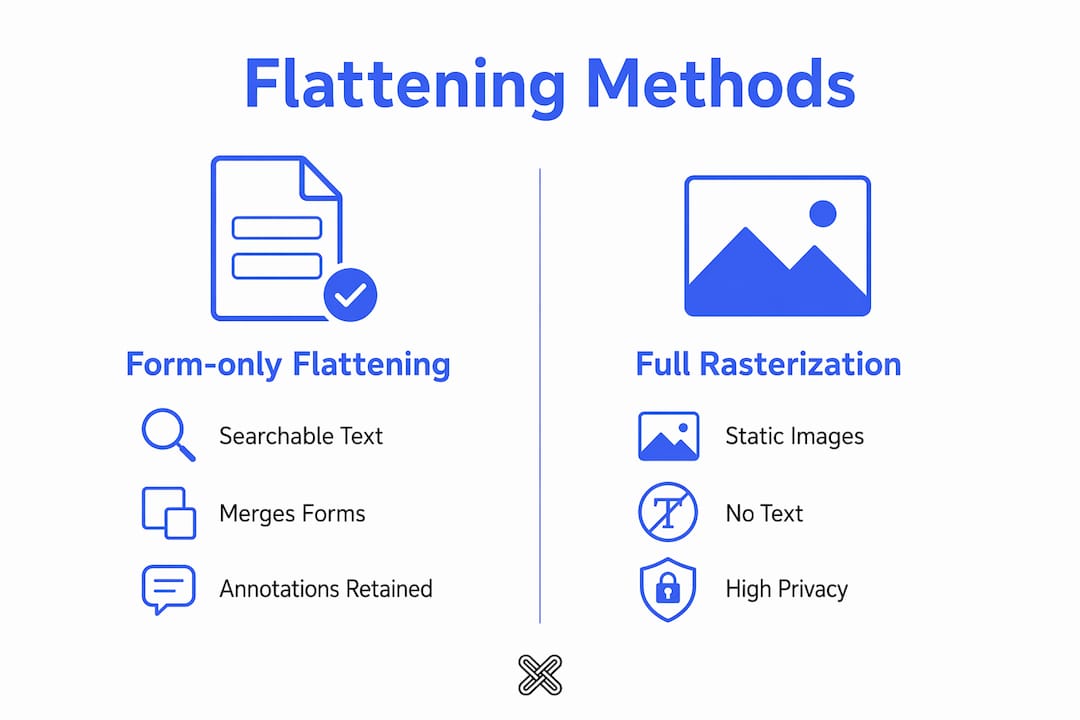
Two primary flattening modes exist, and choosing the wrong one causes real problems.
Form-only flattening merges form fields and annotations into the page stream while keeping the underlying text as selectable, searchable content. The document remains a true PDF with readable text layers. Recipients can copy text, search the document, and use screen readers. This mode works best for tax forms, HR documents, and contracts where accessibility and searchability matter.
Full rasterization converts every page into a static image layer. Nothing remains selectable or searchable. The document looks exactly as it did before, but every character is now a pixel rather than a character. Rasterization is the most secure approach for locking a document visually, but it increases file size and removes text accessibility.
| Feature | Form-only flattening | Full rasterization |
|---|---|---|
| Text remains searchable | Yes | No |
| Form fields locked | Yes | Yes |
| File size impact | Minimal | Often larger |
| Best for | Contracts, tax forms, HR docs | Maximum visual security |
| Screen reader compatible | Yes | No |
Pro Tip: If you need to send a document to a government agency or legal body, use form-only flattening. Reserve rasterization for situations where you need to prevent any text extraction whatsoever.
What tools can you use to flatten PDF files securely?
The right tool depends on your privacy needs, technical comfort, and volume of documents.
Browser-based tools process files locally in your browser without uploading them to a remote server. They handle standard form fields and basic annotations well. Most complete the flattening process in under 10 seconds for typical documents. They require no installation and work on any operating system.
Desktop applications for Windows offer the most control. They support complex annotation types, batch processing, and offline operation. Lawtonpdf, for example, runs entirely on your local machine. No file ever leaves your computer, which matters when you handle sensitive contracts or personal data. You can flatten, merge, protect, and watermark files without an internet connection.
Command-line tools suit developers and IT teams who need to automate flattening across hundreds of files. Ghostscript and qpdf are the two most widely used options. Ghostscript handles rasterization well. qpdf focuses on form-field flattening and preserves text layers. PyMuPDF is a Python library that gives developers fine-grained control over which annotation types to flatten.
- Browser-based tools: Fast, no install required, good for occasional use with non-sensitive files
- Desktop apps (Windows): Offline, private, handles complex PDFs and batch jobs
- Ghostscript: Free, command-line, excellent for rasterization and print-ready output
- qpdf: Free, command-line, preserves text layers, ideal for form-only flattening
- PyMuPDF: Python library, scriptable, supports selective annotation flattening
Professional-grade PDF editors are needed to handle complex annotation types and digital signatures without breaking document validation. Entry-level browser tools often fail on these edge cases.
How to flatten a PDF: step-by-step
Preparation matters as much as execution. Skipping the prep steps causes the most common flattening mistakes.
Preparing your document
- Open the PDF and review all annotations. Look for sticky notes, comments, highlights, and drawing markups.
- Delete any annotations you do not want permanently visible. Annotations become permanently visible after flattening, so remove unwanted ones now.
- Check for digital signatures. If the document has a cryptographic signature that must remain valid, do not flatten it. Keep the original.
- Save a backup copy of the unflattened file. Name it clearly, such as "contract_MASTER_unflattened.pdf." You will need it if changes are required later.
Flattening with a desktop application
- Open the PDF in your chosen desktop application.
- Select the flatten option from the tools or document menu. In Lawtonpdf, this appears directly in the PDF tools panel.
- Choose your flattening mode: form-only or full rasterization.
- Run the flatten operation and wait for confirmation.
- Save the output as a new file. Do not overwrite your master copy.
Verifying the result
- Open the flattened file in a standard PDF viewer.
- Try clicking on areas that previously contained form fields. They should not respond.
- Attempt to select and copy text. If you used form-only flattening, text should remain selectable. If you used rasterization, it should not.
- Check that all annotations appear as fixed content on the page, not as floating overlays.
Pro Tip: Always verify the flattened file on a different device or viewer before sending it. Some PDF viewers cache interactive elements from a previously opened version, which can make a flattened file appear editable when it is not.
Common mistakes when flattening PDFs
Knowing what goes wrong helps you avoid it.
- Flattening a signed document without keeping the original. Digital signatures become cryptographically invalid after flattening. The signature image stays visible, but no software can verify it. If signature validation matters, keep the unflattened original and send that instead.
- Not cleaning up annotations first. Users often overlook that annotations become permanently visible after flattening. A sticky note left on a contract becomes part of the permanent record.
- Overwriting the master file. Flattening is irreversible. Once interactive elements merge into the page stream, you cannot recover them. Always save the flattened version as a separate file.
- Choosing rasterization when form-only flattening was needed. Rasterization can produce blurry text at lower resolutions and removes searchability. Use it only when maximum visual lock-down is the goal.
- Ignoring file size after flattening. Rasterized PDFs can grow significantly in size. If file size matters for email or upload limits, use form-only flattening or apply PDF compression after flattening.
Flattening is a one-way operation. The moment you merge interactive elements into the page stream, you lose the ability to edit, update, or re-sign the document. Treat your unflattened master copy the way you treat an original signed paper document. Keep it safe, keep it separate, and never distribute it as your working file.
Key Takeaways
Flattening a PDF permanently merges all interactive elements into static page content, making it the correct final step before distributing any document that must not be modified.
| Point | Details |
|---|---|
| Two flattening modes exist | Form-only flattening keeps text searchable; rasterization locks everything as an image. |
| Preparation prevents mistakes | Delete unwanted annotations and save a master copy before you flatten. |
| Digital signatures break | Flattening invalidates cryptographic signatures; keep the original if validation is required. |
| Flattening is irreversible | Once merged into the page stream, interactive elements cannot be recovered. |
| Tool choice affects quality | Desktop apps handle complex PDFs better than browser-based tools for sensitive documents. |
Why I always flatten last and verify twice
Most people flatten too early in their workflow. They flatten a draft, then realize they need to make a correction, and suddenly they are stuck with a locked file and no master copy. I have seen this happen with tax submissions, vendor contracts, and HR packets. The fix is always the same: treat flattening as the very last step, not a mid-process action.
The other mistake I see constantly is assuming that flattening equals signing. It does not. Flattening locks the visual appearance of a document. It does not authenticate who made the changes or when. If you need both a locked document and a verifiable identity record, you need a cryptographic signature applied before flattening, with the signed original kept separately.
My personal rule: flatten, verify on a second device, then send. That second verification step catches viewer-caching issues and confirms the file behaves as expected for the recipient. It takes 60 seconds and has saved me from sending editable files more than once. You can read more practical PDF workflow advice on the Lawtonpdf blog.
— Lawton
Lawtonpdf handles PDF flattening without sending your files anywhere
Lawtonpdf runs entirely on your Windows computer. No file ever leaves your machine, which makes it the right choice when you handle contracts, financial records, or any document you cannot afford to expose.
The free PDF tools for Windows from Lawtonpdf include flattening alongside merging, rotating, watermarking, protecting, and unlocking files. You get professional-grade results without a subscription or an internet connection. If you manage documents that require consistent formatting and locked content before distribution, Lawtonpdf gives you the control to do it right, every time, entirely offline.
FAQ
What does flattening a PDF actually do?
Flattening converts all interactive elements, including form fields, annotations, and comments, into static page content. The result is a locked document that cannot be edited by any recipient.
Does flattening a PDF reduce file quality?
Form-only flattening has no effect on text quality. Full rasterization can reduce text sharpness at lower resolutions and typically increases file size, so use it only when maximum visual security is the goal.
Can you unflatten a PDF after flattening it?
No. Flattening is permanent and cannot be undone. Always save an unflattened master copy before you run the operation.
Does flattening remove digital signatures?
Flattening keeps the visual appearance of a signature on the page but breaks cryptographic validation. Any software that checks signature authenticity will report the signature as invalid after flattening.
Is it safe to use online tools to flatten PDF files?
Browser-based tools that process files locally without uploading them are safe for non-sensitive documents. For confidential files, use offline desktop software like Lawtonpdf, which processes everything on your own machine.