
Adding a watermark to a PDF means embedding a visible text or image overlay directly onto document pages. You can mark files as "CONFIDENTIAL," "DRAFT," or add a logo for branding, and the watermark travels with the document wherever it goes. Here is the core process:
- Open your PDF in a watermarking tool (desktop software, browser-based tool, or command-line utility).
- Choose your watermark type: text (a label like "DRAFT" or a custom message) or image (a logo or stamp).
- Customize the appearance: set opacity (how transparent the mark appears), rotation angle, font size or image scale, and position on the page.
- Set page coverage: apply to all pages, odd or even pages only, or a specific page range.
- Apply and save: confirm the watermark, then download or export the new file. Your original PDF stays unchanged.
Watermark customization covers opacity, rotation, size, and positioning, giving you full control over how the mark looks and where it sits.
How do you add a watermark to a PDF step by step?
The workflow is consistent across most tools. Follow these steps for a clean result every time.

Step 1: Import your PDF Open the tool and load your file. Browser-based tools read the PDF locally before you configure anything.
Step 2: Choose text or image mode
- Text mode: type your label (CONFIDENTIAL, DRAFT, SAMPLE, PAID, or a custom phrase), then pick font size, color, opacity, and rotation.
- Image mode: upload a PNG or JPEG. PNG with transparency blends more naturally than JPEG and keeps the underlying content legible.
Step 3: Customize appearance and position
- Opacity: lower values create a subtle background mark; higher values make the watermark more prominent.
- Rotation: a 45-degree diagonal is the classic document stamp look.
- Position: center, corners, edges, or custom coordinates.
- Tiling: repeat the watermark across the full page, useful for SAMPLE or copyright labels that should stay visible even if the page is cropped.
Step 4: Set page coverage
Professionals often configure watermarking for specific page ranges rather than applying to every page, which preserves readability on cover pages or appendices.
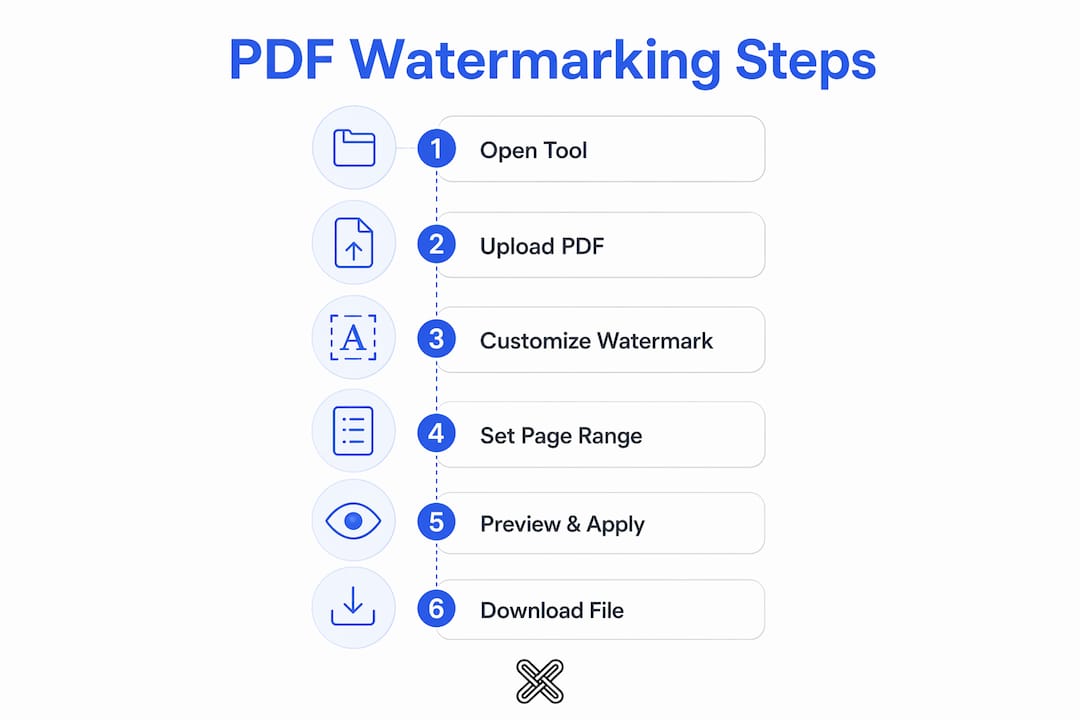
Step 5: Preview, then apply Review the watermark on at least one page before finalizing. Adjust opacity or size if the mark obscures important text.
Step 6: Download or export The tool generates a new watermarked file. Your source PDF is not modified.
Which tools can you use to watermark a PDF?
Several solid options exist depending on your workflow, privacy needs, and budget.
- Adobe Acrobat: the desktop standard for PDF watermarking. Navigate to Tools > Edit PDF > Watermark > Add. Acrobat supports dynamic text variables (automatic page numbers, dates, filenames), watermark templates you can save and reuse, and batch application across multiple files. It is the right choice for organizations that watermark on a fixed schedule.
- iLovePDF: a browser-based tool at ilovepdf.com that handles text and image watermarks with appearance controls. No installation required, and results come quickly. Good for occasional use when you do not need local processing.
- VisualPDF: another online option at visualpdf.com with a straightforward interface for adding text or image watermarks to PDFs without software installation.
- Browser-based local tools: tools built on pdf-lib and WebAssembly (WASM) process your file entirely in browser memory, with no server upload. These suit sensitive documents where you cannot risk sending files through a third-party server.
- Command-line utilities: pdftk and qpdf handle batch watermarking workflows and work well for automated pipelines. There is a learning curve, but for scripted document processing they are hard to beat.
- Word and Google Docs: these add watermarks to documents you create from scratch, which then export to PDF. They do not work on existing PDFs without converting the file first, usually at the cost of layout fidelity.
Are local-first watermarking tools safer for sensitive documents?
Yes, and the difference matters when the files contain confidential information. Cloud-based tools upload your PDF to a remote server for processing. Local-first tools keep the file in your device's memory the entire time, so nothing leaves your machine.
Technologies like pdf-lib and WebAssembly enable full watermarking in the browser without any upload. For highly sensitive documents, experts advise against cloud-based tools and recommend local or isolated environments instead.
A few additional steps strengthen security after watermarking:
- Use PNG for image watermarks. PNG transparency overlays cleanly without blocking the content beneath it.
- Flatten the document. Flattening merges the watermark layer with the page content, making casual removal much harder.
- Add password protection. Pairing flattening with a password creates a meaningful barrier against modification.
- Remember what a watermark is not. Watermarks are visual markers, not encryption or access control. They deter casual misuse but do not prevent a determined person with a PDF editor from removing them.
Pro Tip: Lawtonpdf processes all files locally on your Windows machine, so your PDFs never touch a cloud server. Use its watermark tool alongside the flatten and password protect features for a complete, private workflow.
How do you watermark multiple PDF files at once?
Batch watermarking saves time when you need to stamp dozens or hundreds of files with the same mark.

Adobe Acrobat handles this natively. After configuring your watermark settings, select "Apply to Multiple Files," add your PDFs, and choose an output folder. Every file gets the same watermark in one pass.
Command-line tools like pdftk and qpdf are the go-to for automated batch workflows. You can write a simple script that loops through a folder and applies a watermark to each file, which is practical for recurring tasks like stamping every incoming contract with a "RECEIVED" label. Lawtonpdf also supports batch processing for users who want a local Windows application without writing scripts.
Can you remove or edit an existing watermark?
It depends on how the watermark was applied. If the PDF was not flattened, a watermark added as a separate layer can often be selected and deleted in a PDF editor. Acrobat includes a built-in Remove Watermark option under the same Watermark menu used to add one.
Flattened PDFs are a different story. Once the watermark is merged into the page content, removing it cleanly requires reconstructing the affected content, which is difficult and often impractical. Password-protected and flattened PDFs together make removal even harder. If you need to update a watermark on a flattened file, the cleanest path is to go back to the original unwatermarked source and re-apply.
What should you do when watermarking goes wrong?
A few problems come up regularly, and most have straightforward fixes.
Watermark covers important text. Lower the opacity or move the position to a corner. A 20–30% opacity diagonal mark is readable without blocking content.
The watermark looks blurry or pixelated. This usually means the source image resolution is too low. Use a high-resolution PNG, and keep the image file under 50KB if file size is a concern.
The watermark only appears on some pages. Check your page range settings. Most tools apply to all pages by default, but a misconfigured range will skip pages silently.
The tool won't open a password-protected PDF. You need to unlock the file first, apply the watermark, then re-apply password protection if needed.
File size balloons after watermarking. Text watermarks add minimal size. Image watermarks add more depending on resolution. Compress the final PDF if the size increase is a problem.
Where should you place a watermark for best results?
Center placement with a 45-degree rotation works for status labels like DRAFT or CONFIDENTIAL. It is visible on every page without requiring the reader to look for it, and at low opacity it does not block the underlying text.
Corner placement suits logos and branding marks. A small logo in the bottom right corner at 40–60% opacity identifies the document without competing with the content. Avoid placing logos over page numbers or headers, where they create visual clutter.
Tiled watermarks, which repeat the mark across the full page, work well for SAMPLE or copyright labels on documents you expect to be shared or printed. The mark stays visible even if someone crops or screenshots a portion of the page.
One nuance worth knowing: applying a watermark to every page is the default, but selectively watermarking only the cover or key pages can preserve readability in long documents without sacrificing the ownership signal.
Helpful resources for PDF watermarking
- Adobe Acrobat watermarking documentation — official step-by-step guide for desktop watermarking in Acrobat.
- UDT PDF Watermark guide — covers browser-based and command-line watermarking methods with practical examples.
- FWD Tools PDF Watermark — free, no-upload browser tool for text and image watermarks.
- Lawtonpdf PDF tools — local Windows application with watermarking, flattening, password protection, and batch processing, all offline.
- Lawtonpdf blog — guides on secure document management and watermarking best practices.
Lawtonpdf runs entirely on your Windows machine, so your files stay private from start to finish. Watermark, flatten, password protect, and batch process PDFs without sending a single file to the cloud. Try the PDF tools free and see how straightforward local-first document management can be.
Key Takeaways
Adding a PDF watermark is straightforward with the right tool, and pairing it with flattening and password protection gives you the strongest protection short of encryption.
| Point | Details |
|---|---|
| Core watermark steps | Open PDF, choose text or image, set opacity and position, apply, then save a new file. |
| PNG beats JPEG for images | PNG transparency overlays cleanly without obscuring the content beneath it. |
| Flatten after watermarking | Flattening merges the watermark into the page, making casual removal much harder. |
| Watermarks are not security | They deter casual misuse but do not replace passwords or encryption for access control. |
| Local tools protect privacy | Tools that process files in browser memory or on your device avoid cloud server exposure. |